When you try to log into your Windows account and see the message "The Group Policy Client service failed the sign-in. Access is denied," Windows blocks you from reaching your desktop entirely. This error means the Group Policy Client (gpsvc) service did not start correctly during the login process, so Windows could not apply your user settings and permissions.
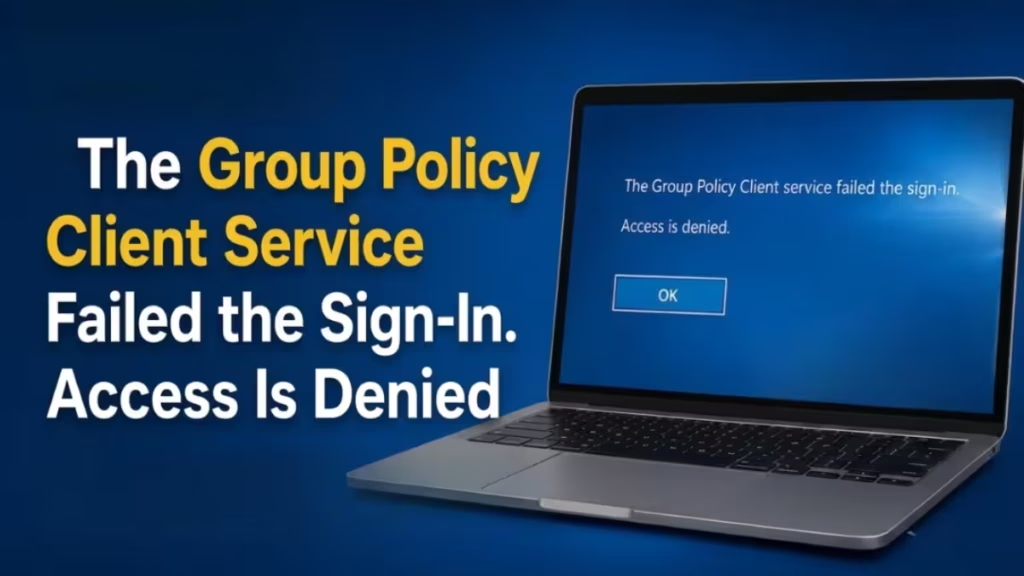
The most common causes include a corrupted user profile, damaged registry entries for the gpsvc service, incorrect service permissions, missing system files, or Fast Startup interfering with a clean shutdown cycle. Domain-joined machines can also trigger this error when the PC cannot reach a domain controller.
This guide covers every working fix, starting with the fastest ones.
Fix 1: Edit the Registry to Repair GPSvcGroup Keys
Broken or missing registry entries under the gpsvc service path stop the Group Policy Client from loading. Adding the correct keys manually restores normal service behavior.
Warning: Editing the registry incorrectly can cause serious system damage. Back up the registry before making any changes.
- Press Windows + R, type
regedit, and press Enter. - In the left pane, navigate to:
HKEY_LOCAL_MACHINE\SYSTEM\CurrentControlSet\Services\gpsvc
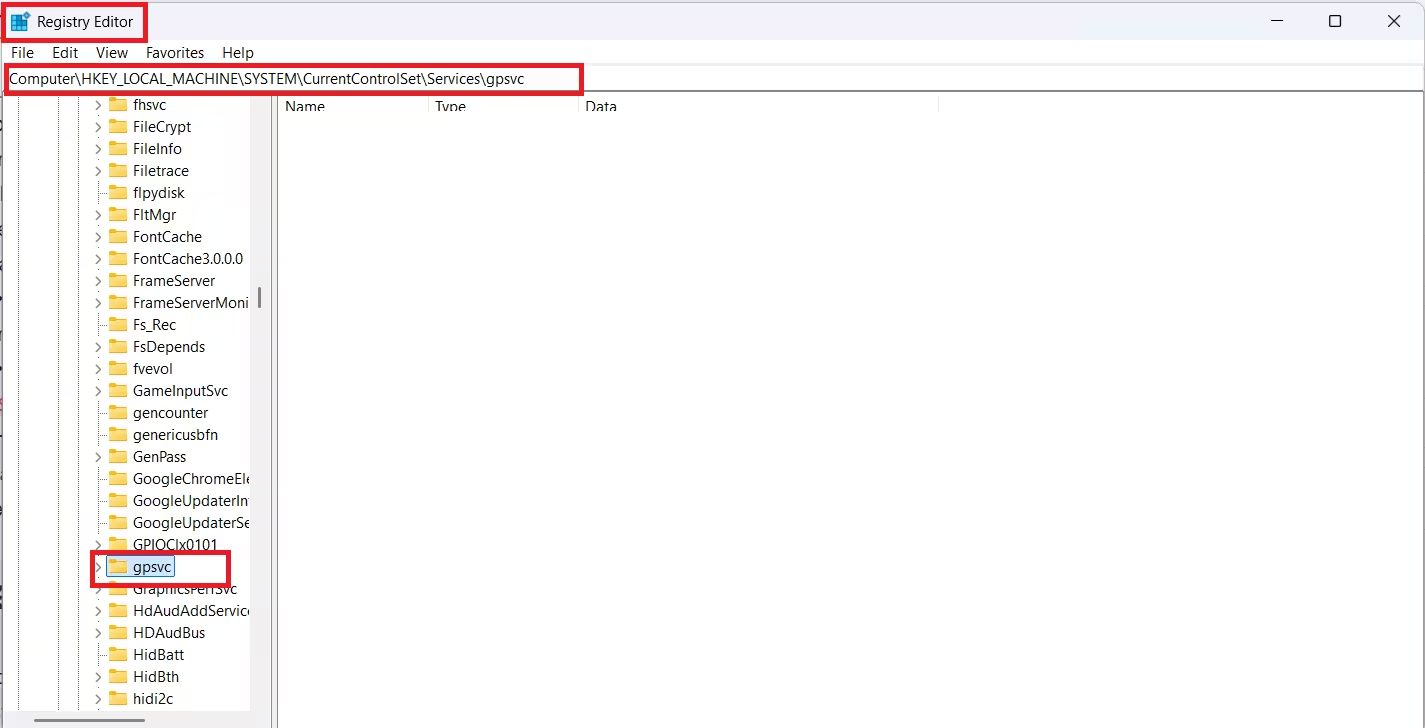
- Confirm this key exists without modifying it.
- Now navigate to:
HKEY_LOCAL_MACHINE\SOFTWARE\Microsoft\Windows NT\CurrentVersion\SVCHOST
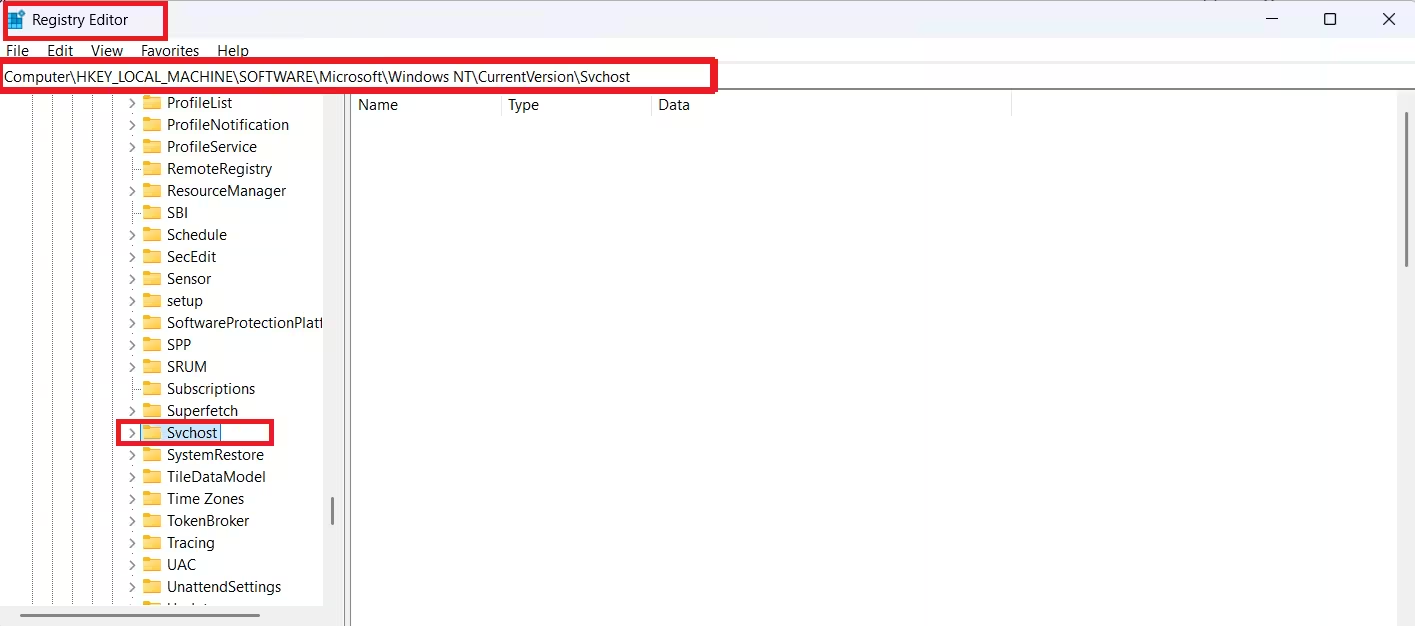
- In the right pane, check for a Multi-String value named
GPSvcGroup. If it is missing, right-click the right pane, select New > Multi-String Value, name itGPSvcGroup, and set its value toGPSvc. - In the left pane under
SVCHOST, check for a key (folder) namedGPSvcGroup. If it does not exist, right-click and select New > Key, then name itGPSvcGroup. - Open the
GPSvcGroupkey and create two DWORD values in the right pane:- AuthenticationCapabilities set to
0x00003020(decimal:12320) - CoInitializeSecurityParam set to
1
- AuthenticationCapabilities set to
- Close the Registry Editor and restart your PC.
Fix 2: Take Ownership of the gpsvc Registry Key
If Windows lost proper ownership of the gpsvc registry key, the service cannot read its own configuration. Taking ownership and restoring the correct registry value resolves the access block.
- Press Windows + R, type
regedit, and press Enter. - Navigate to:
HKEY_LOCAL_MACHINE\SYSTEM\CurrentControlSet\Services\gpsvc
- Right-click the
gpsvckey and select Permissions. - Click Change next to the current owner (TrustedInstaller).
- In the Select User or Group window, click Advanced, then Find Now.
- Select your username from the results and click OK twice.
- Close Registry Editor.
- Open Command Prompt as Administrator and run:
reg add "HKLM\SYSTEM\CurrentControlSet\Services\gpsvc" /v Type /t REG_DWORD /d 0x10 /f - You should see: "The operation completed successfully." If you see "Access is denied," repeat the ownership steps above.
- Restart your PC.
Fix 3: Restart the Group Policy Client Service
The service may have simply failed to start during the last boot due to a timing conflict or resource limitation. Restarting it manually from a working admin account often resolves the issue right away.
- Log in with an Administrator account (if available) or boot into Safe Mode.
- Press Windows + R, type
services.msc, and press Enter. - Scroll down to Group Policy Client, right-click it, and select Properties.
- Set Startup type to Automatic.
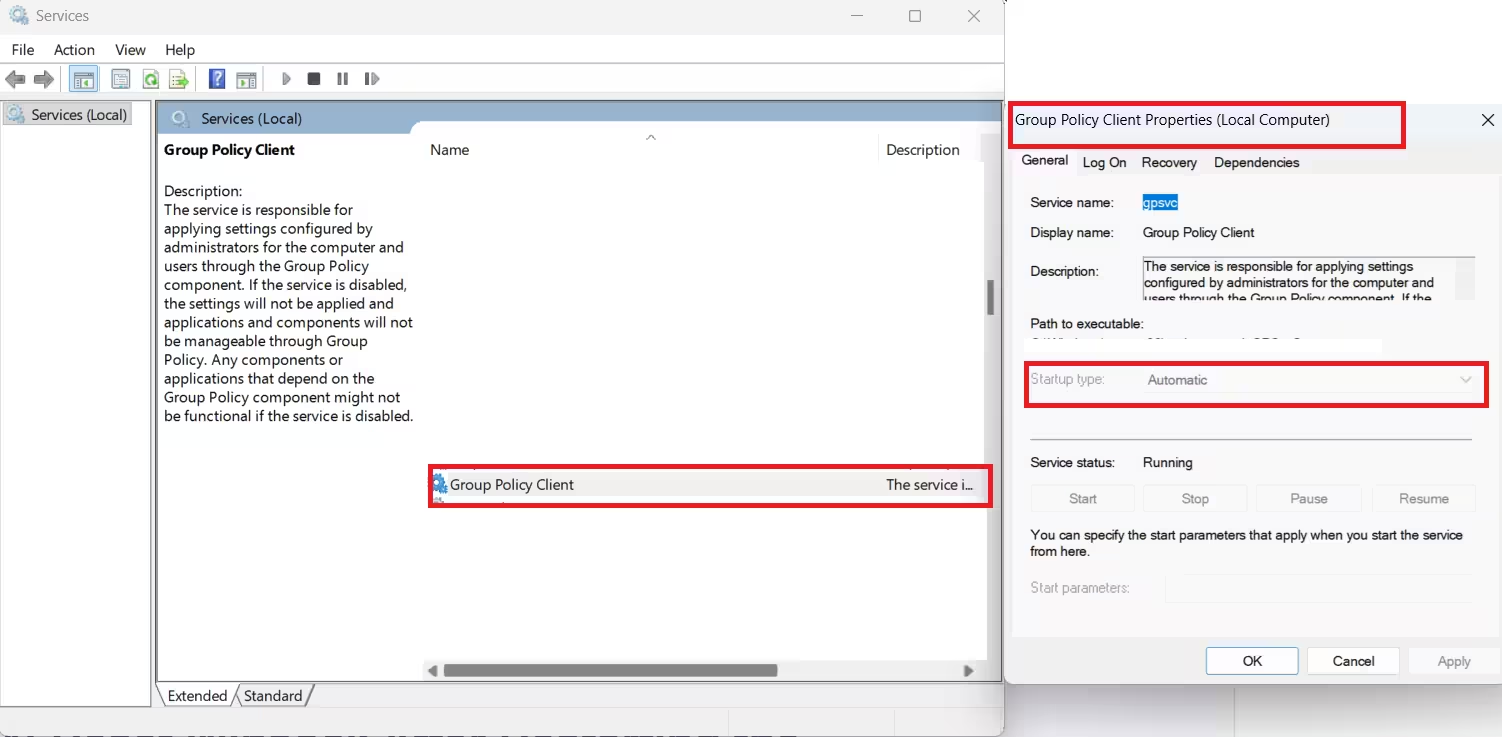
- Click Start, then Apply, and OK.
- Restart your PC and attempt to log into the affected account.
If the service refuses to start, open Event Viewer and check Windows Logs > System for error entries around the time of login or boot.
Fix 4: Reset Winsock After Restarting the Service
Network-related failures can block the Group Policy Client from reaching required services. Combining a service restart with a Winsock reset clears both sides of the problem.
- Press Windows + R, type
services.msc, and press Enter. - Locate Group Policy Client, right-click it, and select Properties.
- Set Startup type to Automatic, click Start, then Apply and OK.
- Right-click the Start button and select Command Prompt (Admin) or Windows PowerShell (Admin).
- Run the following command and press Enter:
netsh winsock reset - Type
exitand press Enter. - Restart your PC.
Fix 5: Repair the Corrupted User Profile via Registry
A corrupted user profile causes Windows to fail the Group Policy step during login. The profile registry key usually shows a .bak extension when corruption is present.
- Log in with a different Administrator account.
- Press Windows + R, type
regedit, and press Enter. - Navigate to:
HKEY_LOCAL_MACHINE\SOFTWARE\Microsoft\Windows NT\CurrentVersion\ProfileList - Look through the keys (SIDs) for one with a
.bakextension on the folder name. This indicates Windows failed to load that profile. - If you find two keys with the same SID (one with
.bakand one without), delete the one without.bak, then rename the.bakkey by removing the.baksuffix. - If only one key exists with
.bak, rename it by removing.bak. - Close Registry Editor.
- Navigate to
C:\Usersand back up the data from the problematic profile folder. - Restart your PC and log into the affected account. Windows will rebuild the profile.
Note: Personalized settings may not carry over. Back up the profile folder at
C:\Users\[username]before making registry changes.
Fix 6: Run SFC and DISM to Repair System Files
Corrupted Windows system files can silently block the Group Policy Client service from initializing. The built-in SFC and DISM tools detect and repair these files automatically.
- Open Command Prompt as Administrator.
- Run the System File Checker:
sfc /scannow - Wait for the scan to complete. It checks every protected system file and replaces corrupted ones.
- After SFC finishes, run DISM to perform a deeper repair using Windows Update:
DISM /Online /Cleanup-Image /RestoreHealth - Wait for DISM to finish, then restart your PC.
- Try logging into the affected account again.
Fix 7: Use a System Restore Point
If the error started after a recent update or configuration change, rolling back to an earlier restore point removes the change and restores the working state.
If You Have Multiple Accounts
- Right-click the Start button and select System.
- Click System Protection in the left column.
- Click System Restore and then Next.
- Check Show more restore points if needed.
- Select a restore point dated before the error first appeared.
- Complete the wizard. Your PC restarts automatically. Your personal files stay intact, but some recently installed programs may be removed.
If You Have Only One Account
- On the login screen, hold Shift and click the Power button, then select Restart.
- When the Choose an Option menu appears, select Troubleshoot > Advanced options > System Restore.
- Choose a restore point from before the issue started and complete the process.
If no restore point exists, you can choose Troubleshoot > Reset this PC > Keep my files to reset Windows while keeping your data.
Fix 8: Disable Fast Startup
Fast Startup prevents Windows from fully shutting down the system. This means Group Policy and related services do not get a proper reset between sessions. Disabling it forces a full shutdown and restart cycle every time.
- Click Start and open Settings.
- Go to System, then select Power & Sleep.
- Click Additional Power Settings.
- Click Choose what the power buttons do.
- Click Change settings that are currently unavailable.
- Scroll to Shutdown settings and uncheck Turn on fast startup.
- Click Save changes.
- Restart your PC.
Fix 9: Re-Log Accounts in a Specific Order
On systems with multiple accounts, logging out and back in with a specific sequence can reset stuck Group Policy processes without a full system restart. This works by letting the service reinitialize through a working account before the problem account loads.
Assume you have three accounts: Working_1, Working_2, and Account_Problem.
- Switch users so all three accounts are logged in simultaneously.
- Log off each account in this order: Working_1, Account_Problem, Working_2.
- Log back into Working_1 and use it briefly.
- Then log into Working_2 and use it briefly.
- Finally, log into Account_Problem and check if the error is gone.
Note: This technique also works with just two accounts. Log out the problem account before the working account, then log the working account back in first.
Related Guides
- Antigravity IDE Not Working on Windows 11: How to Fix It
- How to Fix CRITICAL_SERVICE_FAILED (0x5A) on Windows 11 Without Safe Mode
- How to Debloat Windows 11 Safely for Faster Performance and Less Bloat
The "Group Policy Client service failed the sign-in" error blocks access to your desktop, but every cause has a direct fix. Start with the registry repair in Fix 1, then work through the service restart, user profile repair, and SFC/DISM scans if needed. Disabling Fast Startup and resetting Winsock cover the less obvious triggers. If you still face the error after trying all fixes, leave a comment below describing your setup and Windows version.