Microsoft PowerToys is one of the best free additions you can make to Windows 11. It bundles over 25 utilities that Microsoft builds and maintains directly, so they integrate cleanly with the OS without the reliability risks that come with unknown third-party software.
The latest release, PowerToys v0.99, adds two new tools worth knowing: Power Display and Grab and Move. This guide covers what those tools do, walks through every way to install Microsoft PowerToys on Windows 11, lists every utility in the suite, and explains which popular third-party apps PowerToys now makes unnecessary.
What Is Microsoft PowerToys?
Microsoft PowerToys is a free, open-source collection of utilities for Windows 10 and Windows 11. Microsoft builds it directly, so it integrates with the operating system without the driver conflicts or background risks that come with random productivity tools from unknown publishers.
You can pick exactly which Microsoft PowerToys tools you want active and disable the rest with a single toggle in the Settings panel. Unlike many best PC repair utilities for Windows 11, PowerToys focuses on productivity and customization rather than system repair. The suite currently includes more than 25 utilities covering window management, clipboard tools, keyboard remapping, color picking, file preview, and more.
What’s New in PowerToys v0.99?
Power Display (Preview)
Power Display is the standout addition in v0.99. It sits in the Windows system tray and provides a clean flyout menu to control your monitor’s brightness, contrast, color temperature, volume (for displays with built-in speakers), and input source without touching the physical buttons on the monitor.
Power Display uses DDC/CI (Display Data Channel / Command Interface) to communicate directly with external monitors over the display cable. Adjustments are real hardware changes, not software overlays. When you lower the brightness through Power Display, the monitor itself dims, exactly as if you pressed the physical button.
What you can control with Power Display:
- Brightness
- Contrast
- Color temperature
- Volume (for monitors with built-in speakers)
- Input source
- Custom profiles switchable with a single click, including across multiple displays
Power Display also integrates with Light Switch, the PowerToys tool that switches Windows between light and dark themes on a schedule. You can tie one monitor profile to your light mode hours and a different profile to dark mode so the switch happens automatically.
DDC/CI requirements and limitations:
- External monitors must support DDC/CI for full functionality
- Some desktop monitors require you to enable DDC/CI inside the monitor’s own settings menu before Power Display connects
- Laptop integrated displays do not support DDC/CI, so only a basic brightness slider appears for those screens
- PowerToys v0.99.1 added more troubleshooting guidance for monitors that behave unexpectedly with Power Display, since the tool is still in preview
Before Power Display existed, users relied on tools like TwinkleTray for this. Power Display does the same job and sits natively inside the Microsoft PowerToys framework.
Grab and Move
Grab and Move solves a persistent annoyance in Windows window management. Normally, you can only drag a window by clicking and holding its title bar. With Grab and Move active, you hold Alt and click anywhere on the window body to drag it.
This removes a real friction point in multitasking. Title bars on certain windows are narrow, partially off-screen, or hidden behind other content. Grab and Move eliminates the need to aim precisely at a thin strip at the top of each window. Linux desktop environments have included this behavior for years, and the third-party tool AltDrag brought it to Windows as a separate install. PowerToys v0.99 builds it directly into the suite.
All Microsoft PowerToys Utilities
| Tool | What It Does |
|---|---|
| Advanced Paste | Transforms clipboard content into plain text, JSON, Markdown, or applies AI-powered custom actions before pasting |
| Always on Top | Pins any window above all others using a keyboard shortcut |
| Awake | Keeps your PC awake without changing the system power settings |
| Color Picker | Picks any color from anywhere on screen and copies it in your preferred format |
| Command Not Found | Suggests WinGet packages when PowerShell 7 does not recognize a command |
| Command Palette | A fast, extensible launcher for apps, files, system commands, calculations, and web queries |
| Crop And Lock | Crops an app window into a smaller thumbnail or interactive sub-window |
| Environment Variables | Views and edits system and user environment variables through a modern interface |
| FancyZones | Creates custom snap layouts for window placement beyond the defaults Windows provides |
| File Explorer Add-ons | Adds preview pane and thumbnail support for SVG, PDF, Markdown, and source code files |
| File Locksmith | Right-clicks any file to show which processes currently hold it open |
| Grab and Move | Drags any window from anywhere on its body by holding Alt and clicking |
| Hosts File Editor | Edits the Windows hosts file through a clean, user-friendly interface |
| Image Resizer | Bulk-resizes images directly from the File Explorer right-click context menu |
| Keyboard Manager | Remaps keys and shortcuts without touching the registry, applying changes instantly |
| Light Switch | Automatically switches Windows between light and dark themes on a time schedule |
| Mouse Utilities | Adds Find My Mouse, cursor highlighter, Mouse Jump, crosshairs, and cursor wrap |
| Mouse Without Borders | Controls multiple PCs with a single keyboard and mouse |
| New+ | Creates files and folders from custom templates through the File Explorer context menu |
| Peek | Previews files instantly without opening the full application |
| Power Display | Controls monitor brightness, contrast, color temperature, and volume from the system tray using DDC/CI |
| PowerRename | Bulk-renames files using search and replace, regular expressions, and undo |
| PowerToys Run | A quick launcher to open apps, files, and system commands |
| Quick Accent | Types accented and special characters using a key-hold overlay |
| Registry Preview | Visualizes and reviews Windows Registry files before applying them |
| Screen Ruler | Measures pixel distances on screen using edge-detection rulers and crosshairs |
| Shortcut Guide | Displays an overlay of available Windows key shortcuts for the current desktop |
| Text Extractor | Copies text from any region of the screen using OCR |
| Workspaces | Launches a defined set of apps in preset window positions with a single click |
| ZoomIt | Zooms, annotates, and records your screen for presentations and demos |
How to Install Microsoft PowerToys on Windows 11
Four installation methods are available. The Microsoft Store method is the simplest choice for most users.
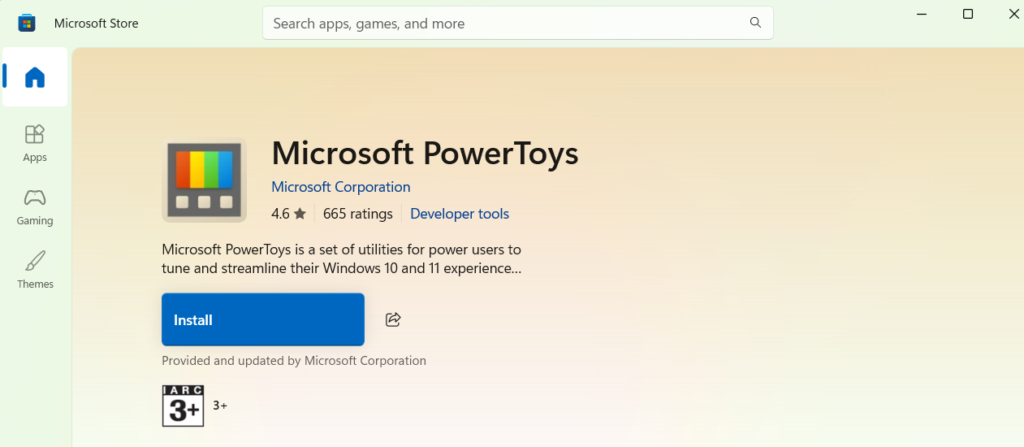
Method 1: Install from the Microsoft Store
- Press Win + S, type Microsoft Store, and open it
- Search for PowerToys in the store’s search bar
- Click the PowerToys result published by Microsoft
- Click Install
The Store handles all future updates automatically, so you always run the latest version.
Method 2: Install from GitHub
- Go to the PowerToys Releases page on GitHub
- Under Assets, download the installer matching your system (x64 for most PCs, arm64 for ARM devices)
- Double-click the downloaded file and follow the on-screen instructions
- Select which utilities to enable during setup
Method 3: Install via Command Prompt
- Press Win + S, type CMD, and select Run as administrator
- Run this command:
winget install --id Microsoft.PowerToys- Type Y when prompted to confirm
Method 4: Install via Windows PowerShell
- Press Win + S, type PowerShell, and select Run as administrator
- Run this command:
winget install Microsoft.PowerToys --source winget- Click Yes in the UAC prompt
All four methods install the same version of Microsoft PowerToys. After installation, PowerToys opens automatically and adds an icon to the system tray. Enable or disable individual tools from the PowerToys Settings panel at any time.
Third-Party Windows Tools You No Longer Need After Installing PowerToys
1. TwinkleTray Replaced by Power Display
TwinkleTray was the standard solution for adjusting external monitor brightness from the system tray using DDC/CI. Power Display in PowerToys v0.99 covers the same functionality and adds color temperature control, input source switching, and custom monitor profiles. If you installed TwinkleTray because Windows lacked a clean built-in option, Power Display is a direct replacement.
2. Flow Launcher and Listary Replaced by Command Palette
Flow Launcher and Listary filled the gap left by the Windows Start menu with fast, keyboard-driven launchers. PowerToys Command Palette handles app launching, file search, web queries, system commands, and calculations. It also supports extensions downloadable from the Microsoft Store. Flow Launcher still offers a deeper plugin ecosystem, but for everyday quick launching, Command Palette handles most users’ needs without a separate install.
3. AltDrag Replaced by Grab and Move
AltDrag let users drag windows from anywhere on the body using the Alt key, a behavior Linux desktops offered by default. PowerToys Grab and Move does exactly this, built directly into the suite.
4. QuickLook Replaced by Peek
QuickLook brought macOS-style spacebar file preview to Windows. PowerToys Peek does the same: select a file, press the assigned shortcut, and get an instant preview without opening the application. QuickLook still supports a wider range of file formats out of the box, but extensions for Peek cover most of the gap, and Peek is sufficient for the most common use cases.
5. SharpKeys Replaced by Keyboard Manager
SharpKeys remapped keys at the registry level and required a system reboot for every change. PowerToys Keyboard Manager handles single-key remapping and shortcut remapping without touching the registry and applies changes immediately without a reboot.
6. Ditto Replaced by Advanced Paste
Ditto is a clipboard manager with a long track record. Windows 11 already includes clipboard history via Win + V, and PowerToys Advanced Paste builds on top of it with options to paste content as plain text, Markdown, or JSON, plus AI-powered text transformations before pasting. Ditto still offers deeper clipboard search and history management, but if you used it mainly for basic clipboard recall and format control, Advanced Paste replaces those needs.
Why PowerToys Has an Edge Over Third-Party Alternatives
Microsoft builds and tests PowerToys against Windows directly. It carries far less risk of breaking after a Windows Update or conflicting with other installed software.
Many issues users encounter, like a webcam not recognized in Windows 11, washed out screenshot colors, or a blue screen after installing a graphics driver, can sometimes trace back to third-party utilities that install low-level hooks or drivers that Windows updates later invalidate. PowerToys avoids that category of risk entirely because Microsoft builds it with full access to the OS internals.
The developers who built TwinkleTray, AltDrag, SharpKeys, and QuickLook deserve real credit. Most of them maintained those tools for free, in their own time, long before Microsoft paid anyone to address these gaps. They answered a need that Microsoft ignored for years. PowerToys now arrives with a salaried team and direct OS access, which puts independent developers in a difficult position to compete long-term.
Should You Keep Third-Party Tools or Switch to PowerToys?
If your current tools work well, there is no urgent reason to switch. The practical takeaway is simpler: the next time you need a new utility or a current tool causes problems, check Microsoft PowerToys before searching for a third-party download. Chances are the feature already exists inside the suite.
Recent Windows improvements, like the Windows 11 KB5077240 update with its built-in speed test and dark mode refinements, and the best Windows 11 built-in antivirus, reflect Microsoft’s current push to reduce reliance on third-party tools across the board. PowerToys fits that direction directly: more of what you need, already inside Windows, from the same publisher.
Frequently Asked Questions
Is Microsoft PowerToys free?
Yes. Microsoft PowerToys is completely free and open-source. You can install it from the Microsoft Store, GitHub, Command Prompt, or PowerShell at no cost.
Does PowerToys work on Windows 10?
Yes. Microsoft PowerToys supports both Windows 10 and Windows 11. Most tools function identically on both versions.
Does Power Display work on laptop screens?
No. Laptop integrated displays do not support DDC/CI, so Power Display only shows a basic brightness slider for those screens. It works fully on external monitors that have DDC/CI enabled.
What is DDC/CI and why does Power Display need it?
DDC/CI stands for Display Data Channel / Command Interface. It is a protocol that lets software send commands directly to a monitor over the display cable, the same way pressing the monitor’s physical buttons does. Power Display needs this protocol to adjust brightness, contrast, and other settings on external displays.
Does installing PowerToys slow down Windows 11?
Most Microsoft PowerToys tools are lightweight. You can disable any tool you do not use, which prevents it from running in the background. Running only the tools you actively need keeps the performance impact minimal.
Related Tech Guides
- Best PC Repair Utilities for Windows 11
- Windows 11 KB5077240 Update Adds Built-In Speed Test, RSAT Support, and Dark Mode Fixes
- Windows 11 Built-In Antivirus in 2026: Do You Still Need Third-Party Protection?
Errors & Fixes

