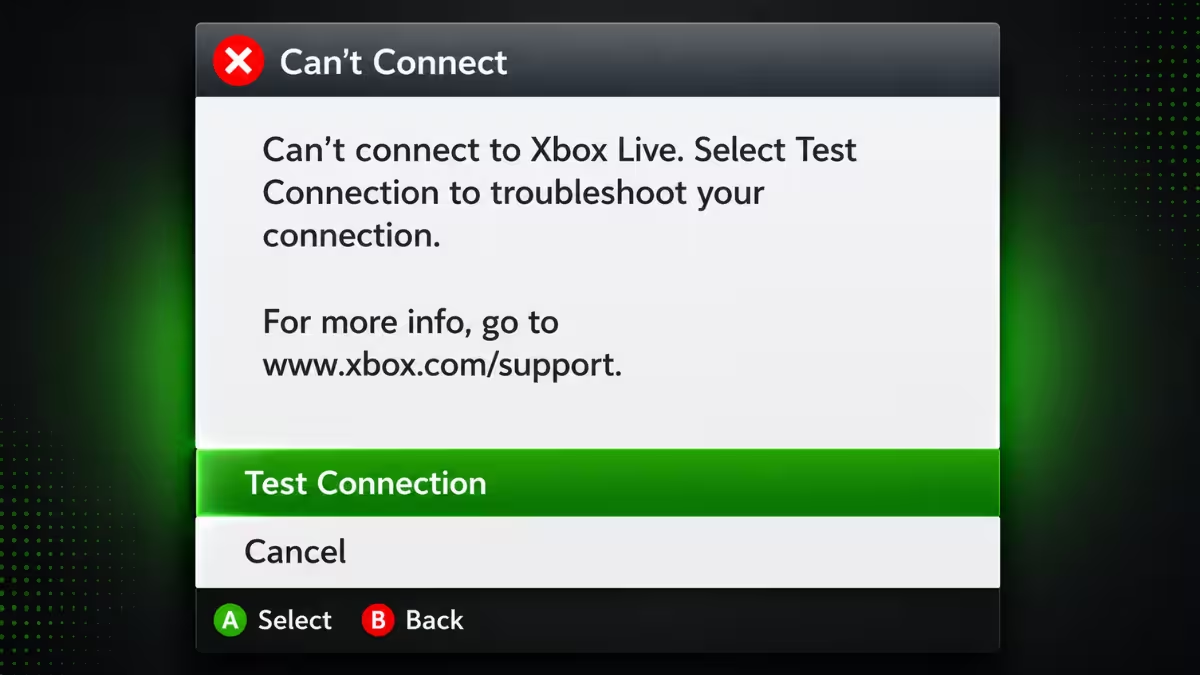
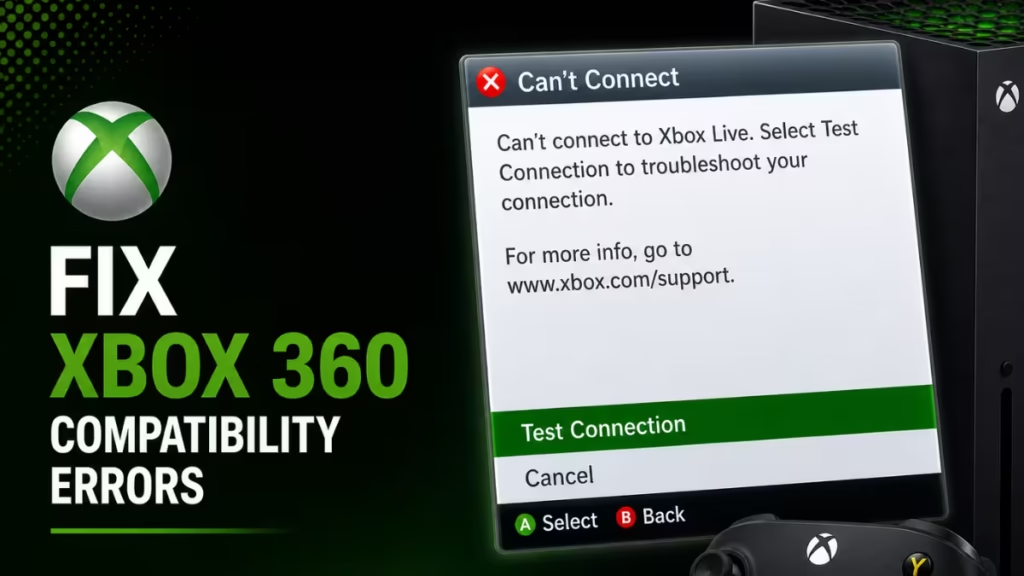
Some Xbox Series X|S players are getting errors when they try to launch Xbox 360 backward compatible titles. The most common is a "Can't Connect to Xbox Live" message that stops the game from loading entirely. If you are seeing this or error code 0x87e10024, here is how to fix both.
Why Are Xbox 360 Backward Compatible Games Not Launching
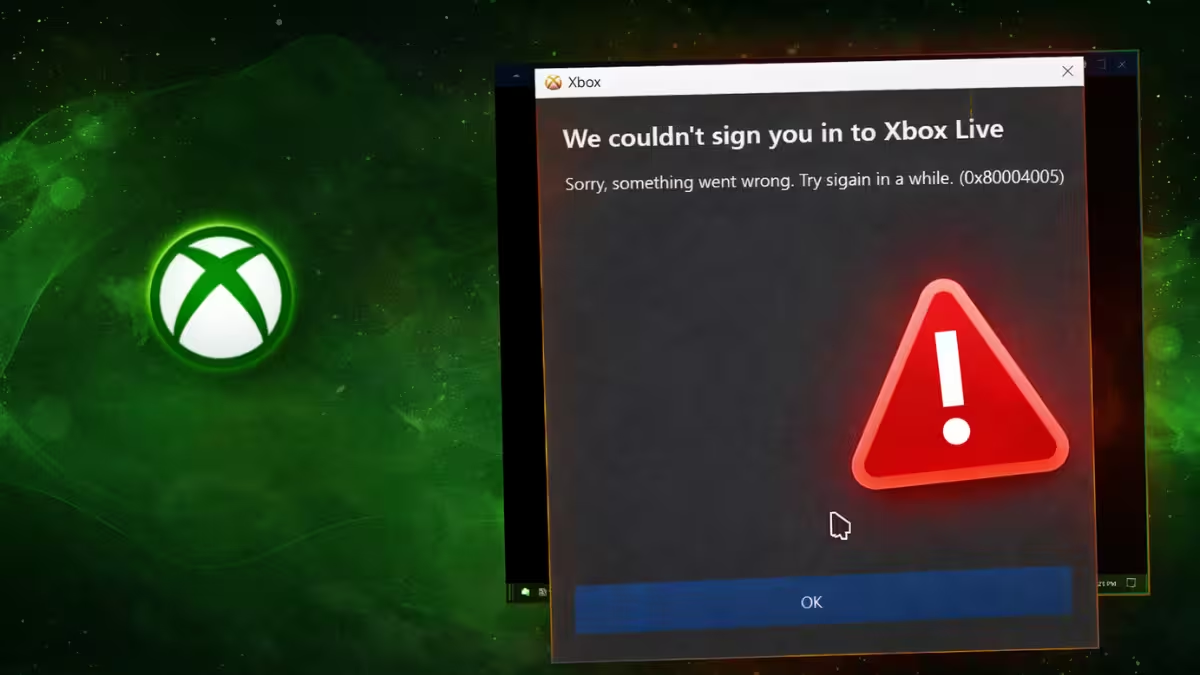
The "Can't Connect to Xbox Live" error shows up when players launch certain Xbox 360 backward compatible games on Xbox Series X|S. Xbox confirmed the issue in late April 2026, and Xbox VP Jason Ronald stated his team was actively investigating. The suspected cause is that newer consoles fail to validate properly against the Xbox 360 legacy servers.
See also: Xbox Error 0x8007041D on Windows 11: How to Fix It
Microsoft resolved this issue on May 2, 2026. If you are still running into errors after the fix, the steps below will help you get back into your games.
Fix 1: Check Xbox Service Status
A server-side outage is one of the most common causes of backward compatibility launch failures. Before changing anything on your console, verify that Xbox services are running normally.
- Go to xbox.com/status
- Look for any services showing alerts
- Expand the affected service
- Scroll to Notifications and sign in to receive an alert when the service comes back online
If Xbox Live is down, you need to wait for Microsoft to resolve it on their end. No console fix will work while the service is offline.
Fix 2: Restart Your Console
A full console restart clears temporary connection issues that can block Xbox 360 game launches.
- Press and hold the Xbox button on your controller
- Select Restart console
- Confirm the restart
- Try launching the backward compatible game again
Fix 3: Verify the Game Is Backward Compatible
Not every Xbox 360 title runs on Xbox Series X|S. Microsoft maintains an official list of supported games, and a title not on that list will not launch regardless of what you try.
- Visit the Xbox Backward Compatible Games Library on xbox.com
- Search for your game title
- If it does not appear in the list, the game is not supported on current hardware
Fix 4: Clear Local Xbox 360 Storage
Corrupted Xbox 360 save data or profile data stored locally on your console can block game launches. Clearing this data does not affect your cloud-saved games or your Xbox Series X|S games and profiles.
- Press the Xbox button to open the guide
- Navigate to Profile & system > Settings > System > Storage
- Select Clear local Xbox 360 storage
- Confirm the action, then try launching the game again
Fix 5: Contact Xbox Support Directly
If none of the fixes above resolve the issue, Microsoft has asked affected players to reach out for individual help.
Xbox VP Jason Ronald posted on X requesting that players who receive the "Can't Connect to Xbox Live" error DM him directly with details so the team can investigate further. You can also contact Xbox Support through Microsoft's official support page for additional troubleshooting options.
How to Fix Error 0x87e10024 on Xbox Series X|S
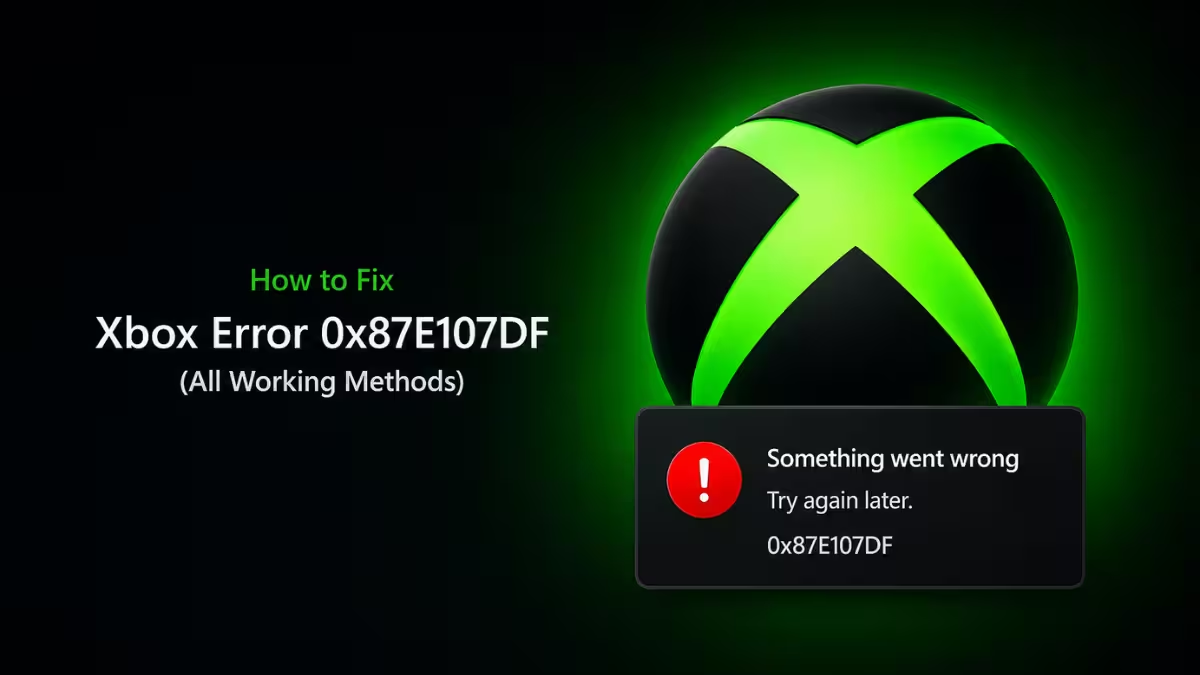
Error 0x87e10024 appears when you insert a backward compatible disc into your Xbox Series X or Xbox One console. The error means the disc is compatible but your console cannot verify it for play. An Xbox service interruption, an incompatible disc, or a physical issue with the disc itself can all trigger this error.
Step 1: Check Xbox Service Status
Follow the same steps from Fix 1 above. A service outage on Microsoft's end is a leading cause of disc verification failures. Check xbox.com/status before anything else.
Step 2: Confirm the Disc Is Backward Compatible
Even if you know a game worked on Xbox 360, it may not be in the backward compatible program for Xbox Series X|S. Check the Xbox Backward Compatible Games Library to confirm your disc is supported on your current console.
Step 3: Remove the Disc and Reinsert It Later
Error 0x87e10024 can be a transient error tied to temporary server-side issues. Remove the disc, wait a few minutes, and insert it again. If the error persists, try again later in the day to rule out a temporary service problem on Microsoft's end.
Frequently Asked Questions
Why are my Xbox 360 backward compatible games not launching on Xbox Series X|S?
The most common cause is a server validation failure between your Xbox Series X|S and the Xbox 360 legacy servers. This triggers a "Can't Connect to Xbox Live" error that blocks the game from loading. Checking Xbox service status at xbox.com/status is the first step to confirm whether Microsoft is experiencing an outage.
What is the "Can't Connect to Xbox Live" error on Xbox backward compatible games?
This error appears when your Xbox Series X|S fails to validate your Xbox 360 backward compatible game against Microsoft's legacy servers. It does not mean your Xbox Live account is banned or suspended. Restarting your console, checking service status, and clearing local Xbox 360 storage are the most effective fixes.
What does error code 0x87e10024 mean on Xbox?
Error 0x87e10024 means your console detected a backward compatible disc but could not verify it for play. An active Xbox service outage, a disc that is not in the official backward compatible program, or physical damage to the disc can all trigger this error.
Will clearing local Xbox 360 storage delete my saved game progress?
No. This process only removes save data and profiles stored locally on your console. It does not delete cloud-saved games, and it does not affect any Xbox Series X|S or Xbox One game data stored on your console.
Can I still buy and download Xbox 360 games for backward compatibility?
Yes. While the Xbox 360 Store closed on July 29, 2024, you can still purchase Xbox 360 backward compatible titles through the storefront on Xbox Series X|S and Xbox One consoles. Any Xbox 360 content you previously purchased remains available to redownload through your purchase history.