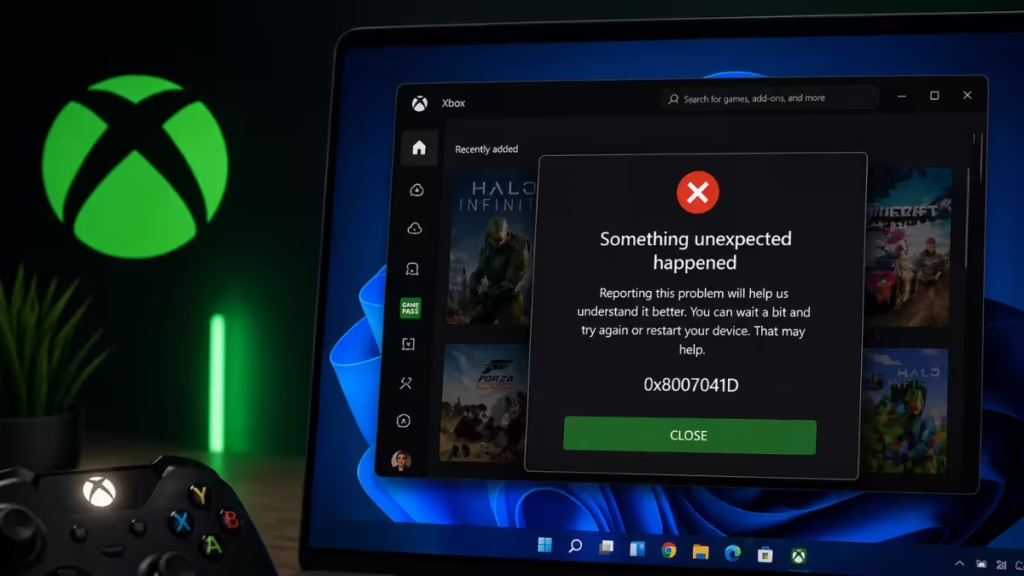
Xbox error 0x8007041D blocks you from signing into the Xbox app, Minecraft, or any Xbox-related game on Windows 11. The error almost always traces back to the Xbox Identity Provider failing to install from the Microsoft Store, where it throws a secondary error code 0x80073CF6. Without the Identity Provider, the Xbox app cannot authenticate your Microsoft account, and the login wall stays up no matter how many times you retry.
This guide walks you through four proven fixes, starting with the fastest ones.
Why Xbox Error 0x8007041D Happens
The 0x8007041D error means a required Windows service timed out or stopped responding during the sign-in process. The Xbox app depends on several background services and the Xbox Identity Provider package to complete authentication. When any of those components breaks or goes missing, the login attempt fails immediately.
Common triggers include:
- A corrupted or missing Xbox Identity Provider app
- One or more background Windows services in a stopped state
- A broken Microsoft Store cache that blocks app installs
- Incorrect system date, time, or region settings disrupting authentication
The fix depends on which layer broke. Work through the options below in order.
Fix 1: Check and Start Required Windows Services
The Xbox sign-in flow relies on several Windows background services. If any of them stop, the 0x8007041D error appears.
- Press Windows + R, type
services.msc, and press Enter. - Locate each of the following services in the list:
- Windows Update
- Background Intelligent Transfer Service (BITS)
- Windows Modules Installer
- Microsoft Store Install Service
- For any service showing Stopped, right-click it and select Start.
- Restart your PC after starting all stopped services.
Try signing into the Xbox app again after the restart. If the error persists, move to Fix 2.
Fix 2: Reset the Microsoft Store Cache
A corrupted Microsoft Store cache prevents the Xbox Identity Provider from installing, which keeps the 0x80073CF6 and 0x8007041D errors alive. Resetting the cache clears the corrupted data without uninstalling any apps.
- Press Windows + R.
- Type
wsreset.exeand press Enter. - Wait for the process to finish. The Microsoft Store opens automatically when it completes.
After the reset, open the Microsoft Store and search for Xbox Identity Provider. Install it if it appears as uninstalled or damaged, then relaunch the Xbox app and sign in.
Fix 3: Verify Date, Time, and Region Settings
Microsoft account authentication is time-sensitive. A system clock that is off by even a few minutes can cause the token exchange to fail and produce the 0x8007041D error.
- Open Settings and go to Time and Language.
- Select Date and time.
- Turn on Set time automatically and Set time zone automatically.
- Go back and select Language and region.
- Confirm that Country or region matches your actual location.
- Restart your PC and test the Xbox app sign-in again.
Fix 4: Repair or Reset the Microsoft Store
When the Store cache reset does not resolve the Xbox Identity Provider installation failure, a full repair or reset of the Microsoft Store app itself is the next step.
- Open Settings and go to Apps, then Installed apps.
- Search for Microsoft Store in the list.
- Click the three-dot menu next to it and select Advanced options.
- Click Repair and wait for the process to complete.
- Test the Xbox app sign-in. If the error continues, return to Advanced options and click Reset.
Note: Resetting the Microsoft Store clears its local data. You will not lose any installed apps, but you may need to sign back into the Store.
After the reset, search for Xbox Identity Provider in the Store, install it, restart your PC, and try signing in again.
Fix 5: Reinstall Xbox Identity Provider via PowerShell
If the Microsoft Store still refuses to install the Xbox Identity Provider, use PowerShell to force-register the package directly.
- Right-click the Start button and select Windows Terminal (Admin) or PowerShell (Admin).
- Run the following command:
Get-AppxPackage -AllUsers Microsoft.XboxIdentityProvider | Remove-AppxPackage- After removal completes, run:
Get-AppxPackage -AllUsers *XboxIdentityProvider* | Foreach {Add-AppxPackage -DisableDevelopmentMode -Register "$($_.InstallLocation)\AppXManifest.xml"}- Restart your PC and launch the Xbox app to sign in.
FAQs
What is Xbox Identity Provider and why does error 0x80073CF6 appear?
Xbox Identity Provider handles Microsoft account sign-in for Xbox apps on Windows. Error 0x80073CF6 usually appears when the Microsoft Store cannot install or repair it because of cache corruption or stopped services.
Why does the same Xbox app work on other PCs in my home but not this one?
The problem is usually specific to that PC. A damaged Store cache, missing Identity Provider, or disabled service can cause the error, while other PCs continue working normally.
Does Xbox error 0x8007041D mean my account is suspended or banned?
No. This error is related to Windows services or missing Xbox components, not account bans. Suspended accounts normally show a different warning message.
Can reinstalling the Xbox app fix error 0x8007041D?
Not always. Reinstalling the Xbox app alone may not help if Xbox Identity Provider or Store services are broken. Repairing those parts is usually the real fix.
I ran all fixes and the error still appears. What next?
Create a new local administrator account and test the Xbox app there. If it works, your current Windows profile may be corrupted. You can also run sfc /scannow to repair system files.