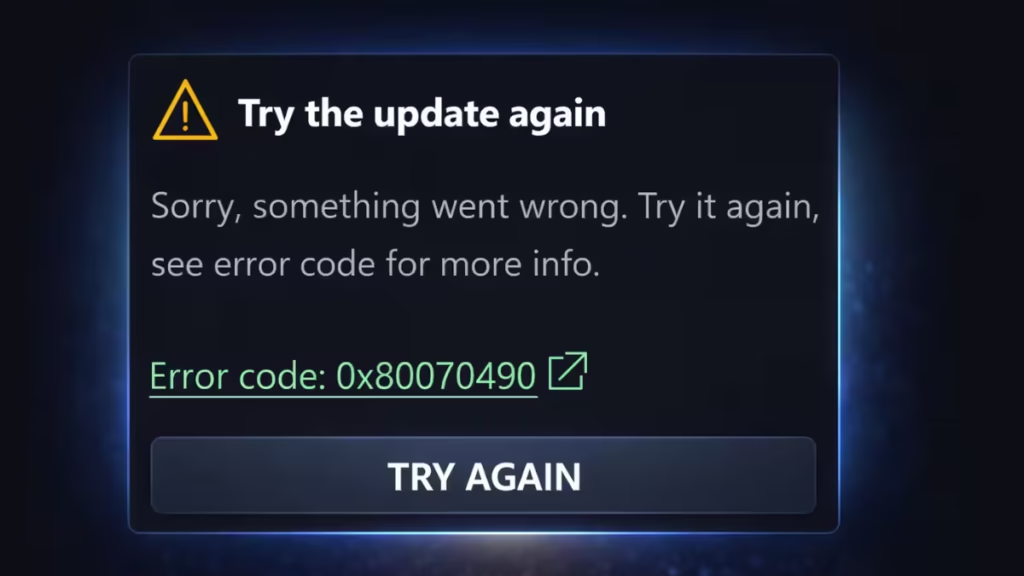
Error 0x80070490 on Xbox usually appears when your console fails to launch a game, open an app, or complete an update. You may see a “Try the update again” message, and in most cases, the issue comes from corrupted system cache, network misconfiguration, or a temporary system glitch that blocks Xbox services.
This guide walks you through every proven fix in the right order; so you can get back to gaming as fast as possible.
What Is Error 0x80070490?
This is a system-level error that prevents your Xbox from accessing required components. It typically appears when:
- System files or cached data have become corrupted
- An update was interrupted or installed incompletely
- Your network configuration is blocking Xbox services
- A temporary system glitch is disrupting a process
Most users fix this within the first 2–3 steps below. Start from the top and work down.
Quick Fix Order (Start Here)
- Power cycle your console
- Check for system updates
- Fix network settings (DNS and NAT)
- Clear persistent storage
- Clear alternate MAC address
- Remove and re-add your account
- Reset the console (last resort)
1. Power Cycle Your Xbox
A power cycle clears temporary system glitches and resets background processes. This is the single most effective first step and resolves the error for many users immediately.
- Press and hold the Xbox button for 10 seconds until the console shuts down completely
- Unplug the power cable from the back of the console
- Wait at least 10 seconds
- Plug the cable back in and power the console on
Don’t use the on-screen restart option — a full cold boot clears more system state than a regular restart.
2. Close Background Apps and Restart
Too many apps running at once can overload system resources. Close all active games and apps, and on Xbox Series X/S, exit any Quick Resume apps as well — these continue consuming memory even when you’re not using them. Then restart your console.
3. Install System Updates
Running outdated software can leave system components out of sync and trigger this error. Check for any pending updates and install them before trying other fixes.
- Go to Settings → System → Updates
- Download and install all available updates
- Restart your console once complete
If updates are failing or getting stuck, that may be caused by the same underlying issue. Skip ahead to Method 4 to fix your network first, then return here.
4. Fix Network Settings
Network misconfiguration is one of the most common causes of this error on Xbox. Two things to address:
Check Your NAT Type
Go to Settings → General → Network Settings and check your NAT type. It should show Open. If it shows Moderate or Strict, your router settings are restricting Xbox’s ability to connect to Microsoft’s servers, which can directly cause this error.
Switch to Google DNS
Changing to a reliable public DNS server often resolves connectivity errors with Xbox services:
- Primary DNS: 8.8.8.8
- Secondary DNS: 8.8.4.4
To update: Settings → General → Network Settings → Advanced Settings → DNS Settings → Manual, then enter the values above and restart.
5. Clear Persistent Storage
Persistent storage holds cached data for Blu-ray and games. When this cache becomes corrupted, it can cause system-level errors. Clearing it is safe — it does not delete your games, saves, or account data.
- Go to Settings → Device & Connections
- Select Blu-ray
- Click Persistent Storage
- Choose Clear Persistent Storage
6. Clear Alternate MAC Address
A cached or incorrect MAC address can prevent your console from properly connecting to Xbox network services. Clearing it forces the console to use a fresh address.
- Go to Settings → General → Network Settings
- Open Advanced Settings
- Select Alternate MAC Address
- Click Clear, then Restart
7. Disconnect External Devices
USB drives, external hard drives, or other accessories can occasionally interfere with system processes. Disconnect all external devices, restart your console, and check if the error is gone. If it is, reconnect devices one at a time to find the one causing the conflict.
8. Remove and Re-Add Your Account
If your account data has become corrupted, the error may keep returning even after other fixes. Removing and re-adding your account refreshes your profile completely.
- Go to Settings → Account → Remove Accounts
- Select and remove your Gamertag
- Restart the console
- Sign back in and add your account again
9. Reset Your Xbox (Last Resort)
If nothing above has worked, a console reset will restore system files to their default state. Start with the option that keeps your games installed — it resets system files without forcing you to re-download everything.
- Go to Settings → System → Console Info → Reset Console
- Choose Reset and keep my games and apps first
- If the error persists after that, repeat the process and choose Reset and remove everything
Reset and remove everything will erase all locally stored games and data. Make sure your saves are backed up to the cloud before proceeding.
Error 0x80070490 is almost always fixable without a full reset. A power cycle, network fix, and cache clear resolve the vast majority of cases. If you’ve worked through all the steps above and the error persists, the console reset will restore your system to a clean working state.
FAQs
What is Xbox error 0x80070490?
Xbox error 0x80070490 is a system-level issue that prevents your console from accessing required components. It usually appears when launching a game, opening an app, or installing an update, often caused by corrupted cache, failed updates, or network misconfiguration.
What is the fastest fix for Xbox error 0x80070490?
The fastest fix for Xbox error 0x80070490 is a full power cycle. Turn off the console completely, unplug it for 10 seconds, then restart it. This clears temporary system glitches and resolves the issue in many cases.
Why does Xbox error 0x80070490 keep coming back?
Xbox error 0x80070490 keeps coming back when the root cause is not fully fixed. Common reasons include unstable internet settings, incorrect DNS configuration, corrupted cache, or incomplete system updates.
Does Xbox error 0x80070490 delete my games or saves?
No, Xbox error 0x80070490 does not delete your games or saves. Your data remains safe unless you perform a full factory reset with the “remove everything” option.
Can a bad internet connection cause Xbox error 0x80070490?
Yes, a bad internet connection can cause Xbox error 0x80070490. Issues like strict NAT type, unstable connection, or incorrect DNS settings can block Xbox services and trigger this error.
How do I fix Xbox error 0x80070490 without resetting?
To fix Xbox error 0x80070490 without resetting, try a power cycle, install updates, switch to Google DNS (8.8.8.8 and 8.8.4.4), clear persistent storage, and remove then re-add your account.
Does clearing persistent storage fix Xbox error 0x80070490?
Yes, clearing persistent storage can fix Xbox error 0x80070490 if the issue is caused by corrupted cache. This process removes temporary files without affecting your games or saved data.
Is Xbox error 0x80070490 a hardware problem?
No, Xbox error 0x80070490 is not a hardware problem. It is a software or network-related issue that you can fix using troubleshooting steps like restarting, updating, or clearing cache.

