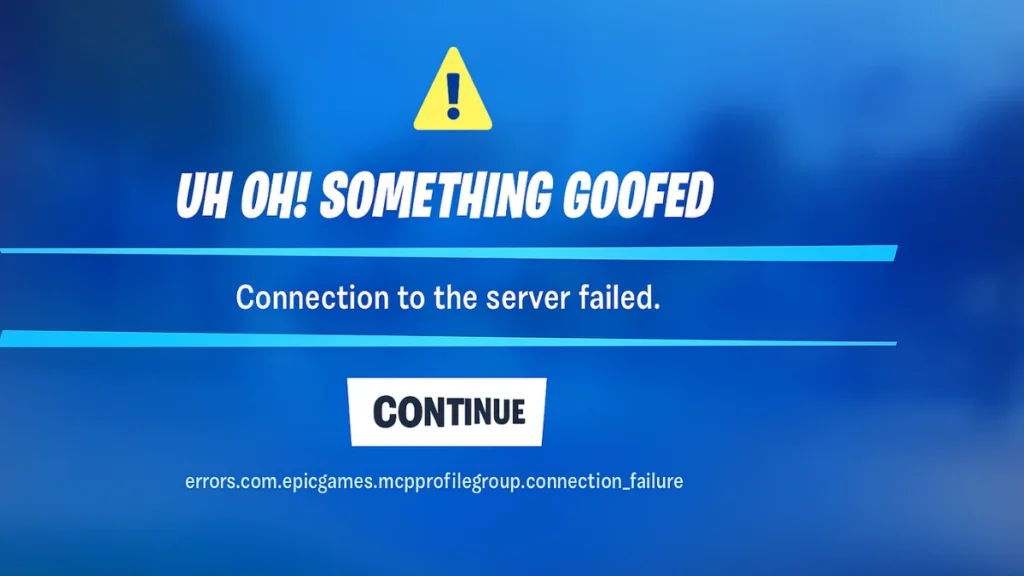
If you’ve been hit with the error errors.com.epicgames.mcpprofilegroup.connection_failure while trying to launch Fortnite or connect through the Epic Games Launcher, you’re not alone. This frustrating error usually appears when the game fails to connect to Epic’s servers, but the root cause can vary—from unstable internet and corrupted cache files to console-specific glitches.
What Causes This Error?
The mcpprofilegroup.connection_failure error generally occurs due to:
- Unstable or weak internet connection
- Corrupted cache or temporary files in Epic Games Launcher
- Damaged or missing Fortnite files
- Outdated DNS or network configuration issues
- Console storage/SD card conflicts (Nintendo Switch reports this frequently)
Step-by-Step Fixes (Best Order)
1. Restart Epic Games Launcher
This is the fastest fix and often resolves temporary glitches.
- Close the launcher from the system tray.
- Open Task Manager → End EpicGamesLauncher.exe. (Optional Screenshot: Task Manager process list)
- Relaunch Epic Games Launcher and log in again.
2. Check Your Internet Connection
If restarting doesn’t help, confirm your connection is stable.
- Restart your router and modem. (Optional Screenshot: router reset)
- Prefer a wired Ethernet connection over Wi-Fi.
- Run a speed test to confirm consistency.
3. Verify Fortnite Game Files
Before you delete or reinstall anything, verify the game files to fix corruption.
- Open Epic Games Launcher.
- Go to Library → Select Fortnite.
- Click the three dots → Choose Verify.
- Wait until the scan completes.
4. Clear Epic Games Cache (PC Only)
If the error persists, corrupted cache files might be the cause.
- Close Epic Games Launcher.
- Press
Windows + R, type%localappdata%, and hit Enter. - Open EpicGamesLauncher folder → Delete the Saved folder.
- Relaunch Epic Games Launcher and log back in.
5. Reinstall Epic Games Launcher
Use this as the last resort.
- Uninstall the Epic Games Launcher via Windows Settings or Control Panel.
- Download the latest installer from the official Epic Games website.
- Reinstall, log in, and try launching Fortnite again.
Extra Fixes for Nintendo Switch Players
If you’re on Switch, try these console-specific fixes:
- Reset Cache
- Go to Home Menu → System Settings → System → Formatting Options → Reset Cache.
- Restart and relaunch Fortnite.
- Check SD Card
- Power off your Switch.
- Remove and reinsert your SD card.
- Restart and try again.
- Change DNS Settings
- Primary DNS:
8.8.8.8 - Secondary DNS:
8.8.4.4
- Primary DNS:
FAQs:
Q1. Why does this error happen?
Because the game fails to connect to Epic servers—usually due to network issues, corrupted cache, or missing files.
Q2. Do I always need to reinstall?
No. Start with quick fixes (restart, verify files) before going that far.
Q3. Is this a PC-only error?
No. Nintendo Switch players frequently encounter the same error.
Q4. Can changing DNS settings fix this error?
Yes. Switching to public DNS servers like Google DNS (8.8.8.8 / 8.8.4.4) often helps if the problem is related to your network provider’s default DNS.
Q5. What if verifying files doesn’t fix the problem?
If verification doesn’t work, clear the Epic Games Launcher cache. If the issue persists, reinstalling the launcher or game may be necessary.
Q6. Could this be an Epic Games server outage?
Absolutely. Sometimes the error isn’t on your end. Check Epic’s status page or community forums to confirm if servers are down before troubleshooting further.
The errors.com.epicgames.mcpprofilegroup.connection_failure error is mostly caused by temporary connection or cache issues. Start with simple steps like checking your internet and clearing the Epic Games cache, then move on to verifying files or reinstalling if needed.
For Switch users, resetting the cache or adjusting DNS often clears it up. By following these steps, you should be back in the Battle Bus without interruptions.

