The VIDEO_DXGKRNL_FATAL_ERROR BSOD crashes your PC without warning, usually during gaming, video playback, or any heavy GPU task. The stop code points directly to the DirectX Graphics Kernel (dxgkrnl.sys), which means your graphics subsystem has hit a fatal fault and Windows cannot recover without a restart.
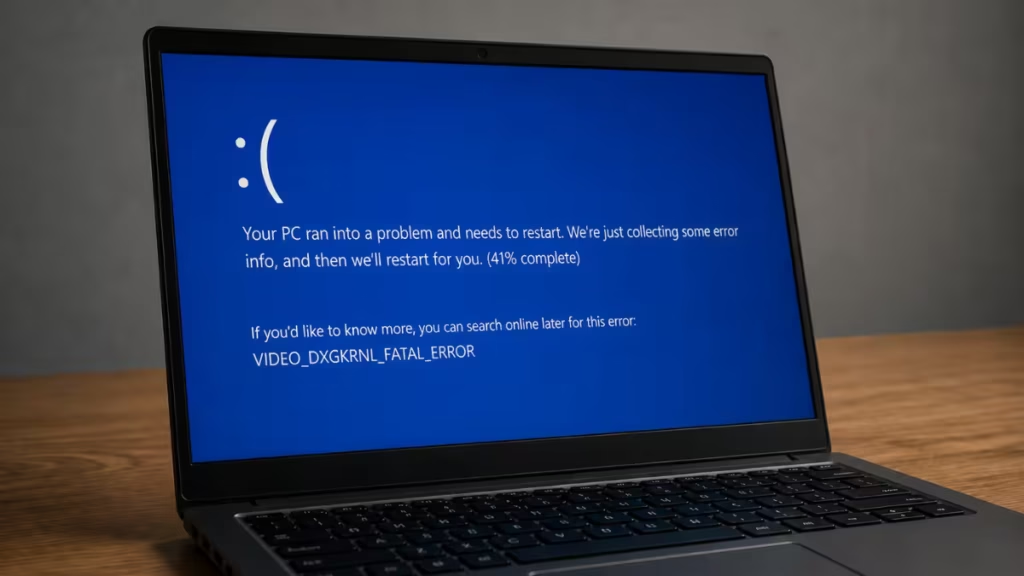
Both Windows 10 and Windows 11 trigger this error, and the causes range from corrupted GPU drivers to BIOS misconfigurations, software conflicts, and faulty power delivery. This guide covers every proven fix in order of effectiveness.
What Causes VIDEO DXGKRNL FATAL ERROR?
The crash always originates in the graphics pipeline. These are the most common triggers:
- Corrupted or outdated GPU drivers
- Conflicts between integrated and dedicated graphics adapters
- Faulty or insufficient power delivery to the GPU (especially on laptops)
- Windows system file corruption
- Third-party antivirus software interfering with GPU driver calls
- Incorrect BIOS settings for the default graphics adapter
- Overheating under sustained GPU load
How to Fix VIDEO_DXGKRNL_FATAL_ERROR BSOD
Work through these fixes in order. Most users resolve the crash at Fix 1 or Fix 2.
Fix 1: Reinstall the Graphics Driver Using DDU
A corrupted or conflicting GPU driver is the most common trigger for the VIDEO_DXGKRNL_FATAL_ERROR Blue Screen of Death. A standard uninstall through Device Manager leaves behind leftover registry entries that cause the crash to return. Display Driver Uninstaller (DDU) removes everything cleanly.
- Download Display Driver Uninstaller (DDU) from its official site (guru3d.com).
- Boot into Safe Mode. Press Win + R, type
msconfig, go to the Boot tab, check Safe boot, and restart. - Run DDU and select Clean and restart. This removes all GPU driver files and associated registry entries completely.
- After the restart, download the latest driver directly from your GPU manufacturer:
- NVIDIA: nvidia.com/drivers
- AMD: amd.com/support
- Intel: intel.com
- Install the fresh driver, restart, and test under GPU load.
If the blue screen after installing the graphics driver returns immediately after the new driver installs, download an older driver version from the manufacturer’s archive and install that instead.
Fix 2: Run the Hardware Troubleshooter
Windows includes a built-in Hardware and Devices troubleshooter that detects and fixes common device-level issues automatically.
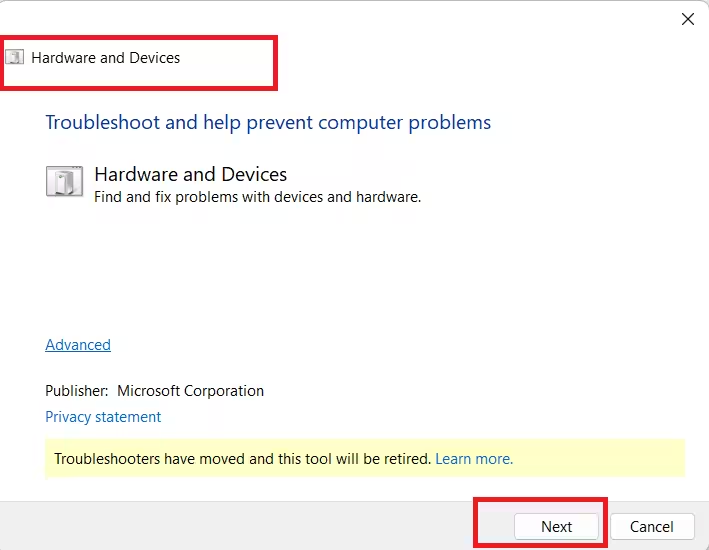
- Press Win + R to open the Run dialog.
- Type the following command and press Enter:
msdt.exe -id DeviceDiagnostic- The Hardware and Devices troubleshooter opens. Click Next and let it complete the scan.
- Apply any recommended fixes and restart your PC.
Fix 3: Run SFC and DISM Scans
System file corruption can break the DirectX graphics kernel and trigger this crash. The System File Checker (SFC) and DISM tool locate and repair damaged Windows files.
- Right-click the Start button and select Terminal (Admin) or Command Prompt (Admin).
- Run the SFC scan first:
sfc /scannow- Wait for the scan to complete. Do not close the window mid-scan.
- After SFC finishes, run DISM to repair the Windows image:
DISM /Online /Cleanup-Image /RestoreHealth- Restart your PC after both scans complete.
Tip: If SFC reports corruption it cannot fix, run the DISM command first to restore the Windows image, then re-run SFC.
SFC and DISM are among the most reliable Windows troubleshooting tools for catching system-level faults that other methods miss.
Fix 4: Install the Latest Windows Updates
Missing Windows updates can leave the DirectX kernel in an unstable state. Microsoft ships driver patches and kernel stability fixes through Windows Update.
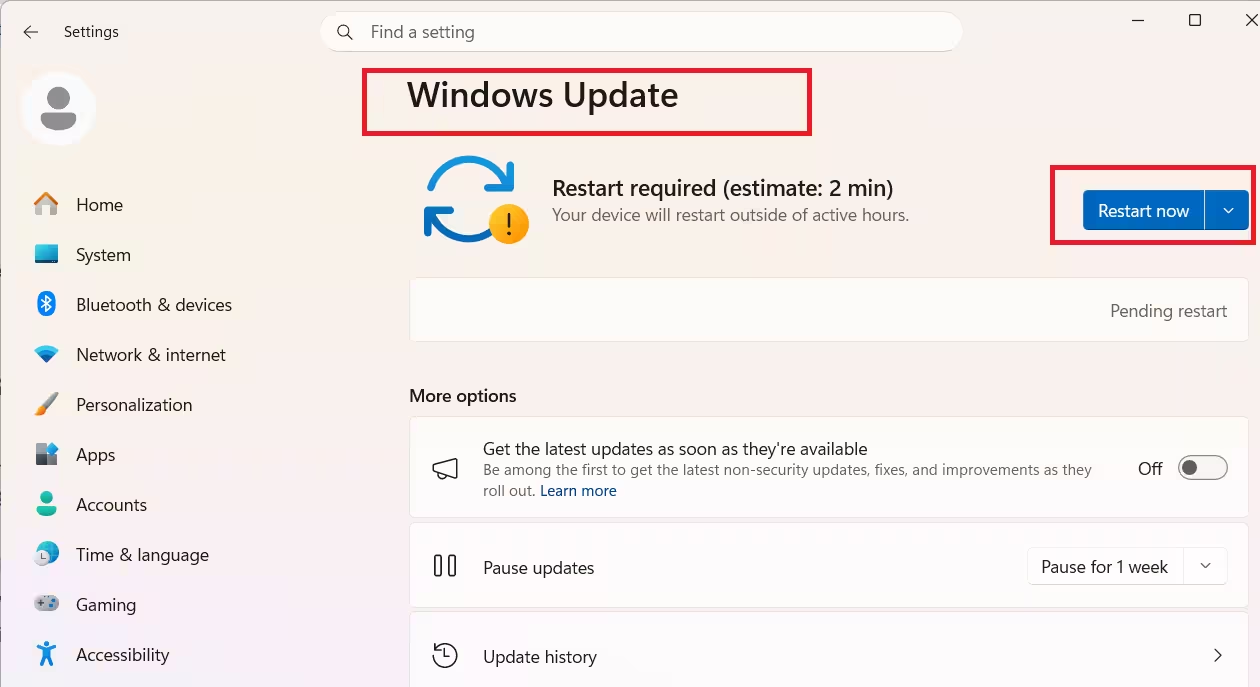
- Press Win + I to open Settings.
- Go to Windows Update and click Check for updates.
- Install all available updates. Also check Advanced options > Optional updates for any GPU-related driver updates.
- Restart your PC and test.
Fix 5: Set the Default Graphics Adapter in BIOS
If your system has both an integrated GPU and a dedicated GPU, Windows may route rendering through the wrong adapter. This mismatch frequently triggers the VIDEO_DXGKRNL_FATAL_ERROR crash on game launches or during GPU handoff.
- Restart your PC and enter BIOS. The key varies by manufacturer (commonly Del, F2, or F10 during the boot screen).
- Find the display or graphics settings. Look for options labeled Primary Display, Primary Graphics Adapter, or Init Display First.
- Set the value to your dedicated GPU (NVIDIA or AMD) rather than Auto or Integrated.
- Save and exit BIOS, then test your system under load.
Fix 6: Check Power Delivery to the GPU
This fix targets laptop users who see the crash only while plugged in, or only during heavy GPU usage. If the VIDEO_DXGKRNL_FATAL_ERROR BSOD disappears when you unplug the charger and run on battery, the charging adapter or power management settings are destabilizing the GPU.
- Try a different power adapter or wall outlet to rule out a faulty charger.
- Open Device Manager (Win + X > Device Manager), expand Display adapters, right-click your GPU, and select Properties.
- Go to the Power Management tab and uncheck Allow the computer to turn off this device to save power if that option appears.
- Open Power Options (Win + R, type
powercfg.cpl) and switch to the High Performance power plan. - Visit your laptop manufacturer’s support page and update the BIOS to the latest version. Power delivery bugs in older BIOS versions frequently cause GPU instability under load.
Fix 7: Disable or Remove Third-Party Antivirus
Third-party antivirus and firewall software can intercept GPU driver calls and trigger the VIDEO_DXGKRNL_FATAL_ERROR crash. AVG, in particular, has caused this specific stop code for multiple users, but other security tools can produce the same result.
- Temporarily disable your antivirus and test whether the crash stops.
- If the system stabilizes, uninstall the antivirus completely. Use the vendor’s dedicated removal tool rather than the standard uninstall, since a normal uninstall often leaves residual registry entries behind.
- Restart your PC and monitor stability. Windows Defender provides solid baseline protection without interfering with GPU drivers.
Fix 8: Analyze the Minidump File to Pinpoint the Cause
When Windows crashes, it writes a minidump file to C:\Windows\Minidump. Reading this file tells you exactly which driver or process caused the crash, so you can target the right fix instead of guessing.
- Open File Explorer and navigate to
C:\Windows\Minidump. - Copy any files present onto your Desktop, then compress them into a ZIP file.
- Upload the ZIP to OneDrive or Google Drive, generate a share link, and post it on a forum like Microsoft Answers for expert analysis.
Alternatively, open the dump file in WinDbg or the free tool WhoCrashed to identify the faulting module. Look for GPU driver files such as nvlddmkm.sys (NVIDIA) or atikmpag.sys (AMD) in the crash report. If the dump points to ntkrnlmp.exe as the faulting module instead, the crash has a different root cause and needs a separate set of fixes.
Fix 9: Reset Windows (Last Resort)
If every fix above fails, a clean Windows reset removes all third-party software conflicts and restores the system to a stable baseline. Back up your files before you begin.
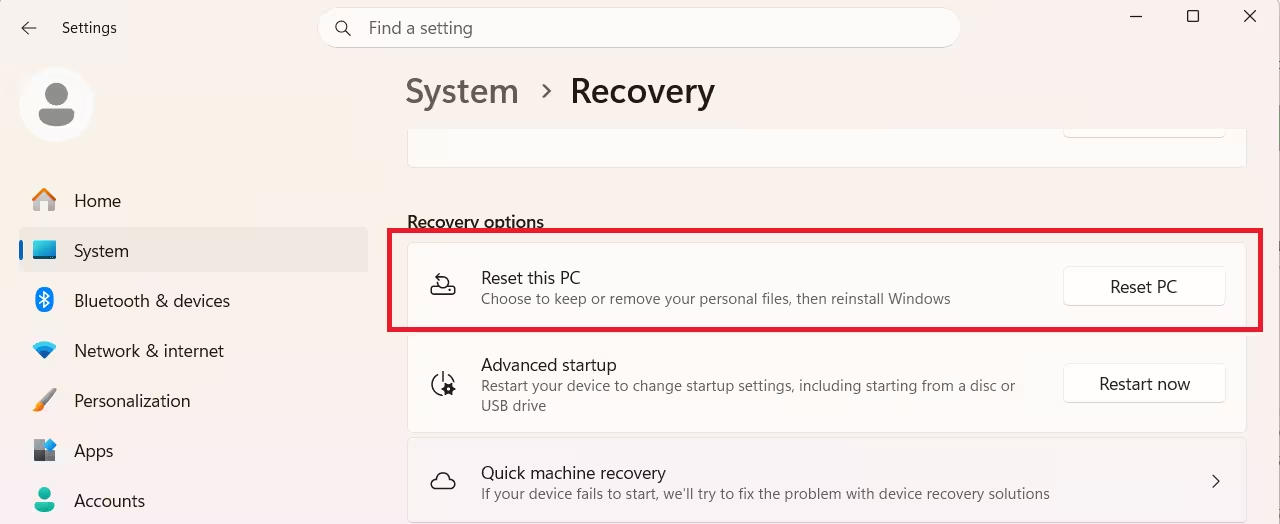
- Press Win + I and go to System > Recovery.
- Click Reset PC.
- Choose Remove everything for the most thorough reset, or Keep my files if you want to preserve personal data.
- Follow the on-screen instructions. Your PC restarts automatically during the process.
If the VIDEO_DXGKRNL_FATAL_ERROR BSOD returns even after a full Windows reset, the GPU hardware itself is likely failing. Test the GPU in another machine or have a technician inspect it.
Frequently Asked Questions
What is VIDEO_DXGKRNL_FATAL_ERROR?
VIDEO_DXGKRNL_FATAL_ERROR is a Windows stop code that signals a fatal failure inside the DirectX Graphics Kernel (dxgkrnl.sys). Windows crashes and forces a restart to prevent further system damage.
What causes VIDEO_DXGKRNL_FATAL_ERROR BSOD?
The crash most commonly comes from corrupted or outdated GPU drivers, conflicts between integrated and dedicated graphics adapters, third-party antivirus interference, or faulty power delivery to the GPU on laptops.
Does VIDEO_DXGKRNL_FATAL_ERROR affect Windows 11?
Yes. The error appears on both Windows 10 and Windows 11. All fixes that resolve it on Windows 10 apply equally to Windows 11.
Why does VIDEO_DXGKRNL_FATAL_ERROR only happen when my laptop is plugged in?
A faulty charger, power management conflict, or outdated BIOS can destabilize the GPU specifically when the system draws power from the adapter. Switching to High Performance mode, trying a different charger, and updating the BIOS resolves this in most cases.
Can VIDEO_DXGKRNL_FATAL_ERROR damage my PC?
The error itself does not cause permanent damage. Windows crashes intentionally to protect the hardware. However, if the underlying cause is a failing GPU, repeated crashes without addressing the hardware issue can shorten the component’s lifespan.

