Microsoft has answered one of the most debated questions in consumer security: do Windows 11 users still need third-party antivirus software? According to a support document quietly published in April 2026 and first spotted by Windows Latest, the answer for most users is no.
Windows 11 ships with a complete, layered security stack that runs by default, updates automatically, and now matches or outperforms many paid alternatives. Here is what that stack includes, what the independent test data shows, and where third-party tools still earn their place.
Is Windows 11 Built-In Antivirus Enough in 2026?
For years, Windows security had a reputation problem. During the Windows XP and Windows 7 era, built-in protection was either absent or ineffective, which drove millions of users toward Norton, McAfee, and Kaspersky. Windows 10 started closing that gap. Windows 11 completes the transition.
See also: KB5083769 BitLocker fix & reboot issues — Windows 11
Microsoft Defender Antivirus today is not a simple file scanner. It delivers:
- Real-time scanning — monitors files and processes as they open or execute
- Behavior monitoring — detects suspicious activity patterns rather than relying solely on known signatures
- Cloud-delivered intelligence — queries Microsoft's threat network for up-to-the-minute detection data
- Heuristic analysis — identifies unknown threats and zero-day attacks without requiring a signature match
Microsoft's security ecosystem processes trillions of signals daily across billions of endpoints worldwide. That telemetry feeds directly into Defender's threat intelligence engine, giving it a detection dataset that few standalone products can replicate.
What the Independent Test Results Show
Independent lab results confirm Microsoft's confidence. In the AV-TEST January–February 2026 evaluation of 16 home antivirus products, Microsoft Defender Antivirus (Consumer) version 4.18 earned a perfect score of 6.0/6.0 in all three categories: Protection, Performance, and Usability.
| Category | Industry Average | Microsoft Defender Score |
|---|---|---|
| Protection | — | 6.0 / 6.0 |
| Performance | — | 6.0 / 6.0 |
| Usability | — | 6.0 / 6.0 |
Defender's protection results in detail:
- Real-World Testing (0-day malware, 285 samples): 100% in both January and February 2026
- AV-TEST Reference Set (widespread malware, 12,728 samples): 100% in both months
- False positives: Near-zero across 500 website samples, 1,058,157 software scans, and 20 installation/usage tests
AV-Comparatives reports similar results, with Defender achieving real-world protection rates between 98.5% and 100% — placing it alongside the leading paid third-party antiviruses.
AV-TEST awarded Defender its "TOP PRODUCT" designation, a distinction it shares with Avast, Bitdefender, ESET, F-Secure, Kaspersky, McAfee, Norton, and others.
How Windows 11 Built-In Security Protects Your PC
Windows Defender is the core antivirus engine, but it works within a broader system of overlapping protections. Each layer targets a specific attack vector.
1. Microsoft Defender SmartScreen
SmartScreen checks the reputation of websites, downloads, and applications before anything runs. When a site looks suspicious or a downloaded file lacks sufficient reputation history, SmartScreen displays a warning and gives users the choice to stop. This blocks a large share of phishing-driven attacks — those that trick users into downloading and executing malicious files.
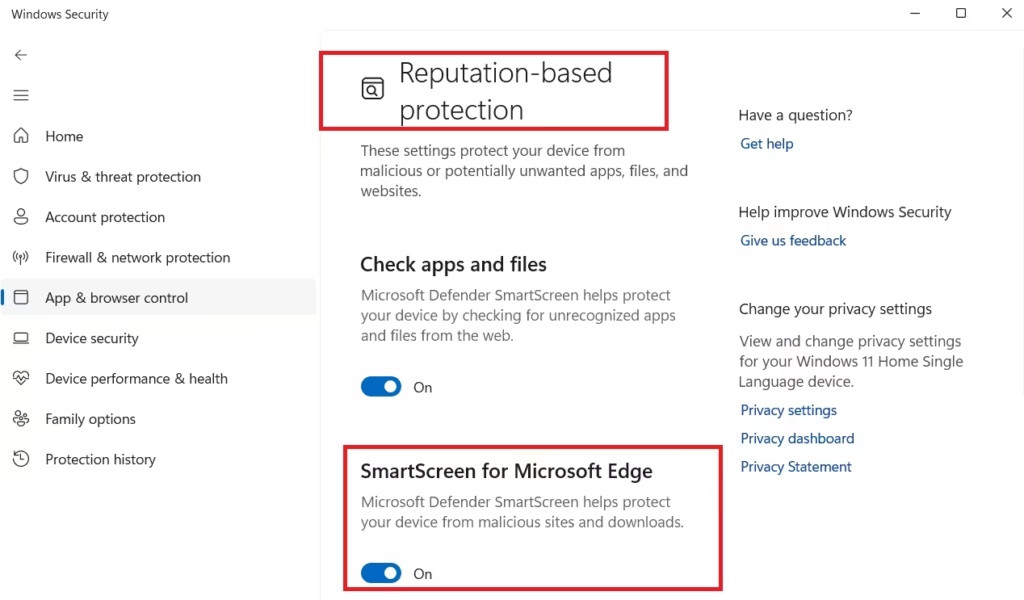
To keep SmartScreen effective:
- Confirm that reputation-based protection is turned on in Windows Security → App & browser control
- Treat SmartScreen warnings as signals, not inconveniences — override them only when you recognize the source
2. Smart App Control
Smart App Control takes a stricter approach than SmartScreen. It blocks unsigned or unrecognized apps from running at all. Windows checks code signing and Microsoft's reputation systems before allowing execution. For standard users who install software from established sources, Smart App Control removes the risk of running unknown executables entirely.
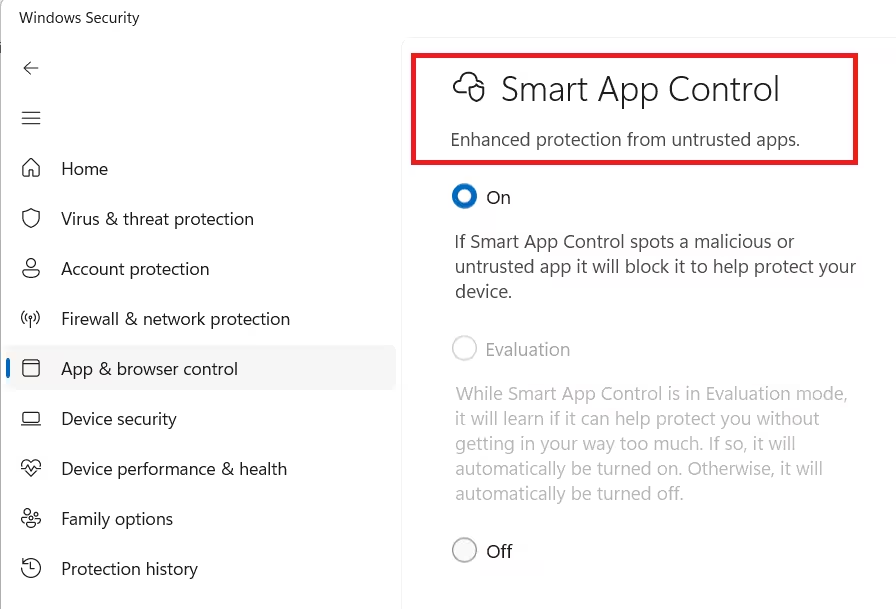
The trade-off: it can block developer tools, unsigned utilities, or niche applications. Microsoft recommends enabling it when threat prevention matters more than flexibility — particularly on devices used by children or elderly family members.
3. Controlled Folder Access (Ransomware Protection)
Ransomware does not just infect a system — it encrypts personal files and locks users out. Controlled Folder Access addresses this directly by restricting which applications can modify protected directories: Documents, Desktop, Pictures, Videos, Music, and OneDrive folders.
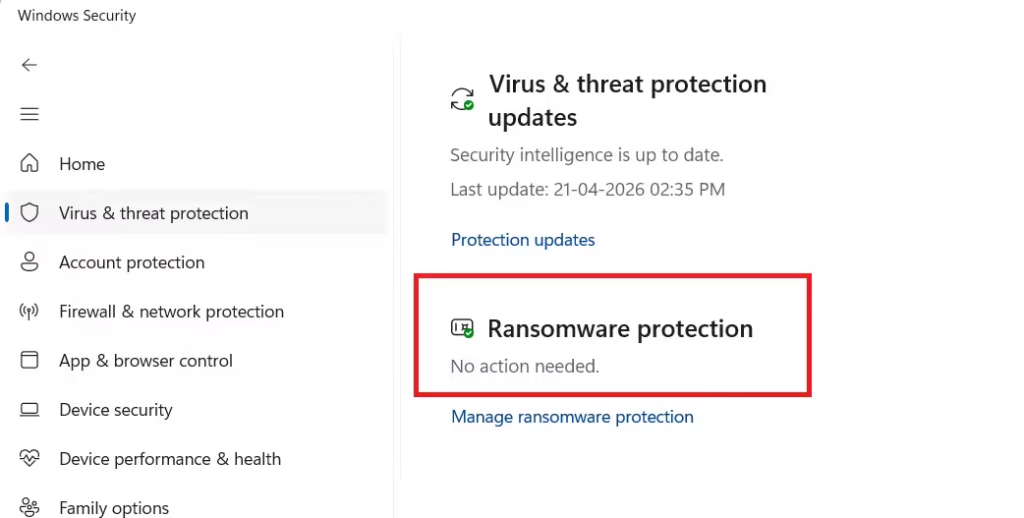
If an unrecognized process attempts to write or delete files in those locations, Windows blocks it. Stopping ransomware at the file level before encryption completes — often proves more effective than detecting it after execution.
Microsoft recommends enabling Controlled Folder Access when important work files live in default user folders or synced cloud storage.
The Threat Landscape That Forced This Evolution
The security improvements are not incidental. The threat environment demanded them.
- AV-TEST detects over 450,000 new malware samples every single day
- IBM's security research documents significant ransomware spikes between 2023 and 2024
- Verizon's Data Breach Investigations Report identifies phishing as the most common entry point for breaches
Modern attacks no longer rely on simple file infection. Attackers use behavioral obfuscation, zero-day exploits, and user manipulation. A signature-based scanner alone cannot keep up. Microsoft responded by building Defender into a layered, behavioral, cloud-connected system rather than a standalone antivirus tool.
AI now compounds the challenge on both sides. Attackers use AI to generate more convincing phishing emails, create obfuscated malware, and hide malicious code inside files — including SVG images, as Microsoft recently documented. However, Defender's behavioral analysis, infrastructure monitoring, and pattern detection give it tools to catch AI-generated attacks. Microsoft notes that AI-generated threats often introduce consistent patterns that become new detection signals.
When You Still Need Third-Party Antivirus on Windows 11
Microsoft does not dismiss external tools entirely. Three scenarios still justify them:
- Enterprise environments — Organizations often need centralized management consoles, advanced threat monitoring, compliance reporting, and endpoint detection and response (EDR) capabilities beyond what consumer Defender provides.
- Families — Bundled parental controls and content filtering that some security suites include go beyond what Windows 11 offers natively.
- Users who want additional services — VPN access, identity theft monitoring, and dark web scanning come packaged with many paid security suites. For users who want those services alongside antivirus, a bundled product can make sense.
Outside these scenarios, third-party antivirus adds background services, increases RAM and CPU consumption, and sometimes conflicts with Defender's real-time scanning. Running two real-time engines simultaneously can produce inconsistent behavior. Microsoft's guidance — and general best practice — is to run one active real-time antivirus engine.
Note that PC manufacturers like Lenovo often pre-install tools like McAfee through commercial partnerships. Microsoft's own documentation makes clear that Windows 11 protects user data without these additions. Uninstalling pre-bundled antivirus after purchase is a reasonable choice.
How to Verify Your Protection Is Active
Open Windows Security and confirm:
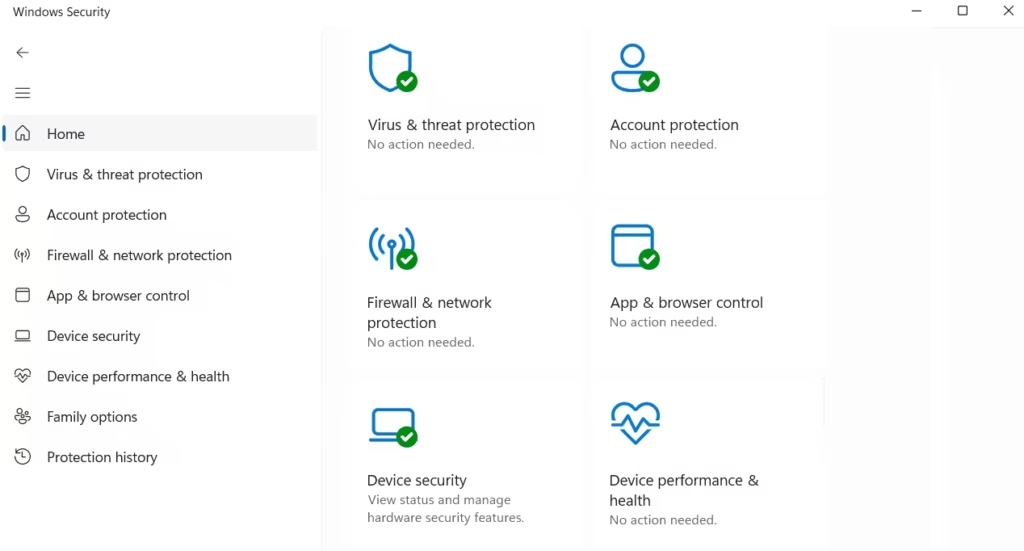
- Virus & threat protection → Real-time protection: On
- Virus & threat protection settings → Cloud-delivered protection: On
- App & browser control → Reputation-based protection (SmartScreen): On
- Ransomware protection → Controlled folder access: Enabled (recommended if you store important files in Documents, Desktop, or OneDrive)
These four settings cover the core protection layers. Once they are active, Defender handles routine scanning, threat detection, and updates without additional configuration.
Pro Tips for Strong Security Without the Slowdown
- Stay current on Windows Updates — Security Intelligence updates and engine improvements arrive through Windows Update automatically. Keeping the system updated keeps detection accurate.
- Run one real-time engine — Multiple simultaneous scanners increase resource use and conflict risk. Stick with one.
- Add exclusions deliberately — Exclusions create blind spots. Add them only when a specific tool triggers confirmed false positives, and exclude individual executables rather than entire folders.
- Reinforce with habits — Strong passwords, multi-factor authentication, a modern browser, and deliberate download practices reduce risk before malware ever reaches the system.
In 2026, Windows 11 delivers complete antivirus protection for most users without requiring any third-party software. Microsoft Defender Antivirus earns perfect scores from independent testing laboratories, covers real-time threats, behavioral attacks, phishing, ransomware, and zero-day exploits, and does so without degrading system performance.
See also: How to Fix Error 0xC004F050 When Upgrading Windows 11 Home to Pro
Third-party antivirus tools remain valuable in enterprise settings, for families needing parental controls, or for users who want bundled identity and VPN services. For everyday personal computing on an updated Windows 11 system, Microsoft Defender now covers everything most users need.
FAQs
Is Windows 11 built-in antivirus enough in 2026?
Yes. Windows 11 built-in antivirus (Microsoft Defender) provides full protection for most users, including real-time scanning, ransomware defense, and cloud-based threat detection, with top scores in independent tests like AV-TEST.
How good is Microsoft Defender compared to third-party antivirus?
Microsoft Defender now matches leading third-party antivirus tools, achieving near 100% detection rates in real-world tests and earning top ratings for protection, performance, and usability.
Does Windows 11 built-in antivirus protect against ransomware?
Yes. Windows 11 includes ransomware protection through Controlled Folder Access, which blocks unauthorized apps from modifying important files in folders like Documents and Desktop.
Can I use third-party antivirus along with Microsoft Defender?
You can install third-party antivirus, but running multiple real-time protection tools at the same time can cause conflicts and reduce system performance. It is recommended to use only one active antivirus engine.
When should you still use third-party antivirus on Windows 11?
Third-party antivirus may still be useful in enterprise environments, for advanced parental controls, or for bundled features like VPNs and identity protection that are not included in Microsoft Defender.
How do I make sure Windows 11 built-in antivirus is active?
Open Windows Security and verify that real-time protection, cloud-delivered protection, SmartScreen, and ransomware protection features are enabled to ensure full coverage.