After installing KB5083769, some Windows 11 24H2 and 25H2 users report that their USB speakers and headsets go completely silent. The device shows up in Device Manager, Windows sets it as the default playback device, and the green LED stays on, but no audio comes out at all, not even during the Windows sound test.
The 3.5mm headphone jack on the same PC works fine. The USB speaker works on other computers and phones without issue. This points to a driver binding problem specific to how Windows handles USB audio after the update, not a hardware fault.
This guide covers every fix that has resolved KB5083769 USB audio not working for affected users.
Why USB Audio Not Working After KB5083769 Happens
Microsoft does not list USB audio as a known issue in the KB5083769 release notes. The April 14, 2026 cumulative update (OS Builds 26200.8246 and 26100.8246) focuses on Secure Boot certificates, SMB compression over QUIC, Remote Desktop security warnings, and a vulnerable driver blocklist. That driver blocklist change is worth paying attention to: it blocks known vulnerable kernel drivers, and backup applications that rely on those drivers have already reported failures after this update.
For USB audio, the most likely cause is Windows rebinding the USB audio driver incorrectly during the update process. Stale or conflicting device entries from earlier driver installs compound the problem. On Intel 500, 600, and 700 series systems with a discrete TPM (dTPM), a separate Microsoft-documented USB audio issue can also surface after cumulative updates.
Fix 1: Remove Hidden and Ghost Device Entries
Old, greyed-out device entries can block Windows from assigning the correct driver to your USB audio device. Clearing them forces a clean rebind on reconnection.
- Disconnect your USB speaker or headset from the PC.
- Right-click the Start button and open Device Manager.
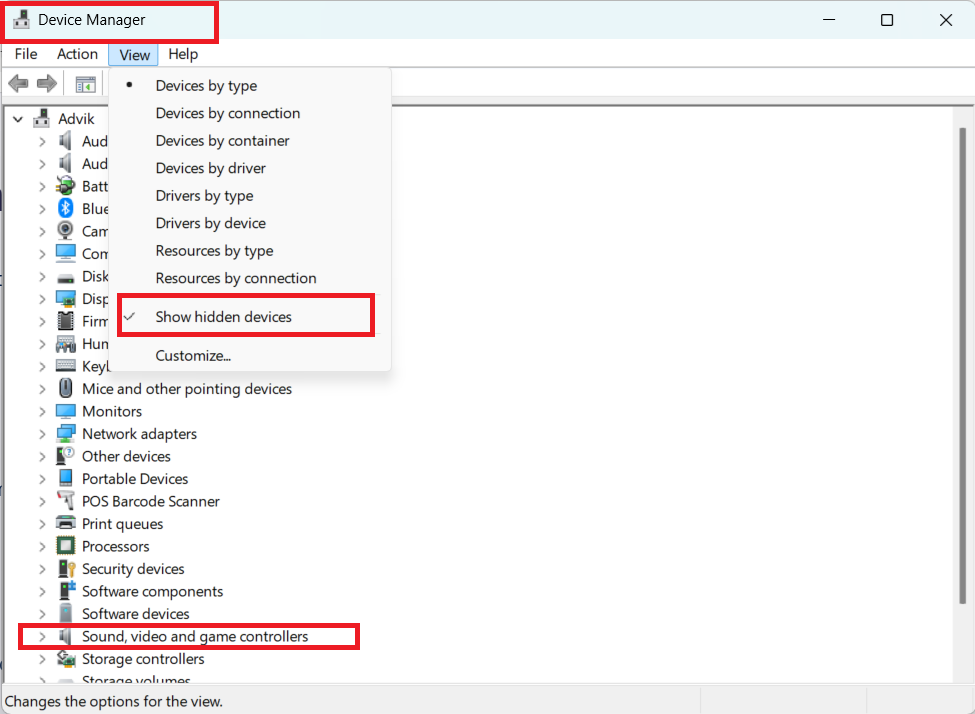
- Click View and select Show hidden devices.
- Expand each of these categories and look for greyed-out entries matching your USB audio device:
- Sound, video and game controllers
- Audio inputs and outputs
- Universal Serial Bus controllers
- Right-click each greyed-out entry and select Uninstall device.
- When prompted, do not check “Delete the driver software for this device.” Leave that box unchecked.
- Restart the PC, then reconnect the USB audio device.
Windows will re-detect the device and assign a fresh driver instance. Test audio immediately after reconnection.
Fix 2: Install the Manufacturer’s Driver Before Plugging In
Generic Windows audio drivers sometimes load incorrectly on reconnection. Installing the manufacturer’s dedicated driver before plugging in the device gives Windows the correct software to bind on first connection.
- Keep the USB speaker or headset unplugged.
- Go to the manufacturer’s website and download the latest driver or firmware package for your specific device model.
- Run the installer and let it complete fully.
- After installation finishes, plug in the USB audio device.
- Open Settings > System > Sound and confirm the device appears and produces audio.
If the manufacturer does not provide a standalone driver and relies on Windows generic USB audio drivers, skip to Fix 3.
Fix 3: Check Optional Updates and PC Maker Drivers
Microsoft sometimes releases audio, chipset, and USB controller fixes through Optional Updates rather than the standard Windows Update channel. These do not install automatically.
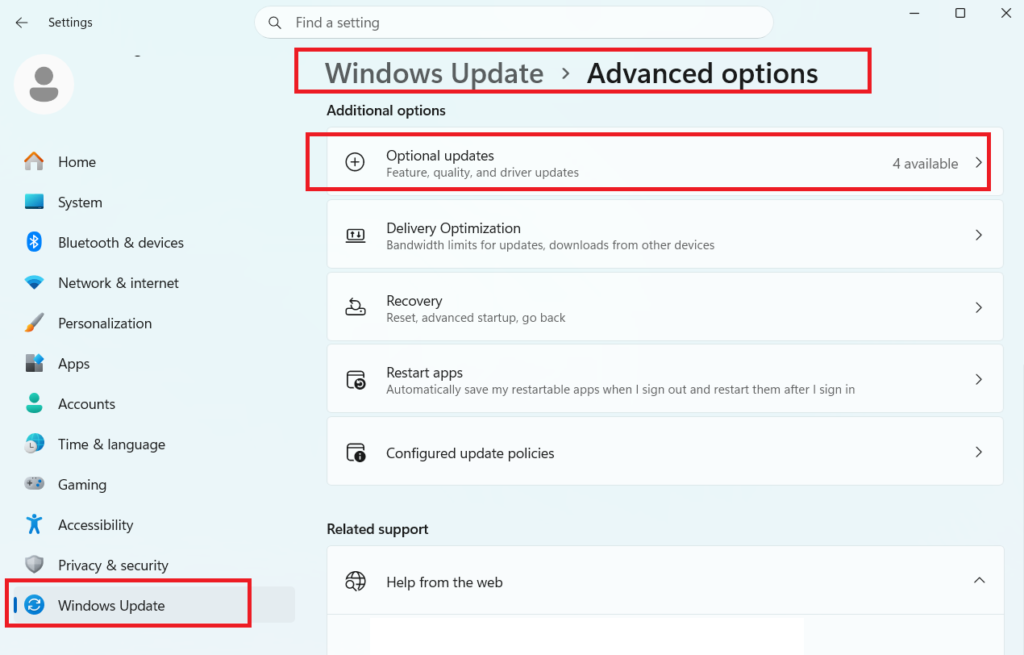
- Open Settings > Windows Update > Advanced options > Optional updates.
- Install any available audio, chipset, or USB controller updates.
- Restart the PC after installation completes.
Also visit your PC manufacturer’s support page. Search for your exact model and download the latest USB controller, chipset, and audio drivers. Manufacturers sometimes release updated drivers faster than Microsoft pushes them through Windows Update, especially after Patch Tuesday releases.
Fix 4: Check for the Intel dTPM USB Audio Issue
If your PC uses an Intel 500, 600, or 700 series chipset with a discrete TPM (dTPM) module, a separate Microsoft-documented issue can cause USB audio devices to stop working or behave erratically after cumulative updates. This issue has its own workaround documented in a dedicated Microsoft support article.
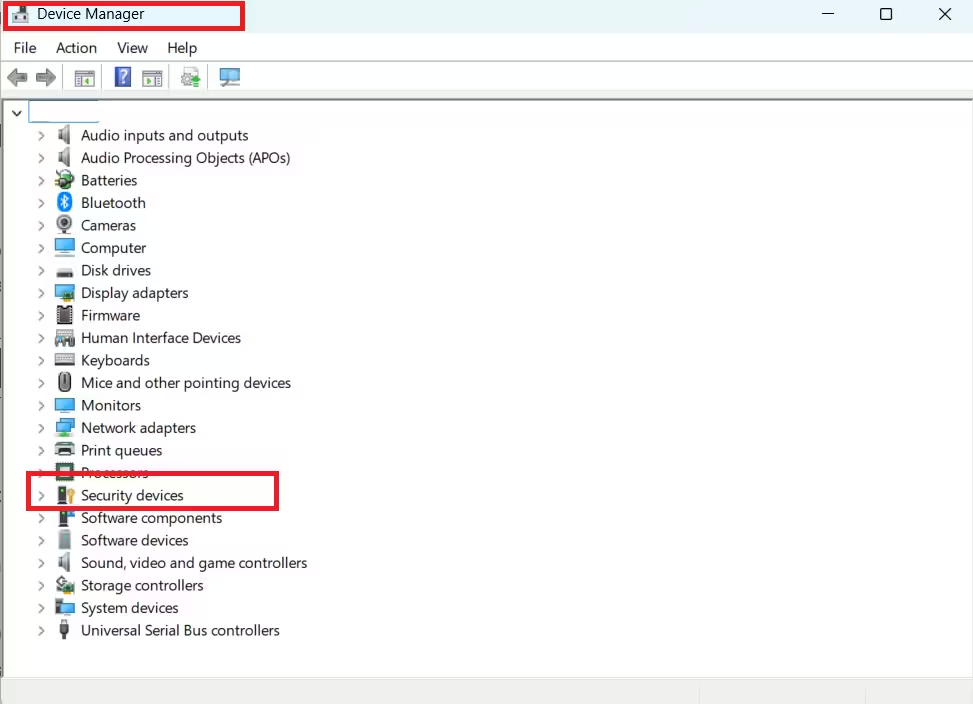
To check:
- Open Device Manager.
- Expand Security devices.
- If you see a Trusted Platform Module entry (not “Microsoft Virtual TPM Processor”), your system uses a discrete TPM.
- Check your motherboard or PC manufacturer’s documentation to confirm the chipset series.
If your hardware matches the Intel 500/600/700 dTPM profile, look up the Microsoft support article titled about Intel dTPM USB audio issues and follow the specific validation steps listed there.
Fix 5: Restart Audio Services Manually
If the above steps do not resolve the issue, force-restart all three Windows audio services together.
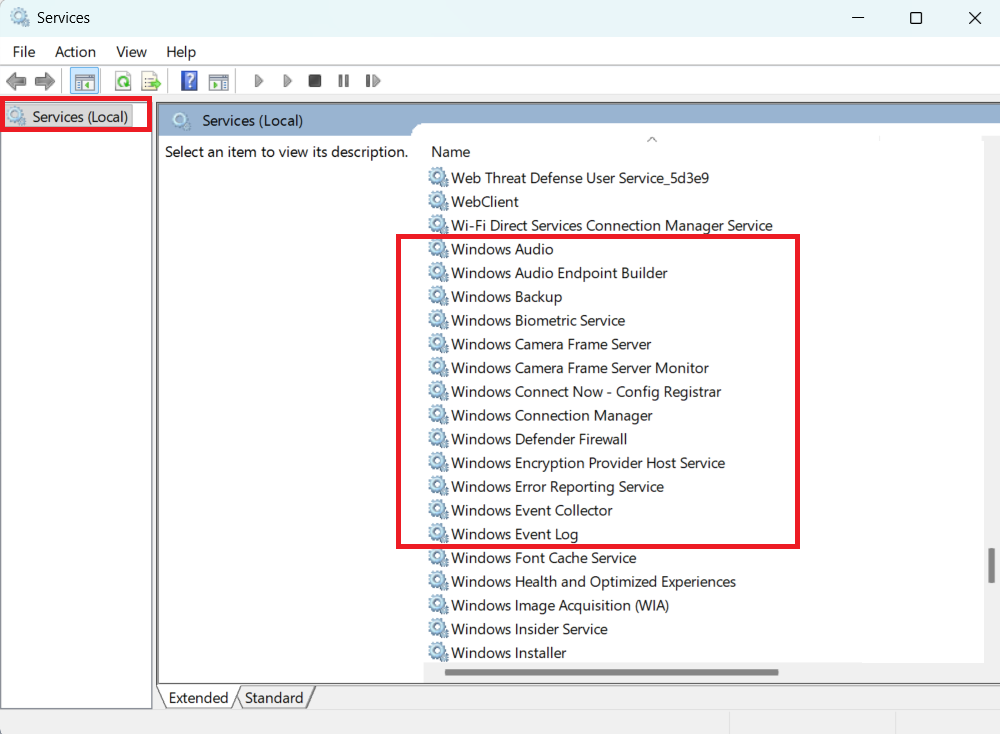
- Press Win + R, type
services.msc, and press Enter. - Find and restart each of these services in order:
- Windows Audio (audiosrv)
- Windows Audio Endpoint Builder (AudioEndpointBuilder)
- Multimedia Class Scheduler (MMCSS)
- Right-click each service, select Restart, and wait for it to complete.
- After restarting all three, test the USB audio device.
Fix 6: Change the Audio Format in Sound Settings
An incompatible audio sample rate can cause complete silence even when the device shows as active.
- Right-click the speaker icon in the system tray and select Sound settings.
- Under Output, click your USB audio device, then select More sound settings.
- Right-click the USB device in the Playback tab and choose Properties.
- Go to the Advanced tab.
- Change the Default Format dropdown to a different sample rate, such as 16 bit, 44100 Hz (CD Quality).
- Click Test after each change.
- Also uncheck Allow applications to take exclusive control of this device and test again.
Fix 7: Uninstall KB5083769 as a Last Resort
Removing the update restores the previous audio driver binding. This is a temporary measure because Windows Update will reinstall KB5083769 unless you pause updates. Consider this option only if all other fixes fail and you need audio restored immediately.
The KB5083769 uninstall process involves using DISM rather than wusa.exe, because the update ships as a combined SSU and LCU package. Running wusa.exe /uninstall on the package will not work.
To remove KB5083769 via DISM:
- Open Command Prompt as administrator.
- Run:
DISM /online /get-packagesand locate the KB5083769 package name. - Run:
DISM /online /remove-package /packagename:[full-package-name] - Restart the PC.
After uninstalling, go to Settings > Windows Update > Advanced options and pause updates for several weeks while waiting for Microsoft to address the USB audio issue.
Note: KB5083769 also introduced changes to address a boot loop issue and Remote Desktop security warnings. Uninstalling removes those protections as well. Weigh this before proceeding.
FAQs
Why did my USB audio stop working after installing KB5083769?
KB5083769 introduces a vulnerable driver blocklist and modifies how Windows binds USB audio drivers during installation. On some systems, this causes Windows to assign the wrong driver to the USB audio device, resulting in complete silence even though the device appears as detected and set as default.
Does KB5083769 list USB audio as a known issue?
No. Microsoft’s official KB5083769 release notes for OS Builds 26200.8246 and 26100.8246 do not list USB audio as a known issue. The problem stems from driver binding conflicts introduced during the update process rather than a documented bug.
Will uninstalling KB5083769 restore USB audio?
Yes, uninstalling KB5083769 typically restores USB audio immediately. However, you must use DISM to remove it, not wusa.exe, because the update ships as a combined SSU and LCU package. After removal, pause Windows Update to prevent automatic reinstallation.
Why does my 3.5mm jack work but USB audio does not after KB5083769?
The 3.5mm jack uses a different audio driver path than USB audio. KB5083769 affects how Windows assigns USB audio drivers specifically, leaving the analog audio path untouched. This confirms the issue is software-side, not a hardware fault.
Which Intel systems are most affected by USB audio issues after Windows 11 updates?
PCs running Intel 500, 600, or 700 series chipsets with a discrete TPM (dTPM) are most vulnerable to USB audio failures after cumulative updates. Microsoft has documented a separate workaround for this hardware profile in a dedicated support article.

