Microsoft Defender flagged Trojan:Win32/ClicFix.PJ!MTB on your PC and you are not sure what to do next. Quarantine alone is not enough. This trojan belongs to the ClickFix malware family, which often leaves behind hidden remnants, secondary payloads, and browser components even after the initial alert disappears.
This guide covers every step you need to fully remove Trojan:Win32/ClicFix.PJ!MTB, confirm your system is clean, and lock down your PC so it does not happen again.
What Is Trojan:Win32/ClicFix.PJ!MTB?
Trojan:Win32/ClicFix.PJ!MTB is a Windows trojan tied to the ClickFix social engineering technique. Attackers use fake browser error pages, CAPTCHA prompts, or document verification screens to trick you into copying and running a malicious command on your own machine.
Once you run that command, the trojan installs itself silently. It can then:
- Download and execute additional malware (info-stealers, remote access tools, ransomware loaders)
- Steal saved passwords, session tokens, and browser data
- Establish persistence so it survives a reboot
- Open a backdoor for the attacker to control your system remotely
Microsoft Threat Intelligence has documented ClickFix campaigns delivering payloads including Lumma Stealer, Latrodectus, MintsLoader, and OBSCURE#BAT. The PJ!MTB variant specifically indicates Defender caught it at the execution or persistence stage.
How Did Trojan:Win32/ClicFix.PJ!MTB Get on Your PC?
ClickFix attacks arrive through several channels:
- Fake browser update pages telling you to press Win+R and paste a command
- Malvertising where a sponsored search result leads to a fake fix page
- Phishing emails with documents that show a fake rendering error and instruct you to run a script
- Compromised websites injecting fake CAPTCHA overlays that copy a PowerShell command to your clipboard
If you recently visited an unfamiliar site and followed any kind of "fix" or "verification" instruction, that is almost certainly how Trojan:Win32/ClicFix.PJ!MTB entered your system.
How to Tell If Trojan:Win32/ClicFix.PJ!MTB Is Still on Your PC
You may see one or more of these after infection:
- A Microsoft Defender alert naming Trojan:Win32/ClicFix.PJ!MTB
- Slow PC performance or unusually high CPU or memory usage
- Random browser redirects or unexpected pop-ups
- New browser extensions you did not install
- Unfamiliar apps appearing in your installed programs list
- Defender showing the same threat repeatedly after removal (sign of active persistence)
Slow performance with no clear cause can also appear after other infections. If you are dealing with high CPU from a background process, check whether MSEdgeWebView2.exe is spiking CPU on your Windows PC as a separate issue, since ClickFix payloads sometimes abuse WebView2 components.
How to Remove Trojan:Win32/ClicFix.PJ!MTB from Windows
These steps fully remove Trojan:Win32/ClicFix.PJ!MTB, clear any leftover remnants, and cut off any persistence the trojan may have established.
Step 1: Let Defender Quarantine and Remove the Threat
If Defender has already flagged Trojan:Win32/ClicFix.PJ!MTB, it likely quarantined it automatically. Confirm this:
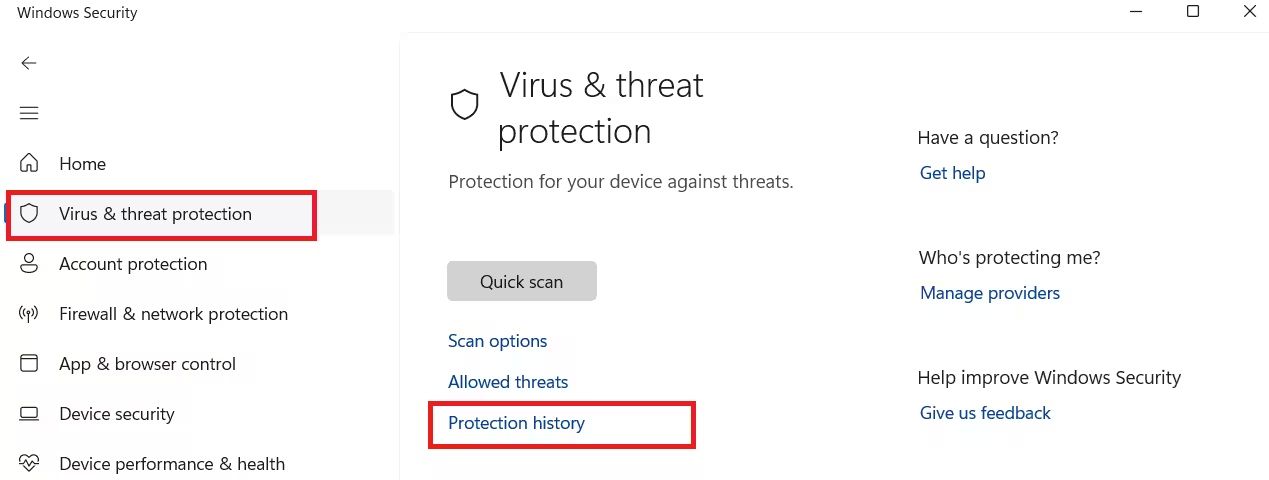
- Open Windows Security from the Start menu
- Go to Virus and threat protection
- Click Protection history
- Find the Trojan:Win32/ClicFix.PJ!MTB entry and confirm its status shows Quarantined or Removed
If it shows Allowed or Active, click the entry and select Remove or Quarantine immediately.
After confirming quarantine, run a fresh full scan. A Microsoft Defender virus scan checks every file on your drive and catches anything the initial quick scan may have missed.
To run a full scan:
- Open Windows Security
- Click Virus and threat protection
- Under Current threats, click Scan options
- Select Full scan
- Click Scan now
This scan can take 30 to 60 minutes depending on your drive size. Do not interrupt it.
Step 2: Run Microsoft Safety Scanner as a Second Opinion
Microsoft Safety Scanner is a separate on-demand tool that uses the same engine as Defender but runs completely independently. It catches threats that resident protection may miss due to timing or active evasion.
- Visit microsoft from a clean device if possible
- Download the 32-bit or 64-bit version matching your Windows installation
- Run msert.exe as Administrator
- Select Full Scan and let it complete
- Review the log at
%SYSTEMROOT%\debug\msert.logfor any additional threats found
Safety Scanner definitions expire after 10 days, so always download a fresh copy rather than reusing an old one.
Step 3: Remove Suspicious Browser Extensions
ClickFix campaigns frequently install malicious browser extensions as part of the payload. These extensions can steal session cookies, redirect searches, and inject ads even after the main trojan is removed.
Google Chrome:
- Open Chrome and go to
chrome://extensions/ - Look for extensions you do not recognize or did not install
- Click Remove on any suspicious entry
- Restart Chrome
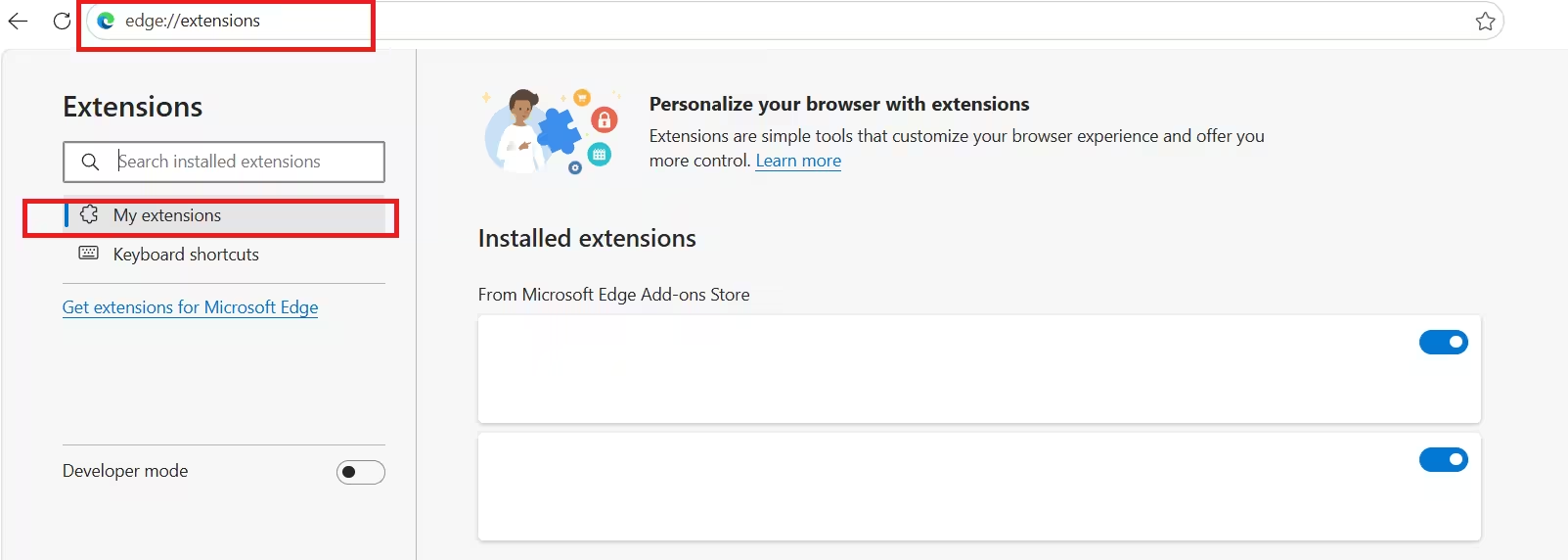
Microsoft Edge:
- Open Edge and go to
edge://extensions/ - Review each extension carefully
- Remove anything unfamiliar
- Restart Edge
Firefox:
- Open Firefox and go to
about:addons - Click Extensions in the left panel
- Remove unknown entries
Also reset your browser homepage and default search engine if either changed without your action.
Step 4: Uninstall Recently Installed Suspicious Apps
Some ClickFix payloads install a fake app or "updater" tool to maintain persistence. Check for anything installed around the time you saw the Defender alert.
- Open Settings and go to Apps
- Click Installed apps
- Sort by Install date
- Look for anything installed on or just before the date of the Defender alert
- Uninstall anything you do not recognize
Pay close attention to apps with generic names like "System Optimizer," "PC Cleaner," or vague updater names. If an unfamiliar process name is running in Task Manager, check our guide on whether Updater.exe is a virus and whether you should remove it for a practical checklist to evaluate suspicious executables.
Step 5: Change Your Passwords from a Clean Device
If Trojan:Win32/ClicFix.PJ!MTB was active on your PC for any length of time, treat your saved passwords as potentially compromised. Info-stealer payloads can exfiltrate browser-saved credentials within seconds of running.
Change passwords for these accounts from a different device (phone or another PC you trust):
- Microsoft account
- Email accounts (Gmail, Outlook, etc.)
- Banking and financial services
- Any accounts where you were logged in through the browser
Enable two-factor authentication on all critical accounts if you have not already done so. This limits the damage even if an attacker already captured a password.
Step 6: Check for Persistence Mechanisms
Sophisticated ClickFix payloads add registry keys, scheduled tasks, or startup entries to survive a reboot. Check each location manually.
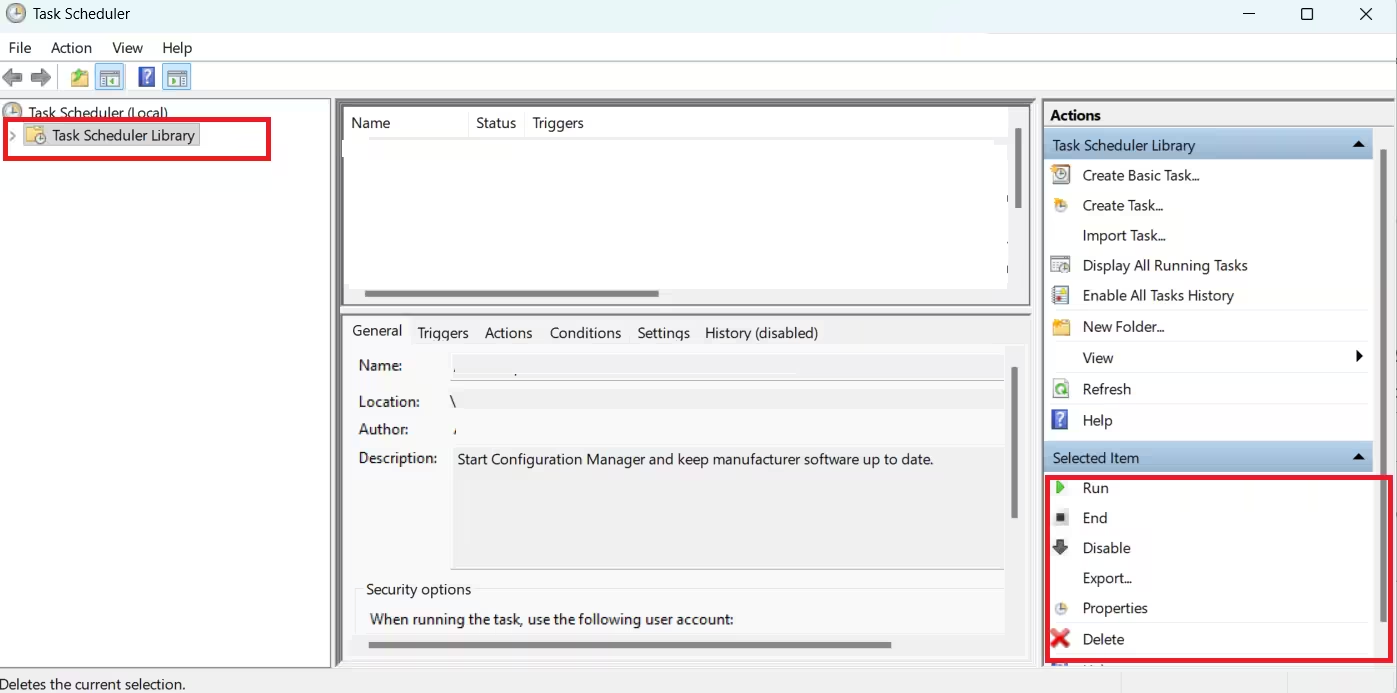
Scheduled Tasks:
- Press Win + R, type
taskschd.msc, and press Enter - In Task Scheduler Library, review tasks you do not recognize
- Right-click and Delete any suspicious task
- Pay attention to tasks with random-looking names or tasks that run PowerShell or cmd commands
Startup Programs:
- Press Ctrl + Shift + Esc to open Task Manager
- Click the Startup apps tab
- Disable anything unfamiliar
Registry Run Keys:
- Press Win + R, type
regedit, and press Enter - Navigate to:
HKEY_CURRENT_USER\Software\Microsoft\Windows\CurrentVersion\RunHKEY_LOCAL_MACHINE\Software\Microsoft\Windows\CurrentVersion\Run
- Look for entries pointing to unfamiliar file paths
- Delete any entry you cannot verify as legitimate
Be careful in the registry. Only delete entries you can clearly identify as suspicious.
Step 7: Update Windows and All Software
Outdated software gives attackers an easy entry point. After cleaning the infection, apply all pending updates immediately.
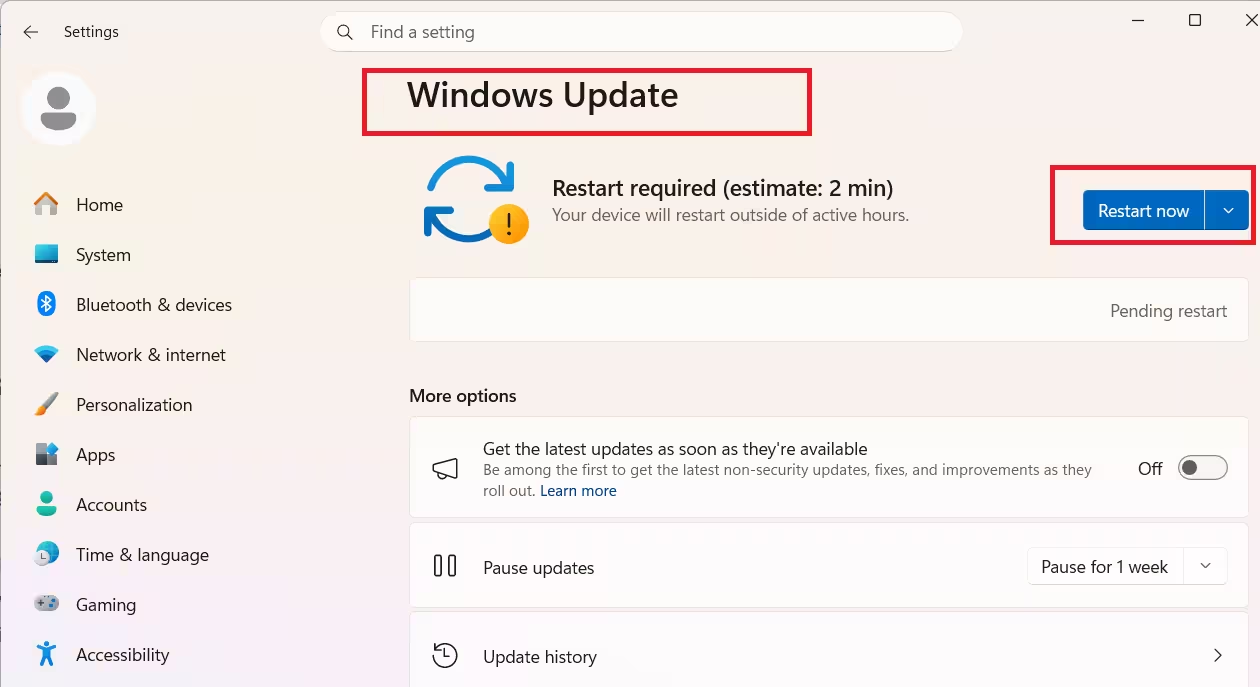
- Open Settings and go to Windows Update
- Click Check for updates and install everything available
- Restart your PC after updates complete
- Update all browsers to their latest versions
- Update any software you use regularly, especially PDF readers, media players, and office tools
Windows 11 includes built-in antivirus protection that improves with every update cycle. Keeping Windows current ensures Defender gets the latest threat definitions and engine improvements automatically.
How to Confirm Your PC Is Clean
After completing all steps above, run one final check:
- Restart your PC
- Run another Full Scan in Windows Security
- Check Protection history and confirm no new threats appear
- Monitor your PC for 24 to 48 hours for any returning symptoms
If Defender keeps detecting Trojan:Win32/ClicFix.PJ!MTB after multiple removals, the persistence mechanism is still active. In that case, boot into Windows Defender Offline Scan, which runs before Windows loads and catches rootkit-level threats that evade normal scanning.
To start an Offline Scan:
- Open Windows Security
- Go to Virus and threat protection
- Click Scan options
- Select Microsoft Defender Antivirus (offline scan)
- Click Scan now and allow your PC to restart
How to Avoid ClickFix Attacks in the Future
Trojan:Win32/ClicFix.PJ!MTB reaches your PC only if you manually run a command or script. No exploit, no drive-by download. The attack relies entirely on tricking you. Knowing the signs stops it cold.
Red flags to watch for:
- Any website that tells you to press Win+R and paste something
- Any page showing a fake "verification failed" or "browser update required" message with copy-paste instructions
- Any pop-up claiming your PC is infected and asking you to call a number (see how the Microsoft Defender error code call is a scam for the exact tactics attackers use)
- Search result ads leading to software download pages you did not expect
Habits that protect you:
- Never paste or run anything from a website, even if the page looks official
- Always download software directly from the developer's official site
- Keep SmartScreen enabled in Windows Security settings
- Use a standard user account for daily browsing and reserve the admin account for installs
Frequently Asked Questions
Is Trojan:Win32/ClicFix.PJ!MTB dangerous?
Yes. It belongs to the ClickFix malware family, which attackers use to deliver info-stealers, remote access trojans, and other high-impact payloads. Treat any detection of this trojan as a serious incident requiring full remediation.
Defender removed it. Is my PC clean?
Not necessarily. Defender removes the detected component, but ClickFix infections often include scheduled tasks, registry entries, or secondary files that survive the initial removal. Follow all steps in this guide to confirm your system is fully clean.
Will a factory reset fix Trojan:Win32/ClicFix.PJ!MTB?
A factory reset removes the infection completely. However, it also erases all your files unless you back them up first. Use a reset only if repeated scanning and manual removal steps fail to clear the threat.
Can Trojan:Win32/ClicFix.PJ!MTB spread to other devices on my network?
This trojan does not self-propagate across a network like a worm. However, if an attacker gained remote access through the payload, they could potentially move laterally. Change network passwords and review connected devices if you suspect prolonged access.
How long was the trojan active before Defender caught it?
Defender typically catches threats at execution or shortly after. If you received the alert quickly after running a suspicious command, exposure was likely minimal. If the alert appeared days after a suspicious event, assume more exposure and prioritize password changes.
Can Trojan:Win32/ClicFix.PJ!MTB steal my passwords?
Yes. ClickFix campaigns frequently deliver Lumma Stealer and similar credential-harvesting tools. Change all browser-saved passwords from a clean device as a precaution.