Error 0x800701AA stops you from downloading, copying, or syncing files through OneDrive on Windows 11. The full message reads: “The cloud operation was not completed before the time-out period expired.” Windows throws this error when OneDrive cannot finish a file operation within its timeout window, whether you are pulling photos off a camera, downloading a folder from the cloud, or moving files between synced locations.
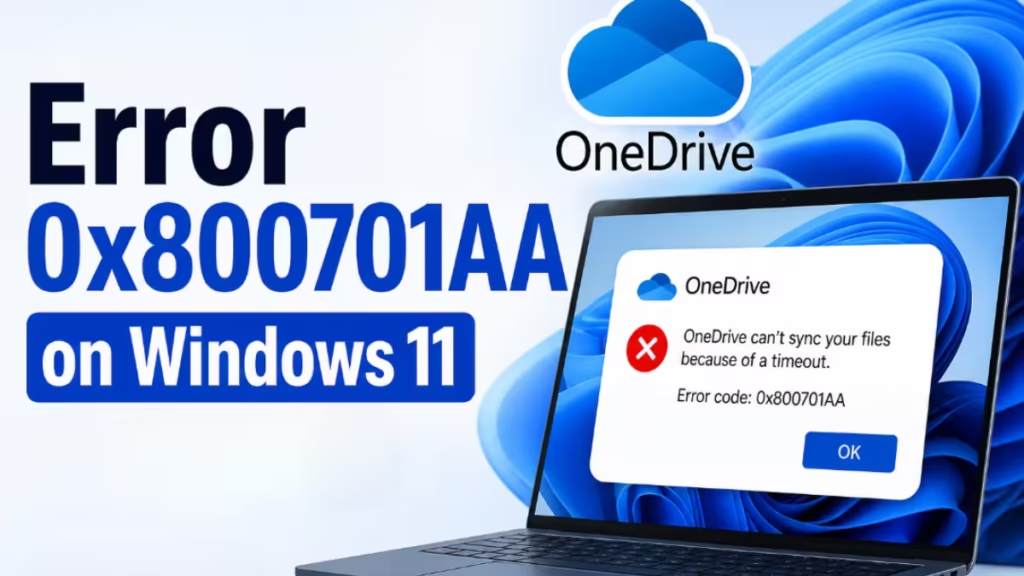
This guide walks through every confirmed fix for error 0x800701AA on Windows 11, from the quickest workarounds to full reinstallation.
What Causes Error 0x800701AA?
Understanding the root cause helps you pick the right fix first.
- Unstable internet connection: OneDrive needs a steady connection throughout the entire file operation. A momentary drop resets the timeout counter and throws 0x800701AA.
- Not enough disk space: If the file is larger than the free space available on your drive, the operation stalls before it finishes.
- Copying into a OneDrive-synced folder: When you paste files into Pictures, Desktop, or Documents and those folders sync to OneDrive, Windows tries to upload the incoming files at the same time you copy them in. This conflict triggers the timeout.
- Corrupted OneDrive cache: A corrupted local cache prevents OneDrive from reading or writing file metadata correctly.
- Misconfigured network certificate: OneDrive uses certificates to authenticate with its servers. A broken certificate causes connection failures that look like timeouts.
- OneDrive server outage: If Microsoft’s servers are under maintenance, download and sync operations will time out on the client side.
- Corrupted or oversized file: A partially corrupted file or a file that is too large for a single sync operation can cause repeated timeouts.
How to Fix Error 0x800701AA on Windows 11
Fix 1: Pause OneDrive Syncing First
OneDrive running in the background during a large file transfer competes with the operation and causes timeouts. Pause it before you start.
- Click the OneDrive cloud icon in the system tray at the bottom-right of the taskbar.
- Click the gear icon (Help and Settings).
- Select Pause syncing and choose 2 hours.
- Try your file transfer again.
- Resume syncing once the transfer completes.
This alone resolves the error for many users copying photos from a camera.
Fix 2: Copy Files to a Local Folder Instead
If you paste photos or files directly into Pictures, Documents, or Desktop while those folders are set to sync with OneDrive, the sync process conflicts with the incoming copy and causes 0x800701AA. The fix is to copy into a folder that OneDrive does not monitor.
- Press Win + E to open File Explorer.
- Navigate to your C drive and create a new folder, for example
C:\CameraPhotos. - Copy your photos into that local folder instead of Pictures or Documents.
- Once the copy finishes successfully, move the files to your OneDrive folder if you want them synced.
This method separates the copy step from the sync step and eliminates the conflict entirely.
Fix 3: Check Available Disk Space
A nearly full drive prevents OneDrive from writing downloaded files and causes the operation to time out with 0x800701AA.
- Press Win + I to open Settings.
- Go to System > Storage.
- Check how much free space remains on your primary drive.
- If space is low, delete files you no longer need, uninstall unused apps, or move large files to an external drive.
As a general rule, keep at least 10 to 15 percent of your drive free to avoid storage-related errors.
Fix 4: Restart Windows Explorer
A stuck Windows Explorer process can block file read and write operations, which causes OneDrive operations to time out.
- Press Ctrl + Shift + Esc to open Task Manager.
- Scroll down to find Windows Explorer in the Processes list.
- Right-click it and select Restart.
- Wait a few seconds for the taskbar and desktop to reload.
- Try your file transfer again.
Fix 5: Reconnect Your Camera or USB Device
If error 0x800701AA appears when copying photos from a camera, the camera connection itself may be the problem. Windows requires the device to be in file transfer mode to read files correctly.
- Safely disconnect your camera from the PC.
- On the camera, check the USB connection setting. Switch it to MTP (Media Transfer Protocol) or File Transfer mode. Charging mode does not allow file access.
- Reconnect the camera using a different USB port on your PC.
- If you have a spare cable, try that as well.
- Attempt the photo copy again.
Fix 6: Check and Stabilize Your Internet Connection
A slow or unstable connection causes OneDrive downloads to stall past the timeout limit.
- Open a browser and load a few pages to confirm your connection is active.
- If you are on Wi-Fi, move closer to your router or switch to a wired ethernet connection.
- Restart your router by unplugging it for 30 seconds and plugging it back in.
- Once the connection is stable, retry the OneDrive download.
For large file transfers, a wired connection is significantly more reliable than Wi-Fi.
Fix 7: Check OneDrive Server Status
If OneDrive servers are under maintenance or experiencing an outage, all download and sync operations will time out on your end regardless of what you do locally.
- Open your browser and go to status.office365.com.
- Look for any active incidents listed under OneDrive.
- If an outage is reported, wait for Microsoft to resolve it and try again later.
You can also check recent user reports on Downdetector for a faster status check.
Fix 8: Reset OneDrive
Resetting OneDrive clears the local sync cache, resets the network certificate, and restores all client settings to their defaults. This fixes errors caused by cache corruption or a misconfigured certificate without affecting any files stored in the cloud.
- Press Win + R to open the Run dialog.
- Type the following and press Enter:
%localappdata%\Microsoft\OneDrive\onedrive.exe /reset- Wait for the reset to complete. The OneDrive icon will disappear from the taskbar temporarily.
- If the icon does not return within two to three minutes, press Win + R again and type:
%localappdata%\Microsoft\OneDrive\onedrive.exe- Press Enter to relaunch OneDrive manually.
- Restart your PC and test the file operation again.
Fix 9: Move OneDrive to a Different Drive
If your system drive consistently runs low on space, moving OneDrive’s sync folder to a larger secondary drive gives it the room it needs to complete operations.
- Click the OneDrive icon in the taskbar tray.
- Click the gear icon and select Settings.
- Go to the Account tab and click Unlink this PC.
- Click Unlink account to confirm.
- Sign back in with your Microsoft account email when prompted.
- When the OneDrive setup wizard opens, click Change location.
- Select a drive with sufficient free space and click Select Folder.
- Click Next and complete the remaining wizard steps.
- Click Open my OneDrive folder to finish the setup.
Your files will re-sync to the new location after the setup completes.
Fix 10: Check for Windows Updates
An outdated Windows installation can create compatibility issues with OneDrive that surface as timeout errors.
- Press Win + I to open Settings.
- Go to Windows Update.
- Click Check for updates.
- Install any pending updates and restart your PC.
- After the restart, try your OneDrive operation again.
If error 0x800701AA appeared immediately after a Windows update and these steps do not help, check whether that specific update has known issues. Some cumulative updates have introduced file sync and storage conflicts on Windows 11.
Fix 11: Reinstall OneDrive
If every other fix fails, a clean reinstall of OneDrive removes any corrupted application files that the reset command cannot clear.
- Right-click the Start menu and select Installed apps.
- Find Microsoft OneDrive in the list.
- Click the three-dot menu next to it and select Uninstall.
- Confirm the uninstall and wait for it to finish.
- Open your browser and go to the official OneDrive download page at microsoft.com/onedrive.
- Download and run the installer.
- Sign in with your Microsoft account when prompted.
- Wait for OneDrive to sync and test your file operations.
FAQs
What does error 0x800701AA mean on Windows 11?
Error 0x800701AA means “the cloud operation was not completed before the time-out period expired.” Windows returns this error when OneDrive cannot finish downloading, uploading, or accessing a file within its timeout window. The most common causes are an unstable internet connection, insufficient disk space, and a corrupted OneDrive cache.
Why does error 0x800701AA appear when I copy camera photos?
When you copy photos from a camera into a folder that OneDrive syncs, such as Pictures or Documents, OneDrive immediately tries to upload the incoming files while you are still copying them in. This creates a conflict that causes the operation to time out. Copying the photos into a local folder outside OneDrive, such as C:\CameraPhotos, avoids the conflict entirely.
Does resetting OneDrive delete my files?
No. Resetting OneDrive only clears the local sync cache and resets client settings. All files stored in the OneDrive cloud remain untouched. After the reset, OneDrive re-downloads and re-syncs your files automatically.
Can a full hard drive cause error 0x800701AA?
Yes. If your drive does not have enough free space to store the files being downloaded, the operation stalls and Windows returns 0x800701AA. Check your storage under Settings > System > Storage and free up space before trying again.
Will clicking Try Again after the error work?
Sometimes. For smaller files or brief connection drops, clicking Try Again resumes the download and completes it. For larger folders or persistent connection issues, the error will keep returning until you address the underlying cause.
How do I stop error 0x800701AA from happening again?
Keep at least 10 to 15 percent of your primary drive free, use a wired connection for large OneDrive transfers, and avoid copying files directly into OneDrive-synced folders during active sync sessions. Pausing OneDrive before large transfers is the most reliable prevention.

