When Outlook calendar deleted all appointments without warning and only invitee events remain, the issue points to a specific sync or account-level problem. You still see meetings where others invited you because those events live on the organizer’s calendar. Your own appointments sit in a different data layer, and something disrupted that layer.
This guide covers every known cause and fix, from a 10-second view filter check to a full Outlook profile rebuild.
Why Outlook Calendar Deleted All Appointments
Before jumping into fixes, knowing the cause helps you pick the right solution.
- Active view filter: Outlook’s calendar view can filter events by date range, category, or organizer. A filter that got switched on makes your appointments invisible without deleting them.
- Calendar toggled off: The My Calendars panel on the left lets you show or hide individual calendars. If your personal calendar gets unchecked, all its events vanish from view.
- Account re-added or re-authenticated: When Outlook re-adds your account after a password change or app update, it sometimes resets the local calendar cache. The classic Outlook sync error that triggers server connection problems can cause the same outcome.
- Shared or delegate calendar: If you were viewing a shared calendar and the owner changed your permissions, those events disappear immediately.
- Corrupt local data file: Outlook stores calendar data in a local .ost or .pst file. Corruption in that file causes events to vanish from the app while the server copy stays untouched.
- Server-side deletion (work and school accounts): An IT admin can delete or archive calendar events at the Exchange or Microsoft 365 level. This affects your account only if targeted, or all users in the organization if done globally.
- Windows update side effect: Some Windows updates have caused Outlook to misbehave. If Outlook Classic hangs after a Windows update, calendar sync can break alongside it.
How to Fix Outlook Calendar Deleted All Appointments
Work through these fixes in order. The first two take under a minute and resolve the issue for most users.
Fix 1: Check and Clear Calendar View Filters
A hidden filter is the most common reason appointments disappear without any warning.
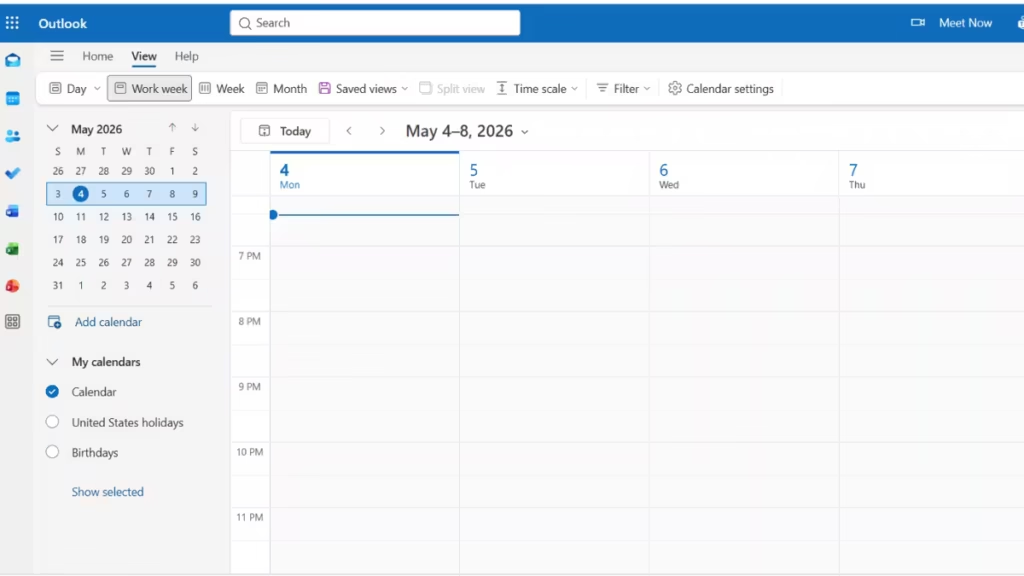
- Open Outlook and go to Calendar.
- Click the View tab in the ribbon.
- Click Reset View to remove any active filters.
- Check the date navigator on the left and confirm you are not locked to a filtered date range.
- Click View > Change View > Calendar to restore the default layout.
If appointments reappear after resetting the view, a filter was hiding them the whole time. No data was lost.
Fix 2: Enable Your Personal Calendar in the Left Panel
- Look at the My Calendars section in the left sidebar.
- Make sure your primary calendar has its checkbox ticked.
- Check any unchecked calendars and toggle them on.
On mobile, tap the menu icon, then confirm that your calendar account and all its calendars are toggled on.
Fix 3: Check the Web Version of Outlook
Open Outlook.com in a browser and sign in with the same account. Navigate to Calendar. If your appointments appear on the web, the problem is local to your Outlook app, not the server. This rules out accidental deletion at the account level.
If the events are also missing on the web version, the issue is account-wide and you need the server-side fixes below.
Fix 4: Sign Out and Sign Back Into Your Account
A stale authentication token or interrupted sync can cause Outlook to stop showing your own calendar events while still pulling invitee events from other organizers.
In New Outlook for Windows:
- Click your profile picture or initials at the top right.
- Click Sign out.
- Close Outlook completely.
- Reopen Outlook and sign back in.
- Wait for the calendar to finish syncing before checking.
In Classic Outlook:
- Go to File > Account Settings > Account Settings.
- Select your account and click Repair.
- Follow the prompts and let Outlook reconnect to the server.
This same process also fixes cases where Outlook is not receiving emails on laptop and phone after a sync disruption.
Fix 5: Force a Full Calendar Sync
Outlook does not always sync calendar data automatically after a disruption.
In New Outlook:
- Go to Calendar.
- Right-click your calendar name in the left panel.
- Select Sync this calendar or Refresh.
In Classic Outlook:
- Press F9 or click Send/Receive > Send/Receive All Folders.
- Wait for the operation to complete.
- Check whether appointments reappear.
If Outlook shows a disconnected status during sync, fix the connection first using the steps in Outlook showing disconnected or Trying to Connect.
Fix 6: Remove and Re-Add Your Account
If signing out and syncing do not restore your appointments, remove the account from Outlook and add it back fresh. This rebuilds the local calendar cache from the server copy.
In New Outlook for Windows:
- Go to Settings > Accounts.
- Click your account and select Remove account.
- Confirm the removal.
- Go back to Settings > Accounts > Add account and sign in again.
In Classic Outlook:
- Go to File > Account Settings > Account Settings.
- Select the account and click Remove.
- Click New and add the account again with your credentials.
After re-adding the account, Outlook re-downloads all calendar data from the server. This can take several minutes depending on how much data your calendar holds.
Fix 7: Create a New Outlook Profile
A corrupt Outlook profile can cause calendar data to display incorrectly even when the server holds all your events intact.
- Press Windows + R and type
controlto open Control Panel. - Click Mail (Microsoft Outlook).
- Click Show Profiles.
- Click Add and create a new profile with a different name.
- Set it as the default profile.
- Open Outlook and sign in through the new profile.
If your appointments reappear, the original profile was corrupted.
Fix 8: Check with Your IT Administrator (Work and School Accounts)
For work or school accounts managed through Microsoft 365 or Exchange, an IT admin has full control over calendar data. Contact your IT department and ask:
- Whether any calendar data migration or archiving ran recently.
- Whether your mailbox was restored from a backup.
- Whether a policy change affected your calendar permissions.
- Whether other users in the organization are also missing calendar events.
If the issue affects multiple users, the cause is server-side and requires admin action to resolve.
Can Deleted Outlook Calendar Events Be Recovered?
If your appointments were deleted rather than hidden, recovery depends on your account type.
- Personal Microsoft accounts: Outlook does not offer a native calendar event recovery tool for personal accounts. If events do not reappear after re-syncing, they may be permanently gone unless you have a local backup.
- Work or school accounts: Exchange and Microsoft 365 accounts keep a recoverable items folder on the server. Your IT admin can restore deleted calendar events from this folder for a limited period, typically 14 to 30 days depending on your organization’s retention policy.
FAQs
Why did Outlook calendar delete only my own appointments but keep invitee events?
Invitee events live on the organizer’s calendar and sync to your account separately from your own entries. When your personal calendar data is lost or hidden, only the events you created disappear. Events where you are an invitee remain because Outlook pulls them directly from the organizer’s calendar.
Does Outlook have a calendar recycle bin?
Outlook does not have a dedicated calendar recycle bin for personal accounts. For work accounts on Exchange or Microsoft 365, an IT admin can recover calendar events from the server-side recoverable items folder within the active retention window.
Will re-adding my Outlook account delete my calendar events permanently?
No. Removing and re-adding your account only clears the local cache on your device. Your calendar data stays on the Microsoft server. Once you add the account back, Outlook re-downloads everything from the server.
Why are Outlook calendar events missing on mobile but visible on the web?
This usually means the mobile app lost its sync state. Sign out of Outlook on your phone, remove the account from the app, and add it again. The calendar will re-sync from the server. If you also sync your Outlook calendar to Samsung Calendar, re-sync that connection after restoring Outlook.
What should I do if Outlook calendar appointments disappeared after a Windows update?
Check whether Outlook Classic is hanging after a Windows update on your system. A broken update can disrupt calendar sync. Rolling back the update or applying a newer patch often restores normal behavior.
Why do Outlook tasks and calendar events go missing at the same time?
A corrupt local data file or a failed account sync can wipe both calendar events and tasks from the local view simultaneously. Outlook tasks not syncing with iPhone Reminders often shares the same root cause: a broken account sync that needs a full re-authentication to fix.

