Finding a trojan virus on your computer is serious, but it is fixable. This guide walks you through every step: identifying the infection, scanning with Windows Defender, removing it manually if needed, and locking down your PC so it does not happen again.
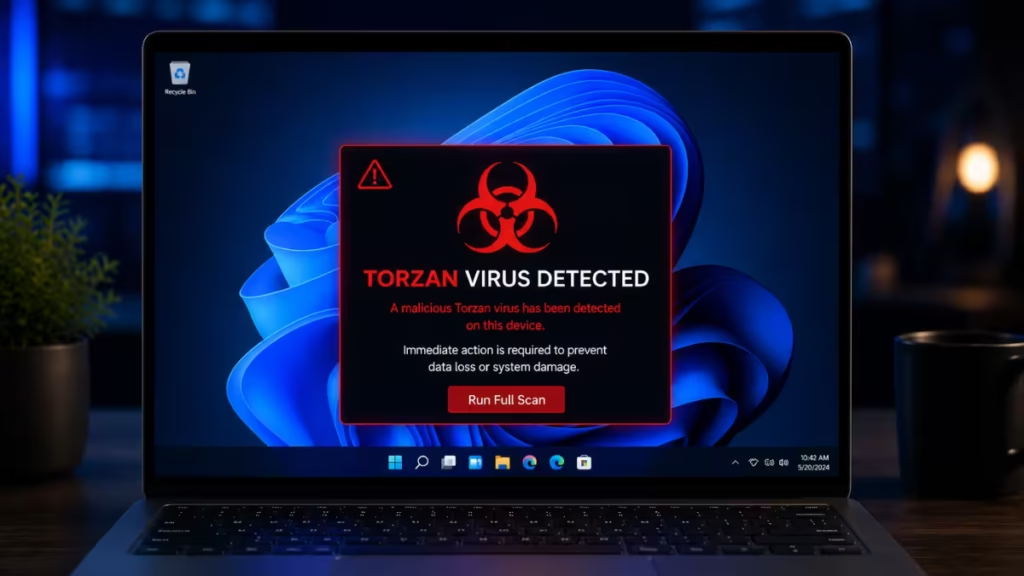
What Is a Trojan Virus and How Does It Work?
A trojan virus disguises itself as legitimate software to trick you into installing it. The name comes from the ancient Greek story of the Trojan Horse: something that appears safe but carries a hidden threat inside.
Unlike worms or ransomware, trojans do not self-replicate. They rely on social engineering. You might download what looks like a PDF viewer, a game crack, or a free utility, and the trojan installs alongside it without your knowledge.
Once active, a trojan can:
- Open a backdoor for remote attackers
- Log your keystrokes and steal passwords
- Download additional malware onto your system
- Recruit your PC into a botnet
- Encrypt files for ransom
One common variant is the Remote Access Trojan (RAT), which gives attackers full control over your machine without any visible signs.
Symptoms of Trojan Infection on Windows 11
Trojans are designed to stay hidden, but most infections leave recognizable signs:
- Slow performance: Your PC feels sluggish even during basic tasks.
- Unexpected crashes or freezes: Apps crash randomly or Windows restarts without warning.
- Unknown processes in Task Manager: Processes you do not recognize consume CPU or memory.
- Browser redirects: Your homepage changes or searches route through unfamiliar sites.
- Disabled antivirus: Windows Security turns itself off or cannot update.
- Unexplained network activity: High upload or download usage when you are not actively browsing.
- Fake security alerts: Pop-ups claim your PC is infected and push you to download something.
If you see several of these at once, you likely have a trojan virus on your computer.
How to Scan for Trojans Using Windows Defender
Windows Defender (Microsoft Defender Antivirus) is built into Windows 11 and detects most trojans without any third-party software. Run a full scan before trying anything else.
Step 1: Open Windows Security
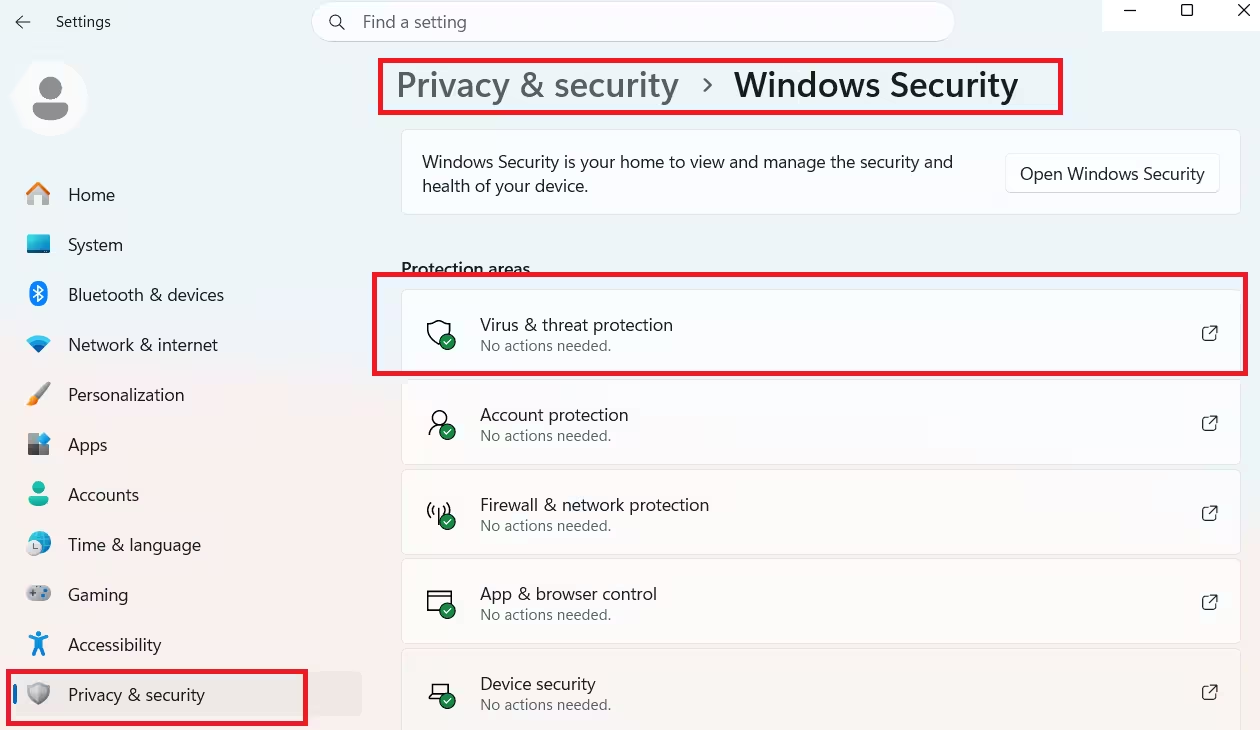
- Press Win + I to open Settings.
- Go to Privacy & security > Windows Security.
- Click Open Windows Security.
Step 2: Run a Full Scan
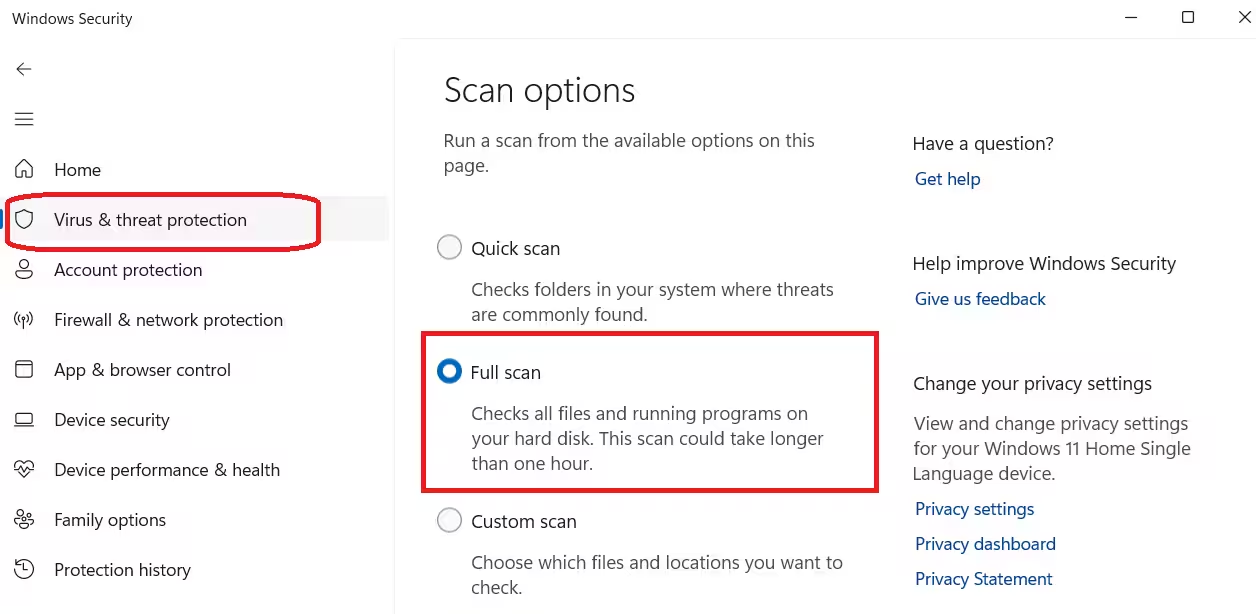
- Click Virus & threat protection.
- Under “Current threats,” click Scan options.
- Select Full scan.
- Click Scan now and wait for the scan to finish.
A full scan checks every file on your drive. It takes 30 to 60 minutes depending on how much data you have.
For a detailed walkthrough of every scan type and what each one does, see How to Run a Microsoft Defender Virus Scan (Beginner-Friendly).
Step 3: Review and Remove Threats
After the scan finishes, Defender lists any detected threats. Click Start actions to quarantine or remove them. Restart your PC when prompted.
If Defender finds nothing but your PC still behaves strangely, move on to the manual removal steps below.
Manual Trojan Removal Steps (Safe Mode and Registry Check)
Sometimes a trojan disables Defender or hides from standard scans. In those cases, manual removal is the next step.
Boot into Safe Mode
Safe Mode loads Windows with only essential drivers and services, which prevents most malware from launching at startup.
Option A (System Configuration):
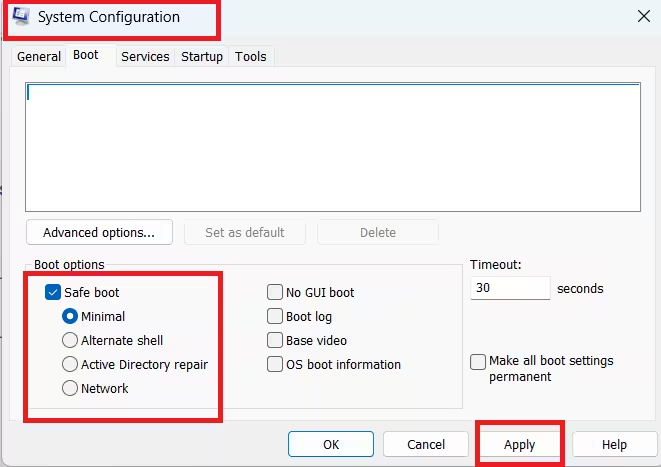
- Press Win + R, type
msconfig, and press Enter. - Go to the Boot tab.
- Check Safe boot and select Minimal.
- Click OK and restart your PC.
Option B (Shift + Restart):
- Hold Shift and click Restart from the Start menu.
- Go to Troubleshoot > Advanced options > Startup Settings > Restart.
- Press 4 to enable Safe Mode.
Check Startup Programs
- Press Ctrl + Shift + Esc to open Task Manager.
- Click the Startup apps tab.
- Look for unfamiliar programs listed with a high startup impact.
- Right-click any suspicious entry and select Disable.
Inspect Running Processes
While in Task Manager, go to the Processes tab. Sort by CPU or Memory usage. Look for processes with random names, no description, or names that closely mimic system files (for example, svchost32.exe instead of the legitimate svchost.exe).
Right-click a suspicious process and choose Open file location. If the file lives outside C:\Windows\System32 or C:\Program Files, investigate further. You can upload it to VirusTotal to check whether any security engine flags it as malicious.
Note: Not every unfamiliar process is malware. For example, Updater.exe belongs to several trusted applications including Google Chrome. Always verify a process before ending or deleting it.
Clean Suspicious Registry Entries
Trojans often write to the Windows Registry to survive reboots.
Warning: Incorrect registry edits can break Windows. Back up the registry before making any changes: in Registry Editor, go to File > Export and save a backup copy.
- Press Win + R, type
regedit, and press Enter. - Navigate to each of the following keys and look for unfamiliar entries:
HKEY_CURRENT_USER\Software\Microsoft\Windows\CurrentVersion\RunHKEY_LOCAL_MACHINE\SOFTWARE\Microsoft\Windows\CurrentVersion\Run
- Right-click and delete any entry that points to an unknown or suspicious executable path.
- Restart your PC.
Uninstall Suspicious Programs
- Open Settings > Apps > Installed apps.
- Sort by Install date.
- Look for apps you do not remember installing, especially anything that appeared around the time symptoms started.
- Click the three-dot menu next to the app and select Uninstall.
Best Free Tools to Remove Trojan Virus
If Windows Defender and manual steps do not fully clean your system, these free tools scan deeper:
1. Malwarebytes Free
Malwarebytes is one of the most effective tools for removing trojans, adware, and potentially unwanted programs that Defender sometimes misses. Download it from the official Malwarebytes website. Run a Threat Scan, review the results, and click Quarantine to remove what it finds. Restart your PC afterward.
2. Microsoft Safety Scanner
Microsoft Safety Scanner is an official on-demand scanner from Microsoft. It does not replace Defender but works alongside it. Download it from the Microsoft website and run a Full Scan. Note: the tool expires 10 days after download, so use it immediately.
3. HitmanPro (30-Day Free Trial)
HitmanPro uses cloud-based scanning and frequently catches threats that local tools miss. The free 30-day trial allows one full cleanup. Download it from the official Sophos website and let it run a scan before committing to a purchase.
Run these tools one at a time. Restart between each scan and re-check for symptoms before moving to the next tool.
How to Prevent Future Trojan Infections
Removing a trojan once is frustrating. Preventing it from coming back takes a few consistent habits.
1. Keep Windows and apps updated
Outdated software is the most common entry point for trojans. Enable automatic updates under Settings > Windows Update and keep them on.
2. Keep Real-Time Protection active
The Windows 11 built-in antivirus handles the majority of threats when it stays active and updated. Verify it is on under Windows Security > Virus & threat protection > Manage settings.
3. Download software only from official sources
Avoid cracked software, key generators, and files from random file-sharing sites. These are the most common trojan delivery methods in 2025 and 2026.
4. Be cautious with email attachments
Do not open attachments from unknown senders. Even attachments from familiar contacts can be dangerous if their account was compromised. Verify unexpected file links before clicking.
5. Enable SmartScreen
Windows SmartScreen warns you before running unrecognized apps. Keep it on under Windows Security > App & browser control > Reputation-based protection.
6. Run daily tasks from a standard user account
Running as an administrator gives trojans elevated privileges when they execute. Create a standard user account for everyday use and reserve your admin account for installations and system changes only.
FAQs
Can Windows Defender remove a trojan virus from Windows 11?
Yes. Windows Defender can detect and remove most trojans through a full scan. Go to Windows Security > Virus & threat protection > Scan options > Full scan. For stubborn trojans, combine Defender with Malwarebytes Free for a deeper cleanup.
How do I know if my Windows 11 PC has a trojan virus?
Common signs include sudden slowdowns, unknown processes in Task Manager, browser redirects, antivirus turning off on its own, and high network activity when you are not actively using the internet.
Will resetting Windows 11 remove a trojan virus?
Yes. A factory reset removes all files, apps, and malware including trojans. Use this as a last resort if scans and manual removal steps fail. Go to Settings > System > Recovery > Reset this PC and choose Remove everything.
Is it safe to remove trojan files manually from the registry?
It can be safe if you know exactly which entries to delete. Always back up the registry first via File > Export before making any changes. Deleting the wrong key can cause Windows to malfunction.
Can a trojan virus come back after removal?
Yes, if the source of infection is not addressed. Trojans can return if you keep using cracked software, skip Windows updates, or download files from untrusted sites. Remove the threat, then change any passwords that may have been exposed.

