Most new laptops ship with Windows 11 Home. If you need BitLocker Drive Encryption, Remote Desktop, or the ability to join a domain, you need Windows 11 Pro. Microsoft makes the upgrade straightforward in most cases, but a few steps trip users up, especially around activation.
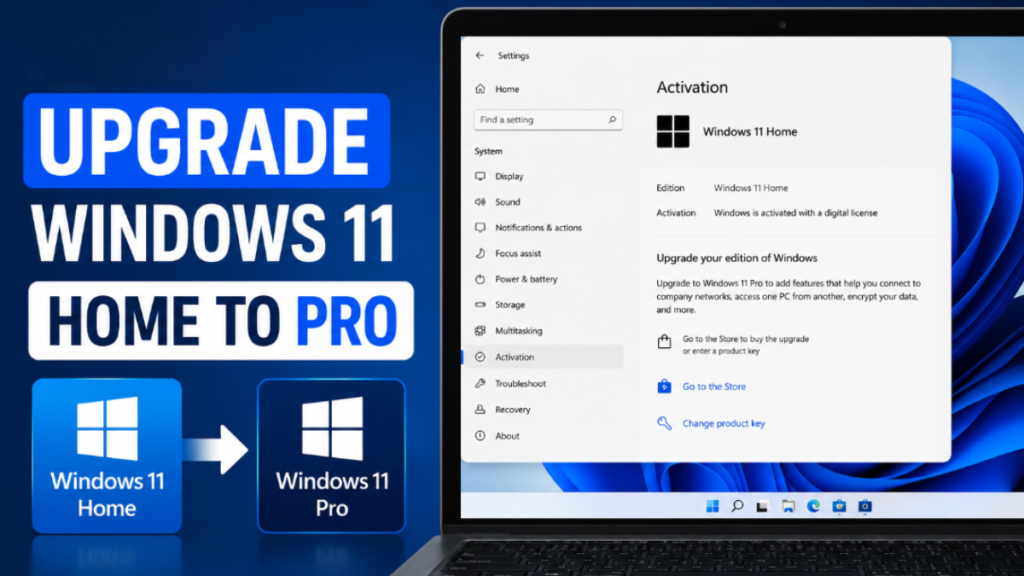
This guide covers all three working methods to upgrade from Windows 11 Home to Pro, including what to do when activation fails after you pay.
What You Get With Windows 11 Pro
Before you spend money on the upgrade, confirm you actually need the Pro edition. The main features Pro adds over Home are:
- BitLocker Drive Encryption for full disk protection
- Remote Desktop host capability (connect to this PC remotely)
- Domain and Microsoft Entra ID join for business networks
- Hyper-V virtualization
- Group Policy Editor for advanced system management
If you only need basic computing, streaming, or gaming, Home is sufficient. If any of the above features matter to you, the upgrade is worth it.
Method 1: Upgrade via Microsoft Store (Recommended)
The cleanest way to upgrade is through the Microsoft Store. Microsoft links the Pro license to your Microsoft account as a digital license, so you do not need to manage a product key manually.
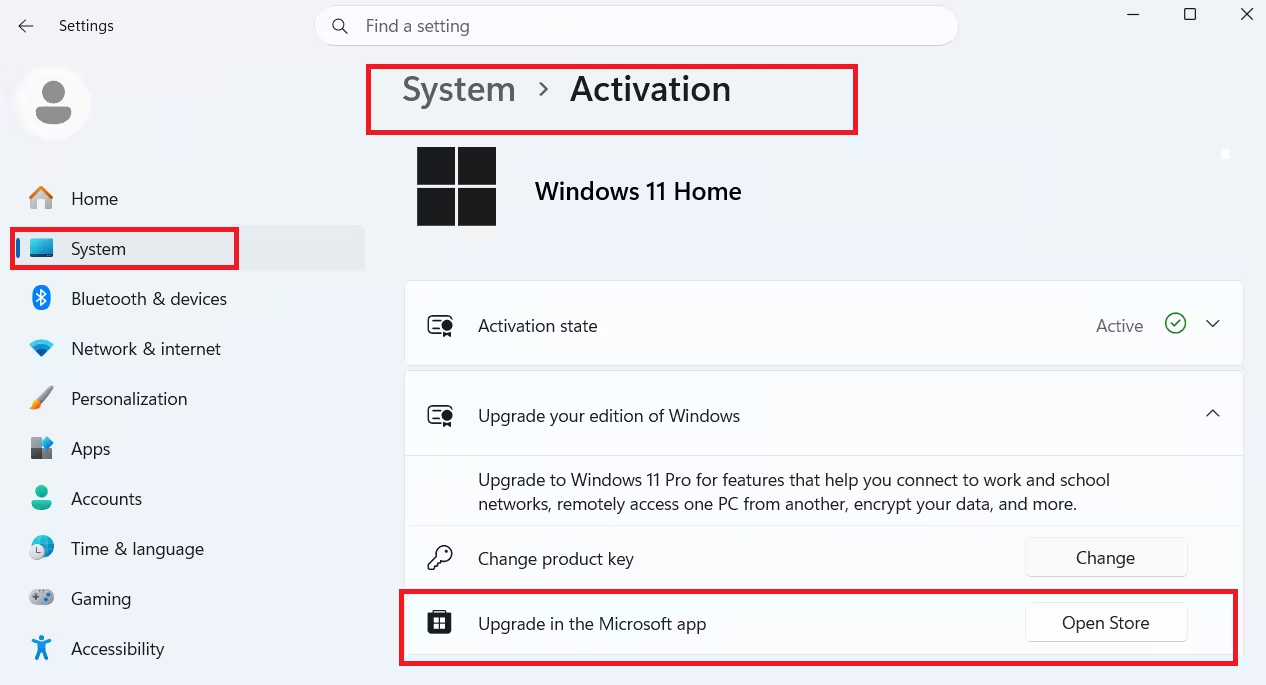
- Open Settings (Win + I).
- Go to System > Activation.
- Under Upgrade your edition of Windows, select Open Store.
- The Microsoft Store opens directly on the Windows 11 Pro upgrade page.
- Sign in with your Microsoft account if prompted.
- Complete the purchase.
- Follow the on-screen instructions to install and restart your PC.
After the restart, Windows 11 Pro activates automatically using your digital license tied to your Microsoft account. Always use Restart, not Shut down, to complete the activation process.
Note: If the Upgrade your edition of Windows section does not appear in Activation settings, your device may already be running a Pro or higher edition, or the upgrade path may not be available for your current installation.
Method 2: Enter a Product Key Manually
If you purchased a Windows 11 Pro retail product key from Microsoft or an authorized retailer, enter it directly in Settings.
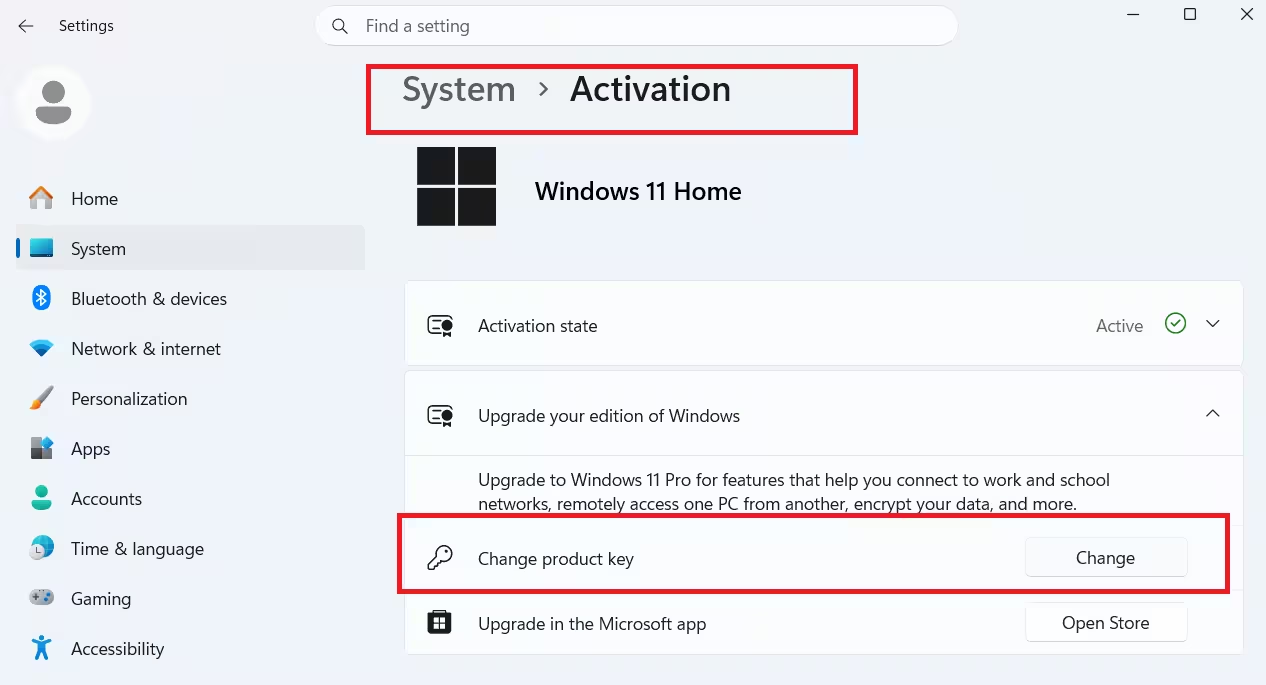
- Open Settings (Win + I).
- Go to System > Activation.
- Next to Change product key, select Change.
- If a User Account Control prompt appears, confirm with an admin account.
- Enter your 25-character Windows 11 Pro product key.
- Select Next to start the upgrade.
- Restart your PC when prompted.
After the restart, Windows activates using your product key. If you see an activation error after a hardware change, the troubleshooter in Activation settings lets you relink your license to the new hardware.
Method 3: Generic Key Workaround (For Store Purchases That Do Not Activate)
Some users pay through the Microsoft Store but Windows remains on the Home edition, or the upgrade process stalls. This happens most often on new laptops or after a clean install. The generic key method forces the edition change, then your paid digital license activates automatically.
Important: Disconnect from the internet completely before you start. This step is required.
- Turn off Wi-Fi and unplug any Ethernet cable.
- Open Settings > System > Activation.
- Select Change next to Change product key.
- Enter this generic Pro upgrade key:
VK7JG-NPHTM-C97JM-9MPGT-3V66T - Select Activate Product when prompted.
- If activation fails on the first attempt, restart your PC and repeat from step 2.
Once the edition switches to Pro, reconnect to the internet and restart (do not shut down). Windows contacts Microsoft’s activation servers and applies your paid digital license automatically.
This generic key is not a license. It only triggers the edition change. Your actual legal license must exist as a paid digital license in your Microsoft account or as a separately purchased product key.
What to Do If Activation Fails After the Upgrade
After upgrading to Pro, some users see an activation error instead of a clean “Windows is activated” status. Here are the most common causes and fixes.
1. Error 0xC004F050
This error means Windows rejected the product key as invalid. It appears most often when:
- You entered a key that does not match this edition or region
- The generic key was entered while still connected to the internet
- The digital license has not yet synced to your Microsoft account
For a full step-by-step fix, see the dedicated guide on error 0xC004F050 during Windows 11 Pro upgrade.
2. 0x803F7001 After Hardware Change
If you replaced the motherboard or made significant hardware changes before or after upgrading, Windows may fail to activate with error 0x803F7001. Open Settings > System > Activation and run the activation troubleshooter. Select I changed hardware on this device recently and sign in with the Microsoft account linked to your license.
For detailed steps, see how to activate Windows 11 after changing motherboard.
3. Pro Not Activated After Dual Boot Setup
Dual boot configurations sometimes confuse Windows activation. If you upgraded to Pro on one partition and the license does not stick, the fix involves relinking your digital license through the Microsoft account troubleshooter. See how to fix Windows 11 Pro not activated after dual boot upgrade for the full process.
4. Activation Troubleshoot Loop
If the troubleshooter keeps cycling without resolving activation, your digital license may have become unlinked from your Microsoft account. Sign out of your Microsoft account in Settings, restart, sign back in, then run the troubleshooter again. More detailed steps are in the Windows 11 not activating after hardware upgrade guide.
5. Activation Status
Seeing “Windows is activated” does not always mean you hold a genuine perpetual license. A digital license tied to a specific device, a KMS activation, or a retail key all show the same activated status but carry different rights and transfer policies. If you want to understand the difference before upgrading, read Windows 11 activation vs genuine license.
FAQs
Can I upgrade Windows 11 Home to Pro without losing my files?
Yes. Upgrading from Home to Pro through Settings or the Microsoft Store is an in-place edition change. Your files, apps, and settings remain intact.
Does the generic key VK7JG-NPHTM-C97JM-9MPGT-3V66T work on Windows 10?
No. This key applies only to Windows 11 Home devices upgrading to Pro. Windows 10 uses a different generic key for the same purpose.
What happens if I enter the generic key while connected to the internet?
Windows may try to validate it against Microsoft’s servers and return an error because the key is not a valid license. Disconnect from the internet first, then enter the key.
My Microsoft account shows the Pro purchase, but Windows still shows Home. What do I do?
Open Settings > System > Activation and run the activation troubleshooter. Sign in with the same Microsoft account you used to purchase the upgrade. If that does not work, use the generic key workaround in Method 3 above.
Can I use a Windows 8 retail key to activate Windows 11 Pro?
A Windows 8 Home key cannot activate Windows 11 Pro. However, if you previously upgraded that Windows 8 key to Windows 10 Home on another PC, there is a specific path. See how to activate Windows 11 on a new PC using a Windows 8 retail license for details.
What if I want to do a clean install of Windows 11 Pro instead?
Download the official ISO using the Windows 11 Media Creation Tool and perform a clean install. Make sure your digital license is linked to your Microsoft account before wiping the drive.

