The “no healthy upstream” error on Spotify means your device cannot reach Spotify’s servers. You see this on both the Spotify app and the Spotify Web Player. The error blocks playback entirely and shows a blank screen or a short message with no further detail.
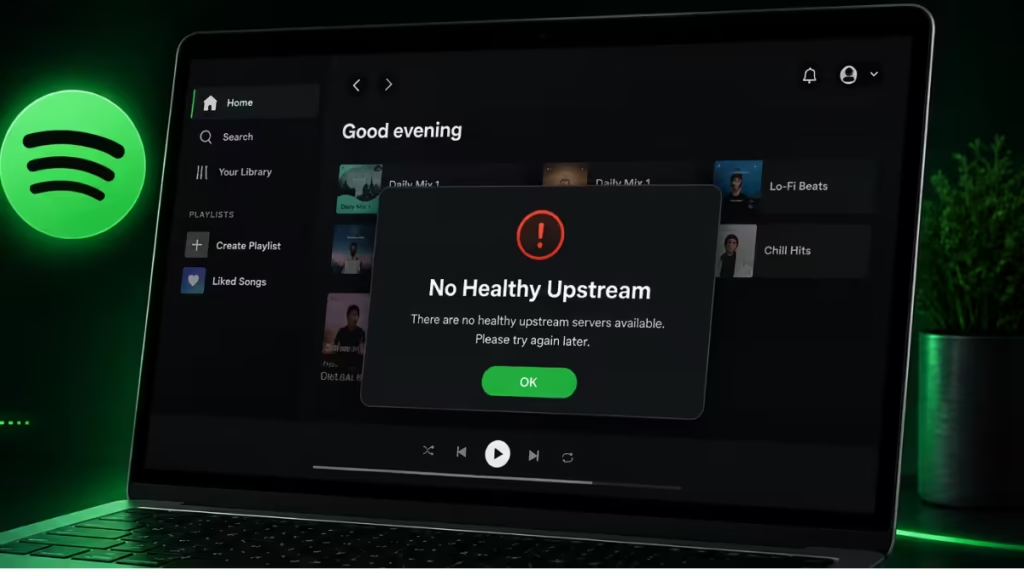
The cause is almost always one of three things: a problem on Spotify’s side, a network configuration issue on your end, or corrupted local data in your browser or app. Each fix below targets a specific root cause, so work through them in order until one resolves it.
1. Check Spotify Server Status First
Before touching your device, confirm whether Spotify’s servers are actually up.
- Open downdetector.com/status/spotify in your browser.
- Check the Spotify Status page at status.spotify.com.
If reports are spiking, the problem is on Spotify’s side and no local fix will help. This also happens during high-traffic events. For example, when Spotify Wrapped drops each year, Spotify’s servers experience a surge that makes them temporarily unreachable for some users. In those cases, wait 15 to 30 minutes and try again.
If the status pages show no incident, move to the next steps.
2. Restart Your Router
A simple power cycle clears stale connections between your router and your ISP’s network, which often causes the upstream error.
- Unplug your router from the power source.
- Wait 30 seconds.
- Plug it back in and wait for a full reconnect (roughly 60 to 90 seconds).
- Open Spotify and check if the error clears.
If you have a separate modem, unplug that as well and plug it in before the router.
3. Switch to a Different Network
Your current network may be blocking Spotify outright, especially on school, work, or public Wi-Fi where firewall rules restrict streaming services.
- Switch from Wi-Fi to mobile data on your phone.
- On a laptop, connect your phone as a mobile hotspot and test Spotify through it.
If Spotify works on a different network, your primary network is the problem. Contact your ISP or network administrator to check whether Spotify’s domains are being filtered or throttled.
4. Flush the DNS Cache
An outdated or corrupted DNS cache can prevent your device from resolving Spotify’s server addresses correctly, which produces the “no healthy upstream” error.
On Windows:
- Press Win + S, type cmd, right-click Command Prompt, and select Run as administrator.
- Run the following commands one at a time:
ipconfig /flushdns
netsh winsock reset- Restart your PC after both commands complete.
- Open Spotify and test.
On macOS:
- Open Terminal (Applications > Utilities > Terminal).
- Run:
sudo killall -HUP mDNSResponder- Enter your password when prompted.
- Restart your Mac, then test Spotify.
5. Open the Spotify Web Player in an Incognito Window
Browser extensions, cookies, or cached session data can interfere with the Web Player. An incognito window loads Spotify without any of that.
- Press Ctrl + Shift + N (Windows/Linux) or Cmd + Shift + N (Mac) to open an incognito window in Chrome.
- Go to open.spotify.com.
- Sign in and test playback.
If Spotify works in incognito, a browser extension or corrupted session data is the cause. Disable your extensions one at a time to identify which one is responsible.
6. Clear Browser Cache and Cookies
If incognito works, clearing the cache and cookies from your regular session should fix the issue permanently.
In Google Chrome:
- Press Ctrl + Shift + Del to open the Clear Browsing Data panel.
- Set Time range to All time.
- Check the boxes for Cookies and other site data and Cached images and files.
- Click Clear data.
- Reload Spotify.
In Firefox:
- Press Ctrl + Shift + Del.
- Set Time range to clear to Everything.
- Check Cookies and Cache.
- Click Clear Now.
7. Update Your Browser
An outdated browser can lose compatibility with Spotify’s Web Player, producing connection errors that look like upstream failures.
In Chrome:
- Click the three-dot menu in the top right.
- Go to Help > About Google Chrome.
- Chrome checks for updates automatically. Install any available update.
- Click Relaunch once the update installs.
In Firefox:
- Click the hamburger menu.
- Go to Help > About Firefox.
- Firefox downloads and installs the update. Restart when prompted.
If the error persists after updating, try Spotify in a different browser such as Firefox or Microsoft Edge to rule out a browser-specific conflict.
8. Update the Spotify App
Running an outdated version of the Spotify desktop or mobile app can cause server connection errors, including the no healthy upstream message.
On Windows:
- Open Spotify.
- Click the three-dot menu in the top-left corner.
- Go to Help > About Spotify.
- If an update is available, click Click here to download.
- Restart the app after installing.
On Android:
- Open the Google Play Store.
- Search for Spotify.
- Tap Update if it appears.
On iPhone:
- Open the App Store.
- Go to your profile and scroll to pending updates.
- Tap Update next to Spotify if available.
9. Reset Network Settings (Windows)
If flushing DNS did not help, a full network reset clears all network adapters and configurations back to defaults. This fixes deeper configuration issues that a DNS flush alone cannot reach.
- Press Win + I to open Settings.
- Go to Network and Internet > Advanced network settings.
- Scroll down and click Network reset.
- Click Reset now, then confirm.
- Your PC restarts automatically. Sign back into Wi-Fi afterward and test Spotify.
Note: Network reset removes saved Wi-Fi passwords and VPN configurations, so have those handy before you proceed.
10. Reinstall Spotify
If the app itself is corrupted, reinstalling it pulls a fresh copy from the store and clears any broken local files.
On Windows:
- Press Win + I, go to Apps > Installed apps.
- Find Spotify, click the three-dot icon, and select Uninstall.
- Reinstall from the Microsoft Store.
On macOS:
- Quit Spotify completely.
- Open Finder, go to Applications, and drag Spotify to the Trash.
- Download a fresh installer from spotify.com/download.
On Android:
- Long press the Spotify icon and tap Uninstall.
- Reinstall from the Google Play Store.
On iPhone:
- Long press the Spotify icon, tap Remove App, then Delete App.
- Reinstall from the App Store.
Why the Spotify No Healthy Upstream Error Keeps Coming Back
If the error returns after these fixes, the most common reason is a shared or restricted network that intermittently blocks Spotify’s CDN servers. This is common on office networks and university campuses. The Tesla Playback Error is a related example of how network-level restrictions can break streaming authentication entirely, not just playback. Similar upstream failures happen on other platforms too. Discord’s increased API errors follow the same pattern when server-side routes become unavailable.
If you keep seeing the error only on your home network, contact your ISP and ask them to check whether Spotify’s content delivery network addresses are being filtered or rate-limited on your connection.

