Microsoft ships new Windows 11 features inside cumulative updates before enabling them for every user. Two people running the identical Windows 11 version can see a completely different feature set because Microsoft uses a staged rollout system that controls who receives what, and when.
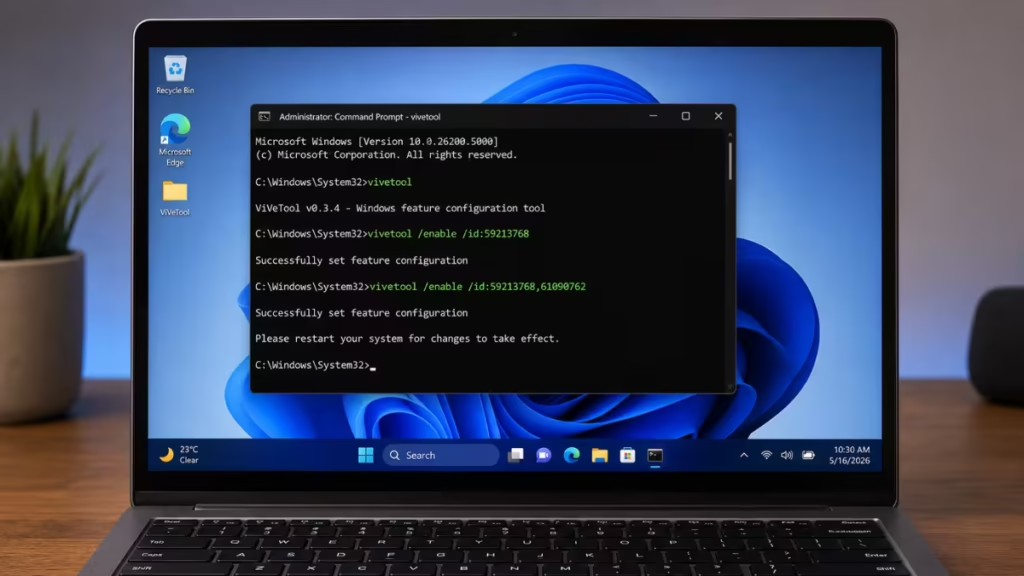
ViveTool gives you a way around that. It is a free, open-source command-line tool that reads the hidden Windows feature flags already baked into your build and lets you toggle them on or off. ViveTool does not inject features from outside your system. It only flips the switch on features Microsoft has already shipped but not yet activated on your device.
This page lists every known ViveTool code for Windows 11 general availability updates and Insider preview builds, organized by release.
What Are ViveTool Codes?
ViveTool codes are internal Windows feature IDs. Each ID points to a specific hidden or staged feature. When you pass that ID to ViveTool, the tool tells Windows to treat the feature as enabled for your account.
A typical command looks like this:
vivetool /enable /id:59213768This command activates the hidden Taskbar position setting in supported preview builds, which lets you move the Taskbar to the top or side. If your build does not include that feature yet, the command runs without errors but nothing visibly changes.
ViveTool is mainly used by advanced users, testers, and Windows enthusiasts who want to preview upcoming Windows 11 features before Microsoft rolls them out publicly.
What You Need to Know Before Running ViveTool Codes
ViveTool is a third-party tool. Microsoft does not support it and does not guarantee that any hidden feature works correctly after you enable it. Some features are genuinely unfinished and can affect the Taskbar, Start menu, File Explorer, Settings, or Windows Update in unexpected ways.
Before enabling any feature, do these three things:
- Create a Windows system restore point.
- Write down the exact feature ID you are enabling.
- Restart your PC after running the command.
If a feature causes instability, you can disable it using the same ID. Instructions appear later in this guide.
How to Install ViveTool on Windows 11
Download ViveTool from its GitHub releases page. The latest stable release is ViVeTool v0.3.4, published on March 10, 2025.
- Download the ZIP file from the GitHub releases page.
- Extract the ZIP to a folder, for example
C:\ViVeTool. - Open Command Prompt as administrator.
- Navigate to the ViveTool folder:
cd C:\ViVeToolYou are now ready to run ViveTool commands.
Basic ViveTool Commands
Enable a Single Feature
vivetool /enable /id:FEATURE_IDEnable Multiple Features at Once
vivetool /enable /id:ID1,ID2,ID3Disable a Feature
vivetool /disable /id:FEATURE_IDReset a Feature to Default Behavior
vivetool /reset /id:FEATURE_IDAlways restart your PC after running any of these commands.
ViveTool Codes for Windows 11 General Availability Updates
These codes apply to standard Windows 11 cumulative updates, not only Insider builds. Use them when Microsoft has shipped a feature inside an update but has not activated it on your device because of the staged rollout.
| Windows 11 Update | ViveTool ID | Feature |
|---|---|---|
| May 2026 Update KB5083631 | 58989070 | Feature bundle |
| April 2026 Update KB5079391 | 58989021 | Feature bundle |
| March 2026 Update KB5079473 | 58989002 | Feature bundle including network speed tester, camera pan and tilt, new Settings dialogs, and Extract All support for non-ZIP files |
| March 2026 Update KB5079473 | 57741219 | New protected print mode dialogs in Settings |
| March 2026 Update KB5079473 | 55994763 | New Widgets settings page |
| February 2026 Update KB5077181 | 58988972 | Feature bundle |
| January 2026 Update KB5074109 | N/A | No known ViveTool code |
| December 2025 Update | 57048237 | Feature bundle |
| December 2025 Update | 59162732,55994763 | Widgets redesign |
| December 2025 Update | 41356296 | New Taskbar auto-hide animation |
| December 2025 Update | 45690266 | Cloud File Search in File Explorer |
| December 2025 Update | 59265307 | About Settings redesign |
| December 2025 Update | 57882334 | Share any Taskbar window |
| December 2025 Update | 53343270 | Device info card in Settings (US only) |
| November 2025 Update | 57048231 | Feature bundle |
| November 2025 Update | 47205210 | New Start menu design |
| November 2025 Update | 48433719 | Battery percentage option |
| October 2025 Update | 57048226 | Feature bundle |
| September 2025 Update | 57048218 | Feature bundle |
| August 2025 Update | 57048216 | Feature bundle |
When a specific feature ID from a given update is not working on its own, enable the feature bundle ID for that same update first, then try the targeted ID again after a restart.
ViveTool Codes for Windows 11 26H2 Insider Builds
These IDs target Windows Insider preview builds in the 26H2 track. Most of them do not work on stable Windows 11 releases.
| Build | ViveTool ID | Feature |
|---|---|---|
| 26300.8493 | 59213768 | Taskbar position settings: top, left, right, or bottom |
| 26300.8493 | 61090762 | Smaller Taskbar buttons option |
| 26300.8346 | 60716524,61391826 | Low Latency Profile for faster app launches |
| 26300.8346 | 61014711 | Turns off the new KB, MB, and GB file-size display in File Explorer Details view |
| 26300.8289 | 59728252 | Modern boot animation on sign-in, shutdown, and restart screens |
| 26300.8289 | 60897831 | New “Available updates” section in Windows Update |
| 26300.8289 | 60662124 | Screen Tint settings under Accessibility |
| 26300.8289 | 57156807 | Modern Run dialog |
| 26300.8289 | 59956305 | New Quick Settings flyout |
| 26300.8276 | 57751666,57751687 | Show or hide Focus controls in Notification Center calendar |
| 26220.8170 | 61157505 | New Experimental and Beta channel settings |
| 26220.8170 | 61410885 | New controls to pause Windows updates for longer |
| 26220.8170 | 60772592 | FAT32 formatting support up to 2TB via command line |
| 26220.8148 | 60911173 | Feature Flags page in Beta Channel |
| 26300.8142 | 58989092,58989177,48433719,58989070 | Prerequisites for new features |
| 26300.8142 | 58429068 | Touchpad right-click zone size setting |
| 26300.8142 | 58111409 | Windows Protected Print Mode support icon in Settings |
| 26300.8085 | 27829265 | Pointer Indicator |
| 26300.7965 / 26220.7965 | 59956305 | New Quick Settings |
| 26300.7965 / 26220.7965 | 59149945 | Dark mode option in Quick Settings |
| 26300.7877 / 26220.7877 | 58989177,58989092,58989070,58989021,58989002,48433719 | Prerequisites for new features |
| 26300.7877 / 26220.7877 | 60511437 | Taskbar thumbnail preview animations |
| 26300.7877 / 26220.7877 | 59764273 | New File Explorer context menu “Open” icons for associated apps |
| 26300.7877 / 26220.7877 | 60772996,53343270,59265307 | Device info tweaks for Settings Home |
| 26300.7877 / 26220.7877 | 59265307,60597402,60825171 | New About page cards, graphics card info, and storage info |
| 26300.7674 / 26220.7670 | 58989002,58988972,48433719 | Prerequisites for new features |
| 26300.7674 / 26220.7670 | 57741219 | New Windows Protected Print Mode dialog |
| 26300.7674 / 26220.7670 | 49059846 | Resume feature for WhatsApp |
| 26300.7674 / 26220.7670 | 60063638 | Share option in Taskbar |
| 26300.7674 / 26220.7670 | 58182453 | Windows Subsystem for Linux option in Settings |
| 26300.7674 / 26220.7670 | 57118881 | New Privacy and Security page in Settings |
The most discussed IDs in this track are 59213768 and 61090762, which together enable a movable Taskbar and a smaller Taskbar button option on supported Insider builds. Some users have reported Start button instability when placing the Taskbar in non-default positions.
ViveTool Codes for Windows 11 25H2 Insider Builds
| Build | ViveTool ID | Feature |
|---|---|---|
| 26220.7859 | 58989002,58989021,58989070,58989092,58989177,58988972,48433719 | Prerequisites for new features |
| 26220.7859 | 60825171 | Graphics cards on the About page |
| 26220.7523 | 59359094 | New “Change account type” and “Account info” modern dialogs |
| 26220.7523 | 58978959 | New voice typing animation in Touch Keyboard |
| 26220.7523 | 58381341,58527096,57156807,57259990 | Modern Run dialog |
| 26220.7523 | 58938944,57900749,58324036 | Taskbar AI agent |
| 26220.7523 | 58680439 | New Voice Access setup flow |
| 26220.7344 | 38679741 | Windows MIDI Services |
| 26220.7344 | 41118774,55805655 | “Open With” menu with Microsoft Store suggestions |
| 26220.7344 | 59213523 | Model Context Protocol with On-Device Registry |
| 26220.7344 | 59193521 | Hides “AI actions” context menu entry when no actions are enabled |
| 26220.7271 | 59765208 | Xbox Full Screen Experience |
| 26220.7271 | 55324166,59673297 | Point-in-time Restore |
| 26220.7271 | 58423575 | Decluttered File Explorer context menu |
| 26220.7271 | 58778013 | File Explorer startup pre-loading |
| 26220.7271 | 59339532 | Resume support for more mobile apps |
| 26220.7070 | 55994763,59162732 | Widgets full-page settings (requires Web Experience Pack 525.30801.0.0) |
| 26220.7051 | 57739723,57941090 | Ask Copilot in the Taskbar |
| 26220.6982 | 58970402 | Voice Typing “wait time before acting” setting |
| 26220.6972 | 58383338 | Dark mode dialog prerequisite |
| 26220.6972 | 59270880 | Dark mode for Run |
| 26220.6972 | 59203365 | Dark mode for Folder Options |
| 26220.6972 | 48433719 | Taskbar auto-hide animation prerequisite |
| 26220.6972 | 41356296 | New Taskbar auto-hide animation |
| 26220.6760 | 57703775 | Network speed test button |
| 26220.6690 | 57645315 | Windows DreamScene |
Features in the 25H2 track often move into stable cumulative updates later. A code that activates something here may become unnecessary once Microsoft enables the same feature by default in a future update.
ViveTool Codes for Windows 11 26H1 and Canary Builds
These IDs apply to preview builds in the Experimental channel and early 26H1 platform builds. They are the most experimental entries in this list. Test them on a secondary machine or virtual machine only.
| Build | ViveTool ID | Feature |
|---|---|---|
| 28020.1619 | 48433719,58989002,58989021,58989070,58989092,58989177 | Prerequisites for new features |
| 28020.1619 | 53283713 | Windows Hello ESS support for external fingerprint readers |
| 28020.1619 | 59065581 | New language support for Settings AI agent |
| 28020.1611 | 58989002,58989021,58989070,58989092,58989177,58988972,48433719 | Prerequisites for new features |
| 28020.1611 | 45425284 | Windows Share UI for OneDrive with app list |
Example: Enable the Movable Taskbar
Run this command in an administrator Command Prompt on a supported 26H2 Insider build:
vivetool /enable /id:59213768To also enable smaller Taskbar buttons at the same time:
vivetool /enable /id:59213768,61090762Restart the PC after running the command. If you want to move the Taskbar on a stable Windows 11 build without an Insider preview, see How to Move Windows 11 Taskbar to Top or Side (4 Working Methods).
Example: Enable the Modern Run Dialog
Run this command on supported Insider builds:
vivetool /enable /id:57156807Some builds require the full ID set to activate the feature:
vivetool /enable /id:58381341,58527096,57156807,57259990Restart the computer after enabling it. For a full walkthrough of the new interface, see How to Enable Windows 11 Modern Run Dialog (New Fluent UI Run Box).
Example: Enable the Xbox Full Screen Experience
Run this command on build 26220.7271 or a later 25H2 build:
vivetool /enable /id:59765208This replaces the standard desktop shell with a controller-friendly, full-screen dashboard built around the Xbox app. For the complete setup guide including the GitHub tool and Registry method, see How to Enable Xbox Full Screen Experience on Any Windows 11 PC (GitHub Tool + Registry).
If you already enabled Xbox Mode in Windows 11 through the April 2026 optional update, Xbox Full Screen Experience extends what that feature adds to your system.
Example: Enable Low Latency Profile
To enable Low Latency Profile on build 26300.8346, run:
vivetool /enable /id:60716524,61391826Both IDs are required together. This feature temporarily spikes the CPU to its maximum frequency for one to three seconds when you launch an app, reducing startup latency. For a full explanation and step-by-step setup, see How to Enable Low Latency Profile (CPU Boost) on Windows 11 Using ViveTool.
How to Disable a ViveTool Feature
If an enabled feature causes problems, run the disable command using the same ID:
vivetool /disable /id:FEATURE_IDRestart your PC afterward.
If disabling does not fix the issue, reset the feature to its default state:
vivetool /reset /id:FEATURE_IDRestart again after the reset.
Why a ViveTool Code May Not Work
Several reasons can cause a ViveTool command to run without producing any visible result.
Your Windows build may not contain the feature package yet. The feature may also require a prerequisite ID that you have not enabled first. Some features only activate in a specific Insider channel, a specific region, or with particular hardware. Microsoft also changes or removes feature IDs between builds, so a code that worked last month may do nothing on a newer build.
If nothing changes after running a command, it does not always mean you typed it incorrectly. It often means your build does not carry that feature yet.
Should You Use ViveTool on Your Main PC?
For most users, waiting for the official rollout is the safer approach. ViveTool works best for testers, advanced users, and people writing guides who need to preview upcoming features before the public release.
If you want to try it on your main machine, create a system restore point first and keep a record of every ID you enable. Some hidden features are unfinished and can break the Taskbar, Start menu, File Explorer, or Settings app until you disable them.

