The KB5089549 0x800f0922 error stops the May 2026 Windows 11 security update from completing. Microsoft confirmed this known issue on May 18, 2026. The update begins installing normally but fails during the reboot phase, at around 35 to 36 percent completion, then rolls back with the message: “Something didn’t go as planned. Undoing changes.”
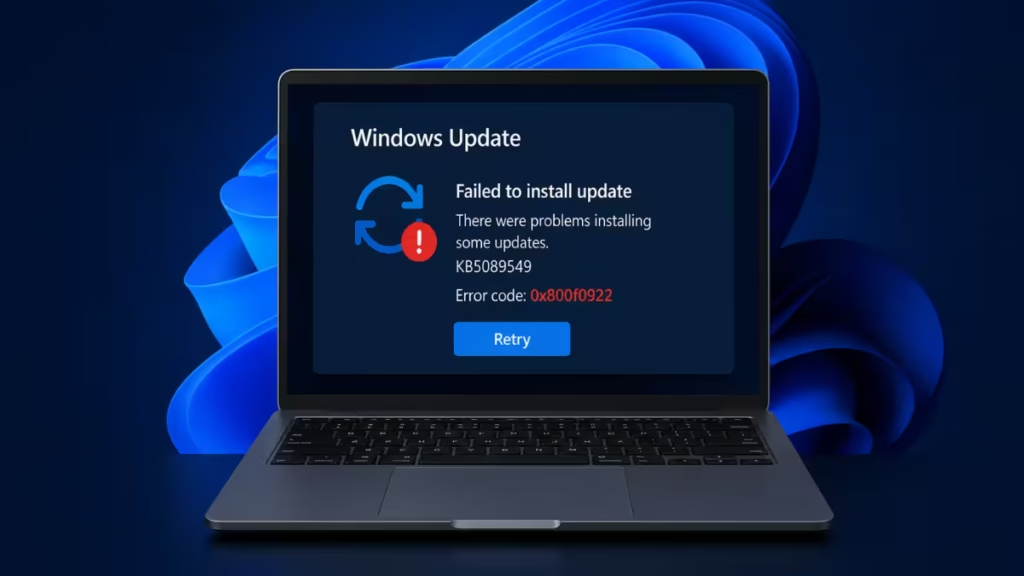
The root cause is insufficient free space on the EFI System Partition (ESP). If your device has 10 MB or less of free space on the ESP, the update cannot complete the boot file servicing step and triggers error code 0x800f0922.
This guide covers how to identify the error, apply Microsoft’s two official workarounds, and optionally expand the EFI partition to prevent the issue from recurring.
What Causes the KB5089549 0x800f0922 Error
The EFI System Partition is a small dedicated partition on your drive that stores the boot files Windows needs to start. Its minimum size is 200 MB, and Windows manages it automatically. Over time, cumulative updates, third-party OEM files, and firmware components can consume the available space on the ESP.
KB5089549, released on Patch Tuesday May 2026, includes changes to boot-related files. When the installer reaches the reboot phase and tries to write those files to the ESP, it checks available space. If the partition has 10 MB or less free, the write fails, and Windows rolls back the entire update.
The affected versions are Windows 11 24H2 and Windows 11 25H2.
How to Identify the Error in CBS Logs
If you see the “Something didn’t go as planned. Undoing changes.” message after the update rolls back, check the CBS log to confirm the cause.
Open Event Viewer or navigate to C:\Windows\Logs\CBS\CBS.log and look for these entries:
SpaceCheck: Insufficient free spaceServicingBootFiles failed. Error = 0x70SpaceCheck: <value> used by third-party/OEM files outside of Microsoft boot directories
Any of these entries confirms the ESP space shortage is causing the 0x800f0922 error.
Fix 1: Modify the Registry to Remove ESP Padding
Microsoft’s first workaround uses a registry edit that sets the ESP padding percentage to zero. This releases the reserved space the update needs to complete installation.
Back up your registry before making any changes. An incorrect registry edit can cause serious system problems. Test on a pilot device before rolling out to a managed fleet.
Steps:
- Right-click the Start button and select Command Prompt (Admin) or Windows Terminal (Admin).
- Run the following command:
reg add "HKLM\SYSTEM\CurrentControlSet\Control\Bfsvc" /v EspPaddingPercent /t REG_DWORD /d 0 /f- Restart your device.
- Open Windows Update and retry installing KB5089549.
If the update completes successfully, the fix worked. Microsoft plans to release a permanent fix in a future Windows update, so you will not need to maintain this registry value long-term.
Fix 2: Apply Known Issue Rollback (KIR)
For devices that have already failed the installation, Microsoft recommends using Known Issue Rollback. This Windows feature reverses a specific problematic change introduced by the update, without rolling back the entire patch.
For consumer and unmanaged business devices: Microsoft has already pushed the KIR fix automatically. Restart your device to apply it.
For enterprise-managed devices: IT administrators need to deploy the KIR Group Policy manually.
- Download the Group Policy from the KB5089549 known issues documentation on Microsoft’s support site.
- Install and configure the policy for your Windows 11 version.
- Restart the affected devices to apply the Group Policy setting.
- After the KIR applies, retry deploying KB5089549.
Microsoft notes: “You will also need to restart your device(s) to apply the group policy setting. Note that the Group Policy will temporarily disable the change causing this issue.”
Fix 3: Expand the EFI System Partition
This is the most thorough fix and prevents the same failure from recurring with future updates. Gartner analyst Eric Grenier recommends resizing the ESP to 1.5 GB, which also enables updating the Windows Recovery Environment.
Expanding the EFI partition requires using diskpart or a third-party partition tool. Because the ESP sits adjacent to other partitions, you typically need to shrink a neighboring partition first to create unallocated space before you can grow the ESP.
This fix requires hands-on work at the keyboard. Perform it during a maintenance window and have a recovery plan ready. On enterprise devices, treat this as lifecycle engineering rather than a break-fix step.
Microsoft’s documentation on resizing the EFI System Partition provides the specific diskpart commands for this process.
When to Expect a Permanent Fix
Microsoft confirmed a permanent fix is in development and will ship in a future Windows update. The company has already resolved the issue automatically for consumer devices and non-managed business devices. Enterprise environments managing their own devices need to apply one of the workarounds above until the permanent fix ships.
KB5089549 also fixes a separate known issue where some Windows 11 systems were booting into BitLocker recovery after installing the April 2026 security updates. Skipping KB5089549 means missing that fix as well.
FAQs
Why does KB5089549 fail to install on my Windows 11 PC?
KB5089549 fails to install because the EFI System Partition on your device has 10 MB or less of free space. The update needs to write boot files to the ESP during the reboot phase, and when space runs out, Windows rolls back the installation with error code 0x800f0922.
How do I fix the 0x800f0922 error when installing KB5089549?
Open Command Prompt as administrator and run: reg add "HKLM\SYSTEM\CurrentControlSet\Control\Bfsvc" /v EspPaddingPercent /t REG_DWORD /d 0 /f. Restart your device and retry the update. If you manage enterprise devices, deploy the Known Issue Rollback Group Policy from Microsoft’s support page instead.
Is it safe to skip KB5089549 until Microsoft releases a fix?
No. KB5089549 contains patches for dozens of critical security vulnerabilities. Skipping it leaves your device exposed. Apply the registry workaround or Known Issue Rollback to install it now rather than waiting.
Which Windows 11 versions does the KB5089549 0x800f0922 error affect?
The issue affects Windows 11 24H2 and Windows 11 25H2. Microsoft confirmed both versions on May 18, 2026.
Will KB5089549 fail again on my device after I apply the fix?
The registry workaround resolves the current installation. However, if your ESP remains critically low on space, future cumulative updates may trigger the same failure. Resizing the EFI System Partition to 1.5 GB eliminates the risk permanently.

