Most Windows users spend years searching for third-party software to solve problems that Windows already handles. The tools they need are installed and ready. They just never appear in the Start menu, and Microsoft does almost nothing to surface them.
Beyond popular additions like Microsoft PowerToys, which stacks new utilities on top of Windows, an entire layer of built-in tools has existed since Windows XP and earlier. These tools cover system monitoring, storage cleanup, crash history, screen recording, and more. None of them require a download.
This guide covers eight of those hidden Windows tools, where to find each one, and what you can actually do with them.
The Windows Tools Menu
Windows has an entire section dedicated to built-in administrative utilities, and most users have never opened it. The menu has existed since at least Windows 2000, when Microsoft called it Administrative Tools.
To open it, press Win + S, type Windows Tools, and press Enter. You can also navigate to Control Panel > System and Security > Windows Tools.
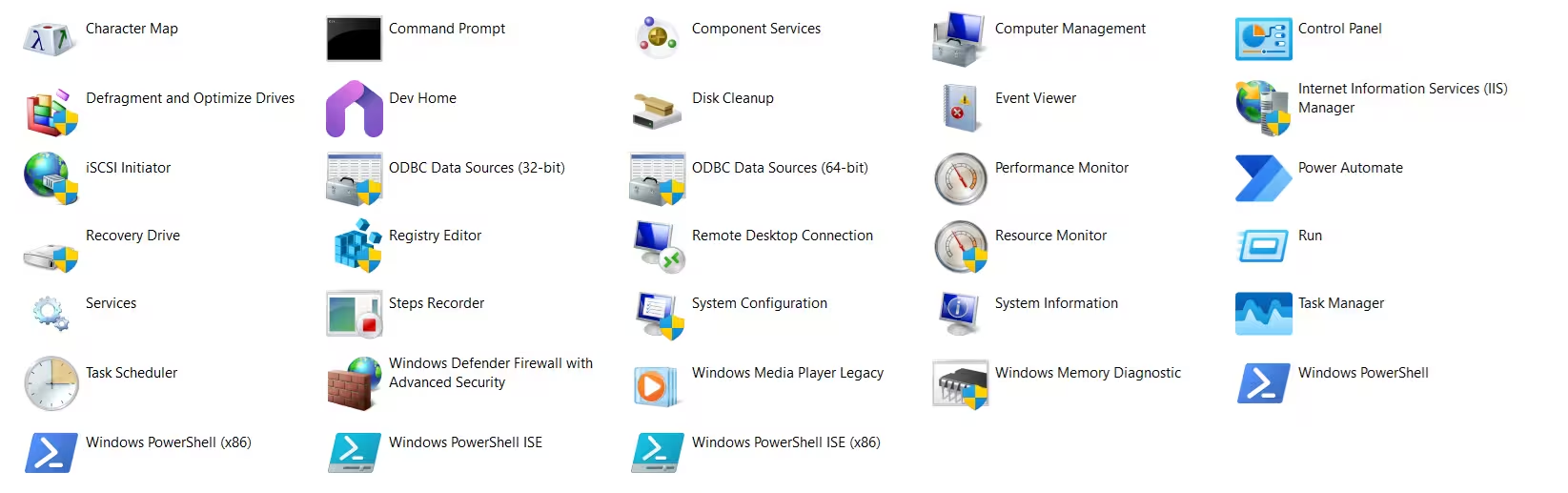
What you find inside is a collection of shortcuts to utilities that ship with Windows:
- Character Map
- Command Prompt
- Component Services
- Computer Management
- Control Panel
- Defragment and Optimize Drives
- Dev Home
- Disk Cleanup
- Event Viewer
- Internet Information Services (IIS) Manager
- iSCSI Initiator
- ODBC Data Sources (32-bit)
- ODBC Data Sources (64-bit)
- Performance Monitor
- Power Automate
- Recovery Drive
- Registry Editor
- Remote Desktop Connection
- Resource Monitor
- Run
- Services
- Steps Recorder
- System Configuration
- System Information
- Task Manager
- Task Scheduler
- Windows Defender Firewall with Advanced Security
- Windows Media Player Legacy
- Windows Memory Diagnostic
- Windows PowerShell
- Windows PowerShell (x86)
- Windows PowerShell ISE
- Windows PowerShell ISE (x86)
Not every administrative tool shows up here. Group Policy Editor, for example, meets the assumed criteria but does not appear in the list. Microsoft has never published a clear set of inclusion rules for this menu. Still, it is a practical starting point when you need to locate a system utility quickly without searching online.
Resource Monitor: More Detail Than Task Manager
Task Manager shows you what is running. Resource Monitor shows you what is actually happening.
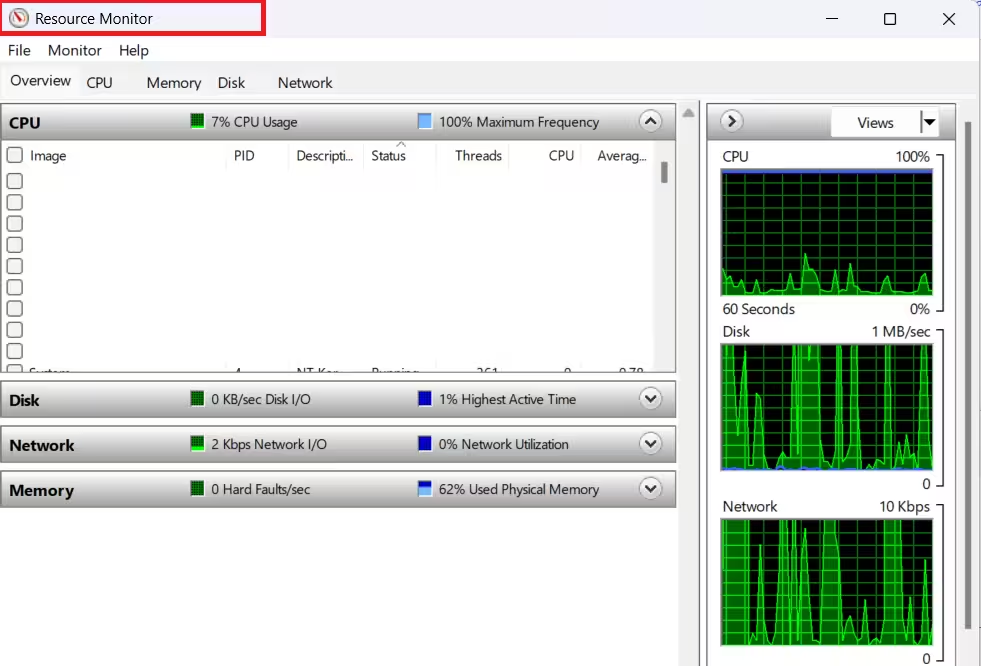
You can open Resource Monitor in three ways:
- Press Win + S, type resmon, and press Enter
- Open Task Manager, go to the Performance tab, and click Open Resource Monitor at the bottom
- Find it directly in the Windows Tools menu
Where Task Manager gives you a high-level overview, Resource Monitor breaks activity down by process across four categories: CPU, Disk, Network, and Memory. You can see the exact file paths that processes read or write, which IP addresses and ports an app communicates with, and how physical memory distributes across states like Standby and Modified.
This is the tool to reach for when your PC feels slow but Task Manager shows no obvious cause. Filtering by a specific process in Resource Monitor will often reveal exactly what consumes your system at that moment.
Steps Recorder: Document Every Click and Screen Action
Deprecation: Steps Recorder is being phased out. Starting with the Windows 11 update in February 2024, the tool displays a banner stating it is being discontinued. It still works for now, but Microsoft recommends moving to one of the alternatives listed below.
Steps Recorder automatically captures every click and keystroke, takes a screenshot with each action, and adds time-stamped captions. When you stop recording, Windows bundles everything into a single shareable report.
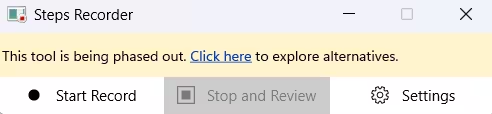
To open it, press Win + S, type Steps Recorder, and press Enter. You can also run it by pressing Win + R, typing psr, and pressing Enter.
Steps Recorder is useful when:
- You need to show a support technician exactly what happened before an error appeared
- You want to document a fix for future reference
- You are training a coworker and want a clear step-by-step record without recording a full-screen video
You can pause the recording at any point, add your own notes, and stop whenever you are done.
Alternatives Microsoft recommends:
- Snipping Tool: The built-in screen recorder added to Snipping Tool in 2023 is the closest replacement. Open it from the Start menu, select the Record option, choose the area of your screen, and start recording. You can pause mid-recording and share the output directly. Search for Snipping Tool in the Start menu or get it from the Microsoft Store if it does not appear on your device.
- Xbox Game Bar: Press Win + G to open it. Beyond gaming, it includes a screen recording feature you can use for any app or window.
- Clipchamp: Microsoft’s built-in video editor also records the screen. Search for Clipchamp in the Start menu or install it from the Microsoft Store.
God Mode: Every Windows Setting in One Folder
God Mode is a special folder that pulls over 200 administrative tools and settings into a single scrollable list. Instead of navigating through Control Panel submenus, you get everything from Device Manager to network adapter settings to rename options in one place.

To create it, right-click your Desktop and select New > Folder. Name the folder exactly this:
GodMode.{ED7BA470-8E54-465E-825C-99712043E01C}The folder icon changes immediately. Opening it loads the full settings view. God Mode has been present since Windows Vista and still works in Windows 11.
It does not add new capabilities. What it does is eliminate the time you spend hunting through menus for settings that were always there.
Reliability Monitor: A Timeline of Every Crash and Error
Reliability Monitor keeps a running timeline of your system’s stability. It logs software crashes, failed updates, hardware errors, and successful Windows updates, all mapped to a calendar so you can see exactly when problems started.
To open it, press Win + S, type Reliability Monitor, and select View reliability history. You can also reach it through Control Panel > Security and Maintenance > Maintenance > View reliability history.
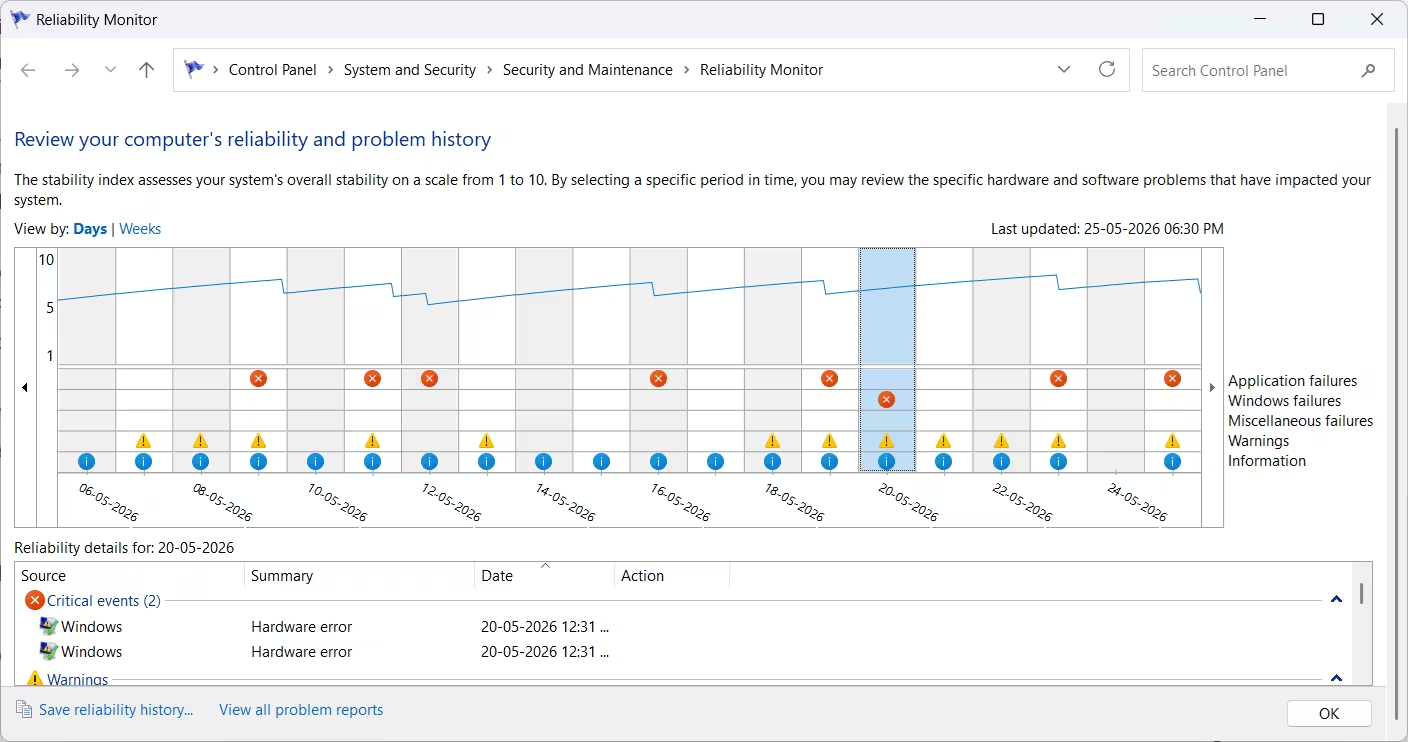
The timeline shows a stability score for each day. Clicking any entry reveals more detail about what crashed or failed. If your PC started behaving strangely after an update or a new program installation, Reliability Monitor is the fastest way to connect that behavior to a specific change.
Before reaching for third-party diagnostics, check here first. Reliability Monitor is one of the most overlooked best Windows troubleshooting tools already built into the OS.
Storage Sense and Cleanup Recommendations
Windows 11 includes two separate storage management tools, and most users have enabled neither.
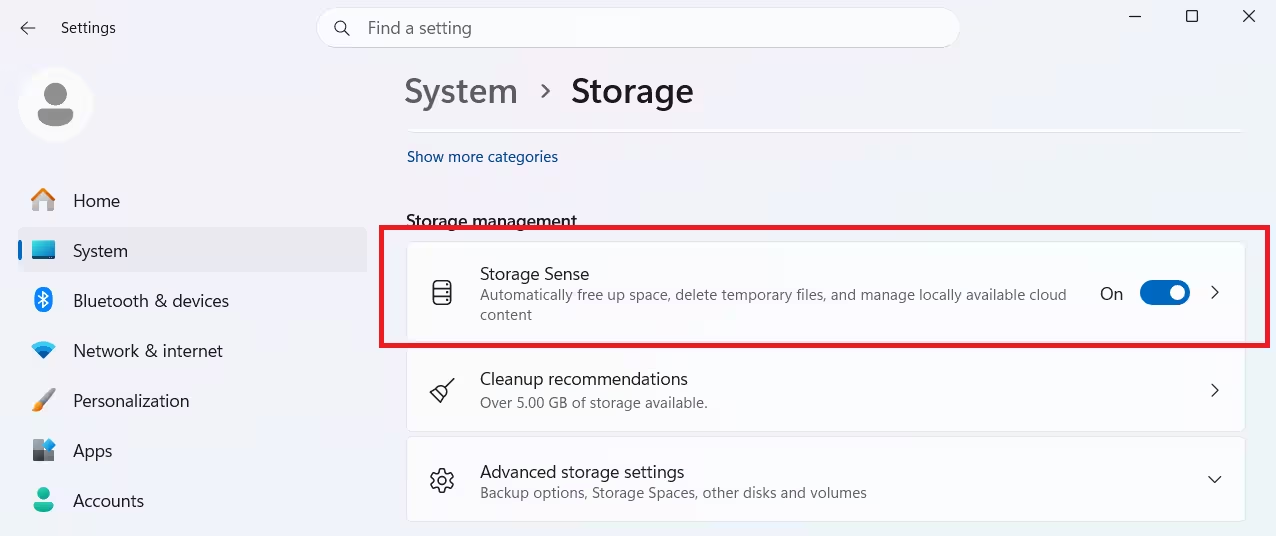
Storage Sense deletes temporary files, empties the Recycle Bin, and clears old system files automatically on a schedule you define. You can set it to run daily, weekly, or monthly.
To enable it, go to Settings > System > Storage and toggle on Storage Sense. Clicking through gives you control over exactly what it removes and how often it runs.
Cleanup Recommendations, also under Settings > System > Storage, works differently. Instead of running automatically, it provides a one-time review of files that are safe to remove: large unused files, apps you rarely open, files already backed up to OneDrive, and temporary system clutter. You review the list and decide what to delete.
Storage Sense handles routine cleanup automatically. Cleanup Recommendations gives you a manual review when you want more control. For users who also need partition-level disk management beyond what these tools cover, there are dedicated options worth exploring.
Aero Shake: Clear Your Desktop With One Gesture
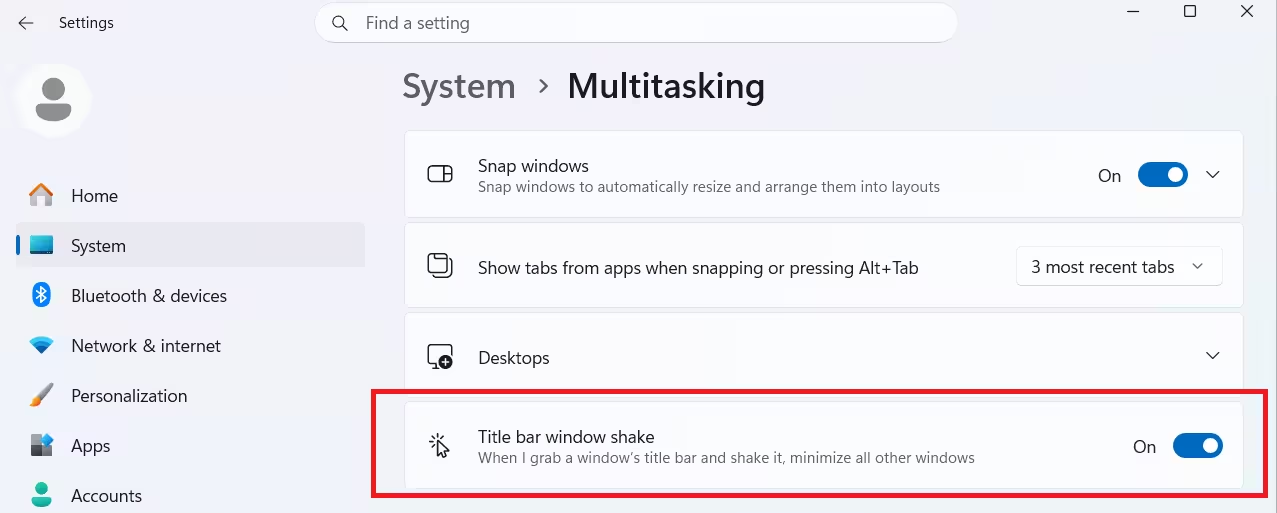
Aero Shake has been in Windows since Windows 7. In Windows 11, Microsoft calls it Title bar window shake, and ships it turned off by default.
The feature works like this: grab any open window by its title bar, give it a quick shake left and right, and every other open window minimizes to the taskbar instantly. Shake the same window again, and all minimized windows return exactly as they were.
To enable it, go to Settings > System > Multitasking and toggle on Title bar window shake. The change takes effect immediately. You can test it right away by grabbing the Settings window itself and shaking it.
If you prefer the registry method, press Win + R, type regedit, and navigate to:
HKEY_CURRENT_USER\Software\Microsoft\Windows\CurrentVersion\Explorer\AdvancedIn the right pane, find the DWORD value named DisallowShaking and set it to 0 to enable the feature.
Aero Shake pairs well with Snap Layouts. Snap the windows you need into position, then shake away everything else. Between snapping and shaking, Windows has a capable window management system built in that most users never fully discover.
Sysmon: Full Visibility Into What Your PC Is Actually Doing
Sysmon (System Monitor) comes from Microsoft’s Sysinternals suite. It runs as a background service and logs detailed system activity to the Windows Event Log: every process that starts, the command lines used to launch them, network connections made in the background, and file system changes. This creates a persistent, searchable record of what your PC has done over time.
Unlike Task Manager or Resource Monitor, Sysmon does not show you what is happening right now. It shows you what already happened and when.
How to install Sysmon
Sysmon is included in the Sysinternals Suite, available from the Microsoft Store or as a direct download from Microsoft. Once you have the suite:
- Open Windows Terminal as administrator
- Navigate to the folder where Sysmon is located
- Run this command:
sysmon -i
This installs the service and starts logging immediately. Find the logs in Event Viewer under Applications and Services Logs > Microsoft > Windows > Sysmon > Operational.
Who should use Sysmon
Sysmon is not for every user. If all you need is a faster PC or cleaner storage, the other tools in this guide cover that. Sysmon becomes useful when you want answers to harder questions: why does a background process keep launching, what is making an unexpected network connection, or when did a specific file change.
It works best for power users, anyone dealing with persistent issues that standard system optimization approaches cannot resolve, and users who want complete system visibility without relying on third-party software.
Sysmon does not replace the tools you already use. It shows you what they miss.

