Roblox Error Code 262 appears with the message “There was a problem sending data, please reconnect (Error Code: 262).” It drops you out of the experience mid-load or immediately after the loading screen and blocks you from rejoining.
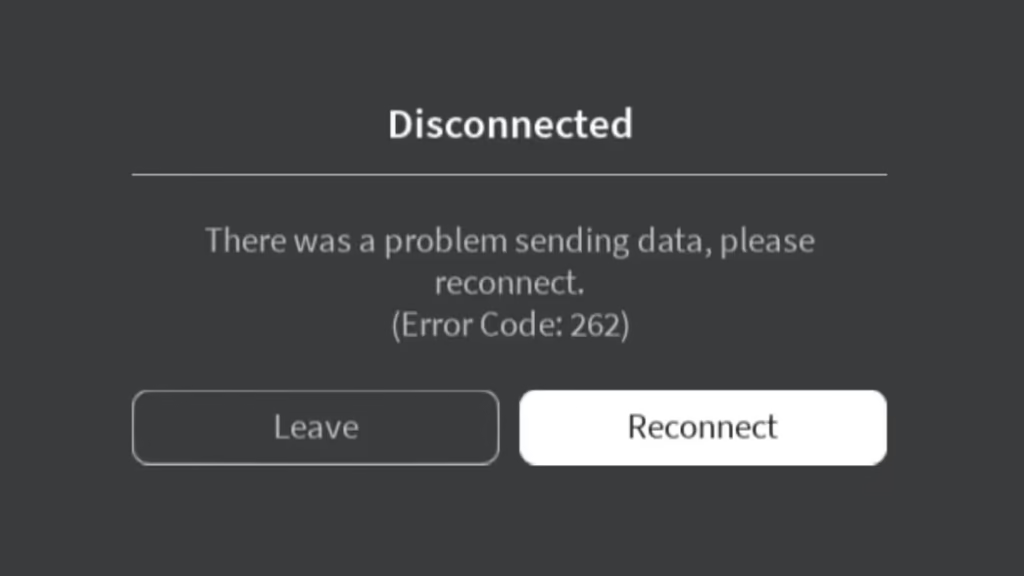
The error is not a ban, and it is not your internet connection. Error 262 is a client version desync: your local Roblox installation is running an outdated build, and the game server refuses the connection because the data packets do not match. The background auto-updater failed silently, and now your client and the server are speaking different versions of the game’s code.
What Causes Roblox Error Code 262
Every time you launch Roblox, the client performs a version handshake with the servers. If the auto-updater gets blocked or fails quietly, your device stays on an older build. When that outdated client tries to join a server running the latest version, the handshake fails and Error 262 appears.
The most common triggers are:
- A ghost Roblox process left running in the background blocked the auto-updater
- Corrupted cached files in your AppData folder from a previous failed update
- An antivirus or firewall blocked the Roblox updater from contacting the server
- You launched Roblox from a desktop shortcut, which bypasses the auto-updater entirely
- The app was not fully wiped before reinstalling after a previous error
Similar disconnects appear across related errors. Roblox Error Code 260 triggers the same type of “receiving data” failure, Roblox Error Code 257 shows a lost connection message mid-session, and Roblox Error Code 277 drops your connection after the server loses contact during gameplay.
Fix 1: Kill Ghost Roblox Processes and Run as Administrator
A Roblox background process that never closed properly tricks Windows into thinking the game is already active. This prevents the auto-updater from launching at all.
- Press Ctrl + Shift + Esc to open Task Manager.
- In the Processes tab, look for any entry labeled Roblox Game Client or Roblox Player.
- Right-click each one and select End Task. Close every Roblox instance.
- Press the Windows key, type Roblox Player, right-click the application, and select Run as Administrator.
Running with administrator privileges bypasses local permission restrictions that sometimes block the updater from writing new files to disk. In most cases, this triggers the “Updating Roblox” prompt that the error was suppressing.
Fix 2: Clean Reinstall via AppData (Windows)
A standard uninstall from Windows Settings does not remove the cached files Roblox stores in your hidden AppData folder. When you reinstall afterward, the game reads those old broken files again and the error returns immediately. You need to delete that folder manually before reinstalling.
- Press Windows Key + R to open the Run dialog.
- Type
%localappdata%and press Enter. - Scroll down and find the folder named Roblox.
- Right-click it and select Delete. This removes all cached data, version files, and the outdated client.
- Open Windows Settings > Apps > Installed Apps and uninstall Roblox Player.
- Restart your PC.
- Open your browser, go to the Roblox website, log in, and click Play on any game to trigger a fresh download directly from Roblox servers.
Never download the installer from a third-party site. Always install through the browser prompt to guarantee the latest build.
Fix 3: Mac Clean Reinstall
On a Mac, dragging the Roblox app to the Trash leaves behind the same type of cache files that cause the error to return. You need to delete the library cache folder separately.
- Drag the Roblox app from your Applications folder to the Trash and empty it.
- Open Finder, press Command + Shift + G, and type
~/Library. - Open the Caches directory and delete the Roblox folder inside it.
- Empty the Trash again.
- Reinstall Roblox through the browser.
Fix 4: Mobile Clean Reinstall (Android and iOS)
On mobile, offloading the app or a basic uninstall still leaves cached data on the device. For Android, you need to clear storage before removing the app. On iOS, a full delete handles it automatically.
Android:
- Go to Settings > Apps > Roblox.
- Tap Storage, then tap Clear Data and Clear Cache.
- Uninstall the app.
- Reinstall from the Google Play Store.
iOS:
- Press and hold the Roblox icon and select Remove App > Delete App.
- Reinstall from the App Store.
Deleting the app on iOS also clears its container data, so no additional storage step is needed.
Fix 5: Whitelist Roblox in Your Antivirus or Firewall
An aggressive firewall or antivirus rule can silently block the Roblox background updater from reaching the server. If the updater cannot check for new versions, the client stays outdated and Error 262 keeps returning after every Roblox update. This is the same blocking behavior that causes the “Third-Party Software Is Interfering with Roblox” error on Windows.
If Error 262 returns a few days after a clean reinstall, this fix is what you need. A firewall blocking Roblox’s connection can also produce the HttpQueryInfo failed with message Forbidden error when launching.
Windows Defender Firewall:
- Open Windows Security > Firewall and Network Protection > Allow an App Through Firewall.
- Click Change Settings, then Allow Another App.
- Browse to
C:\Users\[YourName]\AppData\Local\Robloxand add RobloxPlayerBeta.exe. - Check both Private and Public boxes and save.
For third-party antivirus programs such as Malwarebytes, Bitdefender, or Avast, open the program’s settings and add the same RobloxPlayerBeta.exe to the exclusions or whitelist list.
Fix 6: Try a Blank Avatar
In a small number of cases, a corrupted avatar asset tied to your account causes the data transfer to fail at the point where the server loads your character. If you completed a clean reinstall and Error 262 still appears only on your account, this is worth testing.
- Log into Roblox in your browser.
- Go to Avatar > Outfits and switch to a default avatar with no equipped accessories.
- Try joining the experience again.
If it connects, a broken asset on your account was causing the failure, not the installation. You can then re-equip accessories one at a time to identify which item is corrupted, then remove it permanently.
Fix 7: Always Launch from the Browser, Not a Desktop Shortcut
If Error 262 keeps returning every few days, your launch method is almost certainly the cause. Desktop shortcuts and pinned taskbar icons bypass the Roblox auto-updater. Every time Roblox pushes an update and you launch from a shortcut, you start on an outdated build and hit the version desync again.
The permanent fix is straightforward: always open Roblox by clicking Play on a game directly from the Roblox website in your browser. This forces the client to check for and install the latest version before every session.
Check Roblox Server Status Before Troubleshooting
Before spending time on local fixes, confirm the problem is actually on your end. In rare cases, Roblox backend servers fail to authenticate connection handshakes globally, which produces data transfer errors across all clients regardless of their local installation.
Visit the official Roblox Status page at status.roblox.com or check Downdetector for a spike in user reports. If a server outage is confirmed, no local fix will resolve it. Roblox Error Code 529 is the error directly tied to server overload, but Error 262 can also appear during partial outages when the update handshake fails on the server side.
Frequently Asked Questions
Does Roblox Error Code 262 mean I got banned?
No. Error 262 is a technical version mismatch between your client and the server. It has no connection to account warnings, suspensions, or bans.
Why does Roblox Error 262 only happen on one of my devices?
The error is tied to the local files on a specific machine. If your PC has a corrupted cache or an outdated client, it will fail to connect while your phone runs a properly updated version without issues. This same device-specific behavior appears with Roblox Error Code 280, which also stems from an outdated client build failing to sync with the current version.
Can a VPN cause Roblox Error 262?
Rarely, but yes. A VPN routing traffic through a node with severe packet loss can cause the server to drop the connection as though data transfer failed. If a clean reinstall does not fix the error, disable your VPN and test a direct connection. For VPN-specific connection failures, see Roblox Error Code 279 When Using a VPN.
Why does Roblox work on another account but not mine on the same device?
A corrupted avatar asset tied specifically to your account can cause data transfer failures when the server loads your character. Follow Fix 6 above and switch to a default avatar with no accessories to isolate whether an asset is the cause.
Will restarting my router fix Roblox Error 262?
No. The error is a local software version mismatch, not an internet connectivity problem. Your router has no control over whether the Roblox client on your device is running the correct version.

