Windows 11 ships with a built-in security layer called Smart App Control that quietly blocks harmful and untrusted apps before they ever run on your device. If you have never looked into it, this guide breaks down exactly what it does, how it evaluates apps, and how you can enable it right now without needing to reinstall Windows.
What Is Smart App Control?
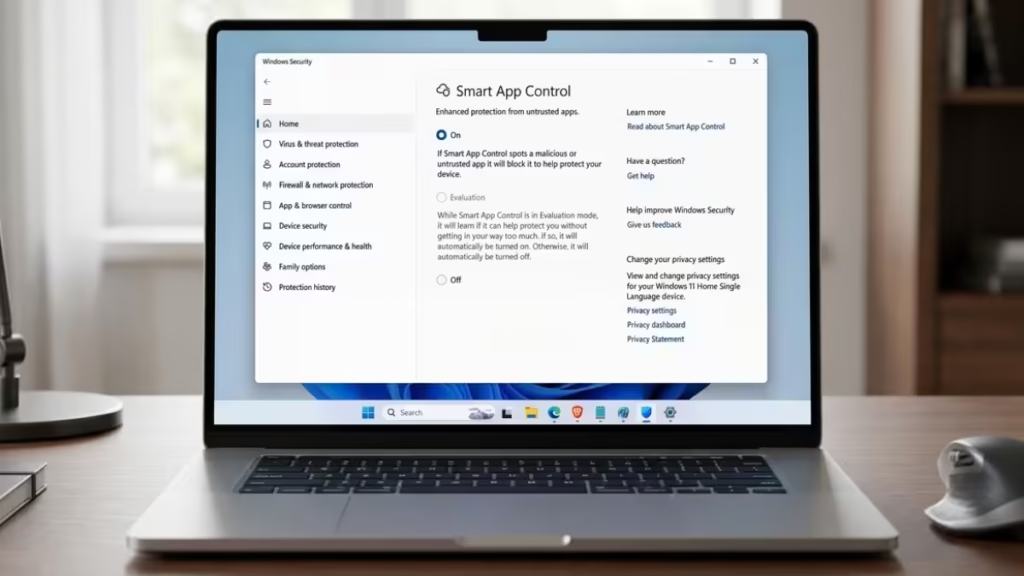
Smart App Control (SAC) is a Windows 11 security feature that Microsoft introduced in 2022. It uses a combination of AI, code signing, and Microsoft’s cloud-based threat intelligence to make real-time decisions about whether an application is safe to run.
When Smart App Control is active, it runs a quick assessment on any new app before it launches. It checks whether the app is digitally signed, how widely it is used among other Windows users, and whether Microsoft’s threat intelligence network recognizes it as safe. It also checks whether the app has been flagged for questionable behavior in the past.
If an app fails any of these checks, Smart App Control blocks it automatically, with little to no input needed from you. This makes it more proactive than traditional anti-malware tools, which typically respond after a threat already exists on your system.
Microsoft Security has built SAC directly into Windows Security, so it works alongside Defender without requiring any third-party software.
Smart App Control Modes: On, Evaluation, and Off
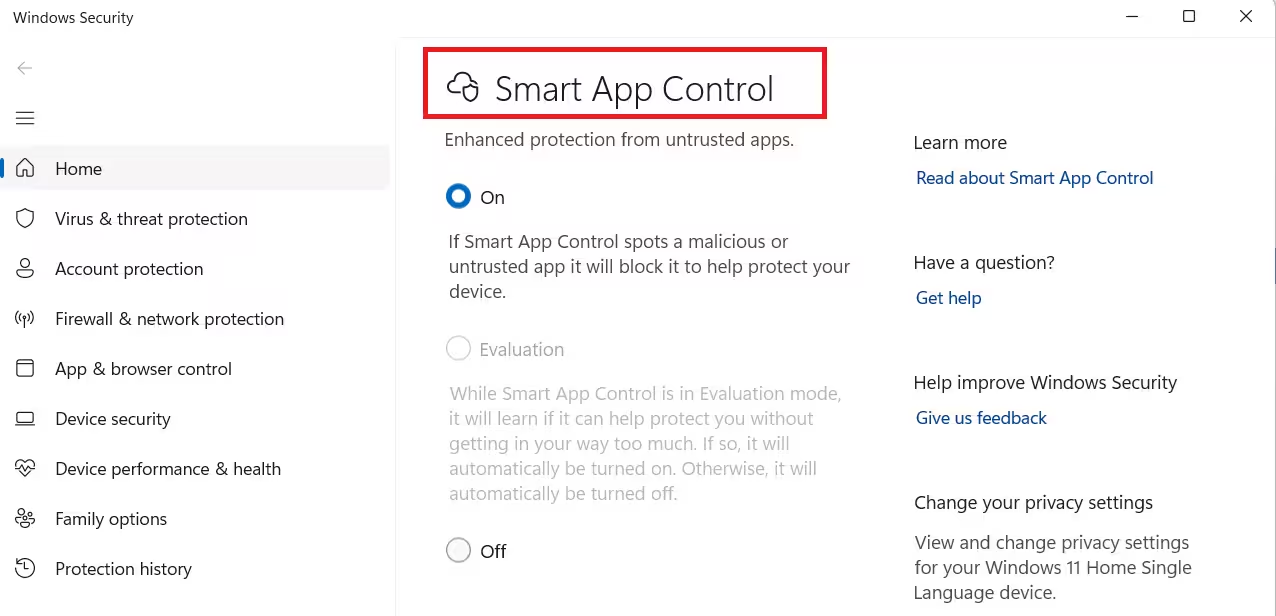
Smart App Control runs in three modes. Understanding what each one does helps you decide which setting fits your situation.
On
When you set Smart App Control to On, it enters full enforcement mode. It actively blocks any app that fails its safety assessment before that app can run. This is the recommended setting for most users who want continuous protection without manual intervention.
Evaluation
When Smart App Control is in Evaluation mode, it quietly monitors your usage patterns and system behavior before fully activating. During this phase, it learns which types of apps you regularly use. If it detects that enabling enforcement would disrupt your workflow or block too many apps you rely on, it may stay in Evaluation mode or switch itself off automatically.
This mode is what Windows 11 uses by default on new installs to avoid causing unexpected disruptions while the feature learns your setup.
Off
When Smart App Control is set to Off, the feature stops running entirely. Your device loses its Smart App Control protection, leaving it exposed to ransomware and other malicious software. You should only use this setting if a specific app you need is being blocked and you have verified it is safe through another method.
No Clean Install Required Anymore
Previously, enabling Smart App Control required a clean install of Windows 11. Microsoft has since removed that restriction. You can now switch Smart App Control on or off at any time directly from Windows Security settings, without reinstalling the operating system.
This change was confirmed in the Windows 11 KB5083769 update, which also carried a range of other security fixes and feature improvements.
How to Enable Smart App Control in Windows 11
Turning on Smart App Control takes only a few steps:
- Open the Windows Security app from the Start menu or system tray.
- Select App and Browser Control from the left sidebar.
- Scroll down to the Smart App Control section.
- Select On to switch the feature into enforcement mode.
The change takes effect immediately. You do not need to restart your PC.
If you see that Smart App Control is currently set to Evaluation, it is already running in a passive monitoring state. Switching it to On activates full protection.
How Smart App Control Affects Performance
Beyond blocking harmful apps, Smart App Control can also reduce strain on your PC. Because it stops threats before they launch rather than scanning or removing them after the fact, your system does not need to spend extra resources dealing with active malware.
On high-end hardware, this difference is minor. On Windows 11 PCs with limited RAM or older processors, the performance benefit is more noticeable. The feature reduces background overhead compared to reactive anti-malware solutions that run continuous scans.
This proactive approach is what Microsoft points to when describing Smart App Control as more efficient than traditional security tools.
What Smart App Control Does Not Cover
Smart App Control focuses on blocking untrusted or harmful apps from running. It does not replace other security practices. Phishing attempts, compromised websites, and social engineering attacks fall outside what SAC is designed to prevent.
For broader protection, you should still keep Windows Update enabled, use a strong account password, and avoid downloading software from unofficial sources. Security threats increasingly come through non-traditional channels, as seen in cases like the Motorola Smart Feed app affiliate hijack, where a pre-installed app quietly manipulated user activity at the software level rather than through a downloaded executable.
Smart App Control in Windows 11 is a lightweight, proactive security feature that uses AI and Microsoft threat intelligence to block harmful apps before they run. It operates in three modes, On, Evaluation, and Off, and you can now switch between them at any time without a clean Windows install. For most users, setting it to On in Windows Security is a straightforward way to add a meaningful layer of protection with no noticeable impact on day-to-day performance.

