Microsoft Defender flags Trojan:Win32/WinLNK.HGD!MTB when it detects a malicious Windows shortcut (.lnk) file on your system. This trojan uses a crafted .lnk file to silently run PowerShell or Command Prompt commands in the background without your knowledge. Defender often blocks and removes the file automatically, but the infection source may still be active on your PC.
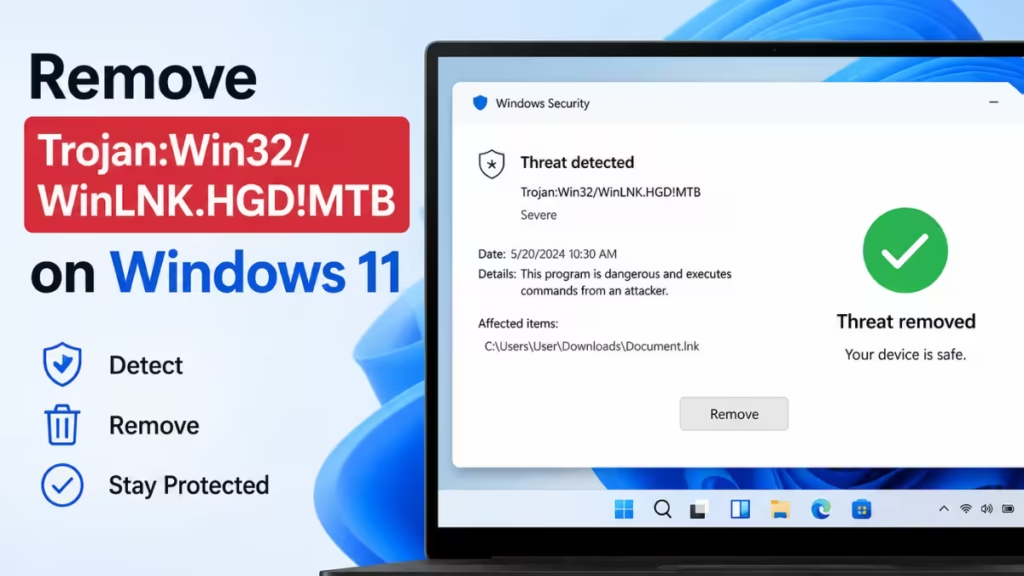
What Trojan:Win32/WinLNK.HGD!MTB Does on Your PC
The WinLNK family of trojans abuses legitimate Windows shortcut files. When you click a malicious .lnk file, it executes a hidden command, typically through PowerShell or cmd.exe, to download additional malware, modify registry entries, or establish persistence on your system.
The “HGD!MTB” suffix in the detection name means Defender identified it through heuristic analysis, which means the behavior pattern matched a known threat signature rather than an exact file hash. Defender may remove the shortcut file itself but leave behind related startup entries or scheduled tasks.
Step 1: Run a Full Scan with Microsoft Defender
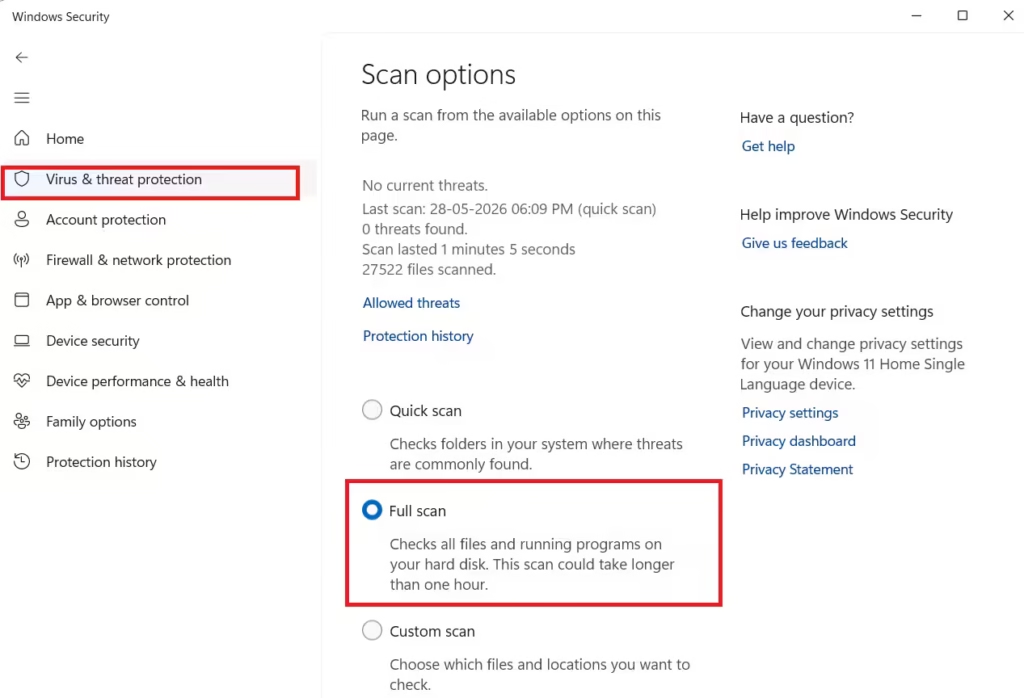
A Quick Scan misses files stored in less common locations. Run a Full Scan to cover every file and folder on your drive.
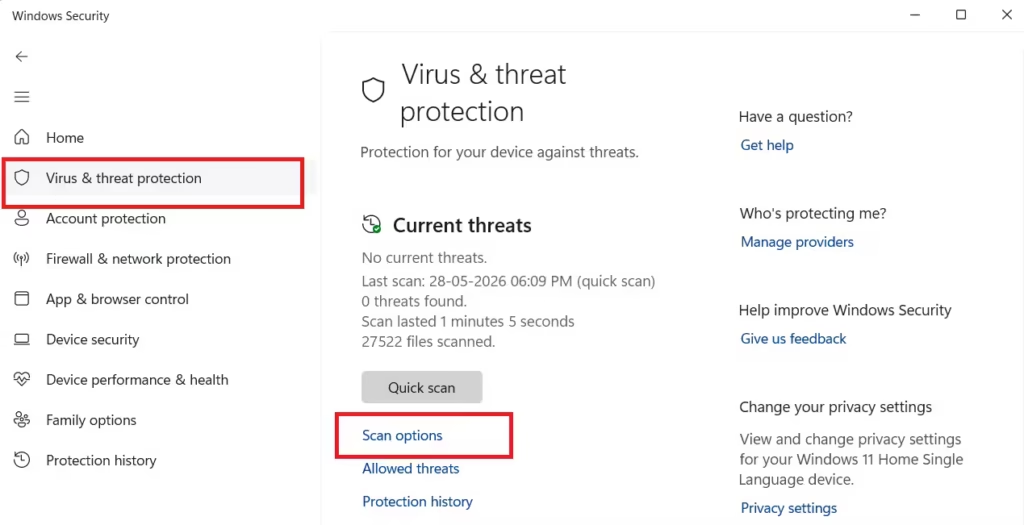
- Open Windows Security from the Start menu.
- Select Virus and threat protection.
- Under Current threats, click Scan options.
- Select Full scan and click Scan now.
- Wait for the scan to complete. It can take 30 to 60 minutes depending on your drive size.
If Defender detects Trojan:Win32/WinLNK.HGD!MTB again, click Remove on the detection screen. Do not click Allow or Ignore.
Step 2: Fix Windows Defender Offline Scan Not Launching
Windows Defender Offline Scan runs before Windows loads, which lets it remove threats that hide from standard scans. If the Offline Scan button does nothing or the scan never runs after a restart, follow these steps.
Check if Windows Security has the correct permissions:
- Right-click the Windows Security icon in the taskbar.
- Select Run as administrator.
- Go to Virus and threat protection > Scan options.
- Select Microsoft Defender Antivirus (Offline scan) and click Scan now.
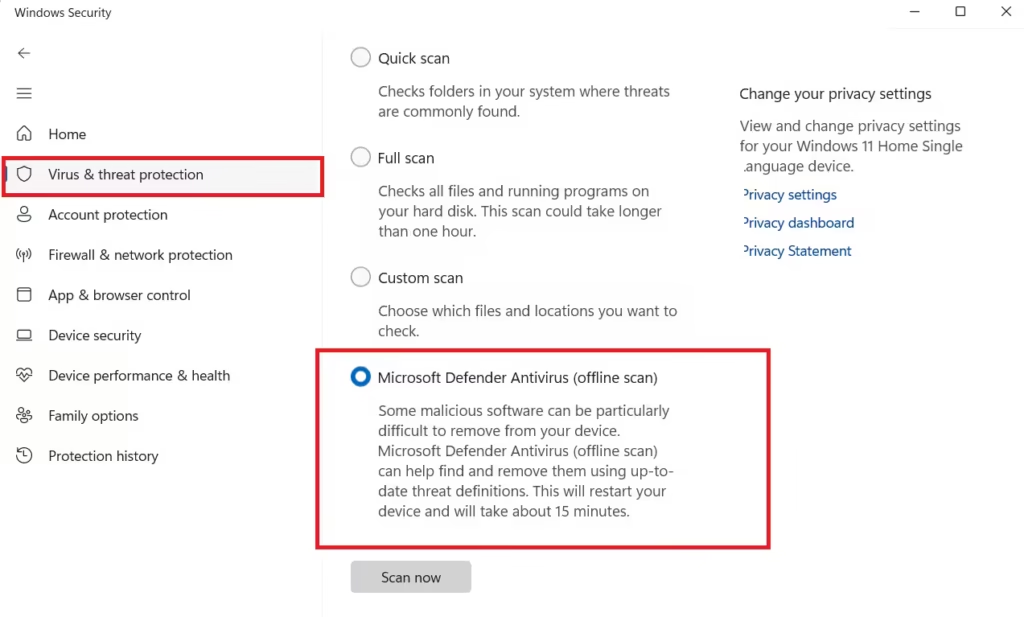
- Click Scan when the UAC prompt appears, then let your PC restart.
If the Offline Scan still does not run after the restart:
- Press Win + I to open Settings.
- Go to Windows Update and install all pending updates. Offline Scan sometimes fails to launch on unpatched builds.
- Restart your PC after updates complete, then try the Offline Scan again.
If another security tool is installed:
Third-party antivirus software can block Windows Defender from running Offline Scan. Temporarily disable the third-party tool from its settings, run the Offline Scan, then re-enable it after the scan finishes.
Use Microsoft Safety Scanner as a direct alternative:
If Windows Defender Offline Scan continues to fail, Microsoft Safety Scanner performs an equivalent deep scan and is the recommended alternative according to Microsoft support advisors.
Step 3: Run Microsoft Safety Scanner
Microsoft Safety Scanner is a free standalone tool from Microsoft. It does not install anything and does not replace Defender. It scans your PC independently and catches threats that a resident antivirus may have missed.
- Download Microsoft Safety Scanner from the official Microsoft page:
https://learn.microsoft.com/en-us/defender-endpoint/safety-scanner-download - Save the file to your Desktop.
- Right-click msert.exe and select Run as administrator.
- Accept the license terms and click Next.
- Select Full Scan and click Next.
- Let the scan run to completion. Do not interrupt it.
Run the scan in Safe Mode for the best results if the malware keeps returning after standard scans.
To boot into Safe Mode:
- Press Win + R, type
msconfig, and press Enter. - Go to the Boot tab and check Safe boot > Minimal.
- Click OK and restart your PC.
- Once in Safe Mode, run Microsoft Safety Scanner as described above.
- After the scan completes, open
msconfigagain, uncheck Safe boot, and restart normally.
Step 4: Delete Suspicious LNK Files From Startup Folders
WinLNK trojans often plant a malicious shortcut in Windows startup folders so they execute every time you log in. Even after Defender removes the main threat, a leftover .lnk file in a startup folder can reactivate the infection.
- Press Win + R and type
shell:startup, then press Enter. This opens your personal startup folder. - Look for any .lnk files you do not recognize or did not create yourself.
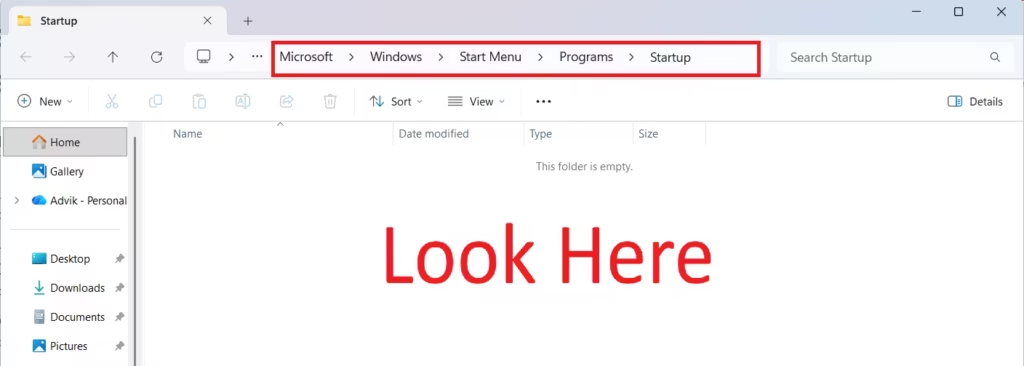
- Delete any suspicious shortcuts immediately.
- Press Win + R again and type
shell:common startup, then press Enter. This opens the system-wide startup folder.
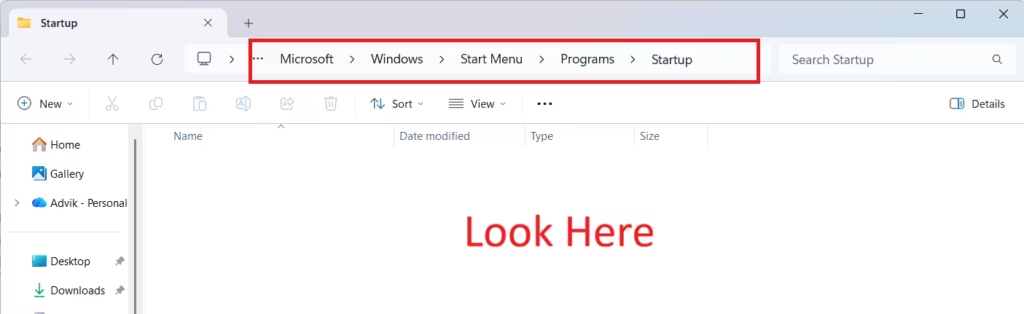
- Repeat the same check and delete any unknown .lnk files.
Also check your Downloads folder and Desktop for shortcut files from unknown sources, especially files with names that mimic software installers or documents.
Step 5: Check Task Scheduler for Malicious Entries
WinLNK trojans sometimes create a scheduled task to run themselves on a timer, which lets them survive a reboot even after you delete the .lnk file.
- Press Win + R, type
taskschd.msc, and press Enter. - In the left panel, expand Task Scheduler Library.
- Look through the list for tasks with random alphanumeric names, tasks pointing to unknown scripts, or tasks that run PowerShell or cmd.exe with long encoded arguments.
- Right-click any suspicious task and select Delete.
If a task runs a command like powershell.exe -EncodedCommand followed by a long base64 string, delete it immediately. Legitimate Windows tasks do not use encoded commands in their standard scheduled entries.
Step 6: Confirm the Threat Is Removed
After completing the steps above, run one final Full Scan with Microsoft Defender to confirm the infection is gone.
- Open Windows Security > Virus and threat protection > Scan options.
- Select Full scan and click Scan now.
- If the scan returns no detections, the infection has been successfully removed.
Check your Protection history under Virus and threat protection to review all past Defender detections. If Trojan:Win32/WinLNK.HGD!MTB shows as Blocked or Removed with no new Active alerts, your system is clean.
Prevent WinLNK Trojans From Returning
- Never open .lnk files from USB drives, email attachments, or file-sharing sites unless you trust the source completely.
- Keep Windows Update enabled. Microsoft regularly pushes Windows Defender definition updates that improve detection of new WinLNK variants.
- Enable Real-time protection in Windows Security at all times.
- Avoid downloading cracked software or game mods from unofficial sources. WinLNK trojans spread heavily through pirated software installers that use shortcut files to trigger their payloads.

