Cached data quietly builds up on your iPhone over time. Old browsing files, stored cookies, and app temp data can slow down your device, cause websites to load incorrectly, and eat into your storage. Clearing the cache removes that clutter and brings your iPhone back to a cleaner, faster state.
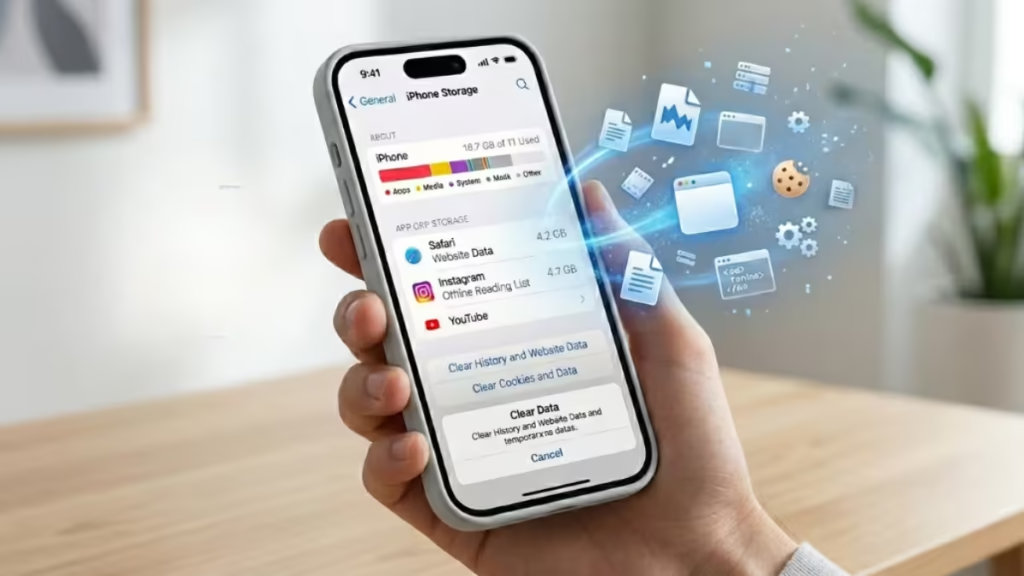
This guide covers every method to clear cache on iPhone, including Safari, Chrome, Firefox, and individual apps, along with tips to keep your device running well after.
Does iPhone Have a “Clear All Cache” Button?
No. Unlike Android, iOS does not offer a single button to wipe all cached data at once. Apple manages most cached files automatically in the background. However, you can clear cache manually for each browser and most apps using the steps below.
Each method targets a specific type of cached data, so going through them one by one gives you the most thorough cleanup.
How to Clear Safari Cache on iPhone
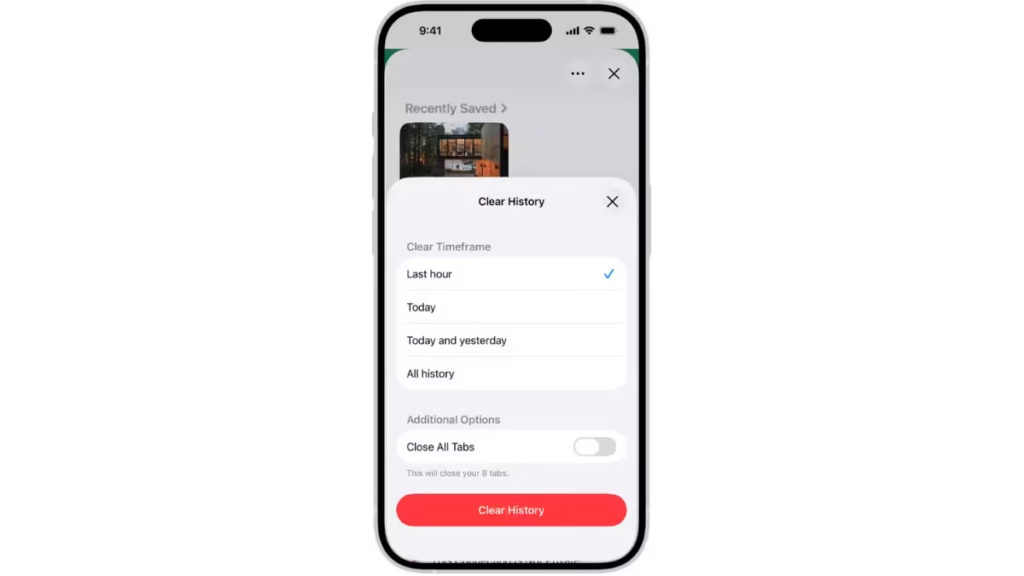
Safari stores browsing history, cookies, and website data as you browse. Clearing this data fixes broken page loads, removes login sessions, and frees up storage.
- Open the Settings app on your iPhone.
- Scroll down and tap Apps, then tap Safari.
- Tap Clear History and Website Data.
- Confirm by tapping Clear History and Data.
This wipe covers your browsing history, cookies, and cached files in Safari. If you use iCloud with Safari, the clear applies across all your connected Apple devices as well.
Note: Clearing Safari history does not erase browsing histories stored separately by websites you visited, nor does it affect history in other browsers installed on your phone.
How to Clear Chrome Cache on iPhone
If you use Google Chrome as your default browser on iPhone, follow these steps to clear its cache:
- Open the Chrome app.
- Tap the three dots at the bottom right corner.
- Select Settings, then tap History.
- Tap Clear Browsing Data.
- Make sure Cookies, Site Data and Cached Images and Files are both selected.
- Tap Clear Browsing Data and confirm.
After this, Chrome loads fresh versions of pages instead of pulling from stored files. This often fixes pages that refuse to update or display outdated content.
How to Clear Firefox Cache on iPhone
Firefox users can clear their cache through the browser’s built-in privacy settings:
- Open the Firefox app.
- Tap the menu icon at the bottom of the screen.
- Go to Settings, then scroll to the Privacy section.
- Tap Data Management.
- Toggle on Cache.
- Tap Clear Private Data to confirm.
Quick Reference: Clear Cache in All Three Browsers
| Browser | Where to Start | Key Steps |
|---|---|---|
| Safari | Settings > Apps > Safari | Clear History and Website Data |
| Chrome | Chrome > Three Dots > Settings | History > Clear Browsing Data > Select items > Clear |
| Firefox | Firefox > Menu > Settings | Privacy > Data Management > Toggle Cache > Clear Private Data |
Tip: If you do not see the exact menu options shown above, update your browser app to the latest version from the App Store. Menu names and positions can shift slightly between app versions.
How to Clear App Cache on iPhone
Browsers are not the only source of cached data. Apps store temporary files too. iOS gives you three ways to deal with app cache.
1. Offload the App
Offloading removes the app and its temporary files but keeps your personal data, settings, and documents intact. When you reinstall the app later, it picks up right where you left off.
- Go to Settings > General > iPhone Storage.
- Tap the app you want to offload.
- Tap Offload App.
This method works well for large apps you use occasionally but want to keep data for.
2. Delete and Reinstall the App
Deleting an app removes everything, including all cached and temporary files. Reinstalling it from the App Store gives you a completely clean install.
- Touch and hold the app icon on your Home Screen.
- Tap Remove App, then Delete App.
- Reinstall the app from the App Store.
Use this method when an app is behaving unexpectedly or taking up a large amount of storage that offloading did not reduce.
3. Use In-App Cache Clearing Options
Some apps include a built-in option to clear their cache without deleting the app. Apps like Facebook, Instagram, and Spotify fall into this category.
- Open the app and go to its Settings or Privacy section.
- Look for a Clear Cache or Storage option.
- Follow the on-screen prompts.
Not all apps offer this option. If you cannot find it, offloading or deleting the app are your next options.
Benefits of Clearing iPhone Cache
Clearing cache on a regular basis gives you several practical advantages:
- Faster performance: Removing old temporary files lets your device and apps respond more quickly. Pages load faster and apps feel more responsive.
- More storage space: Cached files accumulate over time. Clearing them frees up room for photos, videos, and apps that actually matter.
- Better privacy: Cookies and cached data let websites track your browsing activity. Removing them reduces that exposure and limits targeted tracking.
- Fixes app and website issues: When an app or website behaves incorrectly, outdated cached data is often the cause. A cache clear resolves loading errors and display glitches without requiring a reinstall.
What Happens When You Clear Cache
Before you clear cache, understand what changes on your device:
- You may be logged out of websites and apps. Clearing cookies removes saved login sessions. Have your usernames and passwords ready.
- Some settings or preferences may reset. Saved themes, language choices, or site-specific preferences can revert to defaults after a cache clear.
- Avoid third-party cleaner apps. Many cleaning apps on the App Store request unnecessary permissions and offer little benefit over the built-in methods above. Stick to the steps in this guide.
- Back up important data first. Before deleting or reinstalling apps, make sure you back up anything important through iCloud or iTunes.
Extra Steps to Improve iPhone Performance
Clearing cache helps, but combining it with these steps gives you better overall results:
- Restart your iPhone regularly: A simple reboot clears temporary memory and resolves minor software glitches.
- Update to the latest iOS version. Apple releases iOS updates that fix performance bugs and security issues. Staying current keeps your device stable.
- Reset Network Settings if needed: If you notice slow internet or connection problems after clearing cache, go to Settings > General > Transfer or Reset iPhone > Reset > Reset Network Settings. This clears saved Wi-Fi passwords and network data, so reconnect to your networks afterward. For persistent Wi-Fi or network issues on iPhone, a network reset is often the fastest fix.
- Turn off Background App Refresh: Go to Settings > General > Background App Refresh and disable it for apps that do not need it. This reduces background data usage and battery drain.
- Disable Automatic Downloads: In Settings > App Store, turn off automatic app downloads and updates to avoid background installs you did not request.
- Reduce Motion: Go to Settings > Accessibility > Motion and turn on Reduce Motion. This cuts down on interface animations and can make the device feel snappier, especially on older iPhones.
- Review iPhone Storage Recommendations: In Settings > General > iPhone Storage, Apple shows specific suggestions to free up space. These include offloading unused apps, removing large attachments, and optimizing photo storage.
- Delete heavy videos and duplicate photos: Large video files and duplicate photos consume significant storage over time. Review your Photos app regularly and remove files you no longer need.
How Often Should You Clear iPhone Cache?
You do not need to clear cache every day. A few guidelines help you decide when it makes sense:
- Monthly maintenance: Clear your browser cache once a month as part of a routine digital cleanup. This prevents buildup and keeps browsing performance consistent.
- When troubleshooting: If an app or website stops working correctly, clear its cache first before trying anything else. Outdated or corrupted cached data causes most display and loading errors.
- Before sensitive transactions: Clear your browser cache before entering financial details or passwords online. This prevents sensitive data from being stored locally on your device.

