Your iPhone’s Personal Hotspot lets you share your cellular internet connection with laptops, tablets, and other devices. When it stops working, the fix is usually quick. But if the obvious steps do not help, the problem could involve your carrier plan, iOS settings, a conflicting VPN, or corrupted network data.
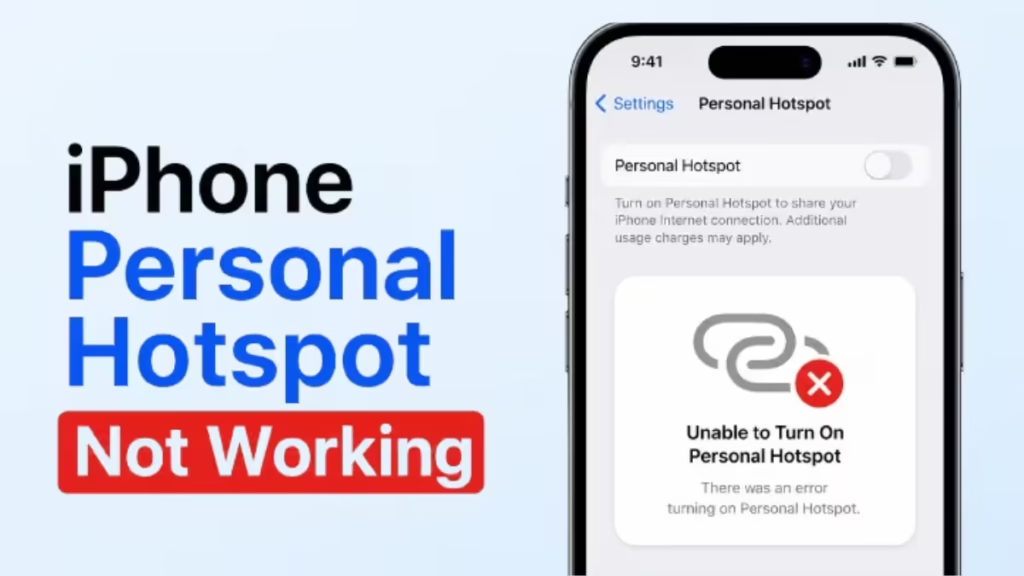
This guide covers every reliable fix in order, from the fastest resets to the deeper repairs you try if nothing else works.
Why iPhone Personal Hotspot Stops Working
Several things can break Personal Hotspot without any obvious warning:
- Cellular data is turned off or interrupted
- Your carrier plan does not include tethering
- A VPN connection is blocking the hotspot network
- iOS has a software bug that a restart or update clears
- Network settings have become corrupted
- The device trying to connect uses an older Wi-Fi standard that your iPhone’s hotspot no longer broadcasts
Start with the simple fixes first. Most iPhone hotspot problems resolve within the first three steps.
Fix 1: Turn Personal Hotspot Off and On
A quick toggle resets the hotspot broadcast and clears minor connection faults.
- Open Settings on your iPhone.
- Tap Personal Hotspot.
- Turn off Allow Others to Join.
- Wait five seconds, then turn it back on.
Keep the Personal Hotspot screen open until the other device connects. If you leave the screen too quickly, iOS sometimes stops broadcasting the hotspot network.
Fix 2: Toggle Cellular Data Off and On
Personal Hotspot runs entirely on cellular data. If your cellular data connection is in a bad state, the hotspot will not work even when the toggle is on.
- Open Settings.
- Tap Cellular (or Mobile Data depending on your region).
- Turn off Cellular Data.
- Wait ten seconds, then turn it back on.
After cellular data reconnects, go back to Personal Hotspot and try again.
Fix 3: Enable Maximize Compatibility
Newer iPhones broadcast the hotspot on the 5GHz band by default, which delivers faster speeds but older devices cannot connect to it. Enabling Maximize Compatibility switches the broadcast to the 2.4GHz band so all devices can connect.
This setting is available on iPhone 12 and later, iPad Pro 11-inch (3rd generation and later), iPad Pro 12.9-inch (5th generation and later), and iPad mini (6th generation and later).
- Open Settings.
- Tap Personal Hotspot.
- Turn on Maximize Compatibility.
Note that turning on this feature may reduce internet performance for connected devices. If speed is not a concern, leave it enabled.
Fix 4: Disable Your VPN
An active VPN on your iPhone can interfere with Personal Hotspot by rerouting network traffic in a way that blocks the hotspot’s own connection. This is a common and easy-to-miss cause.
- Open Settings.
- Tap General, then tap VPN and Device Management.
- Tap VPN.
- Turn off the VPN status toggle.
You can also disable the VPN directly from your VPN provider’s app. Once it is off, try connecting to Personal Hotspot again. If hotspot works without the VPN, the VPN configuration is the source of the conflict.
Fix 5: Check Your Carrier Plan and Tethering Settings
Many carriers disable tethering on basic plans or require you to add it separately. If your carrier has not enabled hotspot on your account, the Personal Hotspot option may appear greyed out in Settings or may silently refuse all connections.
How to check:
- Contact your carrier’s support and ask whether your plan includes Personal Hotspot or tethering.
- If tethering is available but disabled, ask them to enable it on your account.
- If you recently switched plans or renewed, tethering privileges sometimes reset and need to be re-enabled manually by the carrier.
Also check that your account has no outstanding balance. An overdue bill can cause carriers to restrict data features including Personal Hotspot.
Fix 6: Restart Your iPhone
A restart clears temporary software bugs in iOS that can prevent Personal Hotspot from broadcasting correctly. This applies to every iPhone model.
To restart your iPhone (models without a Home button):
- Press and hold the side button and either volume button at the same time.
- Drag the slide to power off slider to the right.
- Wait 30 seconds, then press the side button to turn the phone back on.
For iPhones with a Home button, press and hold the side button, then drag the power slider.
Also restart the device you are trying to connect. The connection failure sometimes originates from the other device rather than your iPhone.
Fix 7: Update iOS
Apple releases iOS updates that patch known bugs, including those that affect Personal Hotspot. Running an outdated iOS version is a common reason hotspot breaks after it was previously working.
- Open Settings.
- Tap General, then tap Software Update.
- If an update is available, tap Update Now.
Make sure your iPhone is on a Wi-Fi network and has sufficient battery before starting the update.
Fix 8: Update Carrier Settings
Carrier settings are separate from iOS updates. They control how your iPhone interacts with your cellular network, and outdated carrier settings can break Personal Hotspot.
To check for a carrier settings update:
- Connect your iPhone to Wi-Fi.
- Open Settings, then tap General.
- Tap About.
If a carrier update is available, a prompt appears automatically within a few seconds. Tap Update to install it.
Fix 9: Reset Network Settings
If none of the steps above work, your network settings may have become corrupted. Resetting them restores all network-related settings to factory defaults.
What this reset clears:
- Saved Wi-Fi networks and passwords
- Cellular settings
- VPN configurations
- Bluetooth pairings
- APN settings
Steps:
- Open Settings.
- Tap General, then tap Transfer or Reset iPhone.
- Tap Reset.
- Tap Reset Network Settings only. Do not select Reset All Settings or Erase All Content, as those wipe the entire phone.
- Enter your passcode when prompted and confirm.
After the reset, reconnect to your Wi-Fi network, re-pair your Bluetooth devices, and re-enter any VPN configurations. Then test Personal Hotspot again.
Fix 10: Connect via USB Instead
If wireless hotspot keeps failing, USB tethering is a reliable alternative. You share the same cellular data connection, but the link runs through a cable rather than Wi-Fi.
For Mac:
- Connect your iPhone to your Mac using a Lightning or USB-C cable.
- If prompted, tap Trust on your iPhone.
- On your Mac, open System Settings (or System Preferences), then click Network.
- Look for iPhone USB in the list of network services.
- If it is not there, add it using the network service setup. If it is there but inactive, click it and toggle it from inactive to active.
For Windows:
- Connect your iPhone via USB cable.
- iTunes must be installed and the device must be trusted.
- Your PC should detect the iPhone’s internet connection automatically.
To avoid unintentional data charges, turn off Personal Hotspot when you are not using it. Every time you connect your iPhone to a computer while hotspot is active, the computer may connect to it automatically.
Fix 11: Restore iPhone Using DFU Mode
If every step above has failed, a DFU (Device Firmware Update) restore is the deepest repair option short of contacting Apple. DFU Mode lets your iPhone boot without loading iOS, which allows you to fix low-level firmware issues that a standard restore cannot reach.
Before you start, back up your iPhone fully using iCloud or Finder, as this process erases all data.
DFU restore steps vary by iPhone model. On iPhone 8 and later:
- Connect your iPhone to a Mac or PC running the latest macOS or iTunes.
- Quickly press and release Volume Up.
- Quickly press and release Volume Down.
- Press and hold the Side button until the screen goes black, then hold both the Side button and Volume Down together for five seconds.
- Release the Side button but keep holding Volume Down for another ten seconds.
- If the screen stays black and Finder or iTunes shows a recovery prompt, your iPhone is in DFU Mode.
- Follow the on-screen instructions to restore.
If Personal Hotspot Still Does Not Work
If none of these fixes resolves the problem, contact Apple Support directly. You can reach them by phone or book an appointment at an Apple Store. A persistent hotspot failure that survives all these steps may point to a hardware issue with the cellular antenna, which requires in-person diagnosis.
If you use a work-issued iPhone, contact your IT department before calling Apple or your carrier. Corporate device management profiles sometimes restrict Personal Hotspot at the policy level.
Related iOS How-To
- How to Clear System Data on iPhone (Free Up Storage Fast)
- How to Clear Cache on iPhone (Safari, Chrome, Firefox & Apps)
- How to Protect Your iPhone Data Before Handing It In for Repair
- How to Unlock iPhone If You Forgot Your Passcode
- How to Disable Video on Spotify (PC, Android & iPhone Guide)
- How to Fix Apple CarPlay Not Working on iPhone: 10 Proven Fixes

