Escape The Backrooms is a co-op horror game where communication keeps you and your teammates alive. When your microphone stops working, you lose one of your most important tools for surviving the game’s terrifying hallways. Many players in the 1.0 release have reported this issue, where the mic icon appears on screen but teammates cannot hear a word.
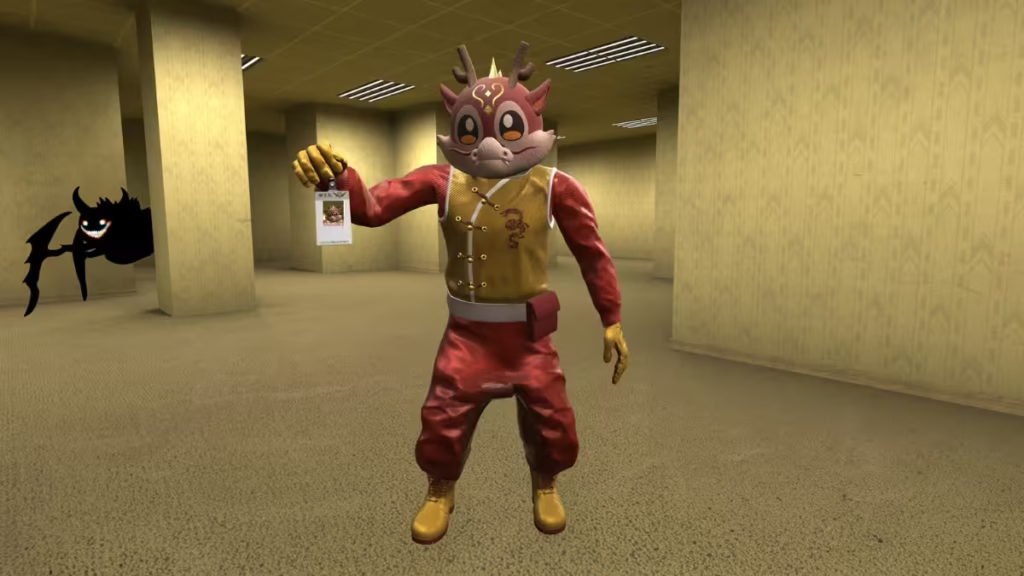
The root cause varies from player to player. Windows often assigns the wrong input device to the game, privacy settings block microphone access, or antivirus software quietly prevents the game from using your hardware. Every one of these causes has a straightforward fix you can apply in minutes.
How to Fix the Mic Not Working Error in Escape The Backrooms
Work through the fixes below in order. Most players resolve the issue with the first or second method.
Fix 1: Press V to Toggle Your Mic
Before changing any system settings, check the simplest cause first. The V key toggles your microphone on and off inside Escape The Backrooms. If you pressed it accidentally during gameplay, your mic will stay silent until you press it again.
Press V and ask a teammate whether they can hear you. If they can, you are done.
Fix 2: Restore In-Game Audio Settings to Default
Corrupted or mismatched audio preferences inside the game cause mic detection to fail. Restoring defaults clears all of those preferences and lets the game re-detect your microphone from scratch.
- Open the in-game Settings menu.
- Navigate to Audio or Voice settings.
- Click Restore Defaults.
- Rejoin your session and test your mic.
This fix takes under 30 seconds and resolves the issue for a significant number of players.
Fix 3: Set Your Microphone as the App-Specific Input Device
Windows assigns a default audio input device globally, but it does not always apply that choice correctly to individual games. Escape The Backrooms frequently picks up a secondary or inactive mic instead of the one you are actually using.
- Launch the game and minimize it without closing it.
- Press the Windows key and search for Sound Settings.
- Scroll down and click App volume and device preferences.
- Find Escape The Backrooms in the list.
- Under the Input column, change Default to your specific microphone.
This forces the game to use your chosen mic regardless of what Windows selects globally.
Fix 4: Disable All Unused Microphones in Sound Settings
If you have multiple audio input devices connected, Windows may still route audio through the wrong one even after applying the fix above. Disabling unused mics removes the ambiguity entirely.
- Right-click the Sound icon in the bottom-right corner of your taskbar.
- Select Sound Settings.
- Scroll down to Advanced and click All sound devices.
- Disable every microphone except the one you actively use.
After disabling the unused devices, relaunch the game and test your mic with a teammate.
Fix 5: Check Windows Microphone Privacy Settings
Windows 10 and Windows 11 include privacy controls that can block individual apps from accessing your microphone without showing any visible error. The game will behave as if the mic is active while transmitting nothing.
- Press the Windows key and search for Microphone Privacy Settings.
- Confirm that Microphone access is toggled On at the top.
- Scroll down to the list of apps and find Escape The Backrooms.
- Toggle microphone access On for the game.
If the game does not appear in the list, privacy settings are not the cause and you can move to the next fix.
Fix 6: Add the Game to Your Antivirus Exception List
Third-party antivirus programs frequently block indie games from accessing hardware like microphones. The software flags the access attempt as suspicious and silently denies it, which produces exactly the same symptom as the privacy settings issue above.
- Open your antivirus program.
- Navigate to Exceptions, Whitelist, or Exclusions settings.
- Add the full Escape The Backrooms installation folder. You can find the path by right-clicking the game in Steam, selecting Manage, then Browse local files.
- Save the exception and restart the game.
Fix 7: Update Your Audio Drivers
Outdated audio drivers create compatibility problems with newer games. If none of the above fixes work, an out-of-date driver is likely interfering with how Windows handles microphone input.
Option A: Update through Device Manager
- Press Windows + X and select Device Manager.
- Expand Sound, video and game controllers.
- Right-click your audio device and select Update driver.
- Choose Search automatically for drivers.
Option B: Update through your manufacturer’s website
Visit the support page for your motherboard brand (ASUS, MSI, Gigabyte, ASRock, or similar) and download the latest audio driver for your specific model.
Restart your PC after installing the update and test the mic in-game.
Fix 8: Verify Steam Voice Settings
Steam includes its own voice and audio configuration that can conflict with the game’s internal settings. Incorrect Steam mic settings can suppress or block voice transmission entirely.
- Open Steam and click Steam in the top menu bar.
- Go to Settings and select Voice.
- Set your microphone to the correct input device under Voice input device.
- Click Start microphone test to confirm Steam detects your mic.
- Adjust Microphone volume and Threshold if the test output appears low.
Once the mic works correctly inside Steam’s test, relaunch the game and check again.
Fix 9: Verify Game Files Through Steam
Corrupted or missing game files can cause audio systems inside the game to malfunction, including mic detection.
- Open Steam and go to your Library.
- Right-click Escape The Backrooms and select Properties.
- Click Installed Files and then Verify integrity of game files.
- Wait for the scan to complete, then relaunch the game.
Steam will automatically replace any damaged files it finds.
Escape The Backrooms Mic Not Working: All Fixes at a Glance
| Cause | Fix | Time Needed |
|---|---|---|
| Mic toggled off | Press V in-game | 5 seconds |
| Wrong in-game settings | Restore defaults in audio menu | 30 seconds |
| Wrong app input device | App volume and device preferences | 2 minutes |
| Multiple mics confusing Windows | Disable unused mics in Sound Settings | 2 minutes |
| Privacy settings blocking access | Microphone Privacy Settings | 1 minute |
| Antivirus blocking hardware access | Add game to exceptions list | 3 minutes |
| Outdated audio driver | Update via Device Manager or manufacturer | 5 minutes |
| Incorrect Steam voice settings | Configure mic in Steam Settings | 2 minutes |
| Corrupted game files | Verify integrity through Steam | 3 to 5 minutes |
Related Guides
- Escape The Backrooms Entities Guide: All Monsters and How to Survive Each Level
- How to Find the Level 5 Floor 2 Door Code in Escape the Backrooms
- Escape the Backrooms Entities Guide – All Monsters & Levels
- Inazuma Eleven Victory Road: How to Get and Use Bond Stars
- How to Solve the Tormented Souls 2 Bell Tower Puzzle and Get the Shotgun

