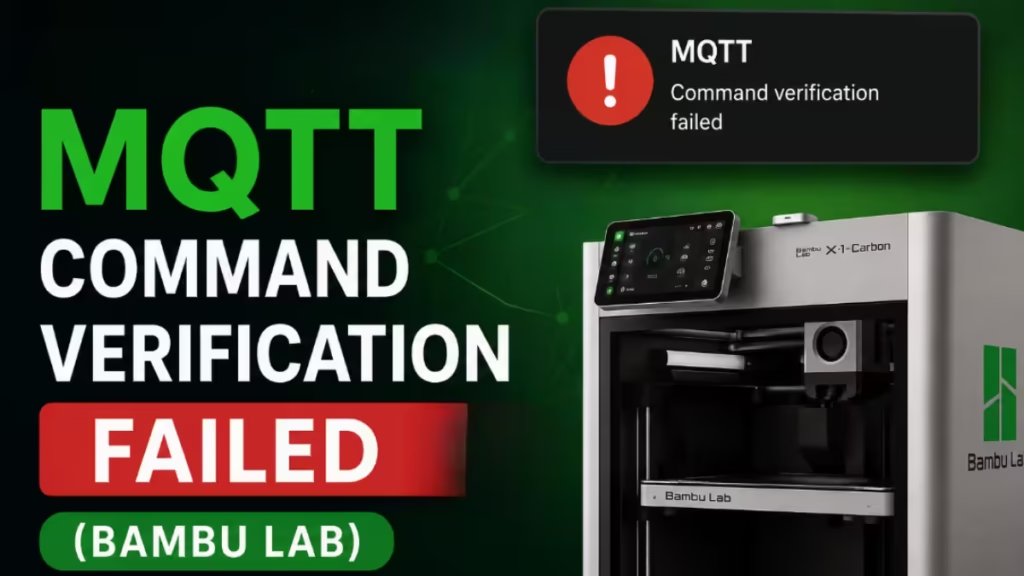
If your Bambu Lab printer suddenly refuses commands and throws “MQTT command verification failed. Please update Studio or Handy”, you are looking at HMS code HMS-0500-0500-0001-0007. The error shows up in Bambu Studio, the Bambu Handy app, OrcaSlicer, and Home Assistant setups, usually right after a firmware update. This guide walks through every working fix in order, from the quickest to the last resort.
What Causes MQTT Command Verification Failed Error
Bambu Lab added an authorization and authentication layer starting with firmware 01.08.05.00 (and the 01.08.03.00 beta). From that version onward, the printer checks the source of every MQTT control command it receives. If the software sending the command does not match the version the firmware expects, the printer rejects the command and reports the verification failure.
You typically trigger this error in one of these situations:
- You updated the printer firmware but left Bambu Studio or Bambu Handy on an older version.
- You downgraded Bambu Studio while keeping the newer firmware, so the versions no longer match.
- You control the printer through a third party tool like OrcaSlicer or the Home Assistant Bambu Lab integration, which the new firmware does not recognize as an authorized source.
- The network plugin inside Bambu Studio failed to install or crashed, so Studio cannot complete the handshake.
The fix depends on which of these applies to you. Work through the steps below in order.
Fix 1: Update Bambu Studio to the Latest Version
The error message asks you to update Studio first, and in most cases this clears it.
- Open Bambu Studio and check your current version under the Help or About menu.
- Go to the official Bambu Lab download page and grab the newest stable release.
- Close Studio completely, install the new build, then reopen it.
- Reconnect to your printer and resend the command.
Match the version to your firmware. If your firmware sits in the 01.10.x range, install Bambu Studio 01.10.02.64 or above. Running the latest firmware against an old Studio build is the single most common cause of this error.
Fix 2: Update the Bambu Handy App
Studio and Handy each carry their own version of the authentication logic, so updating one does not cover the other.
- Open the App Store on iOS or Google Play on Android.
- Search for Bambu Handy and tap Update if one is available.
- Force close the app, reopen it, and sign back in.
- Retry your print or control command.
If you control the printer from both your computer and your phone, update both apps before you test again.
Fix 3: Restart the Printer and Relaunch Bambu Studio
Many users hit this error as a one time glitch right after the printer powers on or the AMS finishes initializing. A clean restart clears it.
- Power off the printer fully, wait ten seconds, then power it back on.
- Let the printer and AMS finish booting.
- Close Bambu Studio, then launch it again.
- Reconnect and send a test command.
If the error disappears after a reboot and never comes back, you are done. If it returns every session, move to the next fix.
Fix 4: Match Your Firmware and Software Versions
The printer and the software have to agree on the authentication version. A mismatch in either direction triggers the failure.
- If you recently updated firmware, update Studio and Handy to their latest builds so all three line up.
- If you recently downgraded Studio to dodge another bug, that older Studio now fails the new firmware check. Reinstall the current Studio version instead.
- Avoid keeping a new firmware paired with an old slicer. Update them together or stay on a known compatible pair.
Keep in mind that the newest firmware often blocks downgrades, so updating forward is usually the safer path.
Fix 5: Update OrcaSlicer or the Home Assistant Integration
Third party tools need their own update to speak to the new firmware.
- OrcaSlicer: install the latest release. Older OrcaSlicer builds send commands the new firmware treats as unauthorized.
- Home Assistant: update the Bambu Lab integration to the newest version through HACS, then restart Home Assistant.
If no compatible update exists yet for your tool, use developer mode in the next fix to keep local control working.
Fix 6: Enable Developer Mode and LAN Only Mode
Developer mode turns off the source verification entirely, so the printer accepts all control commands without checking where they came from. This is the reliable path for OrcaSlicer, Home Assistant, and any custom MQTT tool.
- On the printer touchscreen, open Settings.
- Turn on LAN Only Mode.
- Open the general or network settings and enable Developer Mode.
- Reconnect your tool to the printer over your local network.
Use this option only on a trusted home network, since it removes the authentication check that the verification step provides.
Fix 7: Reinstall the Network Plugin in Bambu Studio
If Studio shows the error and also struggles to connect, the network plugin may have failed or crashed during install.
- In Bambu Studio, open the plugin or network settings and uninstall the current network plugin.
- Restart Studio and let it prompt you to reinstall the plugin.
- If the latest build keeps crashing on plugin install, drop back to a stable Studio release that matches your firmware, then update forward once a fixed build ships.
Fix 8: Downgrade Firmware as a Last Resort
Try this only when every update path fails and you need the printer running now. Rolling back to firmware before 01.08.03.00 removes the verification layer, but it also strips out the security improvement and may not be possible on the newest firmware.
- Download the older firmware package from Bambu Lab for your exact model.
- Flash it through the printer menu or an SD card following the official rollback steps.
- Pair it with a matching older Studio version.
Treat this as a temporary workaround, not a permanent fix.
Clear the HMS Error After You Fix It
Once a fix takes hold, clear the stored fault so the printer stops flagging it.
- Open Bambu Studio and go to the Device tab.
- Select your printer, then open the HMS tab.
- Clear HMS-0500-0500-0001-0007 and confirm the error no longer returns on the next command.
The MQTT command verification failed error looks alarming but almost always comes down to a version mismatch between your printer firmware and Bambu Studio or Handy. Update both apps first, restart the printer, and the error clears in most cases. If you run OrcaSlicer or Home Assistant, enable Developer Mode to restore local control. Drop a comment below if a specific fix worked for you or if the error keeps coming back after an update.