Outdated drivers cause a surprising number of Windows problems. If your PC crashes randomly, your GPU underperforms, your Wi-Fi keeps dropping, or a peripheral stops responding, a stale driver is often the culprit. Windows 11 gives you several ways to fix this, and Device Manager sits at the center of most of them.
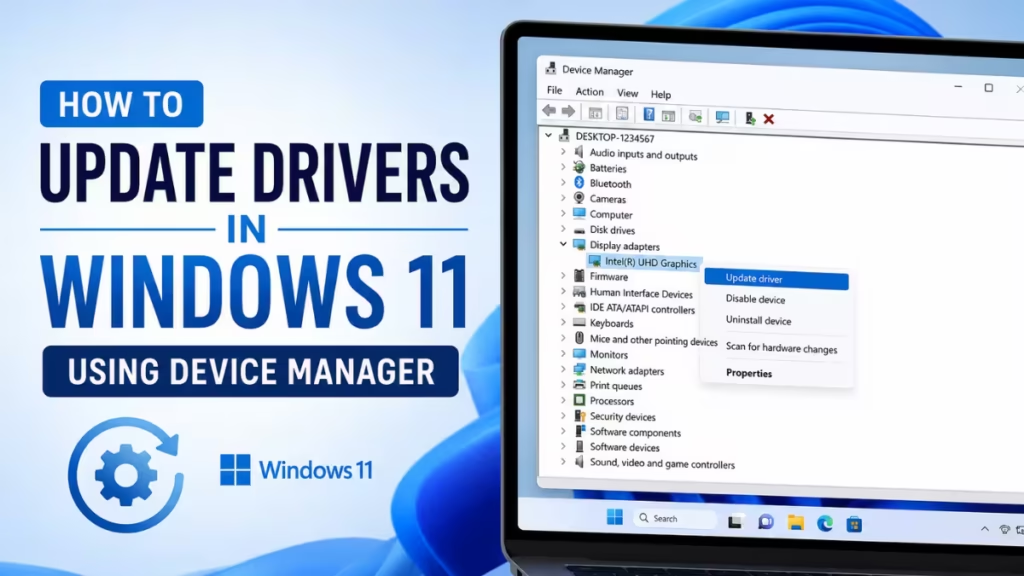
This guide walks you through every practical method to update, reinstall, and roll back drivers in Windows 11, including built-in tools and manual approaches for when automatic updates fall short.
When Should You Update Drivers in Windows 11?
Update your drivers when you notice any of these situations:
- A device stops working or Windows fails to recognize it
- Your graphics card delivers poor performance or causes display glitches
- Your Wi-Fi or Ethernet adapter drops connections frequently
- A Blue Screen of Death (BSOD) appears after installing new hardware
- Your PC slows down noticeably after a Windows 11 feature update
- You install a new hardware component such as a GPU, sound card, or printer
If everything runs fine, avoid updating drivers just for the sake of it. Unnecessary updates can introduce new bugs on otherwise stable systems.
Before You Start: Create a Restore Point
Before changing any driver, create a System Restore Point. This gives you a safety net if a new driver causes problems.
- Press Windows + S and search for Create a restore point.
- Click System Properties, then select Create.
- Name the restore point, for example “Before Driver Update,” and click Create.
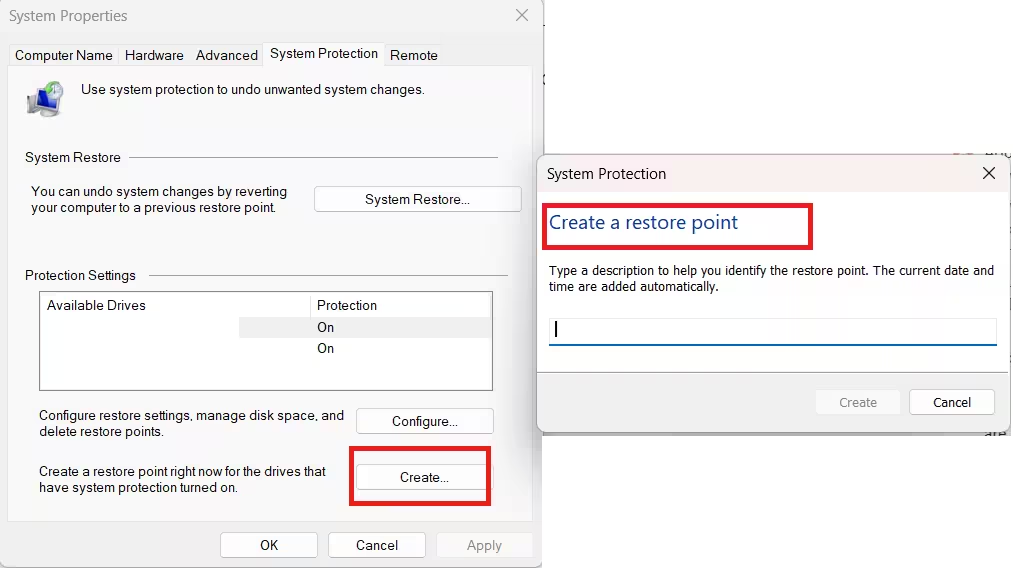
Once you create the restore point, you can update drivers without worrying about breaking your system permanently.
Method 1: Update Drivers Automatically Using Device Manager
This is the fastest method for most users. Device Manager searches Windows Update and your local driver store for a newer version.
- Right-click the Start button and select Device Manager.
- Click the arrow next to the device category you want to update. For example, expand Display adapters for your GPU or Network adapters for your Wi-Fi card.
- Right-click the specific device and select Update driver.
- Select Search automatically for drivers.
- Windows searches both the local driver store and Windows Update for an updated version. If it finds one, it installs it automatically.
- Click Close when the process finishes.
- Restart your PC if Windows prompts you to do so.
Note: If Windows reports “The best drivers for your device are already installed,” that does not always mean you have the latest version from the manufacturer. It only means Windows Update does not have anything newer than what you already have. In that case, use Method 3 or Method 4 below.
Method 2: Update Drivers Manually Using Device Manager
Use this method when you need a specific driver version that Windows Update does not provide. This requires you to download the driver package from the manufacturer’s website first.
Step 1: Download the Correct Driver
Go to the official support page for your hardware brand and download the driver that matches your device model and your Windows 11 version (64-bit or ARM64).
Common manufacturer support pages:
| Hardware Type | Manufacturer |
|---|---|
| Graphics (NVIDIA) | nvidia.com/drivers |
| Graphics (AMD) | amd.com/support |
| Graphics (Intel) | intel.com |
| Laptops / Motherboards | Dell, HP, ASUS, or Lenovo support pages |
| Audio / Network | Realtek support page |
After downloading, extract the package if it comes in a ZIP or compressed format. Note the folder location where the extracted files sit.
Step 2: Install the Driver Through Device Manager
- Right-click the Start button and select Device Manager.
- Expand the relevant category and right-click the target device.
- Select Update driver.
- Select Browse my computer for drivers.
- Click Browse, navigate to the folder where you extracted the driver files, and click OK.
- Make sure the path looks correct, then click Next.
- Windows installs the driver if it detects a compatible version in that folder.
- Click Close and restart your PC.
Method 3: Roll Back a Driver to the Previous Version
If a recent driver update broke something, Device Manager lets you revert to the previous version without downloading anything.
Requirement: You must be signed in as an administrator to roll back drivers.
- Right-click the Start button and select Device Manager.
- Expand the category for the problematic device and right-click it.
- Select Properties.
- Click the Driver tab.
- Click Roll Back Driver.
- Select a reason when prompted and click Yes to confirm.
- Restart your PC if Windows prompts you.
If the Roll Back Driver button appears grayed out, Windows did not save a previous driver version for that device. In that case, download an older driver from the manufacturer’s website and install it using Method 2.
Method 4: Reinstall a Driver Through Device Manager
Reinstalling a driver clears a corrupted or broken driver installation and lets Windows rebuild it fresh. Use this when a device shows errors but Windows Update finds no newer version.
- Save all your work and close all open apps.
- Right-click the Start button and select Device Manager.
- Expand the category for the affected device and right-click it.
- Select Uninstall device.
- In the confirmation window, click Uninstall.
- Restart your PC by right-clicking Start and selecting Shut down or sign out > Restart.
- After Windows restarts, it attempts to reinstall the driver automatically.
If Windows does not reinstall the driver automatically after the restart, run the automatic update from Method 1 or install it manually using Method 2.
Method 5: Update Drivers Through Windows Update
Windows Update downloads and installs Microsoft-approved drivers for your hardware automatically. These drivers pass compatibility testing, making them stable for most users.
- Press Windows + I to open Settings.
- Go to Windows Update.
- Click Check for updates.
- If Windows finds available updates, click Download and install.
- Restart your PC after the installation completes.
For additional driver updates that Windows Update does not include by default:
- In Windows Update, click Advanced options.
- Select Optional updates.
- Expand Driver updates and check the boxes for the drivers you want to install.
- Click Download and install.
Method 6: Download Drivers Directly From the Manufacturer’s Website
For the most current driver version, always go directly to the manufacturer. This method gives you access to the latest release, including beta versions and performance-focused drivers for gaming GPUs.
- Open Device Manager and expand the category for your device.
- Right-click the device and select Properties.
- Click the Driver tab and note the current driver version and date. This tells you what you already have.
- Visit the official support or download page for your hardware brand.
- Select your Windows version (Windows 11, 64-bit or ARM64) and download the latest stable driver. Avoid beta versions unless you specifically need a feature or fix they include.
- Run the downloaded installer and follow the on-screen instructions.
- Restart your PC to complete the installation.
Warning: Only download drivers from the manufacturer’s official website. Third-party driver download sites often bundle adware or distribute outdated and modified files.
Update All Drivers at Once Using PnPUtil (Command Line)
If you manage multiple devices or want to install a batch of downloaded drivers in one step, PnPUtil lets you do that from Command Prompt.
- Download all the driver packages you need from the respective manufacturer sites.
- Extract them into a single folder, for example
C:\DriversUpdate. - Right-click Start and select Terminal (Admin) or Command Prompt (Admin).
- Run the following command:
pnputil /add-driver "C:\DriversUpdate\*.inf" /subdirs /installPnPUtil scans every .inf file in that folder and its subfolders, adds compatible drivers to the Windows driver store, and installs them on matching hardware. It skips drivers that do not match any connected device, so you will not accidentally install incorrect drivers.
- Restart your PC after the command completes.
Troubleshooting: Common Driver Update Problems
Windows Update Finds No Driver Updates
Windows Update does not always carry the latest version from the manufacturer. Download the driver directly from the manufacturer’s official site and install it using Method 2.
Device Manager Shows a Yellow Exclamation Mark After Update
A yellow exclamation mark means the driver did not install correctly or the installed version has an error. Try rolling back the driver using Method 3, then reinstalling using Method 2 with a fresh download.
Roll Back Driver Button Is Grayed Out
Windows did not save the previous driver. Download an older driver version from the manufacturer’s site and install it manually.
Driver Installs But Device Still Does Not Work
Restart your PC, then open Device Manager again and check if the yellow exclamation mark disappears. If the device still shows an error, check the manufacturer’s site for known compatibility issues with Windows 11.
Windows Says “The Best Drivers for Your Device Are Already Installed”
This message means Windows Update has nothing newer in its database. It does not reflect the manufacturer’s actual latest release. Visit the manufacturer’s support page to check for a newer version.
Frequently Asked Questions
Does updating drivers improve PC performance?
Yes, particularly for graphics and network drivers. GPU driver updates from NVIDIA and AMD frequently include performance improvements for new games and applications.
Can a bad driver update cause a Blue Screen?
Yes. A driver update that conflicts with your hardware or Windows version can trigger a BSOD. Use Method 3 to roll back the driver if this happens.
Should I update all drivers at once?
Update drivers selectively based on your needs. Updating every driver at once increases the chance that one causes a conflict. Focus on the drivers for devices that are underperforming or causing errors.
What happens if I uninstall a critical driver like my display adapter?
Windows typically reinstalls the driver automatically on the next restart. Your display may temporarily switch to a lower resolution during this process, which is normal.
Is it safe to use third-party driver updater software?
Exercise caution with third-party tools. Some legitimate options exist, but many bundle bloatware or install incorrect drivers. Device Manager and the manufacturer’s official site handle most situations without requiring extra software.

