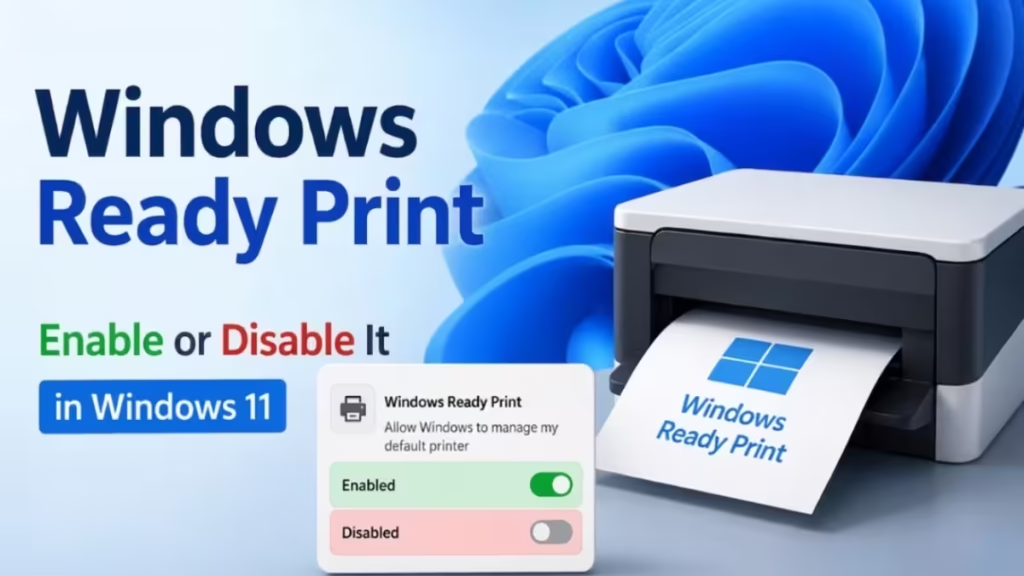
Microsoft is replacing legacy third-party printer drivers with a modern printing system called Windows Ready Print. Starting July 2026, Windows 11 will use this system by default for new printer installations. This guide explains what Windows Ready Print is, how it works, and how to turn it on or off.
What Is Windows Ready Print?
Windows Ready Print is Microsoft's updated printing platform for Windows 11. It uses the Internet Printing Protocol (IPP) and the built-in Windows IPP printer driver instead of relying on manufacturer-specific drivers.
Traditional OEM printer drivers frequently cause crashes, installation failures, and security vulnerabilities. Windows Ready Print eliminates those risks by using a single standardized driver that works with any IPP-compatible printer.
Microsoft previously called this system the Modern Print Platform. The rebrand to Windows Ready Print reflects the company's goal of building a simpler, more secure, and easier-to-manage printing experience across all Windows devices.
What changes with Windows Ready Print:
- Windows installs new printers using the built-in IPP driver by default
- You no longer need to download OEM drivers or software for supported printers
- Printer setup becomes faster and more predictable
- Security risks from third-party driver code are reduced
What stays the same:
- Existing printer configurations are not affected
- You can still choose to install OEM drivers manually
- IT admins retain full control through Group Policy
When Does Windows Ready Print Roll Out?
Microsoft plans to enable Windows Ready Print as the default for new printer installations starting in July 2026. The feature is currently available for Windows Insiders in build 26300.8553 and will reach all Windows 11 users through a future update.
How to Enable or Disable Windows Ready Print in Windows 11
You control Windows Ready Print through a single toggle in the Settings app. The setting only affects new printer installations and does not change how your current printers work.
Steps to Enable Windows Ready Print
- Press Windows + I to open Settings.
- Click Bluetooth and devices in the left sidebar.
- Click Printers and scanners on the right.
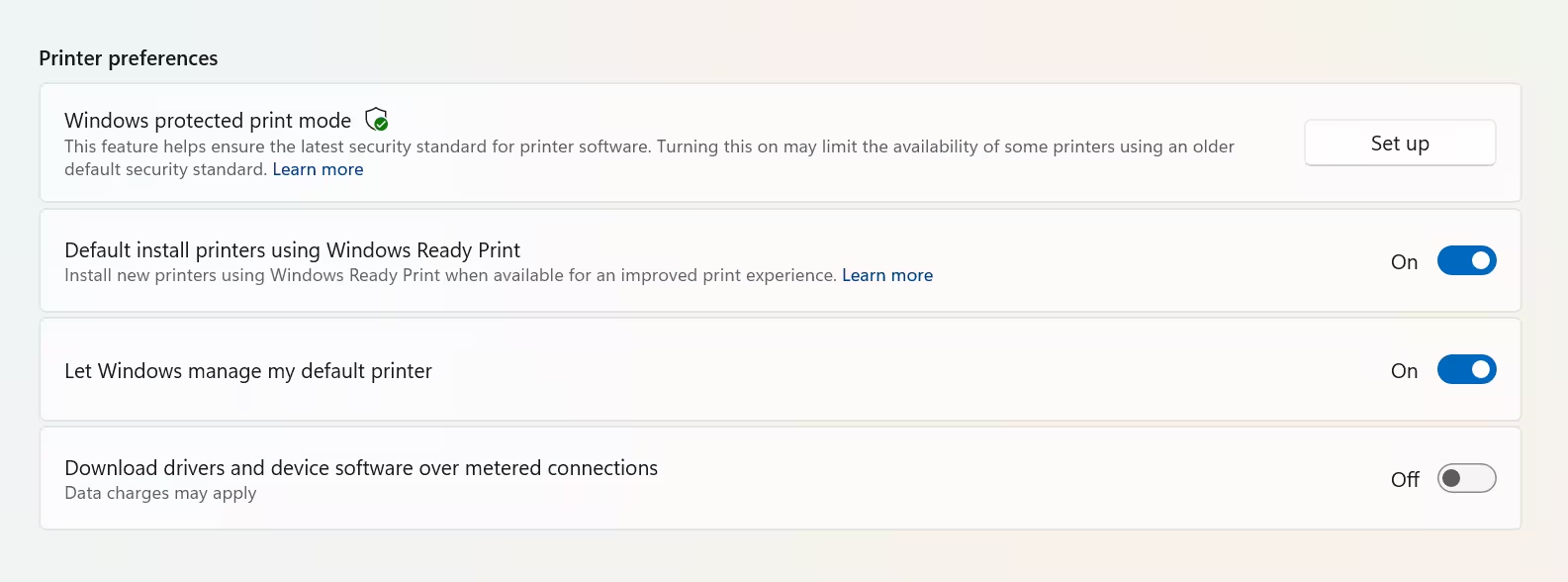
- Scroll down to the Printer preferences section.
- Turn ON the toggle labeled Default install printers using Windows Ready Print.
- Close Settings and restart your computer.
Windows 11 now uses IPP to install any new printer you connect. If a printer does not support IPP, Windows will fall back to other available methods.
Steps to Disable Windows Ready Print
- Press Windows + I to open Settings.
- Click Bluetooth and devices.
- Click Printers and scanners.
- Scroll down to Printer preferences.
- Turn OFF the toggle labeled Default install printers using Windows Ready Print.
- Close Settings and restart your computer.
With this off, Windows skips IPP and uses the traditional driver installation process for new printers.
Note: If the toggle appears grayed out, your organization has locked the setting through Group Policy. Contact your IT administrator to request a change.
How to Configure Windows Ready Print via Group Policy
IT administrators can enforce Windows Ready Print settings across managed devices using Group Policy.
- Press Windows + R, type
gpedit.msc, and press Enter to open the Group Policy Editor. - Navigate to: Local Computer Policy > Administrative Templates > Printers
- Find and double-click Configure Windows Ready Print driver ranking.
- Choose one of the following:
- Enabled: Windows prefers the IPP driver when installing new printers.
- Disabled: Windows uses traditional OEM driver selection for new printers.
- Click Apply, then click OK.
This policy only controls new printer installations. Existing printer setups remain unchanged.
How Windows Ready Print Works with Windows Protected Print Mode
Windows Protected Print Mode and Windows Ready Print work together, but they behave differently:
| Setting | Behavior |
|---|---|
| Windows Ready Print enabled | Windows prefers IPP for new installations; OEM drivers remain available |
| Windows Protected Print Mode enabled | Windows uses IPP exclusively; printers without IPP support cannot install |
| Both enabled | Protected Print Mode takes full control; you cannot disable Windows Ready Print |
If you enable Windows Protected Print Mode, Windows locks the Windows Ready Print toggle in Settings. To disable Windows Protected Print Mode, go to Settings > Bluetooth and devices > Printers and scanners, scroll to Printer preferences, find Windows protected print mode, and set it to Turn Off. You may need to uninstall and reinstall your printer afterward to restore full OEM functionality such as scanning and custom paper sizes.
Which Printers Work with Windows Ready Print?
Windows Ready Print works with any printer that supports IPP (Internet Printing Protocol). Most printers manufactured in the last several years include IPP support. If your printer does not support IPP, Windows will either fall back to a compatible driver or prompt you to install one manually.
To check whether your printer supports IPP, refer to the manufacturer's specifications page or the printer's documentation.
Frequently Asked Questions
Does enabling Windows Ready Print affect my existing printers?
No. The setting only applies to printers you install after enabling or disabling it. Your current printers keep their existing drivers and configuration.
Can I still use OEM printer software after enabling Windows Ready Print?
Yes. You can manually install the manufacturer's full software package at any time. The toggle only controls the default installation behavior for new printers.
What happens if my new printer does not support IPP?
Windows attempts to install the printer using an alternative method or prompts you to provide a driver. If you need full OEM features, install the manufacturer's software manually.
Is Windows Ready Print available on Windows 10?
No. Windows Ready Print is a Windows 11 feature and is not available on Windows 10.