After updating to iOS 27, you may see a banner inside the Settings app that reads “Indexing in Progress” or “Indexing to Improve Search.” This message is expected behavior after a major iOS update. Your iPhone is rebuilding its internal search databases to power Spotlight, Settings Search, Photos Search, and Apple Intelligence features. Nothing is broken.
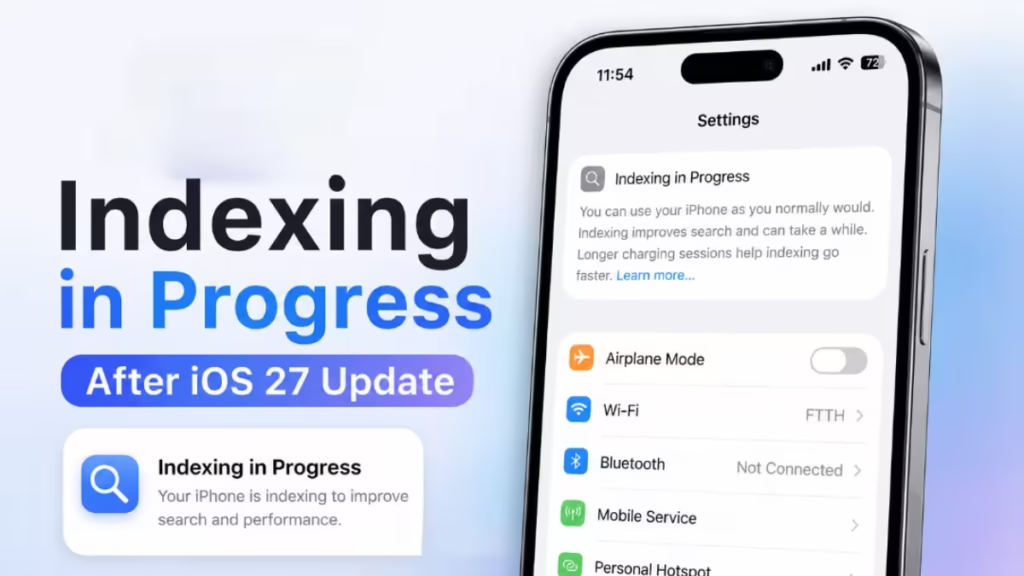
This guide explains exactly what the message means, why search stops working while indexing runs, how long the process takes, and what to do if it appears stuck.
What Does “Indexing in Progress” Mean on iPhone After iOS 27 Update?
When iOS 27 finishes installing and your iPhone restarts, the system begins rebuilding the catalog it uses to search through apps, settings, messages, photos, and files. A significant portion of this work supports Apple Intelligence and the updated Siri, both of which rely on a semantic search index built from content already stored on your device.
Building that index means your iPhone processes existing data and generates the embeddings the system needs to find and match it later. iOS 27 makes this process visible for the first time by showing the indexing banner at the top of Settings, rather than running silently in the background like previous iOS versions.
Here is what actually happens during this process:
- The indexing runs entirely on your device. Apple does not upload your personal data during this process.
- The banner is informational, not a warning or error.
- Indexing is separate from the Siri waitlist. Users who already have the new Siri active still report their phones indexing in the background.
Why Does Settings Search Stop Working During iPhone Indexing in Progress?
While the index is incomplete, search across the system behaves oddly. A common report involves typing a term like “Messages” into the Settings search field and getting no results at all. The screen stays on the main list and does not jump to the matching page.
This happens because Settings Search, Spotlight Search, Messages Search, and Photos Search all rely on the same index to locate information instantly. When the index is still being built, there is nothing for the query to match against, so results come back empty or delayed.
Search areas affected during indexing:
- Settings Search
- Spotlight Search
- Messages Search
- Photos Search
- App search results
In most cases, search returns to normal behavior once the banner disappears and indexing completes. If you need search to work sooner, a soft restart has cleared the stuck state for some users, and search resumed shortly after.
How Long iOS 27 Indexing Takes
There is no fixed completion time. How long indexing runs depends almost entirely on how much content is stored on your device.
| Factor | Effect on Indexing Time |
|---|---|
| Photo library size | Larger libraries take significantly longer to process |
| Message history | Years of messages add substantial processing time |
| Files and app data | More stored content extends the process |
| Device left idle on charger | Helps indexing finish faster |
| New Siri active | Indexing continues independently of Siri waitlist status |
Real-world timelines reported by users:
- Light setups: a few hours
- Typical devices: overnight to 24 hours
- Heavy devices (large photo libraries, 512 GB storage): 48 hours to a full week
The process prioritizes completing when the device sits idle on Wi-Fi and plugged in. Active use slows it down. Do not force-reset your iPhone just because indexing is still running. Restarting the phone does not cancel or break indexing. It resumes after the device boots back up.
Why Does iPhone Get Hot and Battery Drain Fast During iOS 27 Indexing?
While indexing runs, your iPhone works harder than usual. Expect:
- Noticeable warmth, particularly in the first several hours after the update
- Faster battery drain compared to normal usage
Battery readings taken during this window do not reflect iOS 27’s actual battery performance. The reindexing phase puts extra load on the processor, so wait until the banner disappears before judging how iOS 27 affects your battery life.
How to Tell When Indexing Has Finished
Three signs confirm the process is complete:
- The “Indexing in Progress” banner disappears from the top of Settings.
- Settings Search returns accurate results when you type a known term like “Messages.”
- Device warmth and faster battery drain settle back to normal levels.
What to Do If Indexing Appears Stuck
If the banner remains after several days and search is still broken, try these steps in order:
Step 1: Keep the device on Wi-Fi and plugged in
Leave your iPhone idle on a charger connected to Wi-Fi. Indexing makes the most progress when the device is not under active use. Give it several hours before concluding it is stuck.
Step 2: Test search manually
Open Settings and type “Messages” into the search field. If it jumps directly to the Messages page, the index is working even if the banner is still showing.
Step 3: Restart the device
If the banner persists after an extended wait and search remains completely unresponsive, power the device off, wait about ten seconds, and turn it back on. A restart has cleared the stuck indexing state for multiple users. Indexing resumes automatically after the reboot and typically completes within a few hours.
Step 4: Check available storage
Low storage can slow or stall background processes. Go to Settings > General > iPhone Storage and confirm you have at least a few gigabytes free. Delete large unused apps or offload media if storage is nearly full.
Step 5: Reset All Settings (last resort)
If indexing never completes after several days and steps 1 through 4 do not help, go to Settings > General > Transfer or Reset iPhone > Reset > Reset All Settings. This resets system preferences without deleting your data and forces the system to rebuild indexes from scratch. Your apps, photos, and files remain intact.
The “Indexing in Progress” message appears because iOS 27 rebuilds its search and Apple Intelligence databases after the update. It causes temporary search disruption, device warmth, and faster battery drain. Leave your iPhone plugged in on Wi-Fi, avoid force-resetting it unnecessarily, and let the process run on its own. Indexing finishes automatically and search returns to normal once it does.
Related Guides
- How to Fix Genmoji Not Working on iPhone in iOS 26 and iOS 27
- iPhone Charging Port Not Working? 10 Fixes to Try
- How to Fix Apple Pay “Payment Not Completed” Error on iPhone and iPad
- How to Fix Wi-Fi Not Connecting on Windows, Android, and iPhone (2026)
- iPhone Personal Hotspot Not Working? 11 Fixes That Actually Work

