You open Windows 11 Settings, check your storage, and find that System and Reserved is consuming 70 GB, 100 GB, or even more. You run WizTree or a similar disk scanner and track the problem to a single file buried deep in ProgramData. That file is CapabilityAccessManager.db-wal, and it has no business being larger than 4 MB.
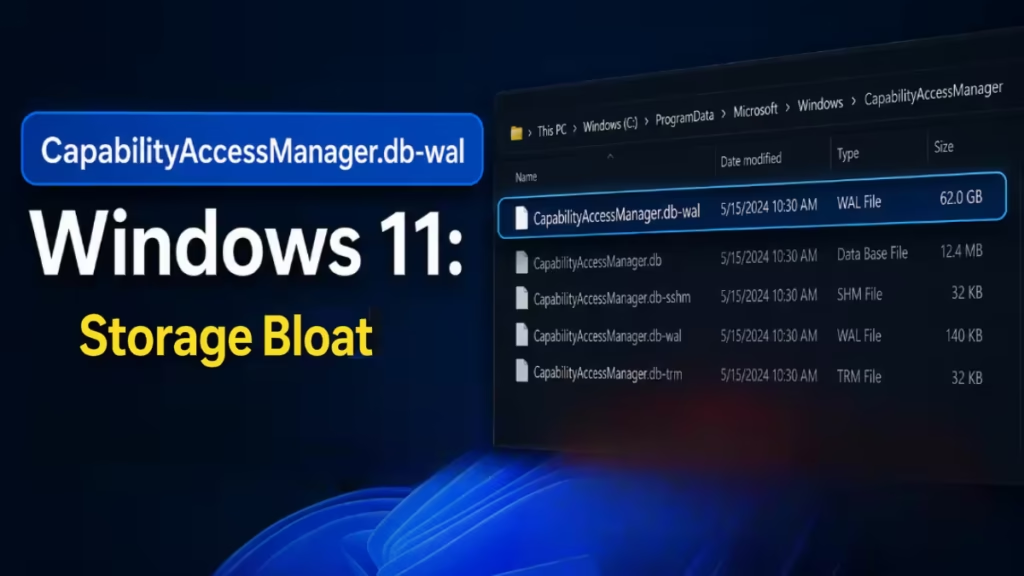
This guide explains what the file does, why it spirals out of control, and the exact steps to delete it safely and reclaim your drive space.
What Is CapabilityAccessManager.db-wal?
Windows 11 includes a component called Capability Access Manager (CAM). Its job is to enforce the privacy permissions you set in Settings, such as which apps can use your camera, microphone, or location.
CAM stores those permission records in a SQLite database at:
C:\ProgramData\Microsoft\Windows\CapabilityAccessManager\CapabilityAccessManager.dbEvery time an app requests a permission, Windows does not write that event directly into the main .db file. Instead, it writes to a temporary buffer called a Write-Ahead Log (WAL). That buffer file is:
C:\ProgramData\Microsoft\Windows\CapabilityAccessManager\CapabilityAccessManager.db-walUnder normal conditions, Windows flushes the WAL into the main database periodically and keeps the WAL file between 1 MB and 4 MB.
Why Does CapabilityAccessManager.db-wal Keep Growing?
The WAL file balloons when one or more apps hammer the permission system with a constant stream of requests. Windows receives so many writes that it never gets a chance to flush the WAL into the main database. The log keeps growing without any upper limit.
Common culprits include:
- Location services left enabled system-wide. Even when you deny every individual app permission, Windows still logs the requests as long as the master location toggle is on.
- Buggy apps that poll permissions in a loop. Some apps check their own camera or microphone access repeatedly instead of checking once and caching the result.
- Background services tied to antivirus, VPN, or sync software that monitor hardware resources continuously.
One user on the Microsoft Community forum reported a 66.5 GB file on a 221 GB drive. Another found 390 GB of WAL data on a 500 GB drive after location services ran unchecked for months.
How to Fix CapabilityAccessManager.db-wal Bloat
You cannot delete this file while Windows is running normally. The Capability Access Manager service holds an exclusive lock on it. You need to restart in Safe Mode, take ownership, stop the service, and then delete the WAL file.
Follow these steps carefully and in order.
Step 1: Boot Into Safe Mode
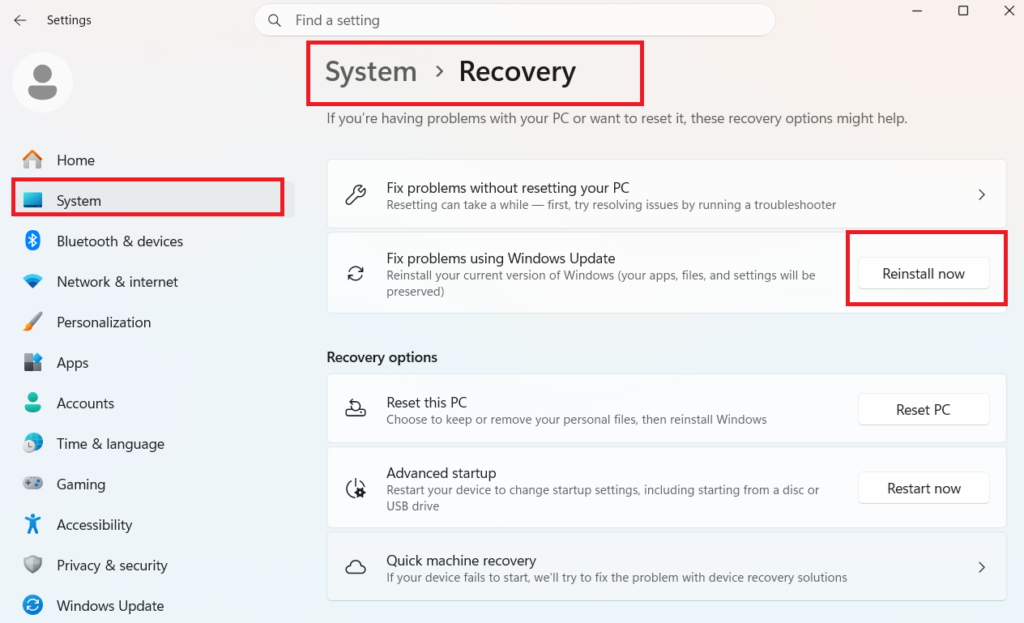
- Open Settings and go to System > Recovery.
- Click Restart now next to Advanced startup.
- On the recovery screen, select Troubleshoot > Advanced options > Startup Settings.
- Click Restart.
- When the Startup Settings screen appears, press 4 or F4 to enable Safe Mode.
Step 2: Open Command Prompt as Administrator
After Safe Mode loads, press Win + S, type cmd, right-click Command Prompt, and select Run as administrator.
Step 3: Take Ownership of the CAM Folder
Run this command to take ownership of the Capability Access Manager folder and all its contents:
takeown /f "C:\ProgramData\Microsoft\Windows\CapabilityAccessManager" /r /d yStep 4: Stop the Capability Access Manager Service
net stop camsvcIf the service is already stopped in Safe Mode, you can proceed to the next step.
Step 5: Grant Administrator Full Access
icacls "C:\ProgramData\Microsoft\Windows\CapabilityAccessManager" /grant administrators:F /tStep 6: Delete the WAL File
del "C:\ProgramData\Microsoft\Windows\CapabilityAccessManager\*.db-wal"Step 7: Restart Into Normal Mode
Restart your PC normally. Do not use Safe Mode again. Windows automatically creates a fresh, clean WAL file at startup. It will be a normal size of 1 MB to 4 MB.
Verify the Fix
After restarting, open Settings and go to System > Storage. The System and Reserved figure should drop by however many gigabytes the WAL file was consuming. If it still reads high, wait five minutes for Windows to finish indexing and refresh the page.
Find the App Causing the Problem
Deleting the WAL file stops the immediate damage but does not stop a misbehaving app from filling it again. To track down the culprit, check these areas:
Turn off Location Services
- Go to Settings > Privacy and Security > Location and toggle Location services off. If the WAL file was tied to location, turning this off stops the writes entirely. You can re-enable location and grant only the specific apps you trust.
Check Background App Permissions
- Go to Settings > Privacy and Security and review permissions for Camera, Microphone, and Location one by one. Revoke access from any app you do not actively use.
Monitor with WizTree
- Download WizTree and point it at
C:\ProgramData\Microsoft\Windows\CapabilityAccessManager. Run a scan every few days. If the WAL file starts growing again quickly, narrow down which app you recently installed or enabled.
Frequently Asked Questions
Can I delete the CapabilityAccessManager folder entirely?
No. Deleting the folder breaks all app permission enforcement on your PC and leaves your system vulnerable. Delete only the .db-wal file.
Will reinstalling Windows fix this?
No. Capability Access Manager is a core Windows component, and a fresh install recreates the same folder and database structure. The bloat will return if the same misbehaving app keeps running.
Does System Restore help?
No. System Restore does not touch the Capability Access Manager database or WAL file. You need to delete the WAL file manually using the steps above.
My WAL file grew back after deleting it. What do I do?
The bloat came back because the app causing excessive permission requests is still running. Review the Location Services and Privacy settings sections above to find and disable the offending app.
Is it safe to run the commands above?
Yes, provided you follow the steps exactly. The commands take ownership and delete only the WAL file, not the main database or the CAM folder. Windows recreates the WAL file on its own after you restart.