Windows 11 now includes a modern recovery feature called Point-in-time Restore. Introduced with the July 2026 Security Update, it captures scheduled snapshots of your entire system and rolls your PC back to a selected earlier state when something breaks.
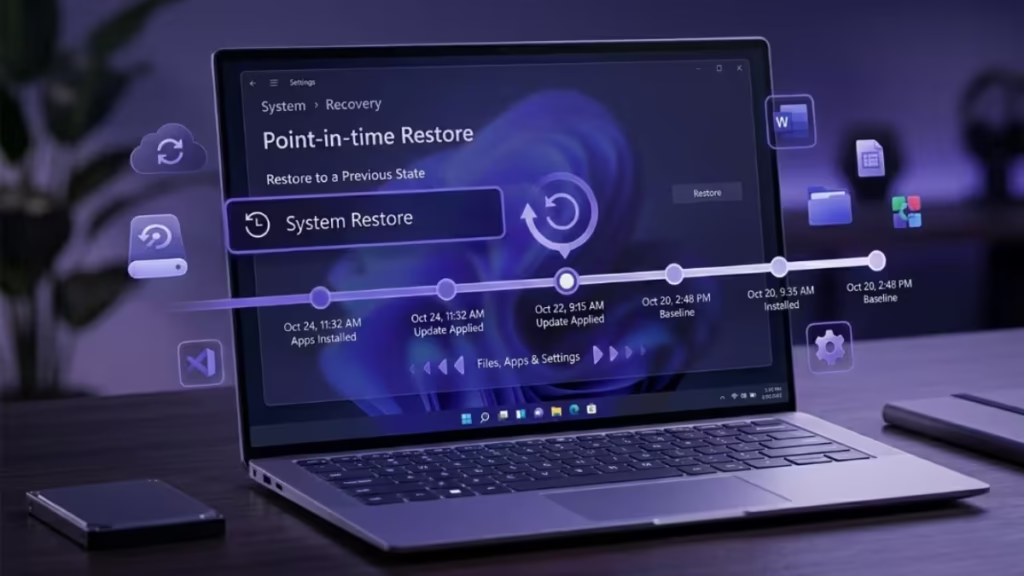
Unlike the older System Restore, Point-in-time Restore covers everything: the operating system, installed apps, system settings, local files, passwords, certificates, and credentials. If a bad driver, a broken update, a malware infection, or an accidental misconfiguration makes your PC unstable, you can use this feature to undo all of it in minutes.
What Point-in-time Restore Includes (and What It Removes)
Before you run a restore, understand exactly what changes:
What gets rolled back:
- The operating system and all system files
- Installed applications and drivers
- System configuration and registry
- Local user files, documents, and downloads created after the restore point
- Saved passwords, certificates, keys, and credentials created after the restore point
What stays safe:
- Files already synced to OneDrive before the restore point remain in the cloud
Warning: This is a full system rollback, not a light undo. Any file, app, password, or setting you created after the selected restore point will be permanently deleted. Keep a separate file backup before you proceed.
Requirements for Point-in-time Restore on Windows 11
- At least 200 GB of storage on the device
- Available on Windows 11 Home and Pro by default
Point-in-time Restore is currently available in the Windows 11 Dev and Beta Channels (build 26220.7271+). It rolls out to stable Windows 11 with the July 2026 Security Update.
If you do not see Point-in-time Restore in Settings, join the Dev or Beta Channel through Windows Update, or wait for the July 2026 Security Update on stable Windows 11.
Step 1: Enable Point-in-time Restore
Windows 11 enables this feature by default on supported devices, but you should verify it is active and configure the storage settings to match your needs.
- Open Settings.
- Click System, then select Recovery.
- Find Point-in-time restore and click View or edit.
- Turn on the Point-in-time Restore toggle switch.
- Adjust the Restore point disk usage slider to set how much storage the feature can use.
- Click Save.
Windows now creates restore points automatically on a schedule using the Volume Shadow Copy Service (VSS).
Note: The default configuration suits most users. Only change the frequency or retention settings if you have a specific reason.
Step 2: Configure Snapshot Frequency and Retention (Optional)
Windows 11 lets you control how often it creates snapshots and how long it keeps them.
- Snapshot frequency options: every 4, 6, 12, 16, or 24 hours
- Retention window options: 6, 12, 24, or 72 hours
Windows automatically removes older restore points once you reach your storage limit or retention window. You do not need to clean them up manually.
Step 3: Roll Back Windows 11 Using Point-in-time Restore
Recovery runs through the Windows Recovery Environment (WinRE). The steps below apply whether your PC boots normally or fails to start.
Before You Begin: Disable BitLocker
If you have BitLocker or Device Encryption enabled, WinRE will prompt you for a recovery key during the rollback. Temporarily disabling encryption before you begin avoids that interruption.
Go to Settings > Privacy and Security > Device Encryption and turn it off before continuing.
If Windows Still Boots
- Open Settings.
- Click System, then select Recovery.
- Under Advanced startup, click Restart now.
- Click Restart now again to confirm.
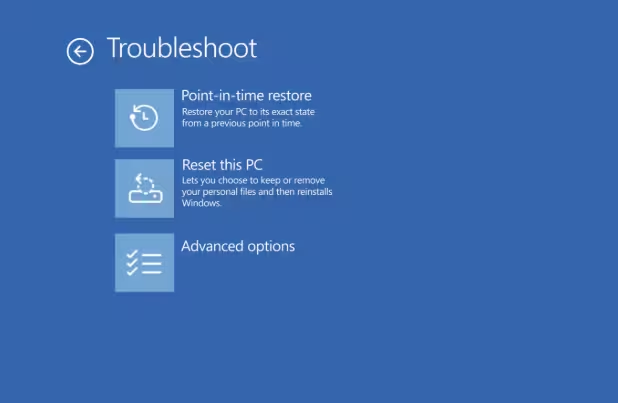
- On the recovery menu, select Troubleshoot.
- Select Advanced options.
- Select Point-in-time Restore.
- Enter your BitLocker recovery key if prompted.
- Select a restore point from the list.
- Click Continue.
- Review the warning that all changes after the selected snapshot will be deleted.
- Click Restore to begin.
Windows restarts and applies the rollback. Most restores complete within several minutes. Your PC reboots into the recovered system state when it finishes.
If Windows Will Not Boot
- Force-shutdown your PC by holding the power button for 10 seconds.
- Power it on, then force-shutdown again as soon as the Windows logo appears.
- Repeat one more time. After the third interruption, Windows enters Automatic Repair and loads the recovery menu automatically.
- Select Troubleshoot > Advanced options > Point-in-time Restore.
- Select a restore point and click Restore.
Point-in-time Restore vs System Restore
Both features roll back Windows, but they work very differently. Here is a clear comparison:
| Feature | Point-in-time Restore | System Restore |
|---|---|---|
| Restore points | Scheduled automatically | Manual or event-triggered only |
| Covers user files | Yes, including local files | No |
| Covers apps | Yes | Partially |
| Covers passwords and keys | Yes | No |
| Storage controls | Slider with retention rules | Manual disk quota only |
| Managed from | Settings app | Legacy Control Panel |
| Recovery location | WinRE (Advanced options) | rstrui.exe or Control Panel |
| Storage efficiency | More efficient | Uses more storage |
| Enterprise management | Supports remote management | Very limited |
Point-in-time Restore replaces System Restore as the primary recovery tool on Windows 11. System Restore still exists on older builds but Microsoft designed Point-in-time Restore as its modern successor.
Frequently Asked Questions
Does Point-in-time Restore delete my personal files?
Yes. Any files, settings, apps, passwords, and credentials you created after the selected restore point are permanently removed. Files already synced to OneDrive before the restore point stay safe in the cloud.
Do I need to turn off BitLocker first?
Microsoft recommends it. If Device Encryption is on, WinRE will ask for your recovery key during the rollback. Turning it off temporarily avoids that step.
How often does Windows create restore points?
You can set the frequency to every 4, 6, 12, 16, or 24 hours inside the Point-in-time Restore settings.
How long does a restore take?
Most restores complete within several minutes, depending on how much your system changed since the snapshot and how fast your drive is.
Can malware survive a restore?
If malware existed before the restore point you select, it comes back after the rollback. Choose a restore point from before the infection occurred.
What if I do not see Point-in-time Restore in Settings?
You need Windows 11 build 26220.7271 or later. Check Windows Update and install the July 2026 Security Update if you have not done so.
Does this replace a full backup?
No. Point-in-time Restore does not cover hardware failures or catastrophic data loss. Keep a separate full image or file backup alongside this feature.
Can I restore if Windows refuses to start?
Yes. Force three consecutive boot interruptions and Windows loads WinRE automatically. Select Point-in-time Restore from the Advanced options menu.

