Windows 11 themes let you transform your desktop with a single click. A theme bundles your desktop background, window colors, sounds, and mouse cursor settings into one package, so your PC looks and feels exactly the way you want it.
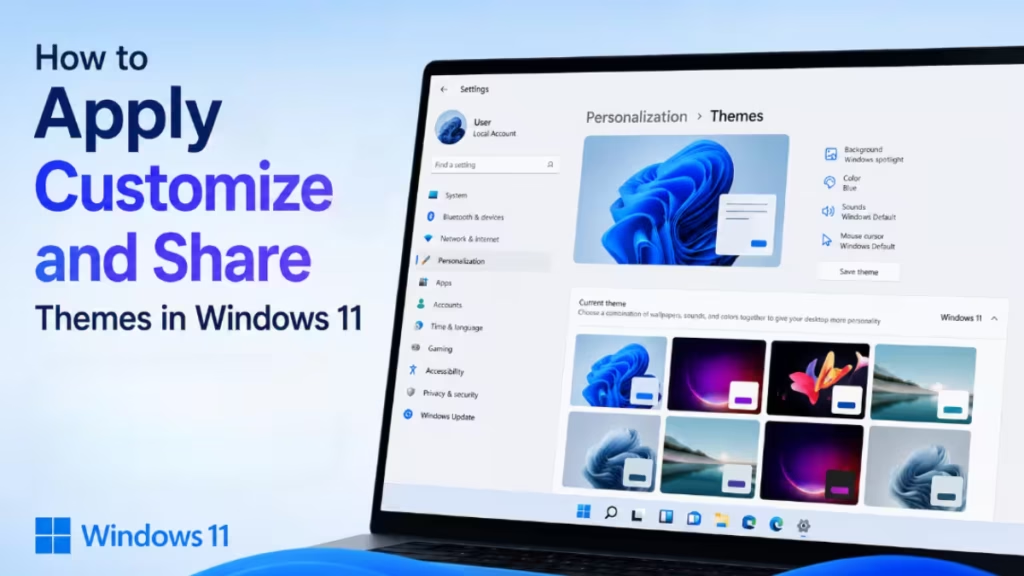
This guide walks you through applying, customizing, saving, sharing, and deleting themes in Windows 11, plus accessibility options that make your screen easier to read.
What Are Windows 11 Themes?
A Windows 11 theme is a collection of visual and audio settings applied together as a group. It includes:
- Desktop background pictures or slideshows
- Window colors and accent colors
- System sounds for notifications and events
- Mouse cursor style and size
When you apply a theme, Windows swaps all these settings at once. You can switch between themes anytime through Personalization settings without losing your previous configuration.
How to Apply a Theme in Windows 11
Applying a theme takes just a few clicks. Follow these steps:
- Press Windows + I to open Settings.
- Click Personalization in the left sidebar.
- Select Themes.
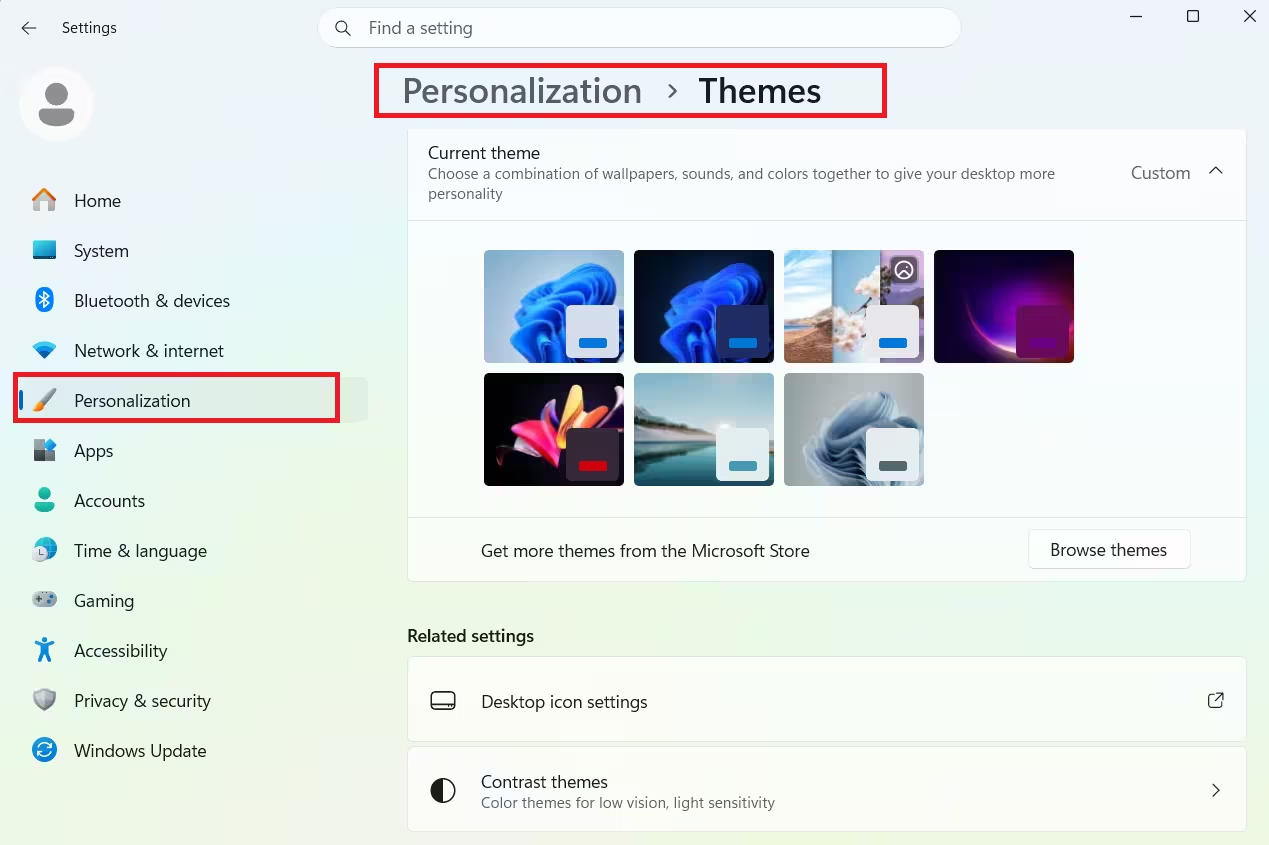
- Click any theme in the list to apply it immediately to your desktop.
Windows 11 ships with several built-in themes, including light and dark variants. The change takes effect right away without a restart.
Download More Themes from the Microsoft Store
If the default themes feel limited, you can grab hundreds more for free:
- On the Themes page, click Browse themes.
- The Microsoft Store opens to the Windows Themes collection. You can also go there directly: Browse Windows Themes on the Microsoft Store or open it directly in the Store app on your PC: Open in Microsoft Store.
- Click any theme, then click Get to download it.
- The theme appears in your Themes list automatically after the download finishes.
How to Customize a Theme in Windows 11
You can tweak any theme’s individual components after you apply it. On the Personalization > Themes page, you will see four quick-access options at the top:
Background
Click Background to change the desktop wallpaper. You can set a single image, a solid color, or a slideshow of photos. Windows 11 also lets you pick how the image fits the screen: fill, fit, stretch, tile, center, or span.
Color
Click Color to pick your accent color. You can let Windows pick a color automatically from your wallpaper, or choose one manually. You can also toggle whether the accent color appears on the Start menu, taskbar, title bars, and window borders.
Sounds
Click Sounds to select a sound scheme. Windows 11 maps system sounds to events like notifications, errors, and log-on. You can assign custom sounds or switch off sounds entirely for a quieter experience.
Mouse Cursor
Click Mouse cursor to open mouse pointer settings. Windows 11 offers several built-in cursor styles, including larger pointers for high-resolution displays and high-contrast cursors for better visibility.
How to Save a Custom Theme in Windows 11
After you customize background, colors, sounds, and cursor, save your settings as a named theme so you can return to them anytime.
- Go to Settings > Personalization > Themes.
- Click Save.
- Type a name for your theme.
- Click Save again.
Your custom theme now appears in the themes grid alongside the built-in ones. Saving also lets you share the theme as a file, which is covered in the next section.
How to Share a Theme in Windows 11
Windows 11 lets you export a saved theme as a .deskthemepack file. This file bundles all your theme settings so others can apply them with a double-click.
- Go to Settings > Personalization > Themes.
- Right-click your saved theme.
- Select Save theme for sharing.
- Choose a folder location and click Save.
You can send the .deskthemepack file by email, USB drive, or cloud storage. The recipient just needs to double-click the file on their Windows 10 or Windows 11 PC to install it.
This approach works well if you want a consistent look across multiple devices or want to keep a backup of your personalized settings before reinstalling Windows 11.
How to Delete a Theme in Windows 11
Too many themes in your list? You can remove any theme you added or saved. Note that the default Windows 11 themes cannot be deleted.
- Go to Settings > Personalization > Themes.
- Right-click the theme you want to remove.
- Select Delete.
The theme disappears from the grid immediately. If you delete a theme that is currently active, Windows switches you back to a default theme automatically.
Accessibility: Contrast Themes and Color Filters
Windows 11 includes built-in accessibility options that change how colors appear across the entire interface. These settings are separate from regular themes but work alongside them.
Contrast Themes
Contrast themes use high-contrast color combinations to make text, icons, and UI elements easier to distinguish. Windows 11 includes four options: Aquatic, Desert, Dusk, and Night Sky.
To enable a contrast theme:
- Go to Settings > Accessibility > Contrast themes.
- Pick a theme from the dropdown.
- Click Apply.
You can also customize the colors within each contrast theme to better suit your vision needs. For a full walkthrough, see our guide on how to change color contrast in Windows 11.
Color Filters
Color filters shift the entire color palette on your screen. They help users who have difficulty distinguishing colors that differ only by hue, such as red and green.
To turn on color filters:
- Go to Settings > Accessibility > Color filters.
- Toggle Color filters on.
- Select the filter type that fits your needs: Grayscale, Inverted, Grayscale inverted, Deuteranopia, Protanopia, or Tritanopia.
You can also set a keyboard shortcut to toggle color filters on and off quickly. Read more in our guide on how to use color filters in Windows 11.
Bonus: Keep Your Wallpaper Fresh Automatically
If you like a new desktop background every day without any manual effort, the Bing Wallpaper app handles this automatically. It updates your desktop background daily with the Bing image of the day, which features high-quality photography from around the world. Each image includes a short description so you can learn about the location or subject in the photo.
You can download it from the Microsoft Store and it runs quietly in the background without interrupting your workflow.
Frequently Asked Questions
Can I use Windows 10 themes on Windows 11?
Yes. The .deskthemepack format works across both Windows 10 and Windows 11. A theme shared from one OS installs on the other without any conversion.
Why does my theme reset after a Windows Update?
Some Windows 11 updates can reset personalization settings. After updating, go to Settings > Personalization > Themes and reapply your saved theme.
Do themes slow down Windows 11?
No. Themes are purely visual and audio settings. Switching themes has no measurable impact on Windows 11 performance.
Where are theme files stored?
Windows stores downloaded themes in C:\Users\[YourName]\AppData\Local\Microsoft\Windows\Themes. You can copy .deskthemepack files directly from this folder to back them up or transfer them.

