Windows 11 locks down a lot of customization options that Windows 10 users took for granted. You cannot move the taskbar, the Start menu feels half-finished, and File Explorer still hides basic information like folder sizes. Windhawk fills that gap with a growing catalog of community-built mods that fix exactly these problems.
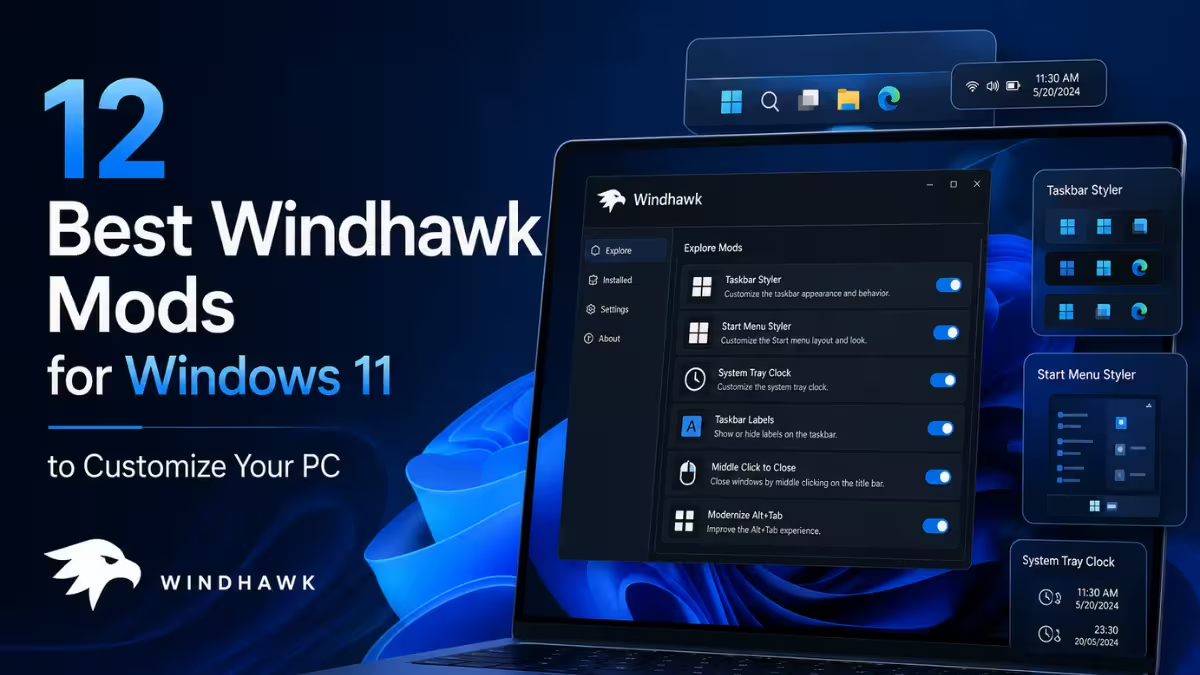
This guide walks you through the best Windhawk mods for Windows 11, what each one does, and how to get started with them today.
What Is Windhawk?
Windhawk is a free, open-source modding platform for Windows. It works as a marketplace where developers publish small, focused mods that tweak how Windows components behave. Each mod targets a specific process, such as Explorer or the taskbar, and injects lightweight code to change its behavior.
Every mod is reversible. You can disable or uninstall any mod at any time, and Windows returns to its default state. This makes Windhawk safe to experiment with on your personal PC.
How to Install Windhawk on Windows 11
- Download the Windhawk installer from Ramen Software.
- Run the setup file and follow the on-screen prompts.
- Open Windhawk after installation.
- Browse the mod catalog, click any mod you want, and hit Install.
- Configure the mod settings if needed, then click Apply.
That is all it takes. Most mods activate immediately without requiring a system restart.
Best Windhawk Mods for Windows 11
1. Taskbar Height and Icon Size
Windows 11 displays taskbar icons at 24×24 pixels by default, but app icons are designed for 32×32. The OS loads the 32×32 version and downscales it, which produces slightly blurry icons on sharp displays.
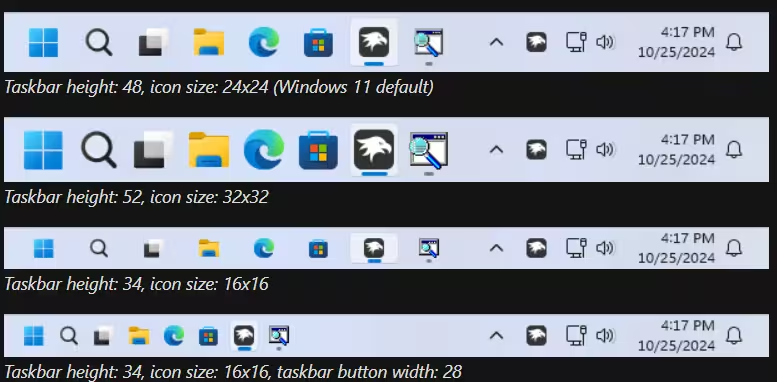
The Taskbar Height and Icon Size mod gives you direct control over three settings: icon size, taskbar height, and taskbar button width. Set the icon size to 32, and the taskbar renders icons at their native resolution with no scaling. The difference is immediately visible on any high-resolution display.
You can also use this mod to shrink the taskbar for a compact layout or increase both values for a larger touch-friendly bar. With over 266,000 users, it remains one of the most popular mods in the catalog.
2. Cycle Taskbar Buttons with Mouse Wheel
The Cycle Taskbar Buttons with Mouse Wheel mod lets you hover your cursor over the taskbar and scroll through open apps with the mouse wheel. Windows previews each open window as you cycle through them.
This mod works out of the box without any configuration.
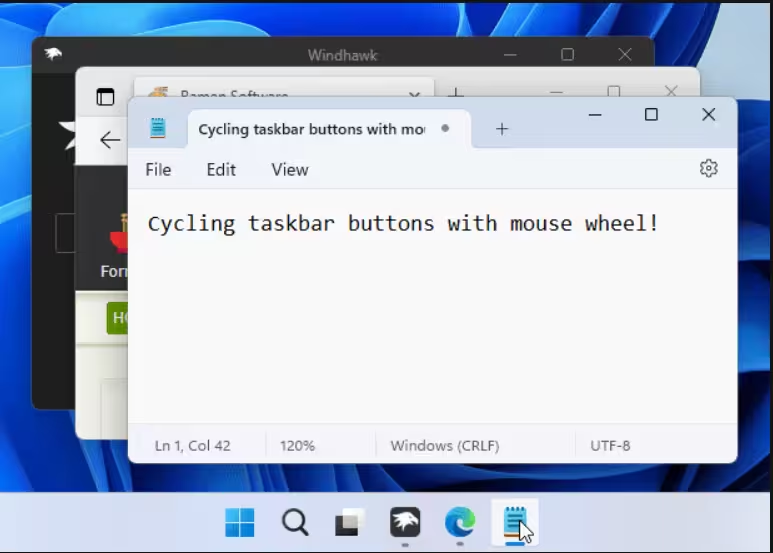
You can optionally skip minimized windows or reverse the scrolling direction from the settings panel. If you prefer keyboard shortcuts over the mouse, the mod also supports mapping custom keys to cycle left and right across the taskbar.
3. Chrome/Edge Scroll Tabs with Mouse Wheel
If you work with multiple browser tabs open, this mod saves you a significant amount of time. Chrome/Edge Scroll Tabs with Mouse Wheel lets you hover over the tab bar in Chrome, Edge, or any Chromium-based browser and switch tabs by scrolling up or down.
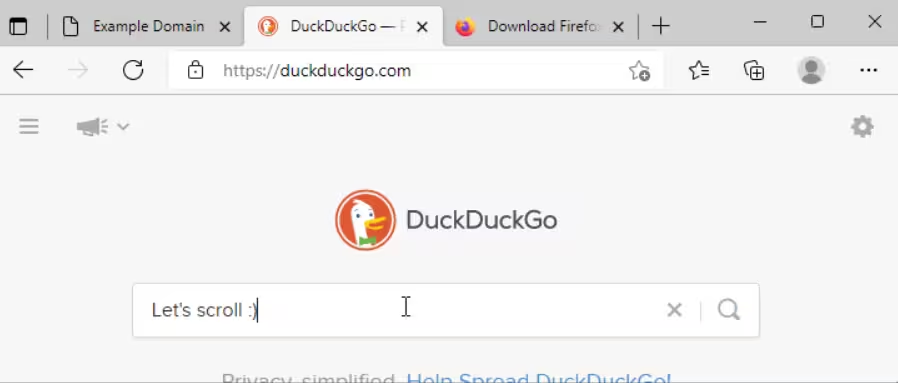
The mod works immediately after installation. You can configure it to skip minimized windows, reverse the scroll direction, or wrap around from the last tab back to the first. A keyboard shortcut option is also available if you want to keep your hand off the mouse entirely.
4. Taskbar Clock Customization
The default Windows clock sits quietly in the bottom-right corner with no formatting options. Taskbar Clock Customization replaces it with a fully configurable clock that displays the time, date, day, and weekday in whatever format you choose.
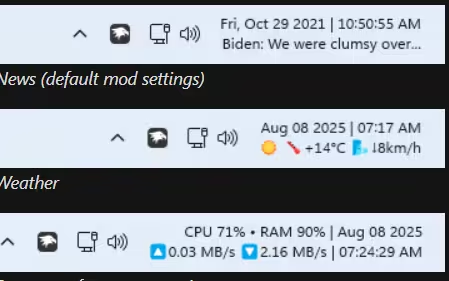
You can change the font size, font style, character spacing, and text color to make the clock more visible against your wallpaper. The mod also supports adding news headline links below the clock, which pulls in the latest stories from websites you specify. Once you configure it to your preferences, it becomes a permanent part of your taskbar workflow.
5. Windows 11 Start Menu Styler
The Start menu in Windows 11 dropped a significant amount of functionality and flexibility compared to Windows 10. Windows 11 Start Menu Styler addresses the visual side of that problem by letting you apply community-contributed themes to the Start menu.
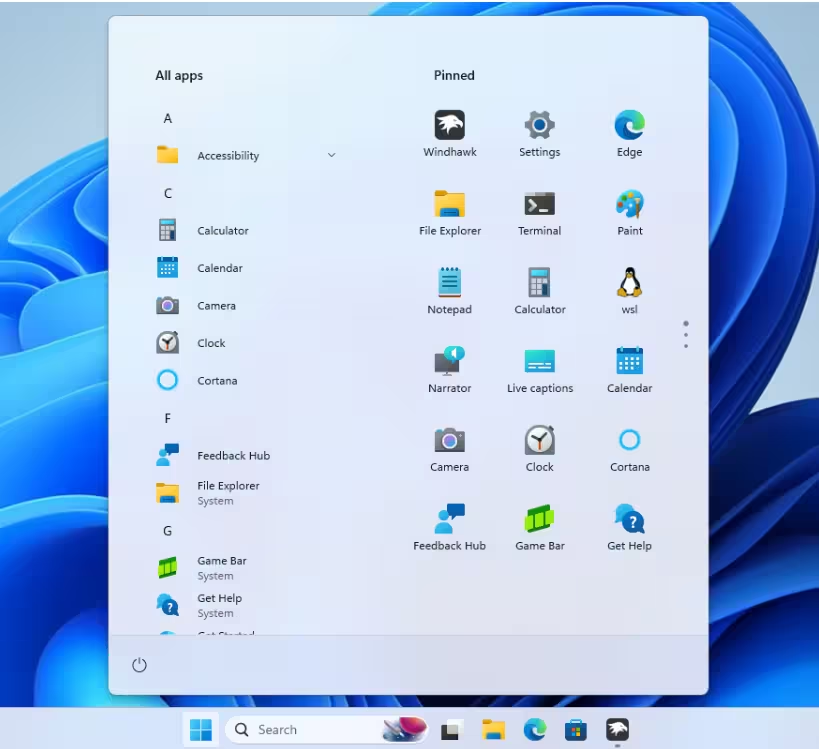
Open the mod settings, pick a theme from the dropdown, and the Start menu transforms immediately. Themes range from glassy translucent designs to compact layouts that remove the Recommended section entirely. With over 654,000 users, it ranks as the second most popular mod in the catalog.
Expect some trial and error. A theme that looks great in a screenshot may clash with your desktop wallpaper or accent color. Switch between themes freely until you find one that fits your setup.
6. Windows 11 Taskbar Styler
Windows 11 Taskbar Styler is the most popular mod in the entire Windhawk catalog with over 682,000 users. It works the same way as the Start Menu Styler but targets the taskbar. Community themes include translucent glass styles, a macOS-style floating dock, and even a Windows XP throwback look.

The advanced settings go deeper. You can target individual taskbar elements by name and override their visual properties directly. For example, you can hide the system tray entirely by targeting the correct element and setting its visibility to collapsed.
One important note: this mod uses XAML diagnostics to restyle the taskbar, which means only one tool can control that layer at a time. It conflicts with apps like TranslucentTB, so pick one or the other.
7. Vertical Taskbar for Windows 11
Windows 10 let you dock the taskbar to any edge of the screen. Windows 11 removed that option and locks the taskbar to the bottom. Vertical Taskbar for Windows 11 brings side placement back.
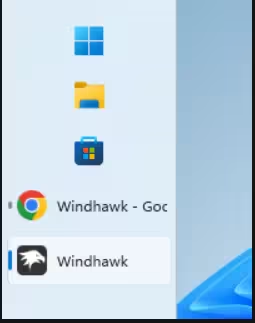
Open the mod settings, choose left or right, and the taskbar moves to that position along with the Start menu and system flyouts. You can set a different position for each monitor and adjust the taskbar width independently. If you want the taskbar at the top instead, the same developer maintains a companion Taskbar on Top mod that works identically.
A vertical or top taskbar works especially well on ultrawide monitors where horizontal screen space is more valuable than vertical space.
8. Better File Sizes in Explorer Details
File Explorer still does not show folder sizes in the Details view. To check how large a folder is, you have to hover over it or open Properties, one folder at a time. Better File Sizes in Explorer Details fixes this by displaying folder sizes directly in the Size column alongside file sizes.
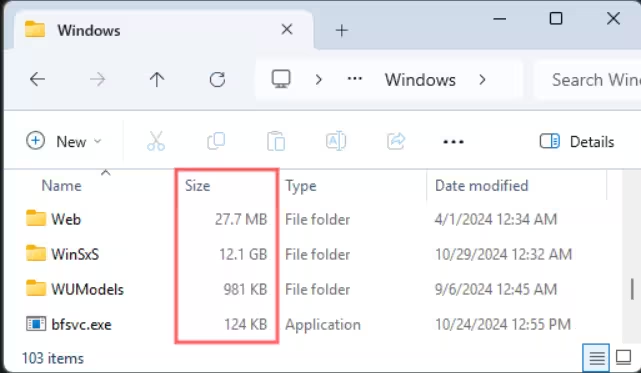
In the mod settings, you choose the calculation method. If you run the Everything search app, the mod reads folder sizes from its index almost instantly. Without Everything, the mod calculates sizes manually, which takes a bit longer on large directories but still works fine.
With over 180,000 users, this mod solves one of the most consistently requested File Explorer features that Microsoft has never added natively.
9. Translucent Windows
Translucent Windows is a purely visual mod that applies translucency effects and custom colors to File Explorer windows. It adds background blur effects and lets you change the color of title bars and window borders.
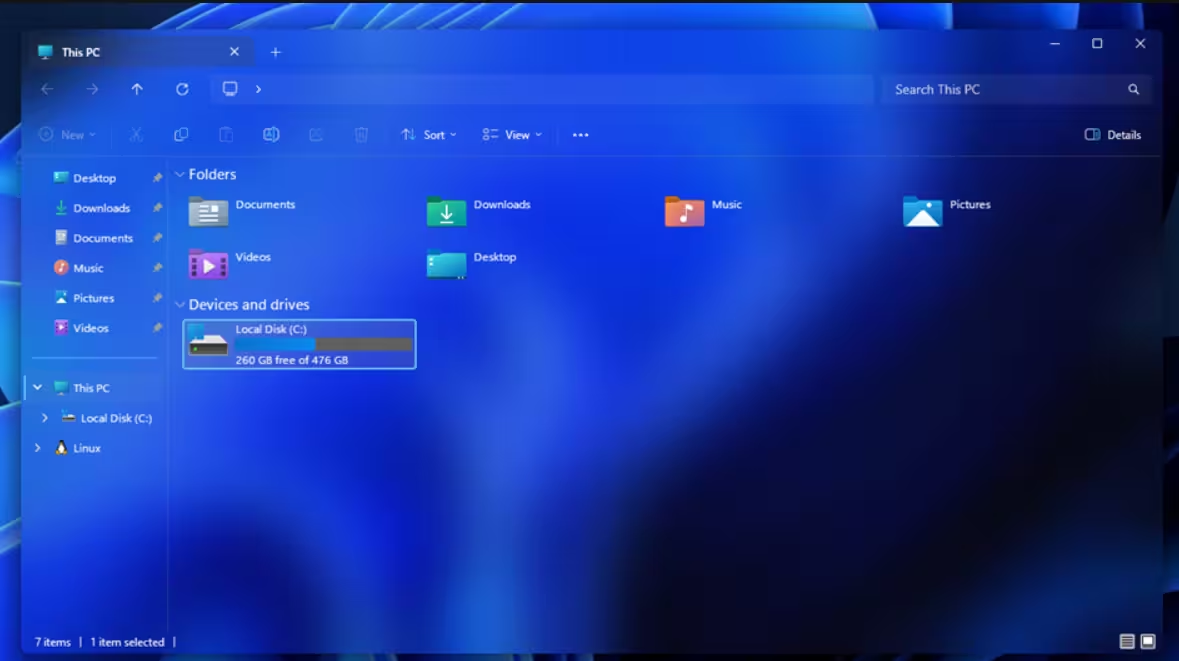
This mod does not activate instantly. After you apply settings, it can take a couple of minutes to render the changes. Bright accent colors work best here since dark translucent effects can reduce text readability. If you want a desktop that looks distinctly different from a stock Windows 11 install, this mod delivers that without requiring any third-party theme engine.
10. Click on Empty Space Taskbar
Click on Empty Space Taskbar turns the unused space on your taskbar into a configurable shortcut zone. You can assign different actions to a left-click, right-click, and middle-click on the empty taskbar area.
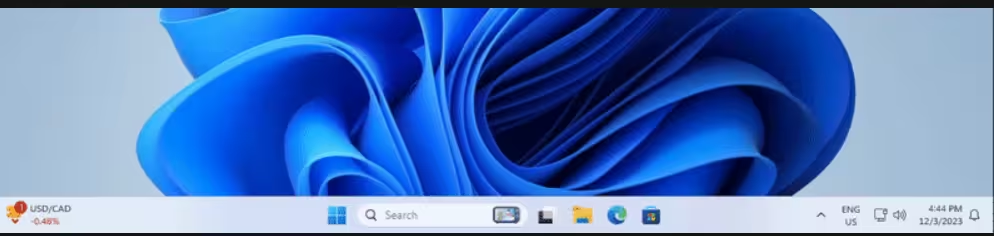
Common setups include opening Task Manager on right-click, launching a browser on middle-click, or toggling desktop icon visibility. You can also map the clicks to open any app by specifying its file path. This mod adds genuine functionality that Windows has never offered natively and costs you nothing in terms of screen space.
11. Taskbar Volume Control
Taskbar Volume Control converts the taskbar into a volume slider. Scroll your mouse wheel over the taskbar to raise or lower system volume without opening any panel or clicking any button.
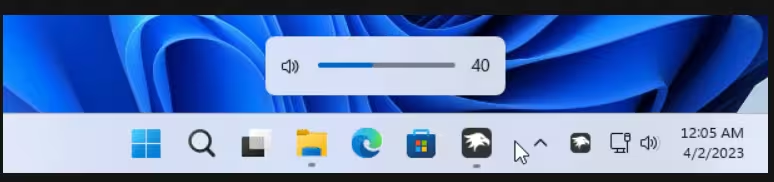
You can configure the mod to require holding the Ctrl key before the scroll registers as a volume change. This prevents accidental volume adjustments when you are cycling through taskbar apps with the mouse wheel. The mod pairs naturally with the Cycle Taskbar Buttons mod since both use scroll input on the taskbar.
12. Taskbar Dock Animation
Taskbar Dock Animation adds a hover animation to taskbar icons that mimics the macOS dock effect. When you hover over an icon, it animates smoothly in a way that the default Windows taskbar never does.

With over 236,000 users, it is one of the more popular cosmetic mods in the catalog. Pair it with Windows 11 Taskbar Styler using a dock-style theme, and the taskbar looks and behaves noticeably closer to a macOS dock than a standard Windows 11 setup.
Are Windhawk Mods Safe?
Windhawk mods inject code into Windows processes, which means they operate at a deeper level than typical apps. Antivirus tools occasionally flag Windhawk with false positives for this reason. The tool itself is open-source and developed by Ramen Software, and the mod catalog is community-vetted.
The main risk to be aware of is compatibility after major Windows updates. A large Windows update can break individual mods until their developers push a fix. When that happens, you can simply disable the affected mod and check back later for an update.
Windhawk is best suited for personal machines where you control the software environment. Avoid running it on locked-down work PCs or managed corporate devices.
Related Tech How-To
- How to Use and Customize Themes in Windows 11
- TaskSlinger: Free Task Manager Replacement for Windows 10 and 11
- How to Install Spicetify on Windows
Windhawk fills a real gap in Windows 11. Microsoft removed or never built features that a large number of users want, and Windhawk’s catalog addresses most of them directly. The mods listed above cover both functional improvements and visual customizations, so you can install only what you actually need.
Start with the Taskbar Height and Icon Size mod to fix the blurry icon problem, then add the scroll-based tab and app switching mods for workflow gains. Build from there based on what bothers you most about the default Windows 11 experience.
Download Windhawk from the official site and browse the full mod catalog to see what else the community has built.

