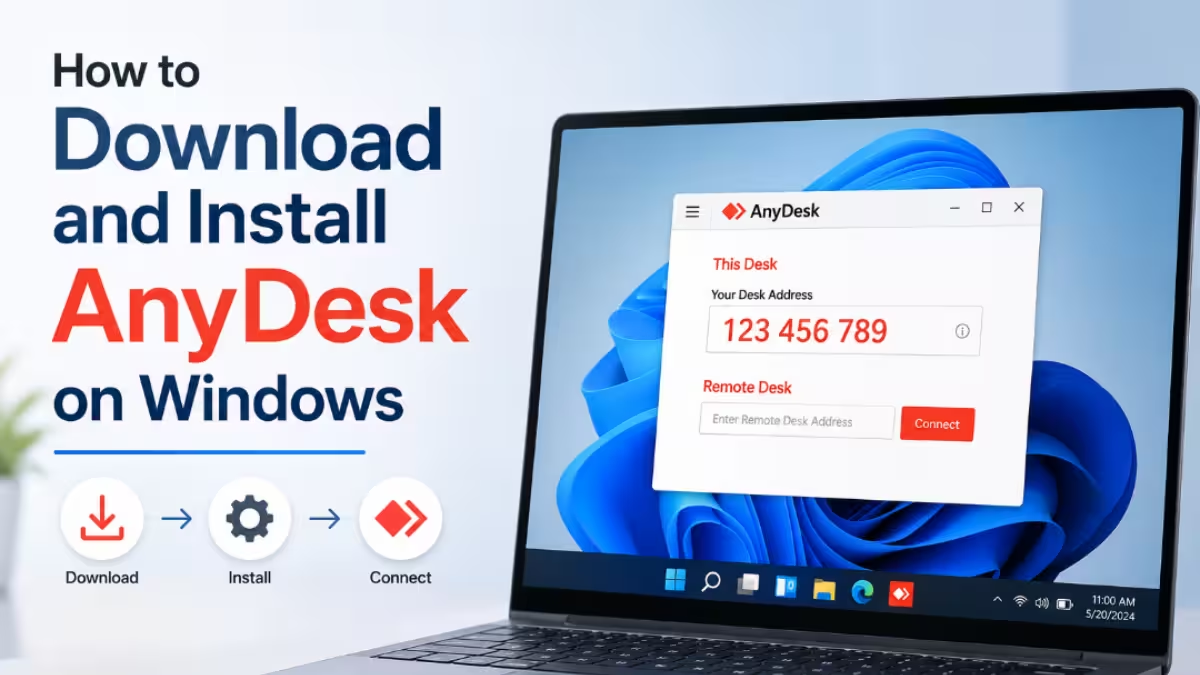
AnyDesk is a remote desktop application that lets you access another computer over the internet or allow someone else to connect to yours. It uses a custom codec to deliver fast, low-latency sessions even on slower connections. If you need to set it up on a Windows PC for the first time, this guide walks you through every step from download to launch.
System Requirements for AnyDesk on Windows
Before you download AnyDesk, confirm your PC meets these requirements to avoid performance issues during remote sessions:
- Graphics card: A hardware-accelerated GPU is required for smooth rendering. Enable full-screen mode to give AnyDesk exclusive GPU access.
- Older hardware: On single-core or low-resource devices, AnyDesk automatically drops image quality to 16-bit color to keep the session stable.
- Network: Check the upload speed on the remote device and the download speed on your local device. Insufficient bandwidth causes lag and disconnections.
- Display Quality setting: Set Display Quality to “Balance” in session settings for the best mix of performance and resource usage.
AnyDesk supports Windows XP SP2, Windows 7, Windows 8.1, Windows 10, and Windows 11.
How to Download AnyDesk on Windows
AnyDesk offers two file formats for Windows: an executable (.exe) file and an installer (.msi) file. The .exe supports both portable and installed modes. The .msi file only works as a full installation.
To download AnyDesk:
- Open your browser and go to the official AnyDesk website.
- Click the Download Now button on the homepage.
- Select Windows as your operating system. You can also go directly to the AnyDesk Windows download page to download the .exe file instantly.
- The installer file downloads automatically to your Downloads folder.
Always download AnyDesk from the official website to avoid modified or bundled installers from third-party sources.
How to Install AnyDesk Using the EXE File
The .exe installer is the most common option for home and office users. It lets you run AnyDesk as a portable app or install it permanently on the system.
To install AnyDesk using the .exe file:
- Go to your Downloads folder and right-click the AnyDesk .exe file.
- Select Run as administrator to start the installation with the correct permissions.
- Windows may ask if you want to allow the app to make changes to your device. Click Yes.
- The AnyDesk setup window opens. Click Install AnyDesk.
- Follow the on-screen instructions to complete the installation.
- Once the installation finishes, double-click the AnyDesk desktop icon to launch it.
AnyDesk opens and displays your AnyDesk address, which other users need to connect to your PC.
How to Install AnyDesk Using the MSI File
The .msi installer is designed for IT administrators and enterprise deployments. It installs both the AnyDesk client and the AnyDesk Service, which keeps AnyDesk running in the background for unattended access.
To install AnyDesk using the .msi file:
- Download the .msi file from the official AnyDesk website.
- Double-click the .msi file or right-click and select Install.
- Follow the setup wizard steps to complete the installation.
The .msi format also supports command-line installation for automated deployments across multiple machines. You can pass parameters through the command prompt or PowerShell for silent installs.
How to Uninstall AnyDesk on Windows
If you need to remove AnyDesk from your PC, follow these steps to uninstall it completely:
- Right-click the AnyDesk icon in the system tray and select Exit AnyDesk to close the app.
- Open the Windows Start Menu and go to Settings.
- Navigate to Apps and then Installed apps.
- Find AnyDesk in the list and click Uninstall.
- Click Uninstall again in the confirmation window.
- When the AnyDesk uninstaller opens, check the Remove settings box to delete all stored AnyDesk data.
- Click Uninstall to finish.
After uninstalling, verify the removal by checking that AnyDesk no longer appears in Programs and Features, the AnyDesk folder is gone from C:\Program Files or C:\Program Files (x86), and no AnyDesk icon appears in the system tray after a restart.
Why AnyDesk Won’t Install on Windows and How to Fix It
Incomplete Download Due to Internet Issues
A slow or dropped connection can corrupt the installer file and cause the setup to fail. Make sure your internet connection is stable before downloading. If the download keeps failing, switch to a wired connection or a different network, then re-download the file.
Installation Blocked by Antivirus or Firewall
Your antivirus or firewall can flag AnyDesk as a potential threat and block the installation. Temporarily disable your security software before running the installer. Re-enable it immediately after the installation completes. You may also need to add AnyDesk as an exception in your firewall settings to allow it to connect properly.
Insufficient Disk Space
If your PC does not have enough free space, the installer will fail or stop partway through. Check your available disk space before running the setup. Clear temporary files or uninstall unused applications to free up room, then restart the installation.

