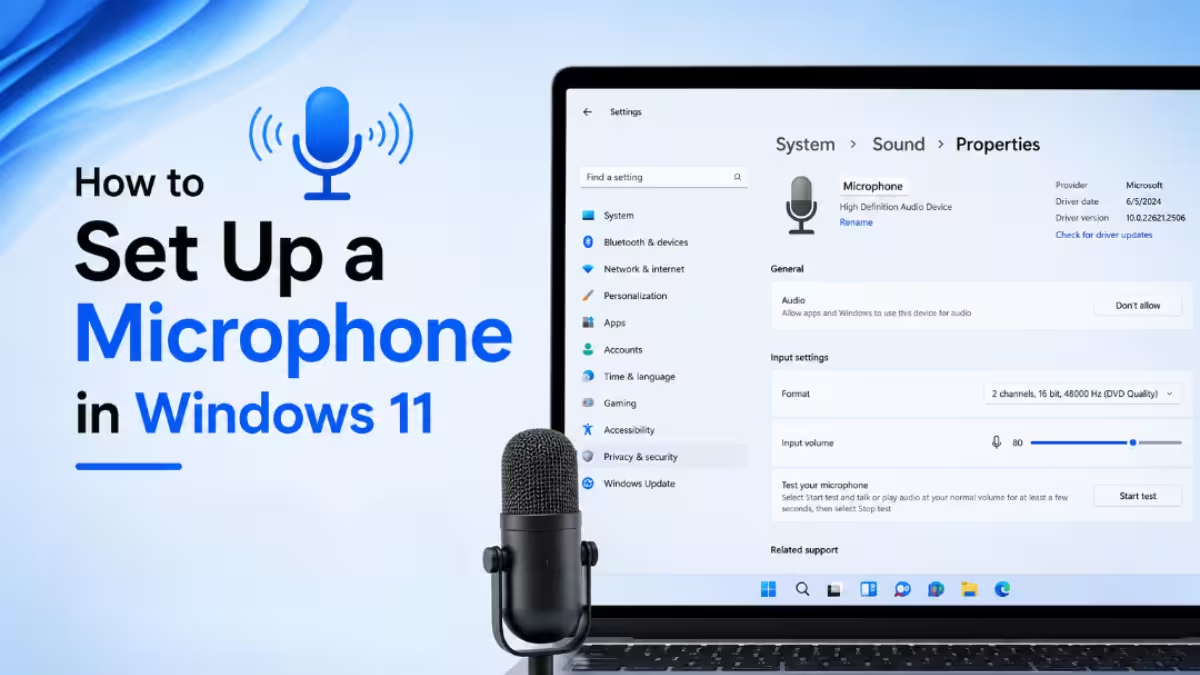
Setting up a microphone in Windows 11 takes only a few steps once you know where Windows hides the settings. This guide walks you through connecting your mic, selecting it as the input device, adjusting volume, and granting app permissions so calls and recordings pick up your voice correctly.
Step 1: Connect Your Microphone
Plug your microphone into your PC before opening any settings.
- USB microphone: Plug it into any available USB port. Windows detects it within a few seconds.
- 3.5mm microphone or headset: Plug it into the pink microphone jack. If your laptop has a single combo jack, use that port instead.
- Bluetooth microphone: Go to Settings > Bluetooth & devices > Add device, then pair it like any other Bluetooth accessory.
Windows usually shows a notification once it detects the new device. If it does not appear, continue to the next step anyway.
Step 2: Open Sound Settings
Windows 11 gives you two quick ways to reach sound settings.
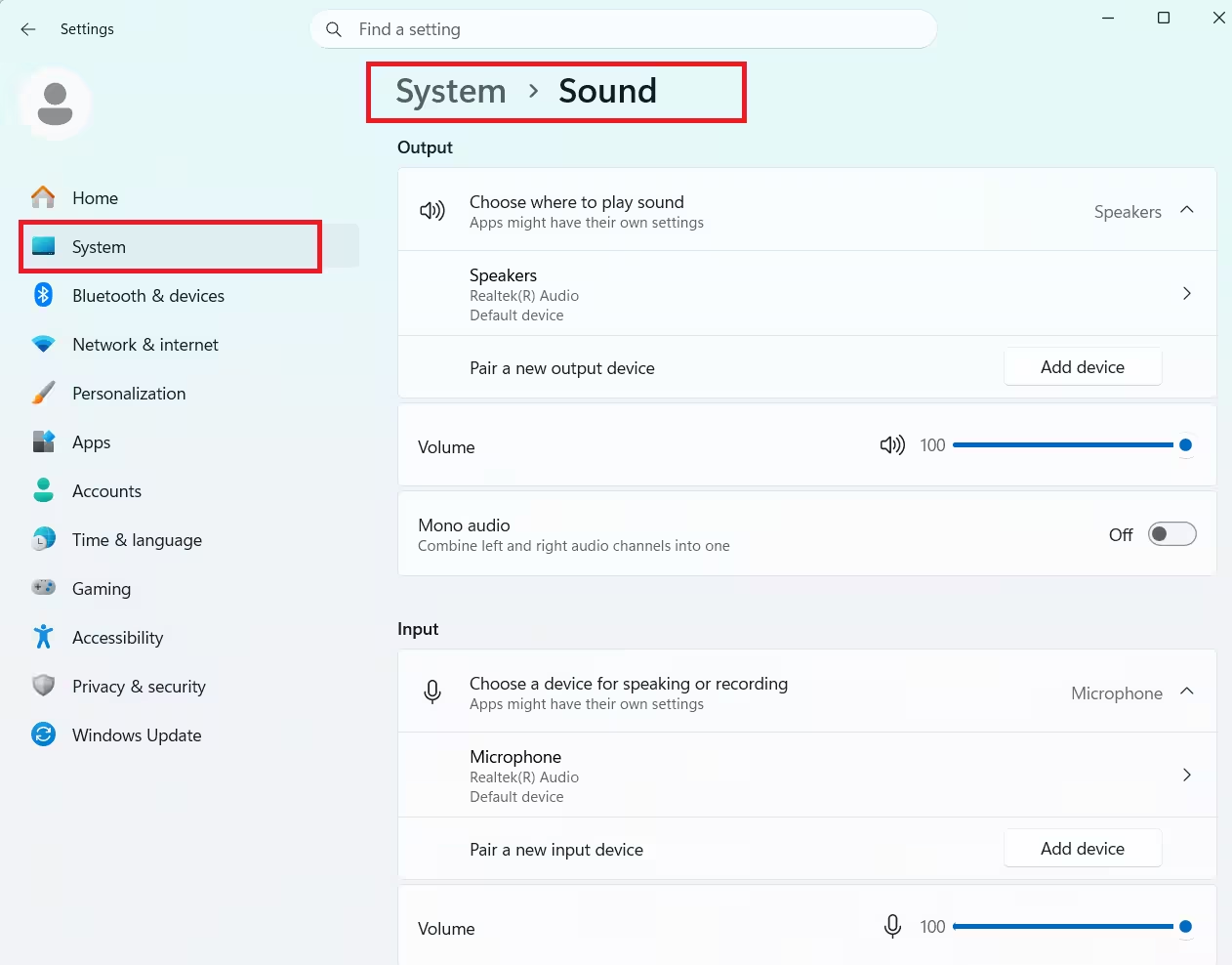
Right-click the speaker icon in the taskbar and select Sound settings, or press Win + I to open Settings and navigate to System > Sound. Both paths lead to the same page.
Step 3: Select Your Microphone as the Input Device
Windows needs to know which device to treat as your active microphone.
In Sound settings, scroll to the Input section and click the dropdown labeled Choose a device for speaking or recording. Select your microphone from the list. If it does not show up, unplug and replug it, try a different USB port, or check Device Manager for driver errors.
Step 4: Set the Input Volume
Volume that’s too low or too high causes people to mishear you.
Click Device properties below the input dropdown and adjust the volume slider. Keep it between 70 and 90. Setting it to 100 can cause distortion, while a low setting makes your voice hard to hear. Confirm the Disable checkbox is unchecked so the device stays active.
Step 5: Test the Microphone
Windows includes a built-in test so you can confirm the mic works before joining a call.
On the main Sound settings page, click Start test under Input and speak normally. A blue bar moves as it picks up your voice. If the bar stays flat, the wrong device may be selected, the mic could be muted, or a driver issue is blocking the signal.
Step 6: Allow Microphone App Permissions
Windows blocks apps from using your microphone until you grant permission, even if the mic works fine in Sound settings.
Go to Settings > Privacy & security > Microphone and turn on both Microphone access and Let apps access your microphone. Then scroll down and enable access individually for apps like Zoom, Teams, Discord, or your browser. This step resolves the issue for most users whose mic tests fine but doesn’t work inside an app.
Setting Up a Headset Microphone
Headsets combine audio output and input, so they need a slightly different setup.
USB headsets install automatically. Select the headset as both your output and input device in Sound settings. For 3.5mm headsets with a single combo plug, your PC needs a combo audio jack; if it has separate pink and green ports instead, you’ll need a splitter adapter. Gaming headsets often need manufacturer software, such as HyperX NGenuity, SteelSeries GG, or Razer Synapse, to unlock full mic control including EQ and noise suppression.
Setting Up a USB Condenser Microphone
USB condenser mics like the Blue Yeti or HyperX QuadCast are plug-and-play, but a few extra steps improve sound quality.
Select the condenser mic as your default input device, set the input volume to around 75, and disable Microphone Boost completely since condenser mics are already sensitive. Position the mic 6 to 10 inches from your mouth. For finer control over routing and mixing, use the mic’s own companion software or a free tool like VoiceMeeter.
Fixing Common Microphone Problems
Most microphone issues in Windows 11 come down to settings rather than hardware failure.
Microphone not detected: Try a different USB port, restart the Windows Audio service through services.msc, or check Device Manager for a yellow warning icon on the device.
Microphone too quiet: Raise the input volume in Device Properties, add Microphone Boost in increments of 10 dB, or move the mic closer to your mouth.
Microphone has echo or feedback: Disable Listen to this device in the mic’s properties, use headphones instead of speakers during calls, and turn off audio enhancements.
Microphone works in Settings but not in an app: Check the app’s individual permission toggle under Settings > Privacy & security > Microphone, then verify the app’s own audio settings point to the correct device.
Microphone cuts in and out: Open Mic Properties, go to the Advanced tab, and uncheck Allow applications to take exclusive control of this device.
Frequently Asked Questions
Why is my microphone not showing up in Windows Sound settings?
The most common cause is a loose connection or a missing driver. Unplug the mic, wait a few seconds, and reconnect it. If it still doesn’t appear, check Device Manager for errors under Audio inputs and outputs and reinstall the driver.
How do I set a default microphone in Windows 11?
Go to Settings > System > Sound > Input and select your microphone from the dropdown. Windows 11 treats this selection as the system default automatically.
Why can’t people hear me even though my mic works in Windows settings?
This usually points to an app permission issue. Enable microphone access for that specific app under Settings > Privacy & security > Microphone.
How do I reduce background noise on my microphone?
Open Mic Properties, go to the Enhancements tab, and enable Noise Suppression and Acoustic Echo Cancellation. Apps like Discord and Teams also include their own noise suppression settings.
What does Microphone Boost do, and should I use it?
Microphone Boost digitally amplifies your input signal in increments of 10 dB, up to +30 dB. Use it only if your mic sounds quiet even at full volume. USB condenser mics rarely need any boost at all.
Read More:
- How to Disable Automatic Updates on Windows 11: Temporary Pause and Permanent Methods
- Mouse Not Working on Windows 11: 11 Fixes That Actually Work
- How to Activate Windows 11 With a Product Key (Step-by-Step Guide)
- Phone Link Not Receiving Messages? How to Fix It on Windows 11
- How to Allow an App Through Windows 11 Firewall (Security, Settings, PowerShell)