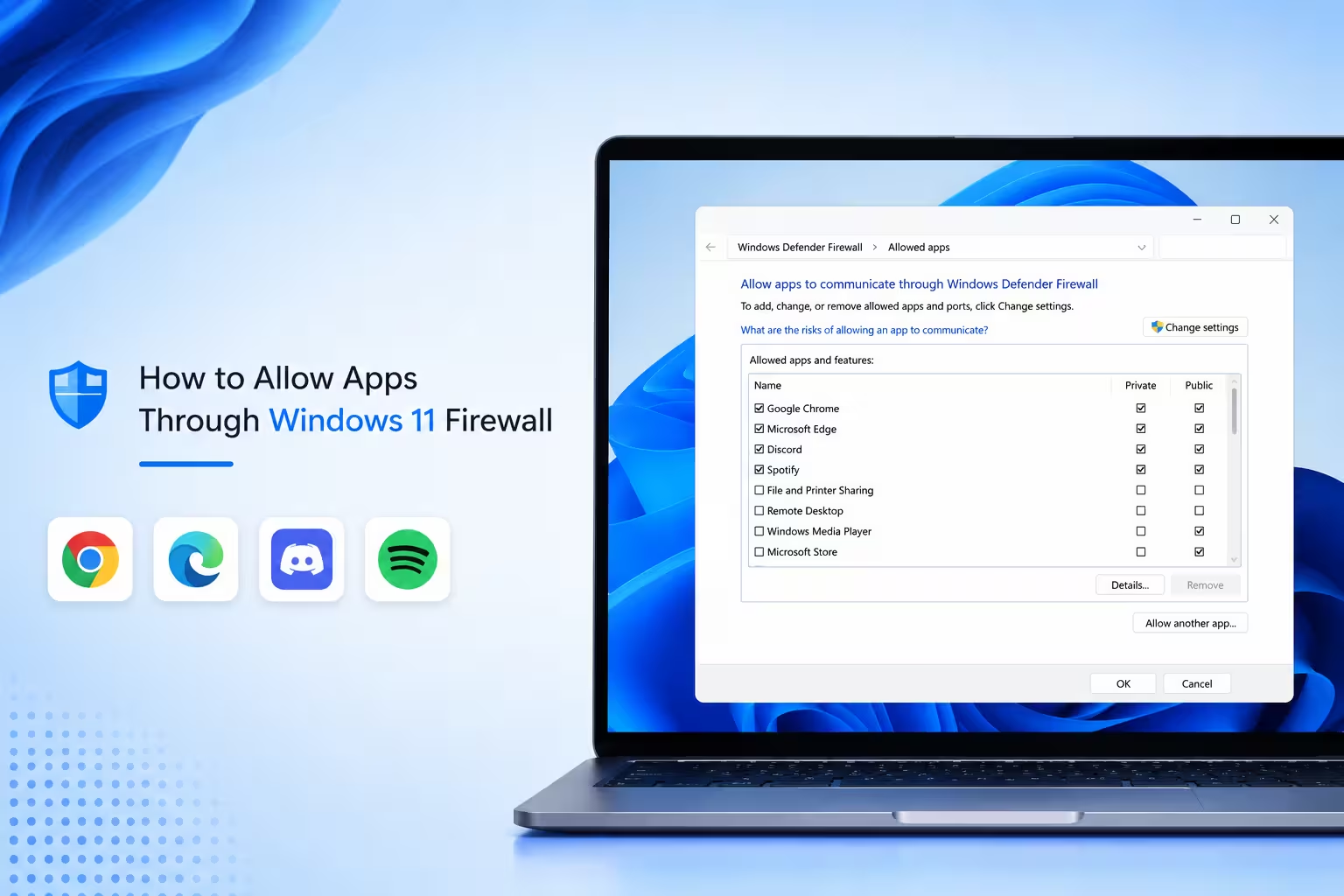
Windows 11 blocks network access for apps that do not have a firewall rule allowing them through. You can grant that access using Windows Security, the Settings app, or PowerShell.
What Causes Firewall Blocks
Microsoft Defender Firewall checks every outbound and inbound connection request against its rule database. It blocks or restricts an app when any of these apply.
- The app has no existing rule in the firewall database
- The app was blocked manually or through a previous prompt
- The active network profile (Domain, Private, or Public) does not have permission enabled for that app
Allow an App Using Windows Security
This method works for most users and does not require any commands.
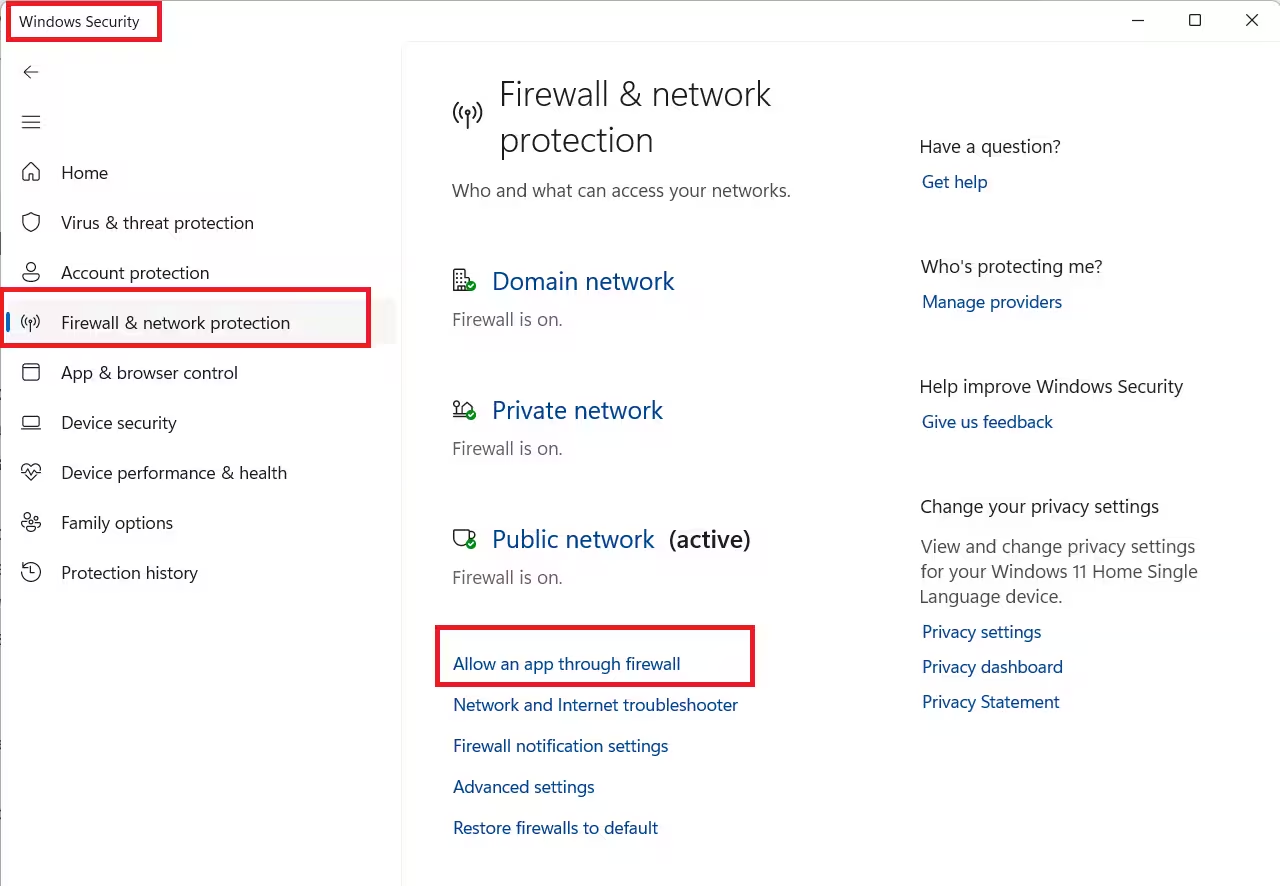
- Open Windows Security from the Start menu.
- Click Firewall & network protection.
- Click Allow an app through firewall.
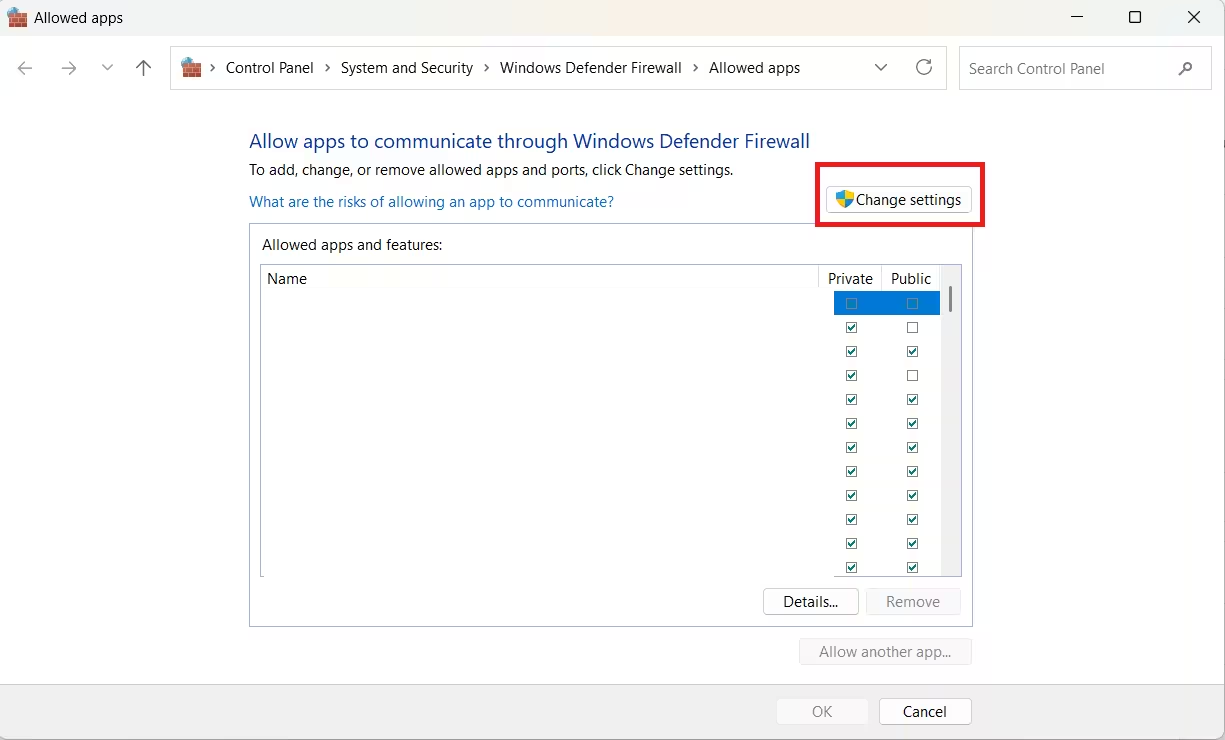
- Click Change settings. This requires administrator rights.
- Check the box next to the app you want to allow. If the app is not listed, click Allow another app, then Browse to locate its executable file.
- Choose Private for home or work networks, or Public for open networks such as coffee shops.
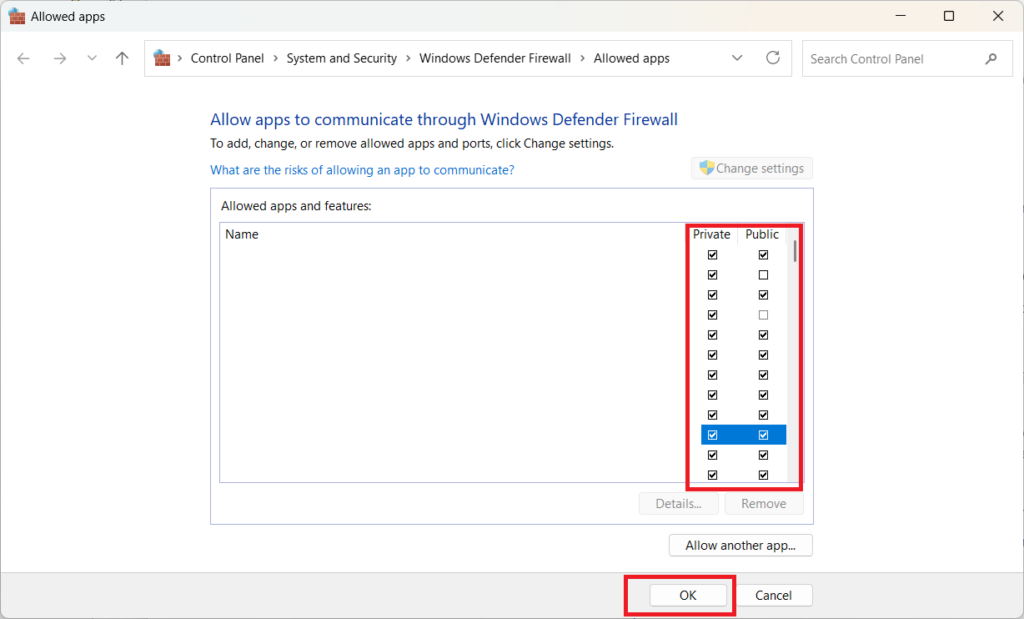
- Click OK to save the rule.
To block an app instead of allowing it, follow the same steps, but clear the checkbox next to the app under the network type you want to restrict.
An unchecked box means the app is blocked on that network type.
Allow an App Using the Settings App
You can reach the same firewall controls through the Settings app instead of opening Windows Security directly.
- Go to Settings > Privacy & Security and click Windows Security.
- Click Firewall & network protection.
- Scroll down and click Allow an app through firewall.
- Check the box next to the app you want to allow.
On Windows 10, the same option is under Settings > Update & Security > Windows Security > Firewall & network protection.
Allow an App Using PowerShell
PowerShell is faster if you manage multiple computers or prefer working from the command line.
- Open Start, search for PowerShell, right-click the top result, and select Run as administrator.
- Run this command, replacing the rule name, path, and profile with your own values:
New-NetFirewallRule -DisplayName "RULE-NAME" -Direction Inbound -Program "C:\Path\To\App.exe" -Action Allow -Profile Domain,Private,PublicThis creates an inbound rule. If the app also needs outbound access, create a second rule with -Direction Outbound.
- Confirm the rule was created:
Get-NetFirewallRule -DisplayName "RULE-NAME"- To remove the rule later, run:
Remove-NetFirewallRule -DisplayName "RULE-NAME"Example, allowing Zoom through the firewall on private and public networks:
New-NetFirewallRule -DisplayName "Zoom" -Direction Inbound -Program "C:\Users\UserProfile\AppData\Roaming\Zoom\bin\Zoom.exe" -Action Allow -Profile Private,PublicCustom Rules in Advanced Settings
For more specific control, open Windows Security > Firewall & network protection > Advanced settings. From this window you can:
- Import or export firewall policies to reuse the same rules across multiple PCs
- Create custom inbound and outbound rules tied to specific TCP or UDP ports
- Set up connection security rules for encrypted or authenticated connections
Most users never need these options. Only change advanced settings if you understand exactly what the rule will affect.
Allowing an app through the firewall gives that app full network access on the profiles you selected. If you are troubleshooting a connection issue, check the app’s specific rule and profile settings before disabling the firewall entirely, since turning it off removes protection for every other app on your device as well.
Frequently Asked Questions
Does blocking an app in the firewall stop it from opening?
No. The app still runs normally. It only loses the ability to send or receive data over the network.
Do I need administrator rights to change firewall rules?
Yes. Both the Windows Security method and the PowerShell method require an administrator account or an admin password prompt.
What is the difference between Private and Public network profiles?
Private applies to trusted networks like home or work. Public applies to untrusted networks like cafes or airports, and carries stricter default restrictions.
Can I create an outbound rule the same way?
Yes. Use the same PowerShell command with -Direction Outbound instead of -Direction Inbound.

