If your PC suddenly asks for a BitLocker recovery key at startup, you need a specific 48 digit number to unlock your drive. Microsoft often saves this key to your Microsoft account automatically, so you can usually retrieve it from another device in a few minutes.
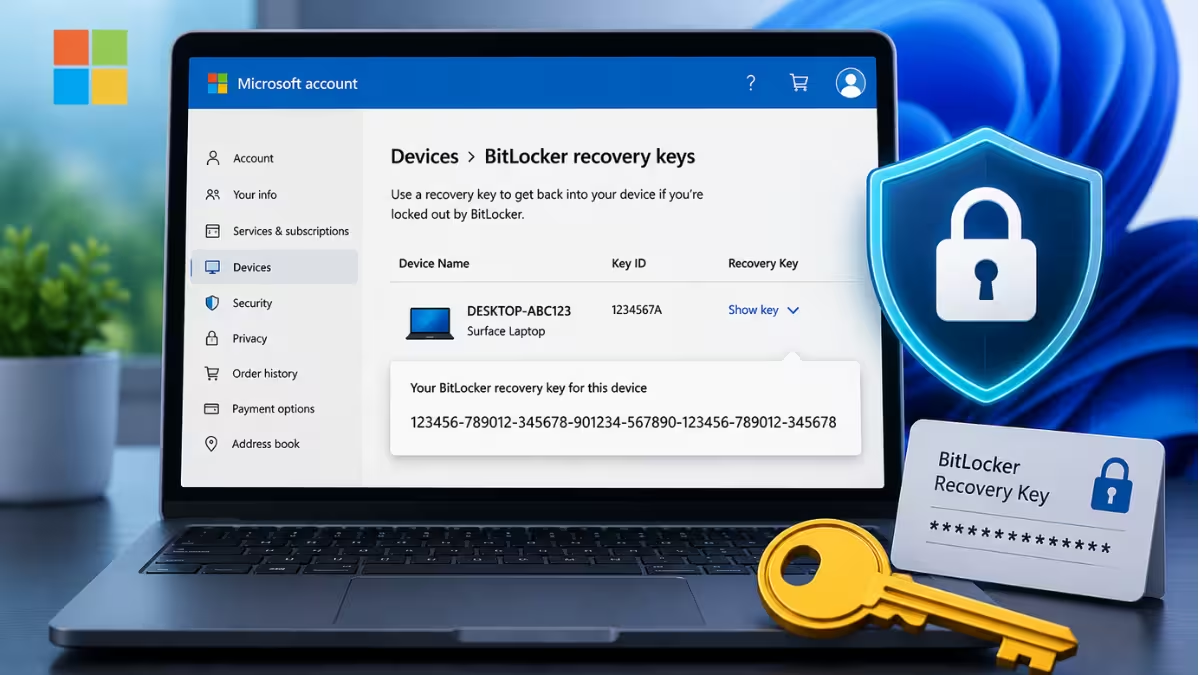
This guide shows you exactly where to find it.
What Is a BitLocker Recovery Key
BitLocker is a Windows encryption feature that protects the data on your drive. When Windows detects a change or a potential security risk, it locks the drive and asks for the recovery key before it lets you in.
The key itself is a 48 digit number. Windows generates it the moment you turn on BitLocker, and it stays tied to that specific encrypted drive.
Why Windows Is Asking for the Key
BitLocker does not lock your drive at random. It triggers recovery mode when it cannot confirm the system is still trustworthy. Common triggers include:
- A BIOS or UEFI firmware update
- Replacing hardware such as the motherboard or hard drive
- Too many failed password or PIN attempts
- Reinstalling Windows or changing the boot order
- Connecting an external drive during startup
- An IT policy change on a managed device
Step 1: Note the Recovery Key ID
Before you go looking for the key, check your locked screen. Windows shows a Key ID, a short 8 character code, on the recovery prompt. Write down these first 8 digits.

If more than one recovery key is tied to your account, this ID tells you which one matches your device.
Step 2: Find Your BitLocker Recovery Key in Microsoft Account
If BitLocker backed up your key to your Microsoft account, follow these steps from another device:
- Open a browser and go to account.microsoft.com/devices/recoverykey
- Sign in with the Microsoft account linked to your locked device
- Look through the list of devices and match the Key ID shown on screen with the one on your locked device
- Copy the 48 digit recovery key next to that matching ID
- Enter the key on your locked device and press Enter to unlock it
Starting with Windows 11 version 24H2, the recovery screen also shows a hint about which Microsoft account holds the key, which makes this step faster.
If someone else set up your device or turned on BitLocker for you, the key might be saved in their Microsoft account instead of yours.
Step 3: Check a Work or School Account
If your device was ever signed into an organization, the key may sit in that organization’s account instead of your personal one.
- From another device, go to myaccount.microsoft.com
- Sign in with your work or school account
- Select Devices and expand the device you need the key for
- Select View BitLocker Keys
- Match the Key ID and use the matching recovery key to unlock the drive
By default, users can retrieve their own BitLocker keys from Microsoft Entra ID this way. If your organization has restricted this option, you will need to contact your IT department directly.
Step 4: Check Other Storage Locations
If your Microsoft account does not have the key, check these other spots depending on how BitLocker was set up on your device:
- USB flash drive: Plug it into the locked device and follow the on screen instructions. If the key was saved as a text file, read it from a different device.
- Printed copy: Some setups print the key during activation. Check any papers you keep with your device documentation.
- Password manager or cloud storage: If you manually saved a copy to a password manager or a cloud drive, check there too.
What If You Still Cannot Find the Key
If your device is managed by a company or school, contact your IT department. They can pull the key from Active Directory or Microsoft Entra ID even if you cannot access it yourself.
If the device is personal and you cannot locate the key anywhere, Microsoft cannot retrieve, provide, or recreate a lost BitLocker recovery key. Your only remaining option is a full reset using the Windows recovery options, which erases everything on the drive.
How to Avoid This Problem Next Time
Once you regain access to your drive, back up the recovery key in more than one place so you never face this again:
- Link it to your Microsoft account so it stays available online
- Save a copy to a labeled USB drive
- Print a hard copy and store it somewhere secure
- Add it to your password manager’s secure notes
Relying on just one storage method is risky. Keep at least two backups so you are covered even if one method fails.
Frequently Asked Questions
Can Microsoft Support recover a lost BitLocker key for me?
No. Microsoft Support cannot retrieve, provide, or recreate a lost BitLocker recovery key under any circumstances. The key only exists where it was originally backed up.
Why did BitLocker turn on without me doing anything?
BitLocker does not activate from a virus or malware, and it does not turn on randomly. On Windows 11, device encryption can enable automatically during setup or after certain updates if you sign in with a Microsoft account and your hardware meets the security requirements.
Can I recover my BitLocker recovery key without a Microsoft account?
Yes, if you have a printed copy, a saved USB file, or access to your organization’s Active Directory or Microsoft Entra ID. If your device is managed by IT, ask them for recovery access.
What happens if I reset my device without the recovery key?
A reset removes every file on the drive, since the data stays encrypted and inaccessible without the key. Only choose this option after you have exhausted every other place the key might be stored.

