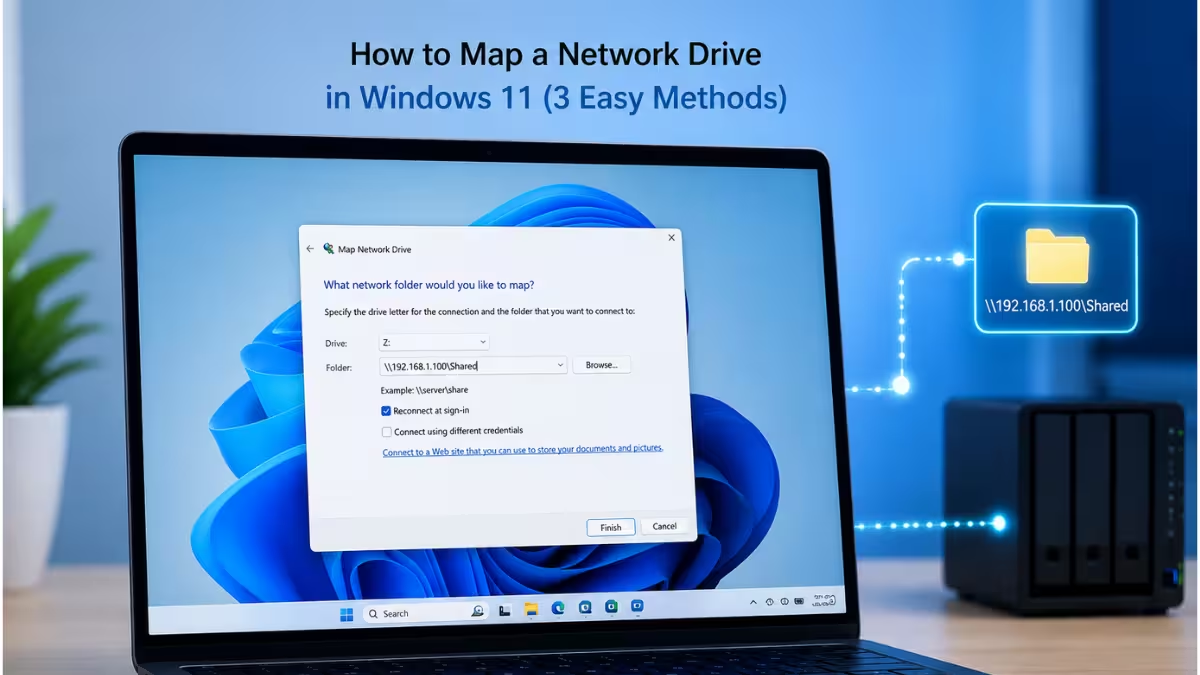
A mapped network drive turns a shared folder on another computer, NAS, or server into a permanent drive letter inside File Explorer, so it opens and behaves like a local drive instead of requiring a manual network path search every time. This saves time on home networks with a shared media or backup folder, and it is common in office setups where multiple users need quick access to the same files on a central server. Once mapped, the drive appears under This PC and can be used in any app’s Open or Save dialog just like a local disk. Windows 11 supports mapping through File Explorer, Command Prompt, or PowerShell, and all three are covered below along with fixes for the errors that most often come up during setup.
Enable Network Discovery and File Sharing First
Network discovery and file sharing must be turned on before a shared folder can be located and mapped.
- Go to Settings > Network & Internet > Advanced network settings, or use Control Panel > Network and Sharing Center > Change advanced sharing settings.
- Under the active network profile, turn on Network discovery.
- Turn on File and printer sharing.
- Save the changes.
Method 1: Map a Network Drive Using File Explorer
File Explorer offers the fastest way to map a network drive without using any commands.
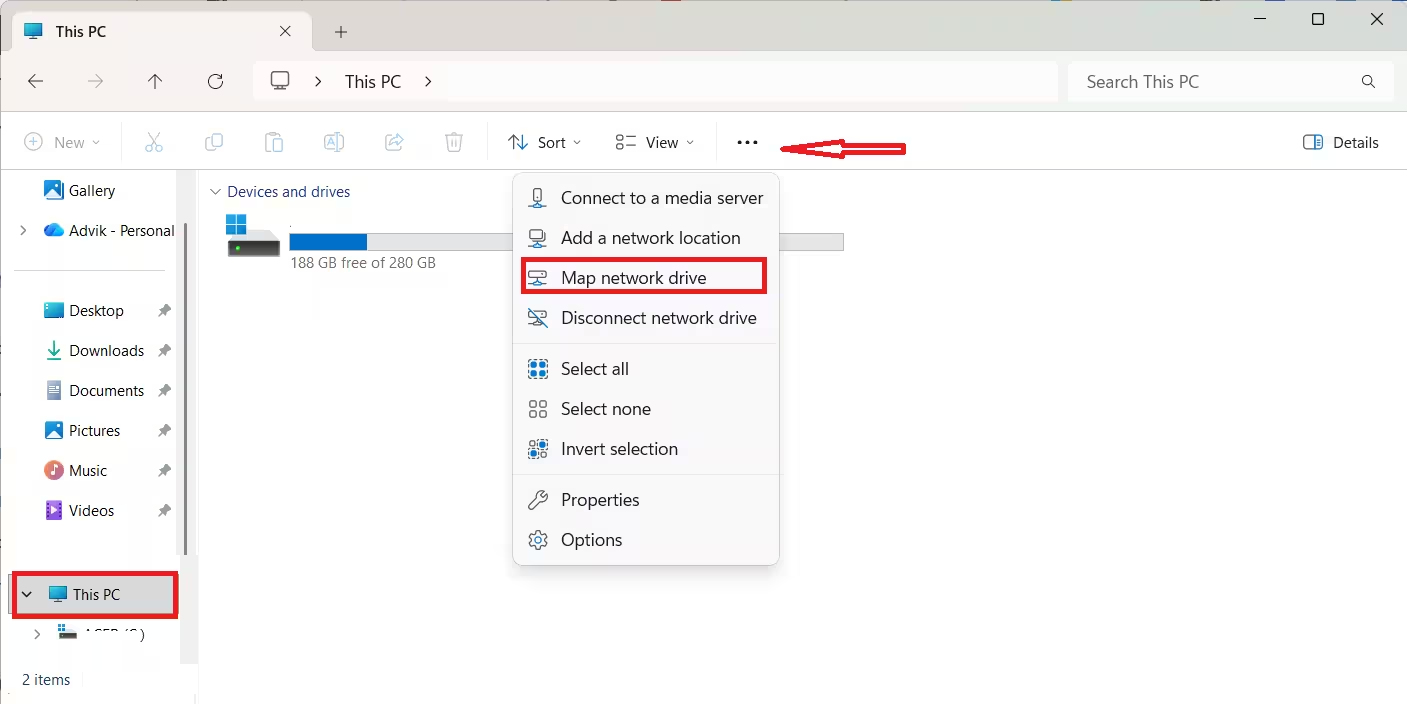
- Open File Explorer using
Win + E. - Select This PC from the left sidebar.
- Click the three-dot menu in the toolbar and choose Map network drive.
- Pick an unused drive letter from the dropdown list.
- In the Folder field, type the network path in the format
\\ServerName\SharedFolder, or click Browse to locate it manually. - Enable Reconnect at sign-in to keep the drive mapped after every restart.
- Check Connect using different credentials if the shared folder requires a separate username and password.
- Click Finish to complete the mapping.
Windows prompts for a username and password if the network resource is protected.
Method 2: Map a Network Drive Using Command Prompt
Command Prompt works well for mapping drives quickly or scripting the process across multiple machines.
Open Command Prompt and run:
net use Z: \\ServerName\SharedFolder /persistent:yesReplace Z: with the desired drive letter and the shared folder path with the actual server name and folder. Add /user:username password at the end of the command when the share requires specific credentials.
Method 3: Map a Network Drive Using PowerShell
PowerShell offers another scriptable option and is useful in environments already standardized on PowerShell for administration.
Open PowerShell and run:
New-PSDrive -Name "Z" -PSProvider FileSystem -Root "\\ServerName\ShareName" -PersistReplace Z with the desired drive letter and \\ServerName\ShareName with the actual network path.
How to Remove a Mapped Network Drive
A mapped drive can be removed through File Explorer or Command Prompt when it is no longer needed.
Right-click the mapped drive under This PC and select Disconnect, or run net use Z: /delete in Command Prompt, replacing Z: with the actual drive letter.
Troubleshooting Common Mapping Errors
Network path not found (Error 0x80070035): Confirm the host device is powered on and connected to the same network. Check that SMB file sharing is enabled on the host device, and verify the server name or IP address in the path is correct by pinging it from Command Prompt.
Drive does not reconnect after restart: Reopen the mapping and confirm Reconnect at sign-in was checked. Also confirm network discovery and file sharing are still enabled, as covered in the Enable Network Discovery and File Sharing step above. Fast startup can also interfere with reconnection, so disabling it under Control Panel > Power Options > Choose what the power buttons do can help.
Access denied when connecting: Re-enter the correct credentials using Connect using different credentials. Check the shared folder’s permissions on the host device to confirm the account has at least read access, and clear outdated saved credentials through Control Panel > Credential Manager.
Firewall or security software blocking access: Temporarily disable the firewall or third-party security software to test the connection. If that resolves it, add a permanent exception for File and Printer Sharing in Windows Defender Firewall or the security software’s settings.
Frequently Asked Questions
Can I map a network drive without a password?
Yes, if the shared folder has been configured for guest or public access on the host device. Most home and business networks still require valid credentials for security.
What drive letter should I use for a mapped network drive?
Any unused letter from D through Z works. Choosing a letter that will not conflict with USB drives or other removable media helps avoid mapping errors later.
Does mapping a network drive work over Wi-Fi?
Yes, as long as both devices are connected to the same network and file sharing is enabled. A wired connection is more reliable for large file transfers.
Why does a mapped network drive show a red X icon?
A red X on the drive icon means Windows cannot currently reach the shared folder. This usually happens when the host device is off, disconnected from the network, or when the saved credentials have expired.
Can I map the same network drive on multiple computers?
Yes, each computer can map the same shared folder independently using its own drive letter and credentials. The folder’s permissions on the host device determine what each user can view or edit.
How do I map a network drive for all users on a PC?
This requires administrator rights and is done through Group Policy or a logon script using the net use command, rather than the standard per-user Map Network Drive option.
Can I map OneDrive or SharePoint as a network drive?
Yes. Copy the document library’s link from OneDrive or SharePoint, then use the Map network drive option in File Explorer and paste the link as the folder path.
Related Tech How-To
- How to Update Drivers in Windows 11 Using Device Manager (6 Methods)
- How to Update All Drivers in Windows 11 Using CMD Automatically
- How to Use DDU to Remove GPU Drivers Completely on Windows 10 and 11
Windows Error Fixes

