After installing KB5065426, many Windows 11 users find that network shares stop connecting, even to servers that worked perfectly for years. Microsoft officially lists SMBv1 protocol connectivity as a known issue in this update. Separately, SMB signing requirements enforced by earlier Windows 11 updates continue to block access to older servers that cannot negotiate signed connections.
What KB5065426 Breaks for Network Shares
Two separate problems cause network shares to fail after KB5065426.
- SMBv1 connectivity: Microsoft officially acknowledges SMBv1 protocol connectivity as a known issue introduced by KB5065426. Servers that rely on SMBv1 lose access after installation.
- SMB signing requirement: KB5065426 itself does not enforce SMB signing. It adds auditing tools to help you check which devices in your network cannot handle signing. However, SMB signing enforcement was already set as a requirement by previous Windows 11 cumulative updates. If your server cannot negotiate signed connections, the share fails regardless of KB5065426.
Knowing which problem applies narrows down the fix immediately.
Fix 1: Disable SMB Signing Requirement
If your server ran fine before recent Windows 11 updates and not just KB5065426, SMB signing enforcement from earlier cumulative updates is likely the cause. Windows 11 requires SMB signing by default after previous updates, and older servers that cannot negotiate it get blocked. You need to relax this requirement on the client side.
Using PowerShell (Recommended):
- Open PowerShell as Administrator — right-click the Start button, select Windows Terminal (Admin) or Windows PowerShell (Admin).
- Run this command to check your current SMB client signing state:
Get-SmbClientConfiguration | Select RequireSecuritySignature, EnableSecuritySignature- If
RequireSecuritySignatureshows True, that is your problem. Run this to disable it:
Set-SmbClientConfiguration -RequireSecuritySignature $false -Force- Try reconnecting to the network share immediately. No restart is required.
Using Registry (Alternative):
- Press Win + R, type
regedit, and press Enter. - Navigate to:
HKEY_LOCAL_MACHINE\SYSTEM\CurrentControlSet\Services\LanmanWorkstation\Parameters- Find the value RequireSecuritySignature.
- Double-click it and set the value to 0.
- Click OK and restart your PC.
Fix 2: Re-Enable the SMBv1 Client (Confirmed KB5065426 Known Issue)
Microsoft officially lists SMBv1 protocol connectivity as a known issue in KB5065426. If your server uses SMBv1, start here before trying anything else.
- Press Win + R, type
optionalfeatures, and press Enter. - Scroll to SMB 1.0/CIFS File Sharing Support and expand it.
- Check SMB 1.0/CIFS Client only. Do not check the server component unless you need it.
- Click OK.
- Windows will install the feature. Restart your PC when prompted.
- After the restart, test the network share.
Verify via PowerShell instead:
Enable-WindowsOptionalFeature -Online -FeatureName SMB1Protocol-Client -NoRestartRestart after running the command.
Security note: SMBv1 has no encryption and is vulnerable to attacks like EternalBlue. Enable it only on isolated internal networks and start planning a server upgrade.
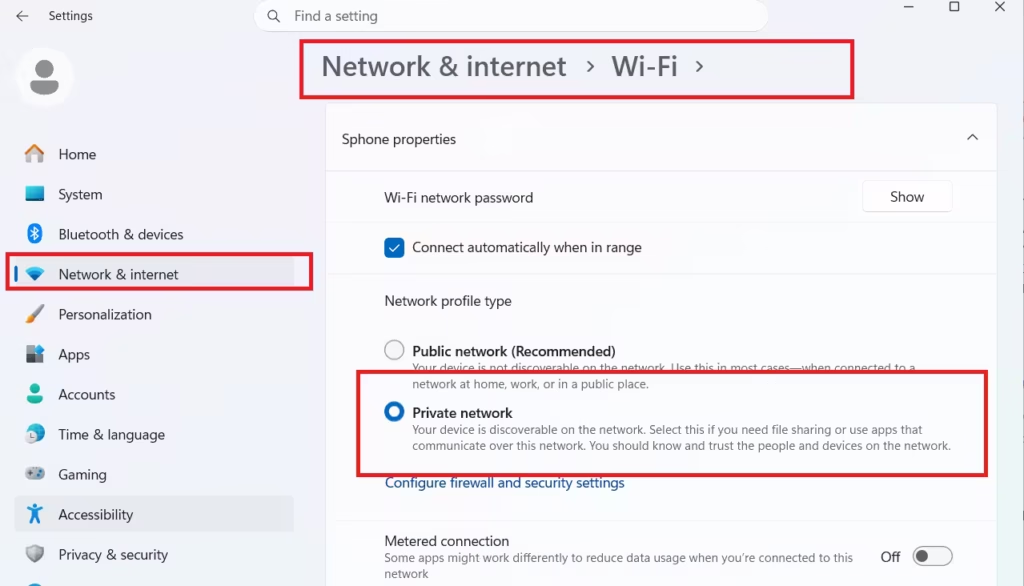
Fix 3: Set Your Network Profile to Private
Windows blocks certain network share connections when the network is set to Public. If KB5065426 reset your network profile, this can cause sudden share failures.
- Open Settings (Win + I).
- Go to Network and Internet.
- Click your active connection (Ethernet or Wi-Fi).
- Under Network profile type, select Private network.
- Try the network share again.
Fix 4: Flush DNS and NetBIOS Cache
After an update, stale name resolution cache can block share access, especially if you connect by hostname rather than IP address.
Open Command Prompt as Administrator and run these commands one by one:
ipconfig /flushdns
nbtstat -R
nbtstat -RR
net stop "DNS Client"
net start "DNS Client"
After running all commands, try the share again. If connecting by hostname fails but the IP address works, this is a DNS or NetBIOS resolution issue rather than an SMB protocol problem.
To test: map the share using the direct IP address format \\192.168.x.x\sharename instead of \\servername\sharename. If that succeeds, the fix above resolves the hostname path.
Fix 5: Uninstall KB5065426
If none of the above fixes work and you need immediate access, uninstalling the update restores the previous behavior.
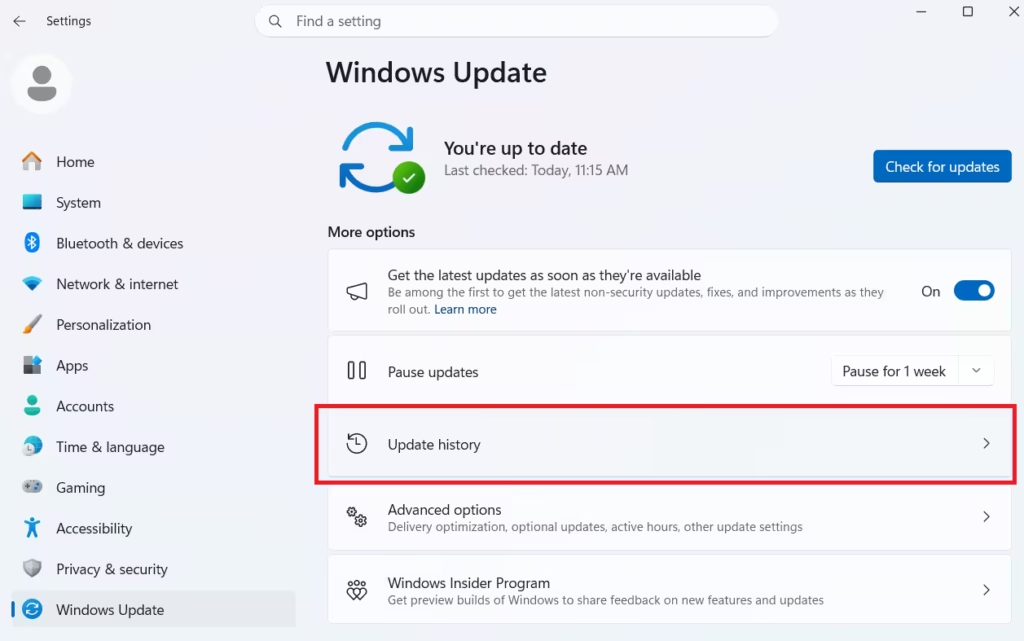
- Open Settings (Win + I).
- Go to Windows Update, then Update History.
- Click Uninstall updates.
- Find KB5065426 in the list.
- Click Uninstall and follow the prompts.
- Restart your PC.
After the restart, your network shares should connect as before. Windows Update will attempt to reinstall the update later. To pause updates temporarily, go to Windows Update and select Pause updates for up to 5 weeks.
Uninstalling is a workaround, not a permanent fix. Apply Fix 1 or Fix 2 before allowing the update to reinstall.
Which Fix Should You Try First?
| Situation | Start Here |
|---|---|
| Shares broke specifically after KB5065426, older server | Fix 2 (SMBv1 client, confirmed known issue) |
| Shares broke after any recent Windows 11 update, not just this one | Fix 1 (SMB signing) |
| Windows Server 2016 or newer, modern NAS | Fix 1 (SMB signing) |
| Share connects by IP but not hostname | Fix 4 (DNS/NetBIOS flush) |
| Nothing else works | Fix 5 (uninstall update) |
Frequently Asked Questions
Does KB5065426 enforce SMB signing?
No. KB5065426 adds SMB signing auditing tools so you can identify devices in your network that cannot handle signing. It does not enforce signing itself. SMB signing enforcement was introduced by earlier Windows 11 cumulative updates. If signing is causing your issue, the source is a prior update, not this one.
Does KB5065426 affect SMBv1?
Yes. Microsoft officially lists SMBv1 protocol connectivity as a known issue in KB5065426. If your server relies on SMBv1, re-enabling the SMBv1 client (Fix 2) is the first fix to try.
The share connects but shows access denied. Which fix applies?
Access denied after a connection is a permissions or credential issue, not an SMB protocol problem. Open Credential Manager (search in Start), find the stored credentials for the server, and remove them. Windows will prompt for fresh credentials on the next connection attempt.
Will this fix survive future Windows updates?
The registry and PowerShell changes persist across updates. However, Microsoft may override these defaults in future cumulative updates. After each major update, recheck your SMB signing setting if shares break again.

