Private DNS lets Windows 11 send DNS queries over an encrypted connection instead of plain text, which keeps your browsing lookups from being visible on the network. This guide covers how to set it up using the built-in DNS over HTTPS (DoH) option.
What Is Private DNS on Windows 11
Windows 11 does not use the term “Private DNS” the way Android does. Instead, it offers DNS over HTTPS (DoH), which achieves the same result: encrypted DNS queries between your PC and the DNS server.
Once enabled, your DNS requests are wrapped in HTTPS traffic, so your ISP or anyone monitoring the network cannot easily see which sites you are resolving.
Method 1: Add Private DNS in Windows 11 Using Settings
This is the easiest way if you want to use a common provider like Cloudflare or Google without a manual template, and does not require any command line work.
- Open Settings and go to Network & internet.
- Select your active connection (Wi-Fi or Ethernet).
- Click on the connection name itself (for example the Wi-Fi network name link, not Hardware properties, which only shows adapter and driver details).
- Next to DNS server assignment, click Edit.
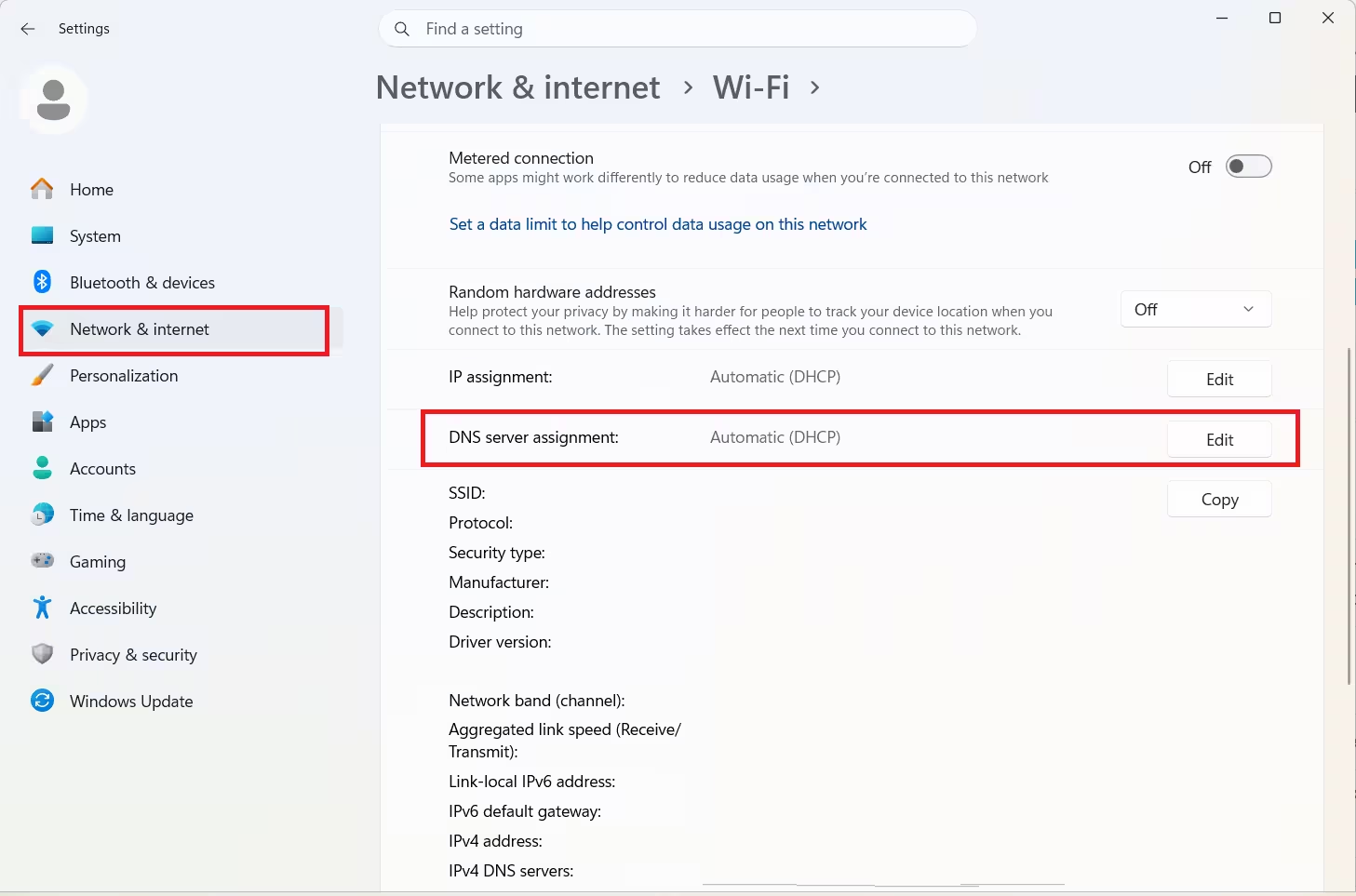
- Change the dropdown from Automatic (DHCP) to Manual.
- Toggle IPv4 (and IPv6 if needed) to On.
- Enter a DNS provider that supports DoH, for example
1.1.1.1for Cloudflare or8.8.8.8for Google.
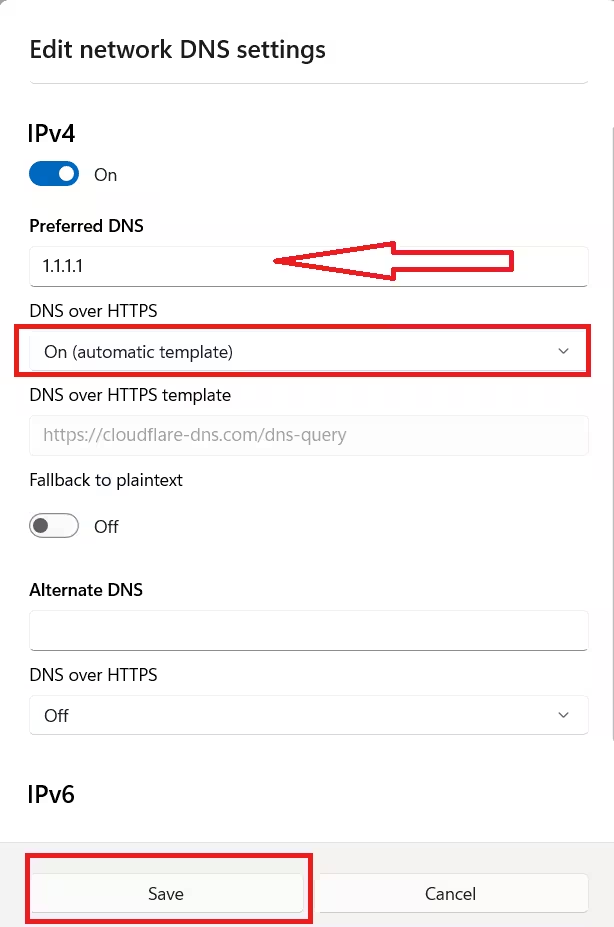
- Click the dropdown under DNS over HTTPS and select On (automatic template). A DNS over HTTPS template field appears below it and auto-fills with the correct template URL for that provider, for example
https://cloudflare-dns.com/dns-queryfor1.1.1.1. - Leave Fallback to plaintext toggled Off unless you need the connection to fall back to unencrypted DNS when the DoH server is unreachable.
- If you want a backup DNS server, enter it under Alternate DNS and set its own DNS over HTTPS dropdown the same way.
- Click Save.
The Encrypted only option only becomes selectable when Windows recognizes the IP as a known DoH provider, such as 1.1.1.1, 1.0.0.1, 8.8.8.8, or 9.9.9.9. Entering a different DNS IP will leave that option greyed out.
Windows will now route DNS queries for that connection through an encrypted channel to the provider you selected.
Method 2: Add Private DNS in Windows 11 Using PowerShell
For users who prefer scripting or need to apply this across multiple machines, PowerShell offers a faster path.
- Open PowerShell as Administrator.
- Check your exact adapter name first, since “Wi-Fi” will fail on Ethernet or a renamed adapter:
Get-NetAdapter- Run the following command to add a DoH-capable DNS server to your network interface, replacing the interface alias and IP with your own values:
Set-DnsClientServerAddress -InterfaceAlias "Wi-Fi" -ServerAddresses ("1.1.1.1","1.0.0.1")- Register the DoH template for the server so Windows knows to use encryption:
Add-DnsClientDohServerAddress -ServerAddress 1.1.1.1 -DohTemplate "https://cloudflare-dns.com/dns-query" -AllowFallbackToUdp $False -AutoUpgrade $True- Confirm the setting applied correctly:
Get-DnsClientDohServerAddress- Clear the existing DNS cache so old unencrypted lookups do not linger:
ipconfig /flushdnsMethod 3: Set Up Private DNS Using a Manual Template
This method uses a DoH template URL from a Private DNS provider such as ControlD, AdGuard, or NextDNS, and matches how Private DNS is typically set up on Android.
- Sign up with a Private DNS provider and copy the DNS-over-HTTPS template URL they generate for your account. This URL typically looks like
https://your-id.dns.provider.com/dns-queryor a similar provider-specific link ending in/dns-query. - Open Settings and go to Network & internet.
- Select your active connection (Wi-Fi or Ethernet) and click on the connection name to open its properties.
- Next to DNS server assignment, click Edit.
- Change the dropdown from Automatic (DHCP) to Manual.
- Toggle IPv4 to On.
- Enter any placeholder or your provider’s resolver IP under Preferred DNS, since the DNS over HTTPS dropdown only appears once this field has a value.
- Click the dropdown under DNS over HTTPS and select On (manual template).
- Paste the DoH template URL you copied earlier into the DNS over HTTPS template field that appears.
- Click Save.
If On (manual template) does not appear as an option, toggle IPv4 off and back on, or restart the Settings app. This option is tied to the IPv4 toggle being active and can fail to load if the toggle was switched on before the page fully refreshed.
Windows will now send DNS queries for that connection through the provider’s encrypted template instead of your ISP’s default DNS.
How to Verify Private DNS Is Working
After enabling any of the methods above, confirm that DNS over HTTPS is actually active.
- Open Settings > Network & internet, then open the connection properties again.
- Check that Preferred DNS encryption still shows Encrypted only or the manual template you set.
- Alternatively, open a browser and visit
https://1.1.1.1/help. The page reports “Connected to 1.1.1.1 using DNS over HTTPS (DoH)” when Private DNS is active, or “Not connected to 1.1.1.1” if it is not. This check only confirms a Cloudflare-based setup; if you used Method 3 with a different provider such as AdGuard, ControlD, or NextDNS, this page will show “not connected” even when your setup is correct. Rely on step 2 or step 4 instead for those providers. - In PowerShell,
Get-DnsClientDohServerAddressshould list the server with DoH enabled.
How to Change Private DNS in Windows 11
Switching to a different provider or template uses the same settings screen as the initial setup.
- Open Settings > Network & internet and select your active connection.
- Click Edit next to DNS server assignment.
- Replace the existing IP address or DoH template URL with the new one.
- Click Save.
How to Remove Private DNS in Windows 11
Turning Private DNS off returns the connection to your default network or ISP-assigned DNS.
- Open Settings > Network & internet and select your active connection.
- Click Edit next to DNS server assignment.
- Change the dropdown from Manual back to Automatic (DHCP).
- Click Save.
Private DNS Not Working in Windows 11: Common Fixes
Private DNS can fail to work for a few distinct reasons, and each one needs a different fix.
If pages fail to load after switching, temporarily set Preferred DNS encryption back to Unencrypted preferred to confirm whether DoH is the cause. From there, check these causes:
- Provider server is down: Check your Private DNS provider’s status page before assuming the fault is local.
- VPN or proxy conflict. Running a VPN alongside Private DNS can cause queries to fail since both try to control DNS routing. Disable one and test again.
- Wrong network adapter selected: If you have multiple connections (Wi-Fi and Ethernet), confirm you edited the one currently in use.
- ISP router blocking DoH: Some ISP-provided routers block DNS over HTTPS at the hardware level. If the issue persists across all providers, this is the likely cause, and the router may need to be replaced or reconfigured.
- Firewall blocking outbound traffic: Open Windows Defender Firewall with Advanced Security, check Outbound Rules for anything blocking port 443, and confirm third-party antivirus is not blocking DoH traffic separately.
Frequently Asked Questions
Does Windows 11 support Private DNS like Android?
Windows 11 does not have a setting literally named Private DNS. It uses DNS over HTTPS (DoH), which serves the same purpose of encrypting DNS traffic.
Which DNS providers support DoH on Windows 11?
Cloudflare (1.1.1.1), Google (8.8.8.8), and Quad9 (9.9.9.9) all support DoH and work with the built-in Windows 11 settings.
Will enabling Private DNS slow down my internet?
There may be a small delay on the first lookup to a new domain, but subsequent lookups are cached and perform normally.
Can I set different DNS encryption for Wi-Fi and Ethernet?
Yes. DNS encryption settings apply per network adapter, so Wi-Fi and Ethernet can each have their own configuration.
Is Private DNS safe to use?
Yes. Private DNS encrypts queries between your PC and the DNS provider, which prevents anyone monitoring the network from seeing the domains you look up.
Is Private DNS better than a VPN?
They serve different purposes. A VPN masks your IP address and routes all traffic through a remote server, while Private DNS only encrypts DNS lookups and does not hide your IP or reroute other traffic.
Do I need a paid Private DNS provider, or is free enough?
Free providers like Cloudflare, Google, and Quad9 are sufficient for encrypted DNS. Paid providers such as ControlD or NextDNS add extras like custom filtering rules, analytics, and per-device profiles.

