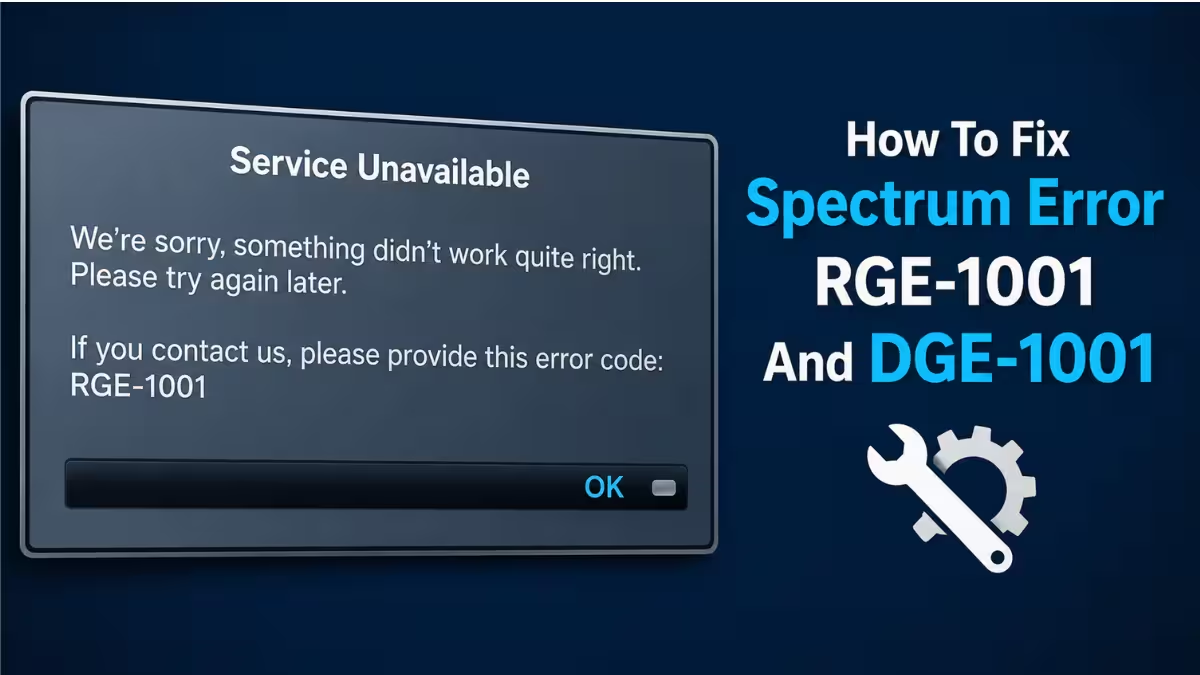
Spectrum TV throws error codes RGE-1001 and DGE-1001 when the app cannot hold a stable line to Spectrum’s servers. Both codes show up as “service unavailable” or “unable to connect” messages on Roku, Android, iPhone, Apple TV, Fire TV, smart TVs, and web browsers, and they usually point to a network, authentication, or app problem rather than a broken device.
What Causes Spectrum Error RGE-1001 And DGE-1001
A handful of triggers account for most reports of this error.
- An unstable or weak internet connection that drops the app’s link to Spectrum’s servers
- Corrupted cache or app data left behind by an update or interrupted session
- A VPN or proxy masking your location and breaking Spectrum’s authentication check
- A temporary outage on Spectrum’s end that affects service in your area
Work through the fixes below in order, starting with the simplest checks first.
Fix 1: Confirm Your Internet Connection
A shaky connection is the most common reason the app throws RGE-1001 or DGE-1001.
- Open a browser on the same network.
- Load a few different websites.
- Try streaming a video outside the Spectrum app, such as on YouTube.
- If pages load slowly or video buffers, treat it as a network issue rather than a Spectrum TV problem.
Fix 2: Power Cycle Your Modem And Router
Temporary glitches on your networking hardware often trigger this error.
- Turn off the modem and router.
- Unplug both devices.
- Wait 60 seconds.
- Plug the modem back in and let the status lights stabilize.
- Power on the router.
- Reconnect your streaming device to Wi-Fi.
- Relaunch the Spectrum app.
Fix 3: Restart The Streaming Device
A quick restart clears temporary software conflicts on whatever device runs the Spectrum app.
Roku
- Press Home.
- Go to Settings > System > Power.
- Select Restart.
Android
- Hold the power button.
- Choose Restart.
- Wait for the reboot to finish.
iPhone
- Power off the device.
- Wait 30 seconds.
- Turn it back on.
Apple TV
- Open Settings.
- Go to System.
- Select Restart.
Fix 4: Sign Out And Sign Back In
Authentication failures behind DGE-1001 often clear once the app issues a fresh token.
- Open the Spectrum TV app.
- Go to Settings.
- Select Sign Out.
- Close the app completely.
- Reopen the app.
- Sign back in with your Spectrum credentials.
Fix 5: Reinstall The Spectrum App
Reinstalling removes corrupted files and resets the app to default settings, which makes it one of the more reliable fixes for RGE-1001.
Android
- Open Settings > Apps > Spectrum TV.
- Tap Uninstall.
- Restart the device.
- Reinstall the app from the Play Store.
iPhone
- Press and hold the app icon.
- Select Remove App.
- Restart the phone.
- Download the app again from the App Store.
Roku
- Highlight the Spectrum TV tile.
- Press the Star (*) button.
- Select Remove Channel.
- Restart the Roku.
- Reinstall Spectrum TV.
Fix 6: Clear The App Cache
Cached files that get corrupted during an update can block server communication.
- Open Settings > Apps > Spectrum TV.
- Tap Storage.
- Select Clear Cache.
- Restart the app.
Most smart TVs have a similar cache-clearing option inside their app management settings.
Fix 7: Disable VPN Or Proxy Services
A VPN or proxy can interfere with Spectrum’s location check and trigger DGE-1001, especially on mobile.
- Disconnect the VPN.
- Turn off any proxy service.
- Restart the Spectrum app.
- Try streaming again.
Fix 8: Reset Your Wi-Fi Or Network Settings
If the error persists across devices, the network configuration itself may need a reset.
Android
- Open Wi-Fi Settings.
- Select your network.
- Tap Forget Network.
- Reconnect using the password.
iPhone
- Open Settings > Wi-Fi.
- Tap the information icon next to your network.
- Choose Forget This Network.
- Reconnect using the password.
Where possible, connect the streaming device to the router with Ethernet instead of Wi-Fi for a more stable link.
Fix 9: Check For A Spectrum Outage
Sometimes the fault sits on Spectrum’s side rather than yours.
- Open a web browser.
- Visit the Spectrum support site.
- Sign in to your account.
- Check for reported outages in your area.
If an outage is confirmed, waiting it out is the only real option since there is nothing to fix on your end.
Fix 10: Contact Spectrum Support
If none of the fixes above work, reach out to Spectrum support directly.
- Note the exact error code displayed.
- Note your device model.
- Note the app version.
- List the troubleshooting steps you already tried.
- Contact Spectrum support and provide these details.
Support staff can refresh or reset the account on their side, which resolves the issue for many users when the account itself is out of sync with Spectrum’s systems.
Final Thoughts
Most cases of RGE-1001 and DGE-1001 trace back to a shaky connection, a stale app cache, or a token that needs refreshing, and the first few fixes above clear the error for most users. If the problem stays after working through the list, treat it as a sign the account or the server needs attention on Spectrum’s end and get in touch with support.
Frequently Asked Questions
What does Spectrum error RGE-1001 mean?
It means the Spectrum TV app cannot properly communicate with Spectrum’s servers, usually due to a connectivity, authentication, or server-side issue.
What causes Spectrum error DGE-1001?
DGE-1001 is commonly tied to network communication failures, authentication problems, VPN interference, or corrupted app data.
Does reinstalling the Spectrum app fix RGE-1001?
Yes. Reinstalling clears out corrupted files and restores the app’s default settings, which resolves the error for many users.
Can a router cause Spectrum RGE-1001?
Yes. An overloaded router, outdated firmware, or a corrupted DNS cache can all interrupt communication between the app and Spectrum’s servers.
Read More:
- Fix Excessive DMP Files in Windows 11 System32 Folder
- How to Fix Outlook Keeps Signing Into Wrong Account
- How to Fix Claude Response Incomplete Error
- How to Fix Cannot Get Mail Connection to Server Failed on iPhone
- How to Fix Spotify Error Accounts 4 “No Internet Connection”
- Could Not Activate Cellular Data Network on iPhone: How to Fix It

