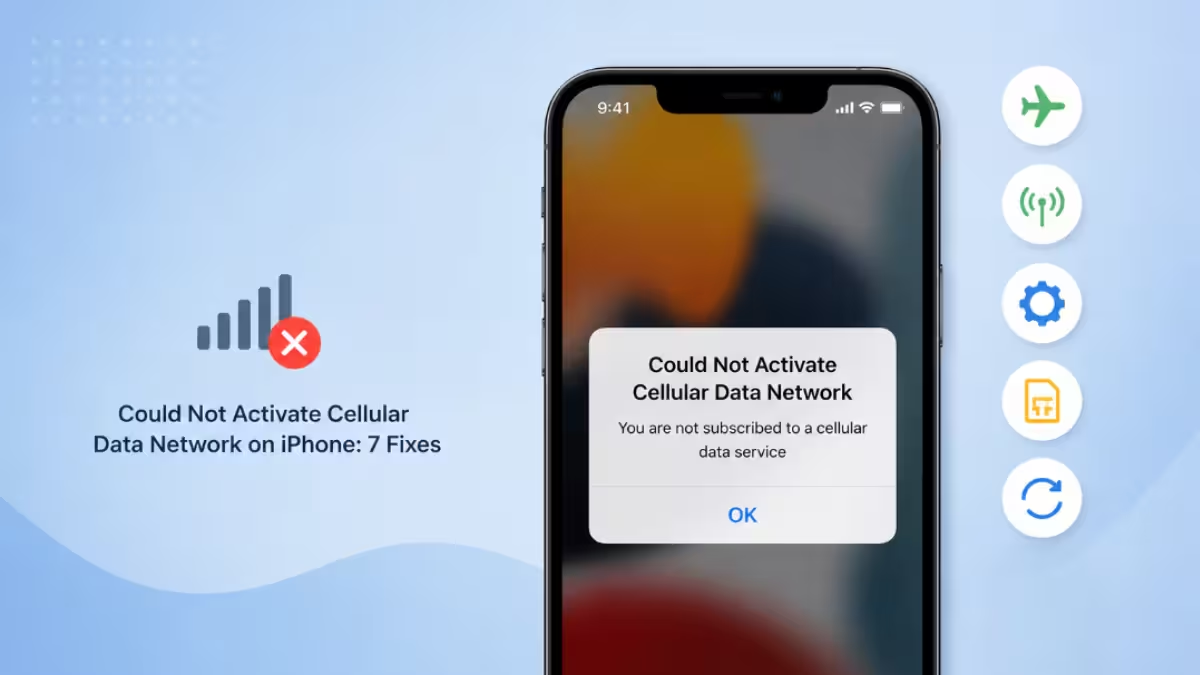
The "Could Not Activate Cellular Data Network" error stops your iPhone from using mobile data even though your plan is active and signal bars are visible. It usually traces back to a carrier settings mismatch, a SIM card issue, or an APN configuration problem. The fixes below start with the quickest checks and move toward deeper resets, so work through them in order.
What Causes the Could Not Activate Cellular Data Network Error
This error usually points to a handful of underlying issues rather than one single cause.
- Outdated or corrupted carrier settings that no longer match your network provider's requirements
- Incorrect or missing APN configuration on the device
- A SIM card that is loose, damaged, or not seated properly in the tray
- An expired, exhausted, or improperly activated data plan
- A pending iOS update that includes a fix for the connectivity bug
Fix 1: Turn Cellular Data Off and Back On
A quick toggle reset often clears a temporary connection glitch before you move to anything more involved.
Open Settings, tap Cellular, and check that the Cellular Data toggle is switched on. If it is already green, switch it off, wait a few seconds, and turn it back on. This forces your iPhone to reestablish the connection from scratch.
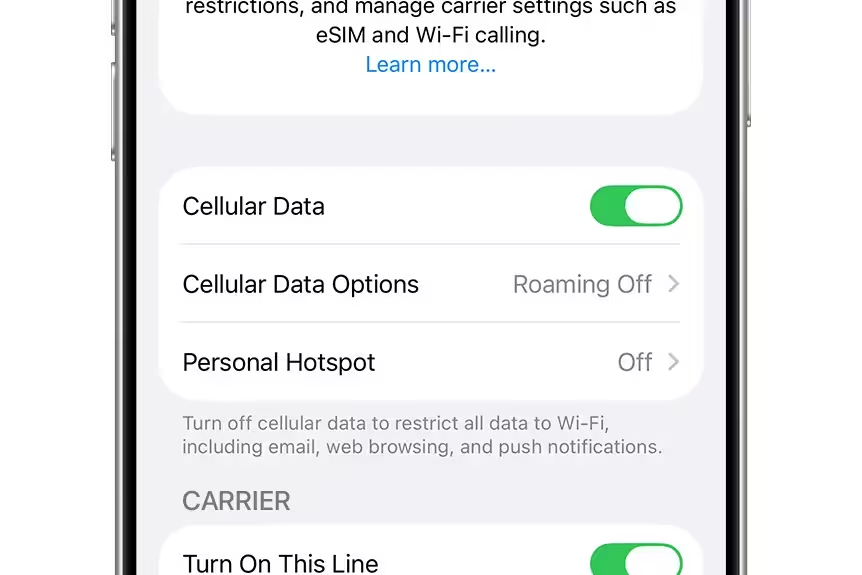
While you are in this menu, also confirm Airplane Mode is off, since it disables all networking, including cellular data, and can trigger this exact error.
Fix 2: Remove and Reinsert the SIM Card
A SIM that has shifted slightly out of place can stop your iPhone from activating the cellular network properly.
Power off your iPhone first. Use the SIM ejector tool to pull out the tray, wipe the SIM contacts gently, and check for any visible scratches or cracks. Slot it back in firmly, then power the iPhone back on and test your connection.
If you use an eSIM instead of a physical card, go to Settings > Cellular, select your eSIM line, and turn off Turn On This Line. Wait a moment, then switch it back on.
Fix 3: Update Carrier Settings
Carriers push periodic updates that improve how your iPhone talks to their network, and an outdated version can cause activation failures.
Connect to Wi-Fi, then go to Settings > General > About. If a carrier settings update is available, your iPhone shows a prompt automatically. Tap to install it and restart your phone once it finishes.
Fix 4: Reset APN Settings
Wrong Access Point Name values block your iPhone from reaching your carrier's data network, even when everything else looks correct.
Go to Settings > Cellular > Cellular Data Network. Tap Reset Settings and confirm. Your carrier usually pushes the correct APN automatically after this, but if the field stays blank, contact your carrier for the exact values to enter manually.
Fix 5: Update iOS
A bug introduced in a previous iOS build can interfere with cellular activation, and Apple frequently patches these issues in later updates.
Connect to Wi-Fi since cellular is unavailable, then open Settings > General > Software Update. Install any pending update and check whether the error clears after your iPhone restarts.
Fix 6: Reset Network Settings
When none of the targeted fixes work, a full network settings reset rebuilds your connection profile from scratch.
Go to Settings > General > Transfer or Reset iPhone, tap Reset, then choose Reset Network Settings. This wipes saved Wi-Fi passwords and paired Bluetooth devices, so keep your Wi-Fi credentials handy before you proceed.
Fix 7: Contact Your Carrier or Apple Support
If the error persists after every software fix, the problem may sit on your carrier's side or point to a hardware fault.
Call your carrier to confirm your plan is active and correctly provisioned on their network. If they find no issue, book a Genius Bar appointment so Apple can check for antenna or modem damage.
Frequently Asked Questions
Why is my cellular data not working even though it's turned on?
Network outages, incorrect APN settings, software glitches, or a faulty SIM card can all keep cellular data from working despite the toggle being on. Restarting your iPhone, checking the SIM card, and resetting network settings resolve most cases.
What are APN settings and why do they matter?
APN settings are the configuration details that let your iPhone connect to your carrier's data network. Without correct values, your phone cannot access the internet over cellular even when signal bars are showing.
My data plan is unlimited, so why is cellular data not activating?
An unlimited plan does not rule out other issues like network outages, SIM problems, incorrect APN entries, or software bugs. Contact your carrier to verify the plan is active and properly provisioned on their end.
What is data roaming and when should I turn it on?
Data roaming lets your iPhone use another carrier's network when you are outside your home carrier's coverage area. Turn it on while traveling internationally, but check for roaming charges first.
Could a recent iOS update be causing this error?
Yes. New iOS versions occasionally introduce bugs that affect cellular connectivity. Check for a follow-up update or contact Apple Support if the issue started right after updating.