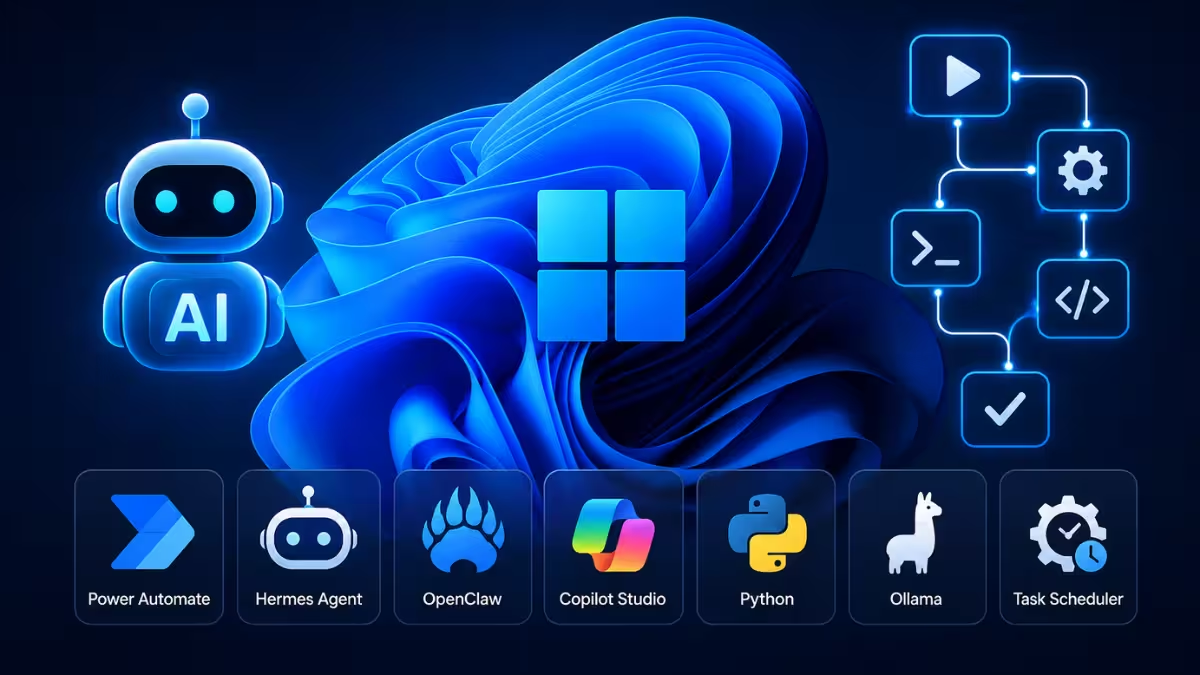
Windows 11 now supports two broad routes to automate tasks with AI: natural-language agent tools that need no coding, and custom scripts that call an AI API for decisions mid-workflow. This guide starts with three agent-based tools you can set up in minutes, then moves into scripting methods for tasks an agent cannot handle on its own.
How to Automate Tasks with Hermes Agent AI
Hermes Agent is an open-source AI agent from Nous Research that runs persistently on your PC and remembers your preferences across sessions. It comes with over 40 built-in tools, including web search, browser control, and file operations, so you can hand it a task in plain English instead of writing a script.
Install it on Windows 10/11 through the native app from the official Hermes Agent site, or run this command from a terminal for a CLI-only install:
curl -fsSL https://hermes-agent.nousresearch.com/install.sh | bashAfter setup, connect it to Telegram, Discord, Slack, WhatsApp, or another messaging platform if you want to trigger tasks remotely instead of only from your desktop.
A typical prompt looks like this:
“Every morning at 8 AM, check the latest Windows and AI news from reliable sources, summarize the top five stories, and save the summary as a text file in my Documents folder.”
Hermes handles the scheduling, browsing, and summarizing on its own since natural-language scheduling is a built-in feature, and it remembers this instruction across restarts so you do not need to repeat it.
How to Automate Your PC with OpenClaw AI
OpenClaw is another open-source AI agent that runs on your own hardware and connects to messaging apps like WhatsApp, Telegram, and Discord to execute commands, manage files, and control your browser. It runs natively on Linux and macOS, and on Windows through WSL2, so you need WSL2 enabled before installing it on a Windows 11 machine.
Once installed, OpenClaw manages sessions and routing through a Gateway process. Reach the web control UI at http://localhost:18789 in your browser, or interact through whichever messaging app you connected during setup. Give it a prompt such as:
“Organize the files in my Downloads folder by type at the end of each workday. Create a subfolder for images, documents, and spreadsheets, and move the matching files into each one without deleting anything.”
OpenClaw evaluates its skill library, picks the right tools for the job, and repeats the task automatically going forward. Since it runs with real system access, bind it to localhost, enable token authentication, and review any community-built skill before installing it.
How to Automate Email and Teams with Copilot Studio
If your daily work runs through Outlook, Teams, or other Microsoft 365 apps, Copilot Studio lets you build a dedicated Copilot agent without touching code. Create the agent inside Copilot Studio and connect it to the Microsoft 365 apps you use most. Copilot Studio requires a Microsoft 365 Copilot or Power Platform license, so check your organization’s plan before building an agent here, since a personal or free Microsoft account will not have access.
For inbox triage, a prompt like this works well:
“Every morning, check my inbox for unread work-related emails, summarize the ones that need a response, and prepare a draft reply for each. Do not send anything without my approval.”
For Teams, ask the agent to review your messages and mentions, then return a summary organized by priority. This keeps you from reading every notification manually while still giving you full control over what gets sent.
When You Need Custom Scripts Instead of an AI Agent
Agent tools cover most everyday tasks, but some workflows need tighter control than a natural-language prompt can offer, such as clicking a specific button inside a legacy desktop app based on what an error dialog says. The sections below cover that route using Power Automate Desktop, Python, and direct AI API calls.
How to Use Power Automate Desktop for AI Automation
Power Automate Desktop comes free with Windows 11 and includes AI Builder actions for document extraction, text classification, and object detection.
Open Power Automate Desktop from the Start menu and create a new flow. Add an AI Builder action such as “Extract information from documents” or “Recognize text in image” from the actions panel on the left. Connect the AI action to standard desktop actions like “Move mouse” or “Send keys” so the flow can act on what the AI reads.
This method works best for tasks like pulling invoice data into Excel or auto-filling forms based on scanned documents. It needs no coding knowledge, but it has limits on how much custom logic you can add compared to scripting. AI Builder actions run on credits tied to a Microsoft 365 or Power Platform license, so a free Windows account may show these actions as locked until you add a plan.
How to Control Windows Apps with Python
For workflows Power Automate cannot handle, pywinauto gives direct control over Windows applications through Python.
Install the library using pip install pywinauto in Command Prompt. Import the Application class in your script and connect to a running program using Application().connect(title="Window Title"). From there, you can target buttons, text fields, and menus by their control names rather than fixed screen coordinates, which keeps the script working even if a window moves or resizes.
Combine this with an AI API call partway through your script. Install the requests library with pip install requests, then send the extracted text to the API and read the decision back into a variable. Replace YOUR_API_KEY with a real key from your Anthropic Console account before running this:
import requests

response = requests.post(
    "https://api.anthropic.com/v1/messages",
    headers={"x-api-key": "YOUR_API_KEY", "anthropic-version": "2023-06-01"},
    json={
        "model": "claude-sonnet-4-6",
        "max_tokens": 200,
        "messages": [{"role": "user", "content": f"Error text: {extracted_text}. Which button should be clicked: Retry, Cancel, or Ignore? Reply with one word."}]
    }
)
decision = response.json()["content"][0]["text"].strip()
Pass decision into your pywinauto command, for example app.window(title="Error").child_window(title=decision, control_type="Button").click(). This pattern lets a script handle variable inputs like error messages or support emails instead of only fixed sequences.
How to Click Buttons Automatically Using AI Screen Recognition
Some desktop apps do not expose proper control names, so pywinauto cannot target them directly. OpenCV solves this by matching image patterns on screen.
Install it with pip install opencv-python. Capture a reference image of the button or icon you need to click, then use cv2.matchTemplate() in your script to locate that image inside a live screenshot. Once OpenCV returns the coordinates, feed them into pyautogui to perform the click.
This approach is slower than direct control targeting, so use it only for apps that block accessibility APIs, such as some legacy software or DRM-protected tools.
How to Run Automation Scripts on a Schedule in Windows 11
A script that only runs manually is not real automation. Task Scheduler lets Windows 11 launch your Python or PowerShell scripts on a timer or in response to system events.
Open Task Scheduler and select “Create Basic Task.” Set a trigger such as “Daily” or “When a specific event is logged,” then point the action to your Python interpreter with the script path as an argument, for example python.exe C:\Scripts\sort_files.py. Task Scheduler cannot watch a folder continuously on its own, so for folder-based triggers, run a small Python script with the watchdog library instead:
from watchdog.observers import Observer
from watchdog.events import FileSystemEventHandler
import time

class Handler(FileSystemEventHandler):
    def on_created(self, event):
        print(f"New file detected: {event.src_path}")
        # call your automation function here

observer = Observer()
observer.schedule(Handler(), path="C:\\Watched Folder", recursive=False)
observer.start()

while True:
    time.sleep(5)
Install the library first with pip install watchdog. Keep this watcher script running through a scheduled task set to start at login instead of a repeating timer.
Test the task by right-clicking it and selecting “Run” before relying on the scheduled trigger, since permission or path errors often only surface on first execution.
How to Run AI Automation Locally Without Cloud APIs
Sending screenshots or documents to a cloud AI API is not ideal when the content includes financial records or personal data. Ollama lets you run smaller AI models directly on your Windows 11 machine.
Download Ollama from its official site and install it. Pull a model with ollama pull llama3 in Command Prompt, then call it from your automation script using Ollama’s local API endpoint at http://localhost:11434. Send a request the same way you would with a cloud API, except there is no key to manage:
import requests

response = requests.post(
    "http://localhost:11434/api/generate",
    json={"model": "llama3", "prompt": f"Sort this filename into a category: {filename}", "stream": False}
)
category = response.json()["response"].strip()
This setup trades some accuracy for privacy, so test the local model against a few real examples from your workflow before trusting it in a live automation.
How to Trigger AI Actions with Keyboard Shortcuts
AutoHotkey v2 remains a lightweight option for hotkey-triggered automation, and it can call external scripts to add AI decision-making.
Write your AutoHotkey script to capture a hotkey press, then use RunWait to call a separate Python script that handles the AI API request:
^j::
RunWait, python.exe C:\Scripts\ask_ai.py, , Hide
FileRead, result, C:\Scripts\output.txt
Send, %result%
return
Have the Python script write its result to output.txt instead of printing it, since RunWait does not capture console output directly. AutoHotkey then reads that file with FileRead and sends the result as keystrokes or copies it to the clipboard.
This split keeps the AutoHotkey script simple while letting Python handle the heavier API and data processing work.
Frequently Asked Questions
Which method is best for someone with no coding experience?
Hermes Agent or Copilot Studio are the best starting points. Both accept plain-English instructions and need no scripting, unlike the Python or AutoHotkey methods below.
Does OpenClaw run natively on Windows 11?
No. OpenClaw runs through WSL2 on Windows, so you need WSL2 enabled first. It runs natively on Linux and macOS.
Do Hermes Agent and OpenClaw require an API key?
Yes for most setups. Both are free and open source, but you bring your own API key from a model provider such as OpenAI, Anthropic, or OpenRouter, or connect to a hosted gateway with its own subscription tiers. Both also support local models through Ollama if you want to avoid API costs entirely.
Can I combine Power Automate Desktop with Python scripts?
Yes. Power Automate Desktop has a “Run Python script” action that lets you call an external Python file and pass data back into the flow.
Is it safe to send screenshots to a cloud AI API?
Avoid this for screenshots containing passwords, financial data, or personal records. Use a local model through Ollama for anything sensitive.
Why does my pywinauto script fail to find a window?
This usually happens when the window title changes dynamically. Use a partial match with the title_re parameter instead of an exact title string.
Does Task Scheduler work if my laptop is asleep?
No. Task Scheduler will not trigger while the device is fully asleep. Enable “Wake the computer to run this task” in the task’s Conditions tab if the trigger needs to fire on schedule regardless of power state.
Related Guides
- How to Uninstall OpenClaw Completely (macOS, Linux, and Windows)
- How to Fix OpenClaw Not Discoverable on Path After Installation
- OpenClaw Patch Fixes One-Click RCE Bug Exploited Through Malicious Links
Automation Guides

