Windows 11 replaced the familiar right-click menu with a shorter, icon-based version, pushing options like “Send to,” “Give access to,” and third-party app entries into a separate “Show more options” submenu. That extra click adds up fast for anyone who right-clicks often. A one-time registry tweak brings the full classic menu back as the default, no extra submenu, no missing entries.
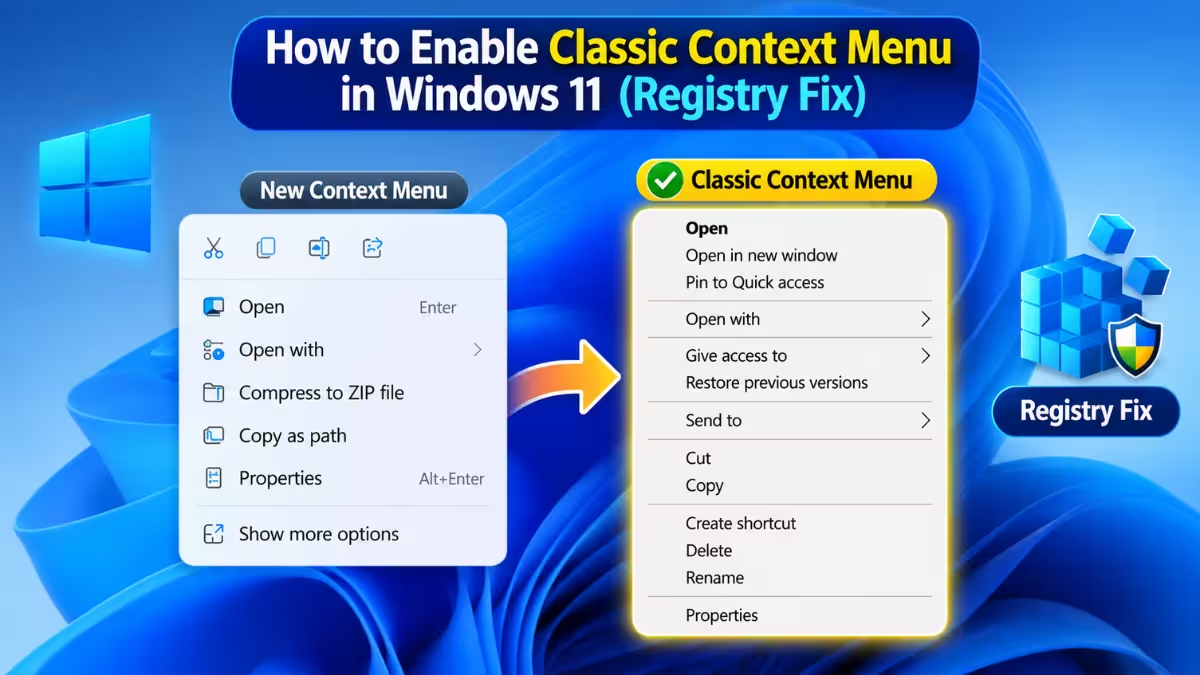
What Causes the Truncated Context Menu
Windows 11 redesigned File Explorer’s right-click menu to reduce clutter and match the new visual style.
- Microsoft moved several classic options into a secondary “Show more options” submenu.
- Third-party app entries (7-Zip, Git, IDE tools) often only appear in that secondary menu.
- The change was cosmetic, not a removal of functionality, everything from Windows 10 is still present, just hidden behind an extra click.
Method 1: Enable Classic Menu via Registry Edit
This method restores the full classic menu using Registry Editor. The edit only adds a new key, it does not touch any existing Windows setting, and it can be undone at any time using the revert steps below.
- Press
Win + R, typeregedit, and press Enter. - Navigate to
HKEY_CURRENT_USER\Software\Classes\CLSID. - Right-click CLSID > New > Key, and name it exactly
{86ca1aa0-34aa-4e8b-a509-50c905bae2a2}. Copy and paste this value instead of typing it, a single mistyped character will stop the tweak from working. - Inside that new key, create another subkey named
InprocServer32. - Click the InprocServer32 key. In the right pane, double-click the (Default) value and leave the field empty, then click OK. No text needs to be entered.
- Close Registry Editor, then restart Windows Explorer through Task Manager (
Ctrl + Shift + Esc> find Windows Explorer > right-click > Restart).
Right-clicking anywhere now shows the full classic context menu directly. If the menu still looks unchanged, recheck the key name for typos and make sure Explorer was fully restarted, a sign-out and sign-in also forces the change if a restart alone doesn’t work.
Method 2: Enable Classic Menu via Command Prompt
This applies the same registry change as Method 1 in a single command. Use this instead of Method 1, not in addition to it, useful for quick setup or scripting across multiple machines.
- Open Command Prompt.
- Run this command:
reg add "HKCU\Software\Classes\CLSID\{86ca1aa0-34aa-4e8b-a509-50c905bae2a2}\InprocServer32" /f /ve- Restart Windows Explorer through Task Manager to apply the change immediately.
How to Revert to the Default Windows 11 Menu
Removing the registry key brings back the original compact menu.
- Open Command Prompt and run:
reg delete "HKCU\Software\Classes\CLSID\{86ca1aa0-34aa-4e8b-a509-50c905bae2a2}" /f- Restart Windows Explorer through Task Manager to apply the change.
Frequently Asked Questions
Does this tweak affect all user accounts on the PC?
No. The change is written under HKEY_CURRENT_USER, so it only applies to the account it was applied from. Each user profile needs the tweak applied separately.
Will this break future Windows updates?
No. The tweak only adds a registry key under the current user’s classes and does not modify system files. Major feature updates have occasionally reset it, requiring the key to be reapplied.
Can I add or remove specific entries from the context menu with this method?
No. This tweak restores the classic Windows 10 layout as a whole. Editing individual entries requires a third-party tool such as Winaero Tweaker or Ultimate Context Menu Customizer, since Windows 11 has no built-in option for entry-by-entry editing.
Is this registry tweak safe?
Yes. It only creates a new key under HKEY_CURRENT_USER and does not modify any system file or existing setting. The change is fully reversible by deleting the same key.
Why did the classic menu disappear again after a Windows update?
Some major Windows 11 feature updates reset user-level registry customizations, including this one. If the compact menu returns after an update, reapply the registry key or command using the steps above.
Related Guides
- How to Remap the Copilot Key to Right Ctrl or Context Menu in Windows 11
- How to Install Windows 11 Insider Preview Build (Step by Step Guide)
- Windows 11 Insider Preview Build 26220.7872 Adds Smarter Context Menus and Cleaner Settings
- Windows 11 Gets Modular Start Menu With Resize and Section Toggles in Build 26300.8553

