Microsoft has confirmed that a future Windows 11 update will let you remap the Copilot key back to Right Ctrl or the Context Menu key. Until that update ships, you can use Microsoft PowerToys to reassign the key today.
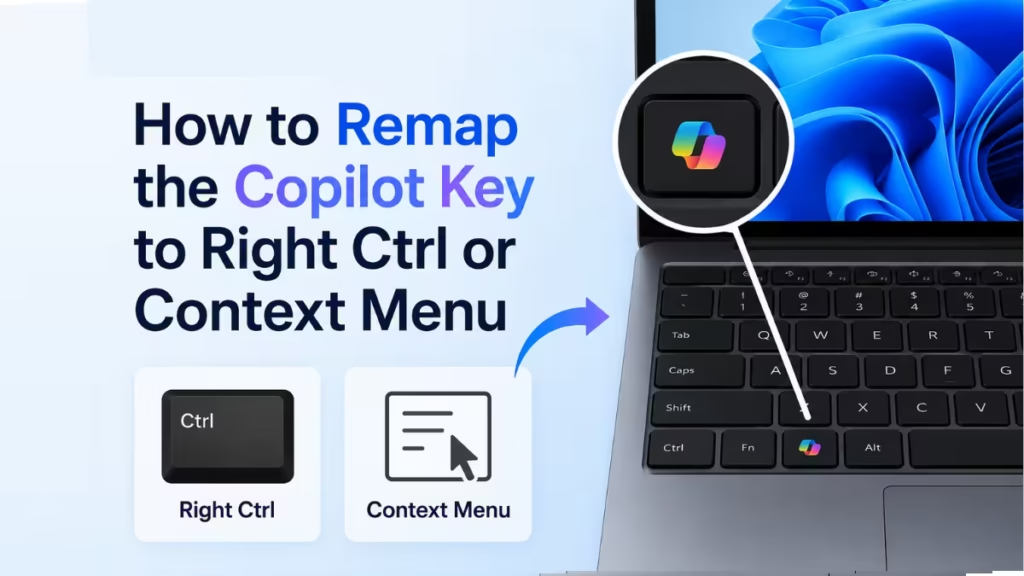
This guide covers both methods: the official Windows setting coming later in 2025 and the PowerToys workaround you can use right now.
Why Microsoft Is Adding This Option
Starting in 2024, hardware manufacturers began shipping new laptops and keyboards with a dedicated Copilot key. On many devices, that key replaced the Right Ctrl key or the Context Menu key entirely.
That change broke real workflows. Users who relied on Right Ctrl for one-handed keyboard shortcuts, screen readers, or VirtualBox host key functionality lost a key they used daily. Microsoft acknowledged the problem directly in a support document:
“Customers who rely on the Right Ctrl key or Context menu key for keyboard shortcuts or assistive technologies (such as screen readers) experienced some challenges to their workflows when using these devices.”
The Copilot key also saw almost no usage. Telemetry apparently showed that most users avoided pressing it altogether, and there are still no third-party apps that support launching through the Copilot key natively.
Method 1: Remap via Windows Settings (Coming Later This Year)
Microsoft will ship a Windows 11 update that adds a native setting to remap the Copilot key. Once it arrives, here is how to use it:
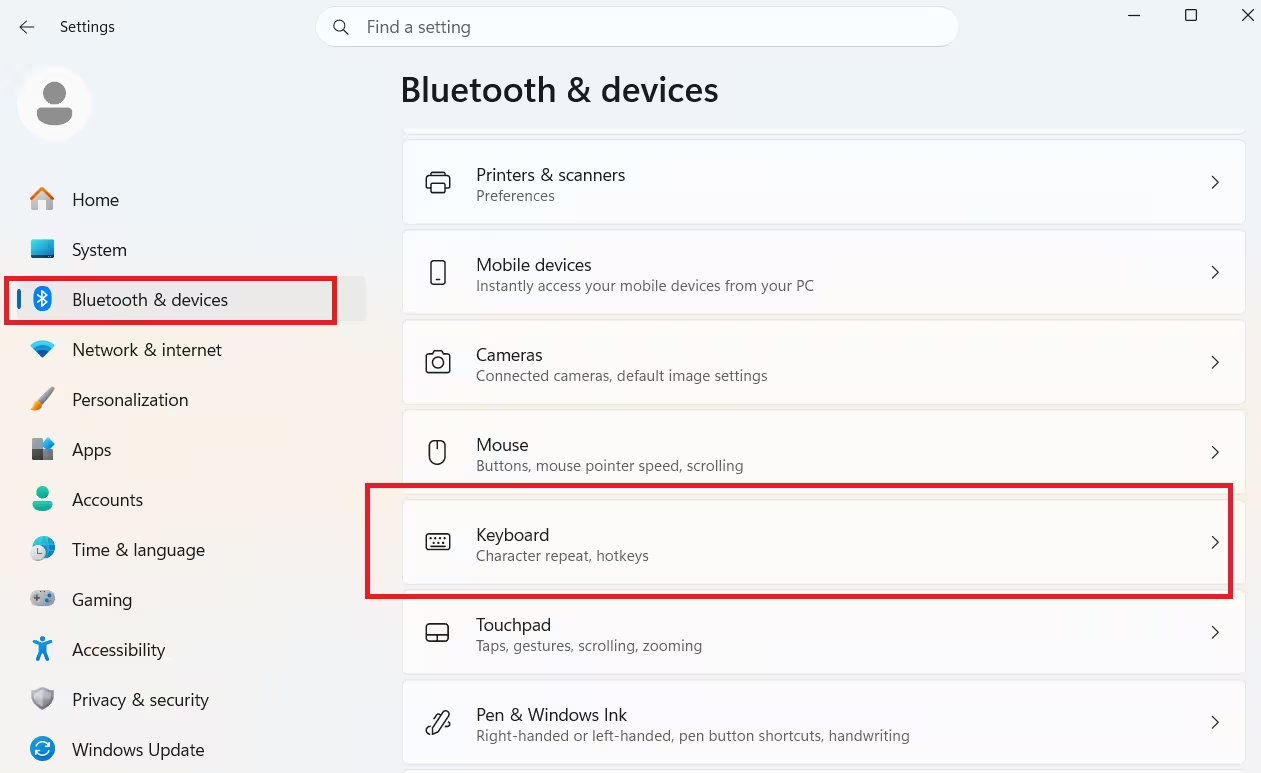
- Open Settings using Windows key + I.
- Go to Bluetooth & devices.
- Select Keyboard.
- Find the Copilot key option.
- Choose either Right Ctrl or Context Menu from the available options.
- Save the setting.
That is all it takes. The change applies system-wide on any Windows 11 PC with a Copilot key, regardless of device manufacturer.
Note: If you remap the Copilot key to Right Ctrl, some key combinations that use Left Shift together with Right Control may not work consistently on all keyboards. If you run into that issue, use the physical Right Shift key for those shortcuts instead.
Until the update ships, use Method 2 below.
Method 2: Remap with PowerToys Today (Works Now)
If you cannot wait for the official update, the Keyboard Manager in Microsoft PowerToys lets you reassign the Copilot key right now.
Step 1: Install PowerToys
- Open Microsoft Store or go to the Microsoft PowerToys GitHub releases page.
- Download and install the latest version.
- Launch PowerToys from the Start menu.
Step 2: Open Keyboard Manager
- In the PowerToys dashboard, click Keyboard Manager in the left sidebar.
- Toggle Enable Keyboard Manager on if it is not already active.
- Click Remap a key.
Step 3: Remap the Copilot Key
- Click the + button to add a new remap.
- Under Key, press the Copilot key on your keyboard to detect it.
- Under Mapped To, select Right Ctrl or whichever key you prefer.
- Click OK to save.
The remap takes effect immediately without a restart.
Known limitation: The PowerToys remap does not work inside a VirtualBox virtual machine when the VM captures keyboard input. VirtualBox uses Right Ctrl as its default Host Key, and a PowerToys remap at the host level does not carry through to the VM. The native Windows setting Microsoft is preparing may handle this at a lower level, but nothing has been confirmed yet.
What Each Remap Option Does
| Option | What It Restores |
|---|---|
| Right Ctrl | One-handed shortcuts (Ctrl+arrow keys, Ctrl+Alt+Del, mute tab, new tab). Default Host Key for VirtualBox. |
| Context Menu | Opens the right-click context menu from the keyboard. Useful in file managers and text editors. |
Can You Remap the Key to Something Else Entirely?
The upcoming Windows setting only supports Right Ctrl and Context Menu as targets. For anything beyond those two options, Microsoft PowerToys remains the most capable solution. The Keyboard Manager in PowerToys lets you map the Copilot key to virtually any key or shortcut you want.
Frequently Asked Questions
When will Microsoft add the Copilot key remap setting in Windows 11?
Microsoft confirmed the setting will arrive later in 2025 as part of a Windows 11 update. No specific build or release date has been announced. Check Windows 11 release information on Microsoft Learn for updates.
How do I remap the Copilot key right now without waiting for the update?
Install Microsoft PowerToys, open Keyboard Manager, click Remap a key, press the Copilot key to detect it, then set the target to Right Ctrl or any key you prefer. The change takes effect immediately.
Will remapping the Copilot key remove or disable the Copilot app?
No. Remapping only changes what the physical key does. The Copilot app stays installed and remains accessible through the Start menu or taskbar.
My laptop has its own remapping software. Should I use that or the Windows setting?
Use one, not both. Microsoft explicitly warns against using the device manufacturer’s tool and the Windows setting simultaneously. If your manufacturer’s tool works, stick with it. The Windows setting will apply universally once available.
Does the Copilot key remap work inside a VirtualBox virtual machine?
The PowerToys remap does not carry through when VirtualBox captures keyboard input. VirtualBox uses Right Ctrl as its default Host Key, and a host-level remap does not reach the VM. The native Windows setting may handle this at a lower level, but Microsoft has not confirmed that yet.

