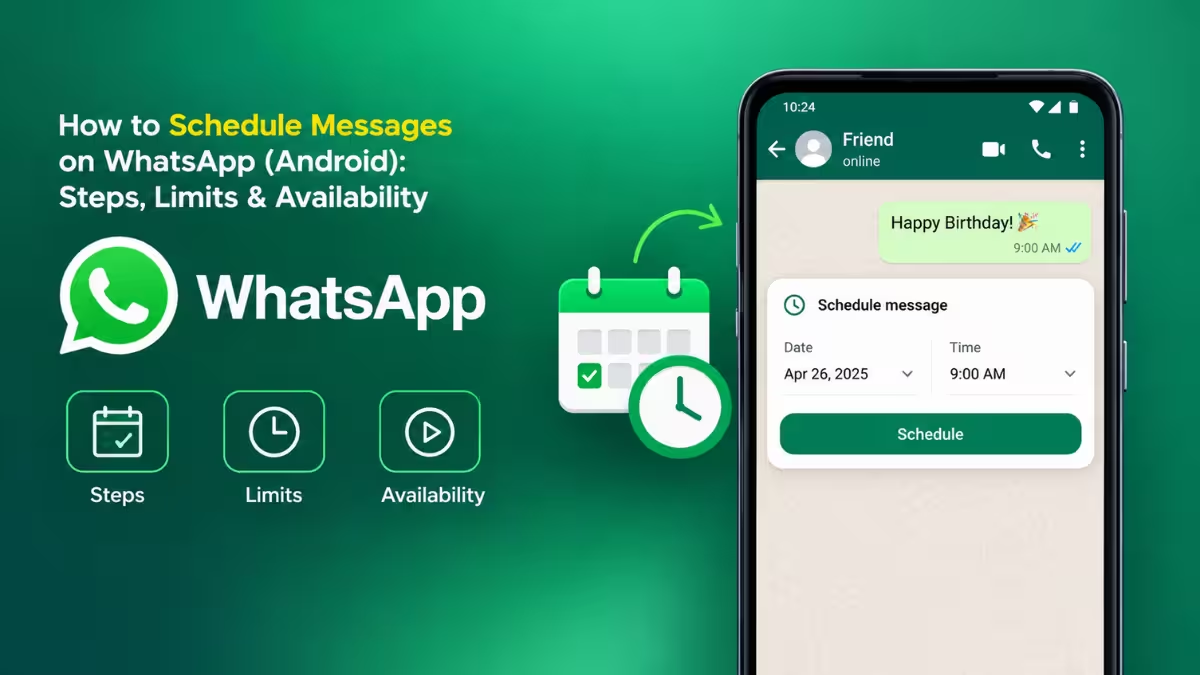
WhatsApp is building a native scheduler for Android that lets you queue a text, link, photo or video and send it at a time you pick. It works in personal and group chats, and the message goes out even if your phone is offline. The feature sits in limited beta testing, so this guide covers the exact steps, the limits you need to know, and how to check whether your account has it.
What Is the WhatsApp Scheduled Messages Feature?
Scheduled messages let you write now and deliver later without keeping the app open.
- You choose a date and time for each message.
- WhatsApp sends it automatically at that moment, even if the app is closed or the phone has no internet connection.
- The feature supports text, links, photos and videos.
- Scheduled messages keep WhatsApp’s end-to-end encryption.
- The person you message does not need the feature to receive your scheduled message.
How to Schedule a Text Message on WhatsApp (Android)
This works for any text or link you type into a chat.
- Open WhatsApp and open the chat you want to message.
- Type your message in the text field.
- Tap and hold the Send button.
- Pick the delivery date and time from the sheet that opens at the bottom of the screen.
- Confirm the schedule.
WhatsApp now holds the message and delivers it at the chosen time.
How to Schedule a Photo or Video on WhatsApp
You can schedule media from the gallery picker or from the editor after you adjust the file.
- Open the chat and tap the attachment icon to open the gallery picker.
- Select one photo or video.
- Edit it or add a caption if you want.
- Tap and hold the Send button.
- Choose the date and time, then confirm.
The drawing editor offers the same hold-to-schedule option, so you can add text, stickers or a caption first and schedule afterward.
WhatsApp Scheduled Message Limits: Time Range and Media Rules
The scheduler has a few firm boundaries that affect how you plan messages.
| Limit | Detail |
|---|---|
| Earliest send time | 10 minutes from now |
| Latest send time | 2 weeks from now |
| Media per scheduled message | 1 photo or video |
| Offline delivery | Works even if the app is closed or the phone is offline |
| Encryption | End-to-end encrypted |
Plan time-sensitive messages at least 10 minutes ahead, and send media one file at a time.
How to View or Delete Scheduled Messages on WhatsApp
You manage pending messages from the chat info screen.
- Open the chat and tap the contact or group name at the top.
- Find the Scheduled messages section.
- Review your pending messages.
- Select the message you want to remove and delete it.
When you delete a scheduled message before it sends, the recipient gets no notification. They also cannot see that you scheduled anything.
Can You Schedule Messages in WhatsApp Group Chats?
Yes, the scheduler works in groups, with one membership rule.
- Members who sit in the group when you schedule the message receive it.
- People who join after you schedule it do not get that message.
Check the group’s member list before you schedule an announcement if you expect new people to join soon.
Is WhatsApp Schedule Message Available Yet? Android Beta Status
Only a small group of Android beta testers can schedule messages at the moment.
- Status (updated October 12, 2026): WhatsApp started testing the scheduler on the Android beta, version
2.26.40.7, and is widening access in stages. - Installing that beta version does not guarantee the option appears, because WhatsApp switches it on per account.
- WhatsApp has not announced a stable release date, and no iPhone version has been announced.
Why Is the WhatsApp Schedule Message Option Not Showing?
A missing option usually means your account has not received the feature yet.
- Update WhatsApp: Install the latest version from the Google Play Store so you run the newest build.
- Join the beta program: Open the WhatsApp page on the Play Store and enroll in the beta, then update to the newest beta build.
- Wait for the server-side rollout: WhatsApp enables the scheduler gradually, so you may need to wait even on the right version.
- Check the platform: The test covers Android only. iPhone users do not have it.
Frequently Asked Questions
Can I schedule a WhatsApp message on iPhone?
Not at the moment. The beta test covers Android, and WhatsApp has not announced an iPhone release.
How far ahead can I schedule a WhatsApp message?
You can schedule from 10 minutes to 2 weeks ahead.
Will my scheduled message send if my phone is offline?
Yes. WhatsApp sends it at the chosen time even if the app is closed or your phone has no connection.
Can I schedule messages in WhatsApp groups?
Yes. Only members who belong to the group at the time you schedule the message receive it.
Does the receiver know when I delete a scheduled message?
No. WhatsApp does not notify the recipient, and they cannot see that you scheduled a message.
Can I schedule more than one photo or video at once?
No. Each scheduled message holds one photo or video.
Are scheduled messages end-to-end encrypted?
Yes. Scheduled messages keep the same end-to-end encryption as regular chats.
Does the other person need the scheduling feature to get my message?
No. Anyone can receive a scheduled message, even if their app does not show the scheduling option.

