If you encounter the AADSTS5000225 error when trying to sign in to Azure, your Microsoft Entra ID (formerly Azure Active Directory) tenant has been blocked due to inactivity. This blocks all sign-ins for both admins and users and cuts off access to your Azure portal, applications, and data.
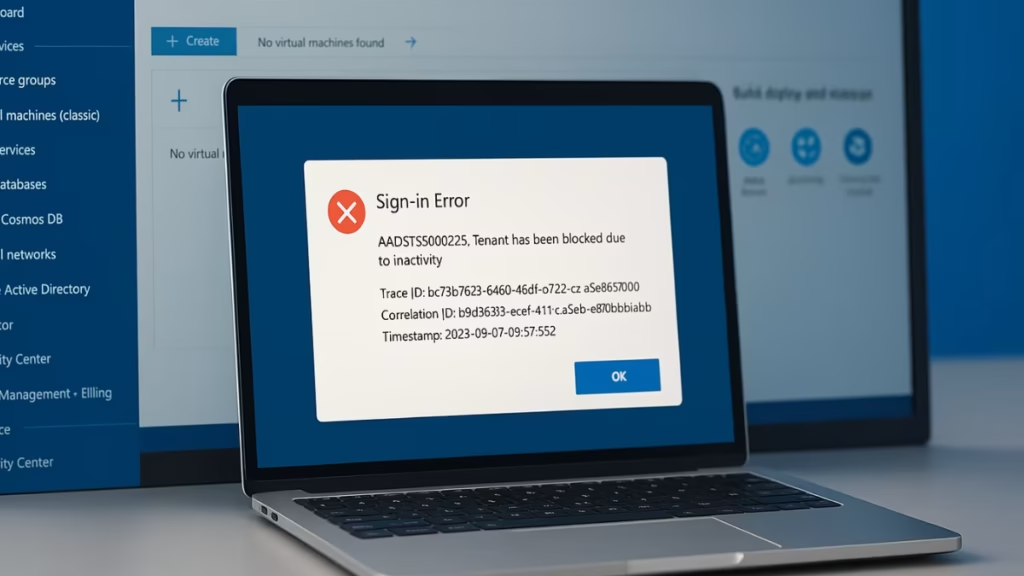
This guide covers every fix, including the ones that work when you cannot log in at all.
What Causes Error AADSTS5000225?
Microsoft automatically blocks tenants that show no sign-in activity for more than 200 days after the billing cycle. Inactivity means no sign-ins by any administrator or user across any application or service linked to that tenant.
Once blocked, the error message reads:
“The tenant has been blocked due to inactivity.”
Common triggers include:
- No admin or user sign-ins for more than 200 days
- The linked Azure subscription or Microsoft 365 license expired
- Microsoft automatically flagged the tenant as inactive
- The tenant entered the deletion grace period
Important: After the block, you have a 20-day grace period to restore the tenant. If you do not act within 20 days, Microsoft permanently deletes the tenant and all its data with no recovery option. If your tenant has already expired rather than gone inactive, see how to recover an expired Azure or Microsoft 365 tenant.
How to Fix AADSTS5000225 in Azure
Fix 1: Sign In with a Global Admin Account
Try logging in with the Global Administrator account used to create the tenant. Standard user accounts may be blocked while admin access still works in some cases.
- Go to the Azure Portal and sign in with the Global Admin credentials.
- If access works, check Microsoft Entra ID > Overview to confirm the directory status.
- Review Billing > Subscriptions and check for expired or disabled subscriptions.
- Reactivate any expired subscription to restore normal access.
If the Global Admin account also fails, move to the fixes below.
Fix 2: Use a Targeted Tenant Sign-In URL
When your browser session automatically redirects to the blocked tenant, you can force it to a specific active tenant by appending the Tenant ID directly to the portal URL.
- Find your active Tenant ID. Check old Azure emails, saved PowerShell connection properties, or ask a colleague signed in to the active tenant to find it under Microsoft Entra ID > Overview.
- Open a new private or incognito browser window.
- Navigate to
https://portal.azure.com/<your_active_tenant_id>. Replace the placeholder with your actual Tenant ID. For example:https://portal.azure.com/contoso.onmicrosoft.com. - Sign in with your work credentials. The request goes directly to the tenant you specified, bypassing the blocked one.
For ongoing multi-tenant management, use separate browser profiles or the Switch tenant feature inside the portal once signed in.
Fix 3: Reactivate the Subscription
If your tenant links to an Azure or Microsoft 365 subscription that expired, reactivating it restores access automatically.
- Log in to the Microsoft 365 Admin Center or Azure Portal.
- Go to Billing > Subscriptions.
- Look for any subscription listed as Expired or Disabled.
- Select the subscription and choose Reactivate or Renew.
- Assign at least one active license to users.
Once the subscription is active, try signing in again. This fix resolves the error in most cases where the block stems from a lapsed license.
Fix 4: Remove the Blocked Tenant from Your Personal Microsoft Account
If you use a personal Microsoft account (such as @outlook.com) linked to a work tenant, the login system can automatically redirect you to the blocked tenant every time you sign in. Removing that link breaks the redirect.
- Open a new InPrivate or Incognito browser window.
- Go to
https://myaccount.microsoft.com/organizations. - Sign in with your personal Microsoft account credentials.
- On the Organizations page, locate the blocked Azure AD tenant.
- Click it and select Leave organization or Remove, then confirm.
- Close all browser windows, reopen a new one, and navigate to
https://portal.azure.com. - Sign in with your work or school account. The redirect to the blocked tenant no longer occurs.
Fix 5: Contact Microsoft Support to Unblock the Tenant
Only Microsoft Support has the backend tools to manually lift the inactivity block. This is the required path if you cannot log in through any method.
Gather this information before you contact support:
- Tenant ID and domain name
- Full error message
- Trace ID, Correlation ID, and Timestamp from the error screen
- Business justification for restoration
If you can still access the Azure Portal:
- Go to Help + support > Create a support request.
- Select Azure Active Directory as the service.
- Submit the request with all the details above.
If you cannot log in at all:
- Call the Microsoft Global Business Support hotline at support.microsoft.com. When prompted, say “Authenticator” to reach a live agent who opens a ticket.
- Alternatively, create a free Microsoft 365 trial tenant using a different email address, then submit a support ticket from that tenant’s Admin Center specifying the blocked tenant details.
When speaking with support, explicitly state that the tenant is blocked with AADSTS5000225 and that you are within the 20-day grace period. This escalates the ticket to the Azure Identity team.
Fix 6: Create a New Tenant (Last Resort)
If the 20-day grace period has passed and Microsoft has permanently deleted the tenant, or if reactivation fails, your only remaining option is to create a new tenant.
Sign up for a new Azure Free Account or Microsoft 365 trial using a different email address. This creates a fresh tenant. If you sign up for a trial, cancel it before the trial period ends to avoid charges.
This option also suits test or learning tenants where the data loss is acceptable. If you need help accessing a new free account, see the guide on Azure Free Account access issues.
How to Prevent AADSTS5000225 in the Future
- Keep at least one active subscription tied to the tenant at all times.
- Have admins sign in periodically to register activity before the 200-day threshold.
- Assign at least two Global Admin accounts so recovery access remains available.
- Enable subscription auto-renewal to prevent accidental expiry.
- Set up Azure Monitor alerts for subscription status changes.

