The AADSTS50058 error appears when Azure Active Directory (Azure AD) receives a silent sign-in request but finds no active user session. Azure cannot authenticate you silently because the session cookies that prove who you are were missing from the request.
This error commonly blocks access to the Azure portal, Cost Management, and other Microsoft services. If you recently cleared browser data, switched browsers, used incognito mode, or returned after a long idle session, this guide covers the fixes.
The full error message often looks like this:
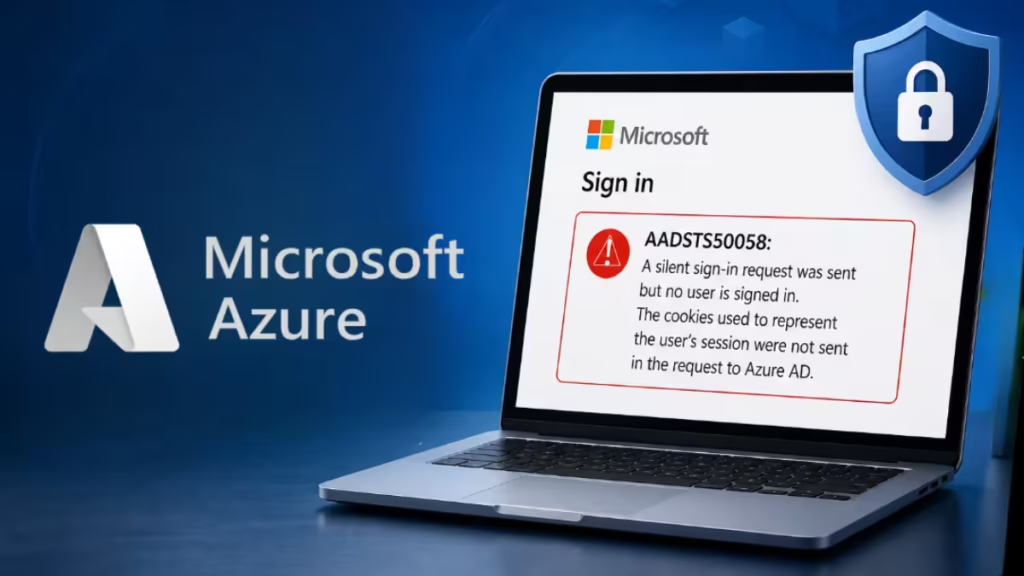
AADSTS50058: A silent sign-in request was sent but no user is signed in. The cookies used to represent the user's session were not sent in the request to Azure AD.
Who Usually Sees AADSTS50058
You may see this error when opening the Azure portal, Microsoft 365 admin center, Cost Management, Power BI, Teams web, or a custom app that uses Microsoft Entra ID sign-in. For regular users, the issue is usually browser cookies or expired sessions. For developers and admins, it may point to silent token refresh problems, Conditional Access changes, or app authentication configuration.
What Triggers AADSTS50058
Azure AD uses session cookies to confirm you are already signed in before performing a silent token refresh. When those cookies are absent, expired, or blocked, the silent request fails and throws AADSTS50058.
Common causes include:
- Browser cookies were cleared or blocked
- Incognito or private mode does not preserve session cookies
- The web app and Azure AD endpoint sit in different Internet Explorer or Edge security zones
- A third-party browser extension blocks cookies
- Your Azure AD session expired and requires a fresh interactive login
- Tenant configuration changes invalidated your existing session
Quick reference by situation:
| Situation | Best Fix |
|---|---|
| Cleared browser data recently | Sign out and sign in again interactively |
| Using incognito or private mode | Switch to a normal browser window |
| Error appears in Azure portal | Clear cookies and cache fully, then re-login |
| Error appears in custom app | Force interactive login before silent token request |
| Corporate device only | Check Conditional Access, browser policies, and sign-in logs |
| VPN or work network only | Try another network or disable VPN temporarily |
Fix 1: Sign Out Completely and Sign Back In
The fastest fix is a full interactive sign-in rather than relying on a silent token refresh.
- Go to portal.azure.com directly.
- Click your account icon at the top right and select Sign out.
- Close the browser tab.
- Open a fresh tab and navigate to portal.azure.com again.
- Sign in with your credentials.
A fresh interactive sign-in creates a new session cookie that Azure AD can use going forward.
Fix 2: Clear Cookies and Cache (Full, Not Just History)
Clearing browser history alone does not always remove all session cookies. Use the full cookie and cache clear instead.
Chrome:
- Press
Ctrl + Shift + Delete. - Set time range to All time.
- Check Cookies and other site data and Cached images and files.
- Click Clear data.
- Relaunch Chrome and sign into Azure again.
Edge:
- Press
Ctrl + Shift + Delete. - Select All time as the time range.
- Check Cookies and other site data and Cached images and files.
- Click Clear now.
After clearing, navigate directly to portal.azure.com and sign in interactively.
Fix 3: Do Not Use Incognito or Private Mode for Azure
Incognito mode does not preserve session cookies after the private session ends and may block or isolate cookies depending on browser settings. Azure AD relies on those cookies to maintain your session across tabs and silent requests. Switch to a normal browser window and sign in from there.
Incognito is useful for testing, but it is not a reliable environment for sustained Azure portal sessions.
Fix 4: Disable Browser Extensions Temporarily
Ad blockers, privacy extensions, and cookie managers can intercept or block the cookies that Azure AD needs. To test this:
- Open Chrome or Edge.
- Go to Extensions (three-dot menu > Extensions > Manage Extensions).
- Disable all extensions.
- Navigate to portal.azure.com and sign in.
If this resolves the error, re-enable extensions one at a time to identify the conflicting one. uBlock Origin, Privacy Badger, and similar tools are frequent culprits.
Fix 5: Check Legacy IE / Edge Security Zone Issues
This fix applies mainly to older enterprise environments, embedded web views, and legacy apps. The AADSTS50058 error message explicitly calls out Internet Explorer and legacy Edge security zones as a cause. If your web app sits in a different security zone than the Azure AD endpoint, those browsers block cross-zone cookie sharing.
To fix this in Internet Explorer or legacy Edge:
- Open Internet Options (search in the Start menu).
- Go to the Security tab.
- Select the Trusted Sites zone and click Sites.
- Add the following URLs:
https://login.microsoftonline.comhttps://portal.azure.comhttps://*.microsoft.com
- Click Close, then Apply, then OK.
- Restart the browser and try again.
Note: Microsoft no longer supports Internet Explorer for the Azure portal. If you regularly access Azure through IE, switch to Microsoft Edge or Google Chrome for full compatibility.
Fix 6: Check Your Account and Tenant Status
AADSTS50058 can also surface when your Azure AD tenant or account has a broader issue.
Verify you are using the correct account:
- Open myaccount.microsoft.com.
- Confirm the account that appears matches what your Azure subscription expects.
- If you manage multiple tenants, check that you are signing into the right one.
Check for tenant inactivity or blocking: If your tenant was inactive for an extended period, Azure may have blocked it. The AADSTS5000225 error shares a similar root cause. Follow the tenant recovery steps if needed.
Check for expired tenant: A subscription that lapsed or was not renewed can also cause sign-in failures. See the full guide on how to recover an expired Azure or Microsoft 365 tenant if your tenant may have expired.
Fix 7: Check Whether MFA Is Blocking the Silent Request
If your organization enforces Multi-Factor Authentication, Azure AD cannot complete a silent sign-in until you satisfy MFA interactively. Go to portal.azure.com directly, sign in, and complete the MFA prompt. Once you establish an authenticated session, silent token refreshes will work again.
If your organization is still rolling out MFA enforcement, the Azure Policy error guide for enabling MFA before October 2025 explains the required configuration steps.
Fix 8: Check App Registration Configuration for Custom Apps
If AADSTS50058 appears inside a custom web app rather than the Azure portal, the issue may not be your browser alone. The app may be attempting silent authentication without first forcing an interactive sign-in. Admins or developers should check redirect URIs, token cache behavior, client credentials, and certificate status on the App Registration.
The guide on renewing expired Azure certificates for authentication walks through the certificate review process in Microsoft Entra ID if credentials are part of the problem.
Fix 9: For Developers: Force an Interactive Login
If this error appears in a custom application, the app is likely calling silent token acquisition before a valid user session exists. Do not keep retrying silent authentication. Redirect the user to an interactive sign-in flow first.
For MSAL-based apps, this means falling back from silent token acquisition to an interactive login method when no account or cached session is available. The AADSTS50058 error is Azure AD telling the app that it must get explicit user consent through an interactive flow before any silent refresh can work.
Fix 10: Try a Different Network or Disable VPN
Corporate firewalls, VPNs, and proxy servers occasionally strip cookies or block requests to Azure AD endpoints. If you access Azure from a work network, try switching to a mobile hotspot or home connection to confirm whether the network is the issue.
If you use an Azure VPN client, check that it is not interfering with browser traffic. Related authentication errors with Azure VPN are covered in the Azure VPN P2S connection error guide for AADSTS650057.
Fix 11: Contact Your Azure Administrator
If none of the above steps resolve the error, your IT or Azure administrator needs to investigate at the tenant level. Ask them to check:
- Conditional Access policies that may block your sign-in
- User account status in Microsoft Entra ID (formerly Azure AD)
- Whether your account is licensed and active
- Any recent changes to authentication policies or app registrations
Admins can review sign-in logs in the Microsoft Entra ID > Monitoring > Sign-in logs section to see the exact reason for the failure.
What Not to Do
Do not keep refreshing the same failed page repeatedly. AADSTS50058 needs a new interactive login session, not repeated silent sign-in attempts. Also avoid clearing only browser history, because that may leave the broken cookie state untouched. The error will persist until you establish a fresh authenticated session.
AADSTS50058 is usually not a serious Azure account problem. In most cases, Azure simply cannot find a valid browser session for silent sign-in. A full sign-out, cookie clear, and fresh interactive login fixes the issue for portal users. If the error appears in a custom app, admins or developers should check whether the app relies on silent authentication before a user session exists and add an interactive login fallback.
FAQs
Why does clearing history not fix AADSTS50058?
Clearing history removes browsing data but does not always delete all cookies and cached site data. You need to specifically clear cookies and cached data from All time in your browser's privacy settings.
Does incognito mode cause AADSTS50058?
Yes. Incognito mode does not preserve session cookies, so Azure AD cannot find a valid session. Use a normal browser window and sign in interactively.
Can AADSTS50058 appear for admins too?
Yes. Administrators see this error under the same conditions as regular users. If the browser has no valid session cookie, Azure AD returns AADSTS50058 regardless of account privilege.
Is AADSTS50058 the same as AADSTS5000225?
No, they are different codes. AADSTS50058 means no session was found for a silent sign-in. AADSTS5000225 indicates the tenant was blocked due to inactivity.
Can Hybrid Azure AD Join issues trigger AADSTS50058?
Indirectly, yes. Devices stuck in a pending join state may fail to pass session credentials correctly. If you see AADSTS50058 on a corporate device, check whether the device has completed its Hybrid Azure AD join.
Can developers fix AADSTS50058 in code?
Yes. If your app calls silent token acquisition before an interactive session exists, it will hit AADSTS50058. The fix is to catch the error and redirect the user to an interactive sign-in flow before retrying any silent requests.
Related Error Fixes
- Fix AADSTS5000225 Azure Error – Tenant Blocked Due to Inactivity
- How to Fix Azure VPN P2S Connection Error (AADSTS650057 Invalid Resource)
- How to Fix RDP to Azure Server Using Entra ID (Azure AD Login Issues Explained)
- Hybrid Azure AD Join Stuck in Pending State (Intune & Entra ID Fix)
- How to Recover an Expired Azure or Microsoft 365 Tenant
- How to Renew Expired Azure Certificates for Authentication (Entra ID Guide)