A new Android phone ships with a camera, a browser and a handful of Google apps, but it does not protect itself from theft, back up your passwords or tell you how healthy your battery is. Seven utility apps fill those gaps. Each one solves a daily problem, works on its own and costs nothing to start.
This list starts with a phone anti-theft app and then covers six popular utilities for storage, passwords, internet speed, scanning, battery health and notes. Every entry lists real pros and cons so you can decide before you install.
Best Utility Apps for Android
| App | Best for | Cost |
|---|---|---|
| Charger Alarm: Anti-Theft | Stopping phone theft while charging | 7-day free trial, then $4.99 once |
| Files by Google | Freeing up storage | Free, no ads |
| Bitwarden | Passwords and passkeys | Free, optional premium |
| Speedtest by Ookla | Checking internet speed | Free with ads |
| Adobe Scan | Turning paper into PDFs | Free with in-app purchases |
| AccuBattery | Battery health and charger speed | Free with ads, optional Pro |
| Google Keep | Quick notes and lists | Free |
1. Charger Alarm: Anti-Theft (Best Phone Anti-Theft App)
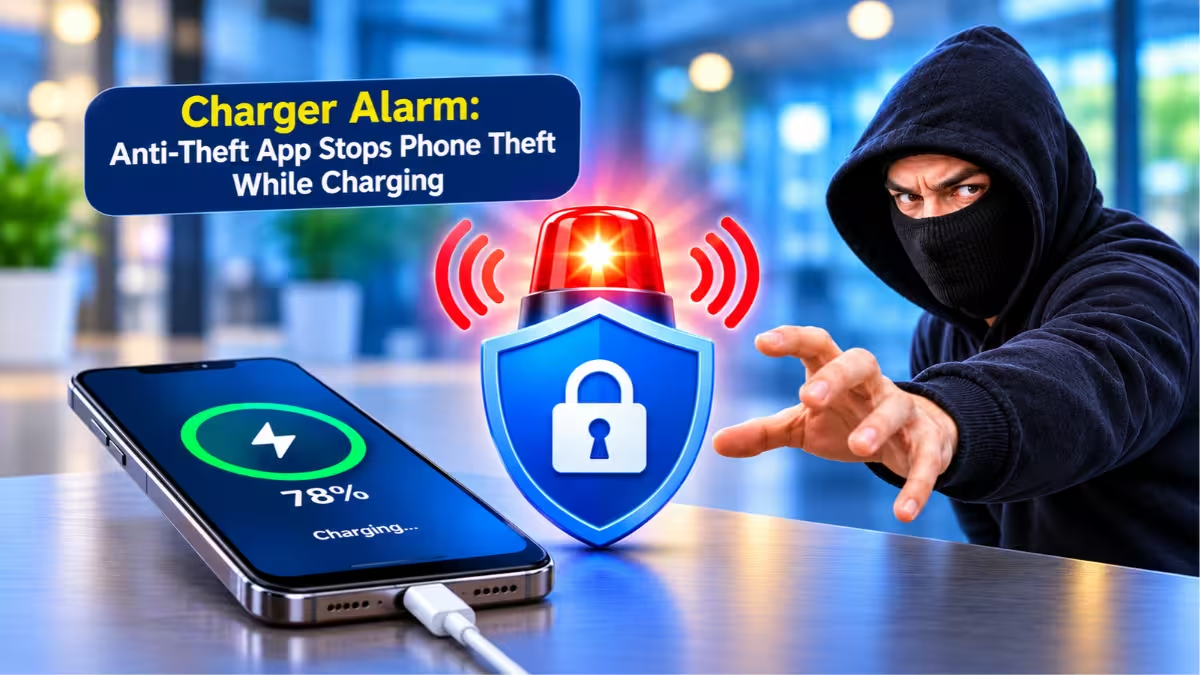
Phones get stolen at charging points in cafes, airports and libraries, and Charger Alarm: Anti-Theft targets exactly that moment.
You plug in the charger and the app arms itself silently. If anyone pulls the cable, a loud siren sounds right away with no grace delay. Only your own fingerprint, face or PIN stops it, so a thief cannot swipe the alarm away. The app ignores loose cable wobble and never fires a false alarm when you unplug your own phone. A motion alarm also catches thieves who grab the phone and the charger together.
Pros
- Arms itself the moment you plug in
- Stops only with your phone's own unlock
- Cable wobble filter and motion alarm
- No false alarms when you unplug your own phone
- Quick Settings tile for one-tap control
- Battery health screen built in
- Alarm volume slider in Settings
- 7-day free trial with every feature unlocked
- No ads and no subscription
Cons
- Costs $4.99 once after the 7-day free trial
- Available only on Android
2. Files by Google (Best App to Free Up Storage)
Files by Google cleans out the clutter that fills a phone and shares files without an internet connection.
The app suggests what to delete, such as duplicate files, old photos from chat apps and cache. It also sorts files by size, moves them to Google Drive or an SD card and locks sensitive files in a private folder with a separate PIN or pattern. Quick Share sends files to nearby Android phones and Chromebooks at up to 480 Mbps. The Google Play listing shows more than 5 billion installs, no ads and a size under 20 MB.
Pros
- No ads and a very small install size
- Fast offline sharing with Quick Share
- Private folder with its own PIN or pattern
Cons
- Some reviewers report that the junk cleaner stopped working on their phones
- Cleaning suggestions cover files, not apps
3. Bitwarden (Best Free Password Manager for Android)
Bitwarden stores every password in one encrypted vault so you stop reusing the same one.
The free plan covers unlimited passwords across all your devices and browsers. It includes a password generator, passkey storage and encrypted sharing with Bitwarden Send. It also supports two-step login with several authenticator apps and hardware security keys. The Google Play listing shows a 4.8 star rating and states that the app contains no ads.
Pros
- Free plan with unlimited passwords and devices
- Annual third-party security audits
- Passkey support and a built-in password generator
Cons
- Advanced features need a paid premium plan
- Some users report autofill and passkey problems, and the developer keeps shipping fixes
4. Speedtest by Ookla (Best Internet Speed Test App)
Speedtest by Ookla measures how fast your connection really runs, which helps when streaming stalls or a video call drops.
One tap tests download speed, upload speed and latency on Wi-Fi or mobile data. The app also checks video streaming quality, keeps a history of past results and shows an outage monitor for popular online services. Carrier coverage maps show where 5G is available. If you want a deeper comparison, read our guide to the best WiFi speed test app features every Android user needs.
Pros
- Tests download, upload, latency and streaming quality
- Outage monitor and coverage maps in one app
- Result history you can share
Cons
- The free version shows ads
- Each test uses mobile data, so run it on Wi-Fi when you can
5. Adobe Scan (Best Document Scanner App for Android)
Adobe Scan turns your camera into a document scanner.
The app detects page edges, straightens the image and saves the scan as a PDF or JPEG. OCR makes the text searchable and editable, and a scan of a business card creates a contact. You can protect a PDF with a password and export it to Word, Excel or PowerPoint. The listing shows more than 100 million installs and a 4.6 star rating.
Pros
- Automatic edge detection and cleanup
- OCR, password protection and export to Office formats
- Business card scanning
Cons
- Free OCR covers only 5 pages
- Combining scans into one file needs a paid subscription
6. AccuBattery (Best Battery Health Checker App)
AccuBattery shows how worn your battery is and how fast each charger really charges.
The app measures real battery capacity in mAh and tracks wear after every charge. It also reads the charging current in mA, which lets you compare chargers and cables. A charge alarm warns you when the battery reaches the level you set, and per-app usage shows what drains power. The Google Play listing shows more than 10 million installs and a 4.7 star rating.
Pros
- Real capacity in mAh and wear per charge
- Charger and cable comparison by charging speed
- Charge alarm and per-app battery use
Cons
- The free version shows ads
- History older than one day needs the Pro version
7. Google Keep (Best Notes App for Quick Lists)
Google Keep captures a note, a checklist or a voice memo faster than any other app on this list.
You can color-code notes, add labels, attach photos and set reminders. Home screen widgets open a new note in one tap, and shared notes work well for grocery lists. Notes sync across your phone, tablet and computer. The Google Play listing shows more than 1 billion installs and a 4.7 star rating.
Pros
- Quick capture with widgets and voice notes
- Reminders, labels and color coding
- Syncs across all your devices
Cons
- Built for short notes, not long documents
- Recent updates changed the look, and some users dislike the new design
How to Install Android Utility Apps Without Fake Clones
Install from the Google Play Store, check the developer name and read the permissions before you tap Allow. Fake clones of popular utilities appear often, so follow our guide on how to spot fake apps before you install anything unfamiliar.
Frequently Asked Questions
What are the best utility apps to install on a new Android phone?
Start with a password manager such as Bitwarden, because it protects every account you create afterwards. Add an anti-theft app such as Charger Alarm: Anti-Theft if you often charge your phone in public places.
Are these utility apps free?
All seven apps are free to install. Files by Google, Bitwarden and Google Keep need no payment for everyday use. Speedtest and AccuBattery show ads in the free version, Adobe Scan limits some features and Charger Alarm: Anti-Theft costs $4.99 once after a 7-day free trial.
Do utility apps slow down my phone?
Most of these apps use little power when you do not open them. Files by Google takes less than 20 MB of storage. Apps that run in the background, such as Charger Alarm: Anti-Theft and AccuBattery, use a small amount of battery to do their job.
Is Charger Alarm: Anti-Theft available for iPhone?
No. The app runs on Android phones and you can download it from Google Play.
Related Guides
- 5 Best Free VPN for Android Apps: Top Picks With Unlimited Data, Streaming and More
- 7 Best Free Phone Automation Apps Replacing Zapier for Android and iPhone
- BTMOB RAT: The Android Malware-as-a-Service Stealing Data via Fake Apps
- How to Install Android Apps from GitHub: A Complete Step-by-Step Guide
- Best Private Android App Stores: Install Apps Without a Google Account