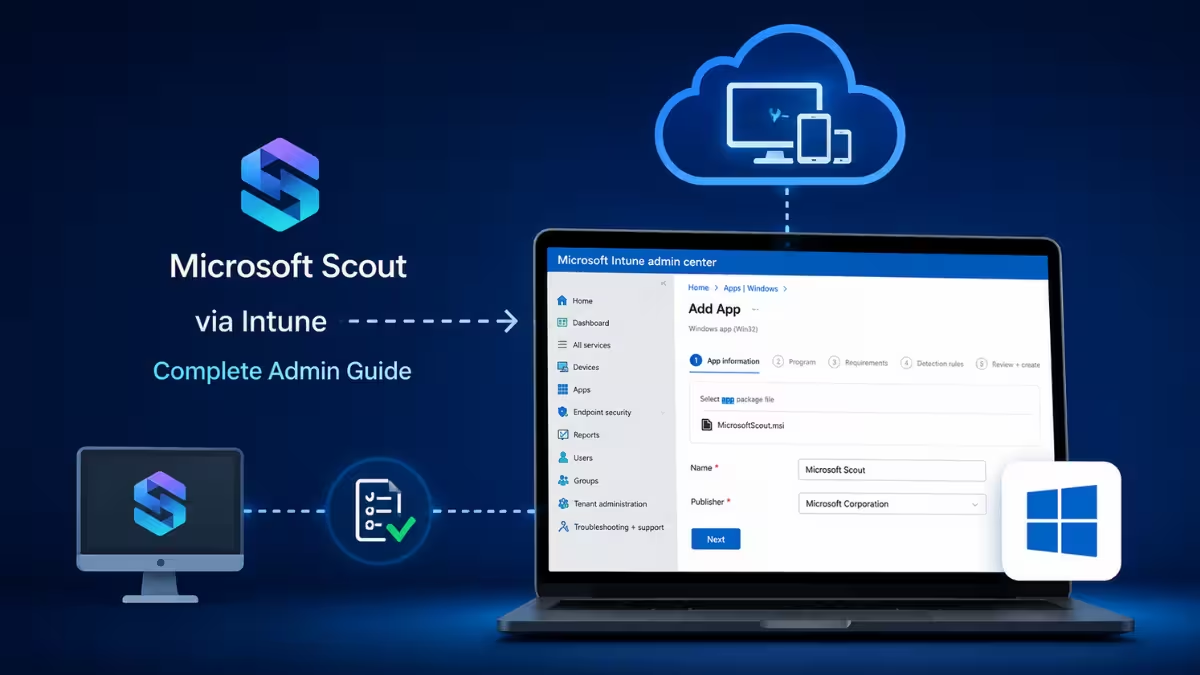
Microsoft Scout only works after an IT admin enables it at the tenant level. Individual users cannot install the app and sign in on their own, even if they meet every personal prerequisite. This guide walks Intune administrators through the full deployment process, from importing the Windows policy template to configuring macOS devices and troubleshooting common rollout issues.
Before you follow this guide, confirm your organization has already completed Frontier enrollment at the Microsoft 365 admin center level. That is a separate, earlier gate. This guide only covers the device-level Intune deployment that comes after Frontier access is turned on for your tenant.
Microsoft Scout Intune Deployment Steps
You will import the Microsoft Scout ADMX/ADML template into Intune, create a Windows configuration policy that turns on Frontier access, then build a matching macOS configuration profile so both platforms receive the same tenant policy.
The rollout happens in three parts. Each part maps to one section below:
- Part 1: Import the Microsoft Scout Windows ADMX/ADML templates into Intune
- Part 2: Create a Windows configuration policy, enable Frontier access inside it, and assign it to devices
- Part 3: Create and assign a matching macOS configuration profile
Prerequisites
Before you start, make sure you have the following:
- A Microsoft 365 work or school account associated with your organization (personal accounts do not work)
- Intune tenant administrator credentials
- Access to the Microsoft Intune admin center at intune.microsoft.com
- The latest Microsoft Visual C++ Redistributable (Windows devices only)
- The Microsoft Scout Windows policy template files:
microsoft-scout.admxandmicrosoft-scout.adml - The Microsoft Scout macOS configuration profile file:
microsoft-scout.mobileconfig
Microsoft publishes these template and profile files on its official GitHub organization. Search “Microsoft Scout Intune templates” on GitHub, or check Microsoft’s Frontier documentation portal for the current download link, since Microsoft occasionally moves the repository while Scout is still in preview. Download all three files before you start Part 1.
Part 1: Import the Microsoft Scout ADMX Template
Importing the template makes Microsoft Scout’s settings available when you create a Windows configuration policy.
- Go to intune.microsoft.com and sign in with your tenant administrator credentials. Confirm the admin center loads for the correct tenant.
- In the left navigation, select Devices. Under Manage devices, select Configuration, then open the Import ADMX tab.
- Select Import, then upload both template files using the file picker: the ADMX file (
microsoft-scout.admx) and the ADML file (microsoft-scout.adml). Once both filenames appear on the page, select Next. - On Review + create, confirm both files are listed correctly, then select Create.
- Wait for Intune to finish uploading and processing the template. Do not continue until the import status shows complete.
- Once the upload finishes, confirm the Microsoft Scout template status reads Available. You can now use it to build a Windows configuration policy.
Part 2: Create the Windows Microsoft Scout Policy
This policy turns on Frontier access for the devices you assign it to. Follow these steps in order.
- Return to Devices, then Configuration. Open the Policies tab and select New policy.
- Choose Windows 10 and later as the platform and Templates as the profile type.
- Select Imported Administrative Templates from the template list. This pulls in the Microsoft Scout template you imported in Part 1. Select Create to open the policy setup screen (this starts the policy, it does not finish it yet).
- Give the policy a clear name, such as “Microsoft Scout – Frontier access.” Add a description if you want, then select Next.
- On Configuration settings, select the imported Microsoft Scout configuration template, then choose the correct policy version from the available options.
- Under Microsoft Scout, then Capabilities, open the setting named Allow Microsoft Scout Frontier access.
- Set it to Enabled, then select OK.
Important: this is the setting that actually controls sign-in. It enables the AllowScoutFrontierAccess capability on any device that receives the policy. If this setting stays disabled or unconfigured, users on Frontier builds see a waitlist screen and cannot sign in, even after installing the app.
- On Scope tags, leave the default scope tags unless your organization needs a specific Intune RBAC scope tag. Select Next.
- On Assignments, choose which groups or devices should receive the policy. Assign to All devices for a full tenant rollout, or target a smaller pilot group if you are testing first.
- Review the policy summary, confirm the Frontier access setting shows as enabled, then select Create to finish the policy.
- Confirm the new policy appears in your configuration policy list.
Part 3: Create the macOS Microsoft Scout Policy
With Windows covered, repeat the process for any Mac devices in your fleet. Mac devices need a separate custom configuration profile that carries the same tenant policy, since macOS does not use ADMX templates.
- Return to Devices, then Configuration. Select New policy to start a macOS profile.
- Choose macOS as the platform, Templates as the profile type, and Custom as the template name. Select Create.
- Name the profile clearly, for example “Microsoft Scout – macOS Frontier access.” Add a description if needed, then select Next.
- On Configuration settings, upload
microsoft-scout.mobileconfigand set the following values:
| Setting | Value |
|---|---|
| Custom configuration profile name | macOS |
| Deployment channel | Device channel |
| Configuration profile file | microsoft-scout.mobileconfig |
- Once the file uploads and its contents appear, select Next.
- On Assignments, choose the devices or groups that should receive the macOS profile. Assign to All devices for a broad rollout, or scope it to a pilot group first.
- Review the summary, confirm the uploaded file is listed correctly, then select Create.
- Confirm the macOS profile appears in your configuration policy list.
How to Verify Microsoft Scout Deployment Was Successful
Creating the policies in Part 2 and Part 3 only confirms the configuration was saved correctly. It does not confirm sign-in actually works. Both the Windows policy and the macOS profile need to sync to their target devices before anyone can actually sign in. Before rolling this out tenant-wide, confirm the deployment works on at least one device per platform:
- Confirm the Windows policy shows
AllowScoutFrontierAccessas enabled through the Allow Microsoft Scout Frontier access setting - Confirm assigned devices actually belong to your target groups
- Give Intune policy sync enough time to complete on target devices
- On a managed Frontier device, open Microsoft Scout and check that the user can sign in without hitting the waitlist screen
Microsoft Scout Intune Deployment Troubleshooting
| Symptom | What to Check |
|---|---|
| The Microsoft Scout Windows settings do not appear | Confirm microsoft-scout.admx and microsoft-scout.adml imported successfully and show as Available |
| Users still see a waitlist screen | Confirm your organization has completed Frontier enrollment at the Microsoft 365 admin center level, then confirm Allow Microsoft Scout Frontier access is set to Enabled, the policy is assigned to the device, and the device has synced with Intune |
| macOS devices do not receive the setting | Confirm microsoft-scout.mobileconfig was uploaded to a macOS Custom profile using the Device channel and assigned to the right devices |
| Policy applies to the wrong audience | Review the assignment groups on both the Windows and macOS profiles |
Frequently Asked Questions
Does installing Microsoft Scout on a device grant access automatically?
No. Installing the app does nothing on its own. Users can only sign in after the Intune policy is created, assigned to their device, and synced. The app install and the admin policy are two separate steps.
Can I roll out Microsoft Scout to a small pilot group first?
Yes. Instead of assigning the Windows and macOS policies to All devices, assign them to a specific device or user group during Assignments. This lets you test the deployment before a tenant-wide rollout.
Do I need separate policies for Windows and macOS?
Yes. Windows devices use an imported ADMX/ADML administrative template inside a configuration policy. macOS devices use a separate custom configuration profile built from the microsoft-scout.mobileconfig file. Both need to be created and assigned independently.
How long does it take for a new policy to reach user devices?
It depends on your organization’s Intune sync interval, but plan for it to take some time after assignment before devices actually receive the policy. If you need to confirm a specific device got it sooner, you can trigger a manual sync from that device’s settings instead of waiting for the next automatic check-in.

