HP Command Center lets you control how your HP laptop or desktop performs. You can switch thermal profiles, prioritize network traffic for games or calls, and tune your machine for speed or quiet running. The app is free, and you can install it in a couple of minutes on Windows 11. This guide walks you through every method, plus what to do when the app refuses to install or goes missing after a Windows reinstall.
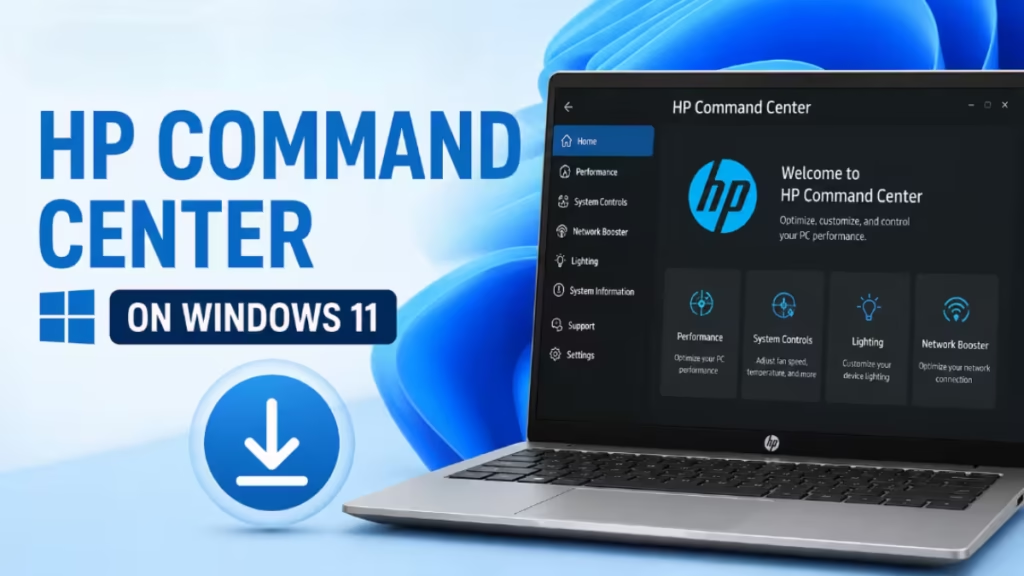
What HP Command Center Does
HP Command Center gives you a single dashboard to manage performance and cooling on supported HP devices. The main controls include:
- Thermal profiles: Switch between modes like Performance, Balanced, Cool, and Quiet to balance speed, heat, and fan noise.
- Network Booster: Set priority for selected apps so games, video calls, or downloads get bandwidth first.
- System tuning: On some models, adjust display, GPU, or fan behavior directly.
The app reads sensor data from your hardware, so it only works on HP machines that ship with the matching firmware. It will not run on non-HP devices.
Supported HP Models
HP Command Center is available on select HP consumer and business lines. Compatible models include:
- HP Spectre series (all recent configurations)
- HP ENVY series (creator and mainstream models)
- HP Pavilion Aero (select thin-and-light configurations)
- HP OMEN (select models; dedicated gaming variants may use OMEN Gaming Hub instead)
- Various recent HP EliteBook and ProBook business notebooks
Budget models and older laptops that lack embedded thermal sensors do not support the app. To confirm your specific model, visit the HP support site, enter your serial number, and check the Software and Drivers section. If the HP System Event Utility appears in your driver list, your device is compatible.
How to Download HP Command Center on Windows 11
Check these basics so the install goes smoothly:
- You are running Windows 11 (or Windows 10 version 1903 or higher) on a genuine HP laptop or desktop.
- Your device supports HP Command Center. Most recent HP consumer and business models do, but very old or budget machines may not.
- You are signed in to a Microsoft account if you plan to use the Microsoft Store method.
- You have an active internet connection.
- The HP System Event Utility is installed. This background driver is a prerequisite for HP Command Center to function. Without it, the app may install but will show no controls, or it may not appear in the Store at all. Download it from the HP support page for your model before proceeding.
Method 1: Download HP Command Center from the Microsoft Store
This is the fastest method on a machine that has never had a clean Windows reinstall.
- Click the Start button and type Microsoft Store, then open it.
- Click the Search box at the top and type HP Command Center.
- Select HP Command Center from the results. Confirm the publisher shows as HP Inc. so you install the official app.
- Click Get (or Install).
- Wait for the download to finish. The Store installs the app automatically once it downloads.
- Click Open, or find HP Command Center in your Start menu.
The Store also keeps the app updated, so you get new features and fixes without manual downloads.
Method 2: Use the Direct Microsoft Store Link
Many users find that HP Command Center does not appear in standard Store search results. This is a known Microsoft Store indexing issue and does not mean the app is unavailable for your device.
The fix is to open the app listing directly using a browser link rather than searching inside the Store:
- Open Microsoft Edge (Edge handles Microsoft Store deep links more reliably than Chrome or Firefox).
- Go to the HP Command Center Microsoft Store listing.
- Click Get in Store app. This forces the Store to open directly to the download page, bypassing the broken search index.
- Click Install inside the Store window that opens.
Use this method any time the app fails to appear in a standard Store search.
Method 3: Install HP Command Center Through HP Support Assistant
If your HP device came with HP Support Assistant, you can pull the app from there.
- Open HP Support Assistant from the Start menu. If it is not installed, download it from the official HP support site.
- Go to the My devices tab and select your PC.
- Open the Updates or Software and drivers section.
- Let the tool scan for available software. If HP Command Center appears in the list, select it and click Download or Install.
- Follow the prompts and restart if asked.
Method 4: Download from the HP Support Website
You can also fetch software directly from HP if the Store method does not work for you.
- Go to the official HP support page for software and drivers.
- Enter your product name or serial number, or let the page detect your device.
- Choose Windows 11 as your operating system.
- Look under the Software category for HP Command Center or a related performance utility.
- Download the file and run the installer, then follow the on-screen steps.
HP now distributes Command Center mainly through the Microsoft Store, so the Store remains the recommended route when it is available to you.
How to Install HP Command Center After Reinstalling Windows 11
A clean Windows reinstall wipes all original HP software, including the background drivers HP Command Center depends on. Simply downloading the app from the Store after a reinstall often fails because the prerequisite driver layer is missing. Follow this sequence to restore everything correctly.
Why the App Goes Missing After a Reinstall
A clean Windows ISO from Microsoft is a generic build. It does not include the HP-specific firmware injections or system utilities that came preloaded on your original factory image. HP Command Center relies on these proprietary components to communicate with your hardware, so installing the app before reinstalling the drivers will result in a blank dashboard or a failed installation.
Step-by-Step Reinstall Sequence
- Update Windows full: Go to Settings, open Windows Update, and install all pending updates. Restart before continuing.
- Install core HP drivers: Open HP Support Assistant or visit the HP support page for your model. Install the chipset driver, the HP PC Hardware Diagnostics package, and any advanced thermal drivers listed for your device.
- Install the HP System Event Utility: This is the mandatory prerequisite. Download it from the HP support page for your specific model. The utility runs as a background service and translates your hardware states into commands the app can read. Without it, HP Command Center will not function.
- Restart your PC: Reboot after installing the System Event Utility so the service initializes properly on the next startup.
- Download HP Command Center: Use the direct Microsoft Store link method via Microsoft Edge to install the app.
- Restart again: A second restart allows the app to connect to the newly installed system services.
After the final restart, open Device Manager, expand System devices, and confirm that HP Application Driver or HP Thermal Framework appears without a yellow warning triangle.
How to Open HP Command Center After Installing
- Click Start and type HP Command Center.
- Open the app from the results.
- The dashboard loads with your current thermal profile and system status.
- Pin it to your taskbar or Start menu if you use it often. Right-click the icon and choose Pin to taskbar.
How to Use HP Command Center
Once installed, the app is straightforward to navigate.
- Switch thermal profiles: Open the app and click the Thermal Profile tab on the left menu. Select Performance, Recommended, Cool, or Quiet depending on your current task. The change applies immediately.
- Use Performance mode for gaming or rendering: This removes power limits on your CPU and GPU and runs fans at maximum speed to prevent thermal throttling.
- Use Cool mode on soft surfaces: If you are working with the laptop on a bed or couch, Cool mode accelerates fans and slightly throttles power to keep the chassis temperature low.
- Use Quiet mode in silent environments: Libraries, recording sessions, or video calls benefit from Quiet mode, which drops the fan speed to near-silent levels.
- Set Network Booster priority: Open the Network Booster tab and select which app gets bandwidth priority. This is useful for games or video calls on congested connections.
Troubleshooting HP Command Center Issues on Windows 11
“This app does not work on your device”
HP Command Center only runs on supported HP hardware. If you see this message, your specific model likely lacks the required firmware. Confirm your exact model on the HP support site to see whether the app is offered for it.
The app will not install from the Microsoft Store
Try these steps in order:
- Use the direct Microsoft Store link in Microsoft Edge instead of searching inside the Store.
- Check for Windows updates. Open Settings, go to Windows Update, and install anything pending.
- Reset the Store cache. Press Win + R, type wsreset.exe, and press Enter. A blank window will flash briefly and the Store will reopen. This clears corrupted local Store data without affecting your installed apps.
- Update the Microsoft Store itself. Open the Store, click your profile icon, and choose App updates, then update the Store.
- Repair the Store. Open Settings, go to Apps, find Microsoft Store, click the three dots, choose Advanced options, and select Repair. If that fails, use Reset.
- Sign out and back in to your Microsoft account inside the Store.
HP Command Center does not appear in Store search
Two common causes:
- Regional distribution block: Go to Settings, open Time and language, then Language and region, and change your country to United States. Restart the Store. HP occasionally rolls out Store updates in region-specific batches, and switching to the US region bypasses the delay.
- Signed-out account: Some OEM apps stay hidden for users who are not signed in to a Microsoft account inside the Store.
If neither fix works, use the direct Store link method described in Method 2.
The app installs but shows no controls
The HP System Event Utility is likely missing. Download and install it from the HP support page for your model, then restart. After restarting, check that the HP App Helper HSA Service is running:
- Press Win + R, type services.msc, and press Enter.
- Scroll to HP App Helper HSA Service.
- The Status column should show Running and Startup Type should be Automatic.
- If the service is stopped, right-click it and choose Start.
HP Command Center opens then immediately closes
This points to a missing or stopped background service. Open services.msc as described above and confirm HP App Helper HSA Service is set to Automatic and is running. If the service fails to start, open Event Viewer under Windows Logs and check the Application log for a specific .dll error at the time the crash occurs.
Performance profiles are not applying
Check that your Windows power plan is set to Balanced in Settings, under System, then Power and battery. An aggressive third-party antivirus tool can also block HP Command Center from writing to CPU power states. Temporarily disable it to test whether the profiles apply.
App is missing after a Windows feature update
Major Windows feature updates can overwrite custom OEM drivers with generic Windows alternatives. Reinstall the HP System Event Utility and the HP Advanced Thermal Framework driver from the HP support page for your model, then restart.
Frequently Asked Questions
Is HP Command Center free?
Yes. HP offers the app at no cost through the Microsoft Store for supported devices.
Does HP Command Center work on any laptop?
No. It works only on HP laptops and desktops that include the required hardware and firmware. It will not install or function on non-HP machines.
What is the difference between HP Command Center and OMEN Gaming Hub?
HP Command Center targets mainstream HP consumer and business PCs for thermal and network control. OMEN Gaming Hub serves HP OMEN and Victus gaming systems with gaming-focused features. Your device ships with whichever one matches its product line.
How do I reinstall HP Command Center after a clean Windows reinstall?
Install Windows updates first, then install the HP System Event Utility from the HP support page for your model, restart, and then download HP Command Center using the direct Microsoft Store link in Microsoft Edge. Skipping the System Event Utility step will result in a failed or non-functional installation.
Why is HP Command Center not showing in the Microsoft Store?
The most common causes are a regional distribution block, a signed-out Microsoft account, or a corrupted Store cache. Fix the cache by running wsreset.exe, switch your Windows region to United States in Settings, and sign in to your Microsoft account inside the Store. If the app still does not appear, use the direct Store link method.
Can I uninstall HP Command Center?
Yes. Open Settings, go to Apps, find HP Command Center, click the three dots, and choose Uninstall. Your PC keeps its default thermal behavior afterward.
Do I need to keep HP Command Center running?
No. It runs in the background to apply your chosen profile, but you can close the window. The active thermal and network settings stay applied until you change them.
What if my HP model is not supported?
You can manage basic performance settings through Settings, under System, then Power and battery, using the built-in Windows power mode slider. HP Support Assistant also provides driver updates and diagnostics for unsupported models. If you own an OMEN or Victus gaming device, check whether OMEN Gaming Hub is available for your model instead.
Related Guides
- How to Fix HP BIOS Update BitLocker Recovery Loop on Windows 11
- How to Fix BSOD Because of BTHport.sys on Windows 10 and 11
- How to Fix “Boot Device Not Found” Error on HP Laptops (3F0 Error)
- How to Fix HP EliteBook x360 1030 G2 Touchpad Not Working After Windows Update
- How to Recover a Corrupted BIOS on HP Laptops Using the Official HP Recovery Method

